

I ran out of credits
Your workspace is low on or out of credits. See what still works (editing, exports, sharing and recording), what needs credits, every message you may see, and the fastest way to get more on your plan: a credit pack, an upgrade, bonus credits or the monthly refill.
Credits pay for the AI's work: making videos, clips and articles, assistant edits, translations and new voice-overs. When your workspace runs low or out, everything else keeps working, and there are several ways to get more. This page covers what you'll see, what still works and how to add credits on each plan.
Quick checks
- Check the balance. The credits widget in the sidebar shows what's left, or Running low / Out of credits. Click it for the breakdown.
- Check which workspace you're in. Credits belong to one workspace and never move between workspaces.
- Check when your credits refill. Included credits renew every month on your plan's date.
- Check who can buy. Only the workspace owner can buy credits or change the plan.
What you'll see
| Where | What it says |
|---|---|
| Sidebar credits widget | Running low, then Out of credits |
| A banner at the top of the page (every page except Billing) | "You're running low: 85 credits left." or "You're out of credits." The owner gets a button to buy a pack; other members see "Ask your team owner to add credits." |
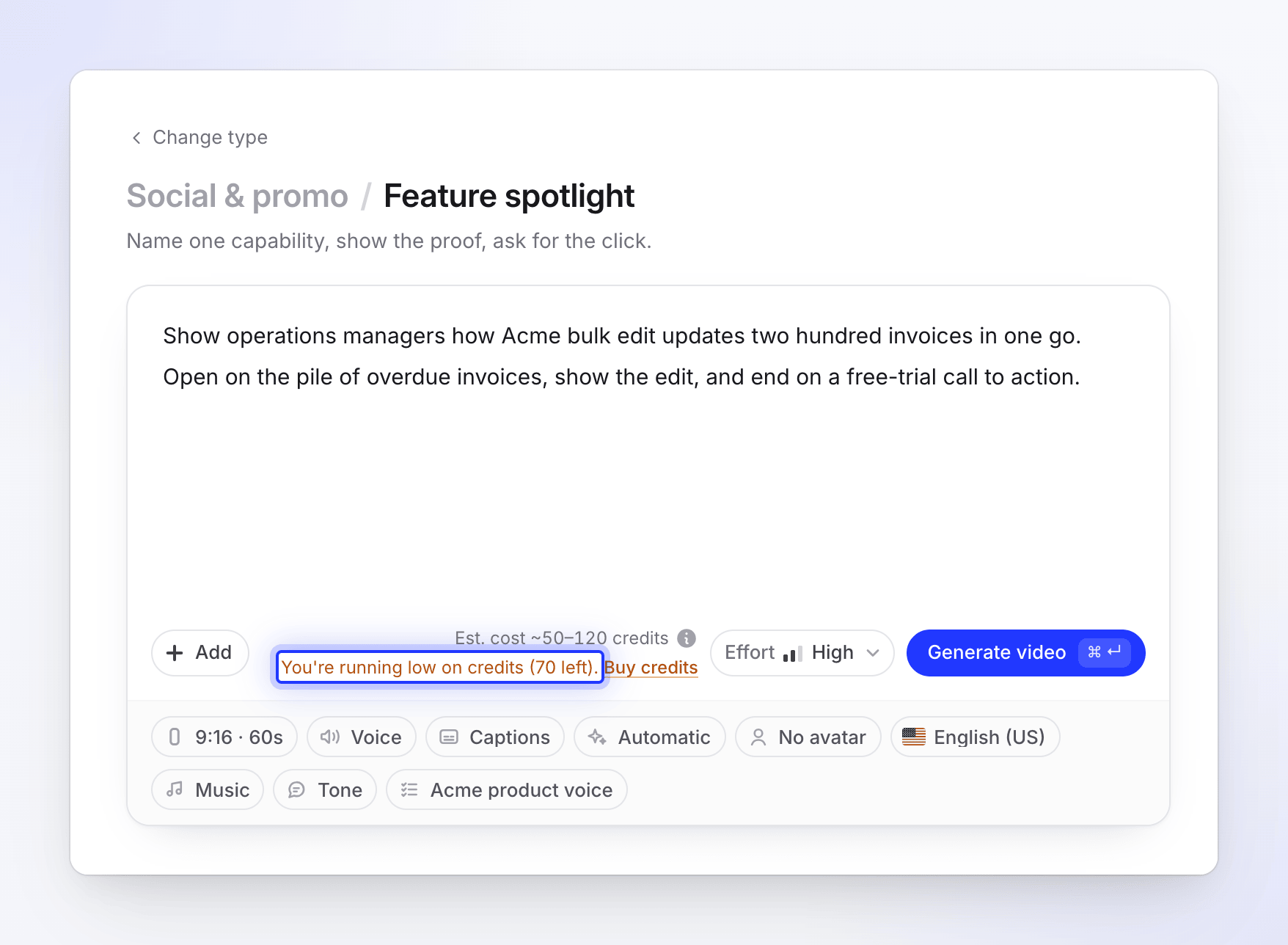
| Under Generate on the Create page | "You're running low on credits (40 left)." or "You have 12 credits." with Buy credits (or Upgrade on Free) |
| Inbox, when credits run low | Credits are running low — "85 credits left. Buy more to keep creating." On Free: "85 credits left this month. Upgrade for more." |
| Inbox, when the wallet is empty | Acme Inc. is out of credits — "Add credits to keep creating." On Free: "Upgrade to keep creating, or wait for next month's credits." Members who can't buy see "Ask the workspace owner to add credits." |
| Usage page | A forecast such as "At this pace you'll run out around Oct 28, 6 days before your included credits refill…" |

What still works without credits
| Still works | Notes |
|---|---|
| Editing videos, clips and articles by hand | Script text, style, zooms, elements, timing and captions styling |
| Exporting MP4s | In any resolution your plan allows. Exports never use credits. |
| Share links, embeds and analytics | Nothing changes for your viewers. |
| Recording with the desktop app and uploading videos | Your recordings wait in your library until you have credits to make something from them. |
| A video that's already being made | It always finishes. If it uses more than you have left, the extra shows as Owed and comes out of your next credits. |
What needs credits
- Generating a video, social clip or article (Generate, Try again)
- Asking the AI assistant for a change
- Translating a video or article
- Regenerating a voice-over line, or generating captions
- Website research and Record with AI
- An AI avatar
A new generation needs enough credits to start: your balance has to cover at least the low end of its estimate. If it doesn't, the job doesn't start and Clevera tells you with one of these messages:
| Message | What to do |
|---|---|
| "This needs about 50 credits and you have 12 left. Buy more credits or upgrade your plan in Billing to continue." | Add credits (below). A job only needs the low end of its estimate to start, so a small pack is often enough. |
| "You have used all your credits for this billing period. Buy more credits or upgrade your plan in Billing to continue. Your included credits renew on your next billing date." | Add credits, or wait for the refill. |
| "You have used all your credits for this billing period. Since your subscription is set to cancel, please re-subscribe to continue." | The subscription is ending, so credits can't be bought. The owner can restore the subscription in Billing. See Cancel or restart your subscription. |
| "You have used this month's Free plan credits. Upgrade to keep creating, or wait for your credits to renew on Nov 3." | Upgrade, earn bonus credits, or wait for the date shown. |
| "Free plan: no monthly credits in this workspace. Free credits go to one workspace per owner. Upgrade to create here." | Create in the workspace that has your Free credits, or upgrade this one. |
How the balance is checked and charged: Know when credits are charged.
Get more credits
| Your plan | Options |
|---|---|
| Free | Upgrade to Starter or Pro, earn bonus credits by inviting friends, or wait for next month's 100 credits. Free workspaces can't buy packs. |
| Starter | Buy a credit pack: 1,000 credits for US$50, 1–10 at a time. Or move to Pro for 4,000 credits a month. |
| Pro | Buy a credit pack, or add a seat (+650 credits a month each). |
| Custom | Contact us; our team adds credits to your plan. |
| Not the owner | Ask the workspace owner. Only the owner can buy credits or change the plan. |
Buy a credit pack
Open Billing
Click the credits widget in the sidebar, then Buy credits.
Choose the amount
In Credits to add, pick 1,000 to 10,000 credits.
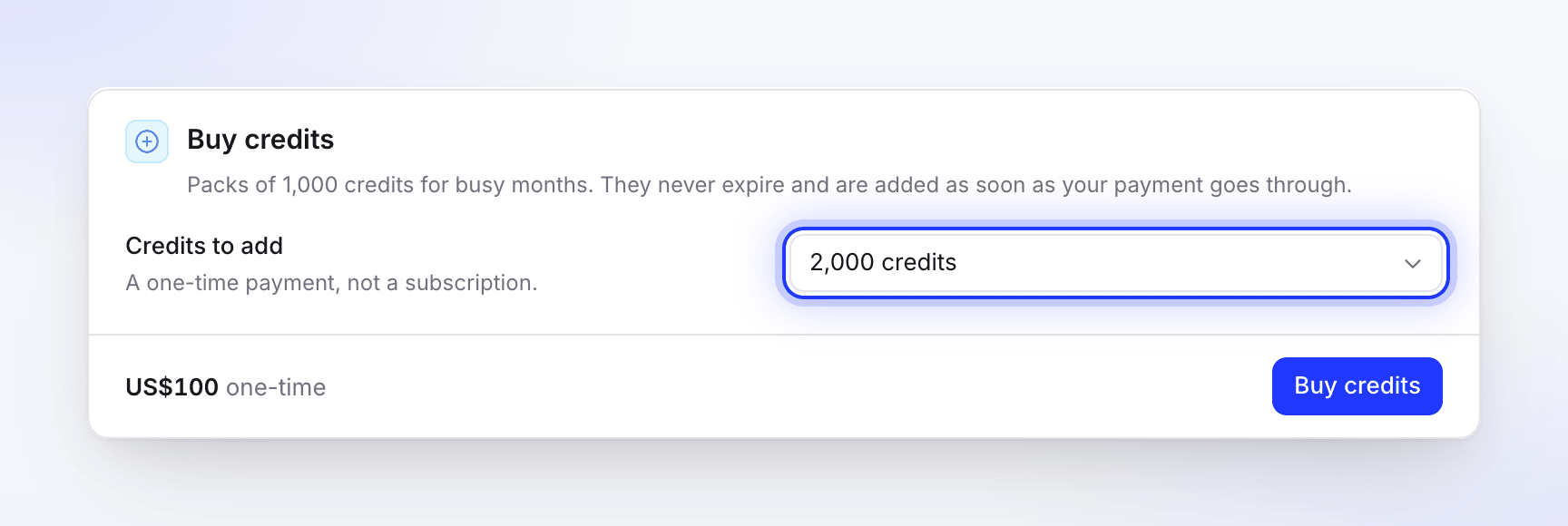
Packs come in steps of 1,000 credits. Pay
Click Buy credits and pay on the secure checkout page. The credits are added as soon as the payment goes through, and your inbox says "Your credit purchase is in."
Bought credits never expire and are used after your included and bonus credits. Full details: Buy extra credits.
When credits refill
- Included credits renew every month on your plan's date, on monthly and yearly plans alike. Unused included credits don't roll over.
- Bonus credits (from invites) and bought credits never expire.
- Credits are used in this order: included, then bonus, then bought.
- Anything owed from a job that ran past your balance is taken from the next credits you get.
- Credits used by a video, clip, article, translation, website research or Record with AI run that failed on our side go back to the kind of credits they came from. The Usage page shows them as "Failed run refunded · …". See Know when credits are charged.
See Understand credits.
Find out where the credits went
The Usage page shows every job, who ran it, what it was estimated at and what it used. Owners and Administrators see the whole workspace; other members see their own usage. See Check where your credits went.
When to contact support
Contact support from the chat in the app if:
- you paid for a pack and the credits haven't arrived after a few minutes,
- a job used far more than its estimate and you don't know why.
Include the workspace name and, for a job, the video's name.