

Fix SSO sign-in problems
Every single sign-on message in Clevera, what causes it and how to fix it: on the sign-in page, after your identity provider, while saving the setup, in Run test, and on sign-out.
This article lists every message Clevera shows about single sign-on (SSO), what causes it and how to fix it: on the sign-in page, after your identity provider (IdP) sends someone back, while saving the setup, and in Run test.
Most sign-in problems come from one of five things: the person's email domain isn't on your list, they already have a Clevera account outside your workspace, the IdP signs only part of the SAML response, a value was copied wrongly, or sign-in started somewhere other than the Clevera sign-in page.
Quick checks
| Check | Where |
|---|---|
| Enable SSO is on and the badge says Active | Team settings → Security |
| The person's exact email domain is in Allowed email domains (subdomains count separately) | Team settings → Security |
| The person is assigned to the app in your IdP | Your IdP |
| The person is a member of your workspace, or has no Clevera account yet | Team settings → Members |
| They started on the Clevera sign-in page and typed their work email, not on a tile in your IdP's dashboard | The sign-in page |
| The workspace is still on a Custom plan | Billing |
The sign-in page doesn't offer SSO
When someone types their email, the sign-in page shows "Your organization uses Okta" (your provider's name, or "SSO" for a custom provider) and a Continue with button once it recognizes the domain. If it doesn't appear:
- The domain isn't in Allowed email domains, or there's a typo in the email.
- Enable SSO is off, or the configuration isn't complete.
- The workspace is no longer on a plan that includes SSO.
Clicking the Clevera tile in your IdP doesn't sign in
Clevera only accepts a sign-in that starts on the Clevera sign-in page. When someone clicks Clevera's tile on the Okta dashboard, in Microsoft My Apps or in the Google apps menu, the IdP sends a response Clevera never asked for. Clevera refuses it and shows its sign-in page with "SSO session expired. Please try again."
This is on purpose: each SAML sign-in is tied to the browser that started it and can be used once, so nobody can slip their own sign-in into someone else's browser. Ask people to go to the Clevera sign-in page, type their work email and click Continue with your provider. You can hide the tile in your IdP so nobody tries it.
Messages on the sign-in page
| Message | Cause | Fix |
|---|---|---|
| "No SSO sign-in is available for this email address. Use your regular sign-in method instead." | No active SSO connection covers this email's domain. | Check the domain and Enable SSO. |
| "SSO is not available for this team. The team subscription may have changed." | The workspace's plan no longer includes SSO. | Contact us about your Custom plan. Members use their password or Forgot password? in the meantime. |
| "Please enter a valid email address." | The email field isn't a valid address. | Retype it. |
| "Failed to initiate SSO login. Please try again or use email/password." | Clevera couldn't build the sign-in request, usually because an OIDC discovery URL can't be loaded right now. | Click Run test. Check the Discovery URL is public and correct. |
| "We couldn't start single sign-on. Try again." | The request failed or there were too many attempts in a minute. | Wait a minute and try again. |
| "We couldn't reach Clevera. Check your connection and try again." | No connection to Clevera. | Check the network or VPN. |
| "Your organization requires Single Sign-On. Use the SSO button to continue." | A member tried their password while Require SSO is on. | Use Continue with your provider. |
| "Your organization requires Single Sign-On. Please use the SSO option on the login page." | A member, or someone new on your domain, tried Continue with Google while Require SSO is on. | Type the work email and use the SSO button. |
With Require SSO on, the sign-in page also hides Create an account for addresses on your domains.
On the sign-up page
| Message | Cause | Fix |
|---|---|---|
| "Your organization signs in with single sign-on (SSO). Go to Sign in, enter this email and choose Continue with SSO." | Someone on a domain with Require SSO on tried to create an account with a password. | Go to the sign-in page, type the work email and click Continue with your provider. The account is created on first SSO sign-in if Create accounts on first sign-in is on; otherwise the owner invites them first. |
Messages after the identity provider
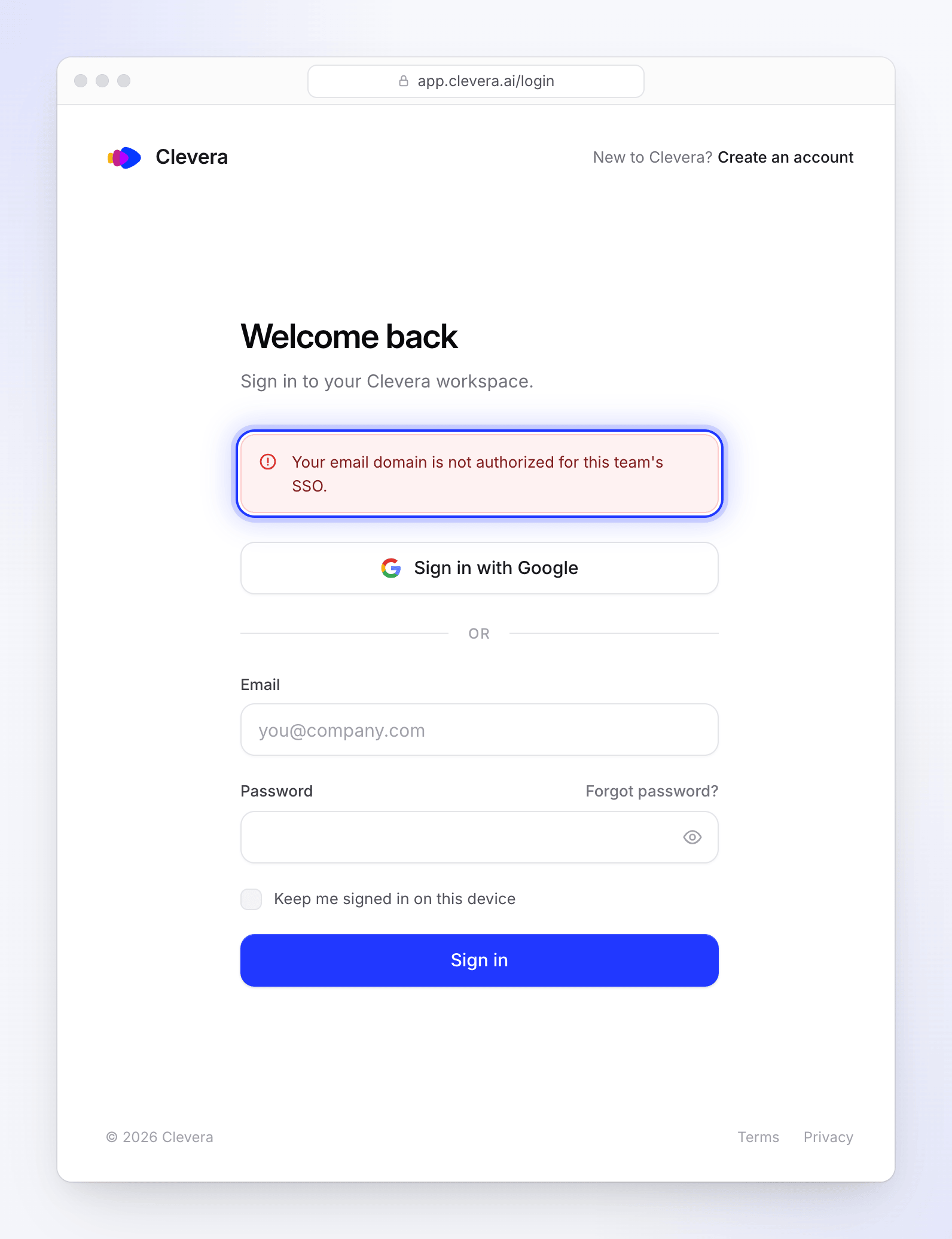
These appear at the top of the Clevera sign-in page when the IdP sends the person back.
| Message | Cause | Fix |
|---|---|---|
| "SSO session expired. Please try again." | Clevera couldn't match the response to a sign-in it started. Usually the person clicked Clevera's tile on the IdP's dashboard, switched browsers, used the back button or refreshed to resend the sign-in, or took longer than 10 minutes at the IdP. | Start again from the Clevera sign-in page in the same browser. See Clicking the Clevera tile. |
| "SSO session validation failed. Please try again." | OIDC only. The response belongs to a different sign-in attempt, for example after using the back button or signing in from two tabs. | Close other Clevera sign-in tabs and start again. |
| "SSO authentication was cancelled or denied. Please try again." | OIDC only. The IdP returned an error: the person cancelled, isn't assigned to the app, or consent was refused. | Assign them to the app in your IdP; try again. |
| "No authorization code received." | OIDC only. The IdP came back without a sign-in code. | Check the app is set to the Authorization Code grant. |
| "SSO configuration not found or disabled." | SSO was turned off or removed while the person was signing in. | Switch Enable SSO back on. |
| "Your email domain is not authorized for this team's SSO." | The email the IdP sent uses a domain that's not in Allowed email domains. Common with aliases, secondary domains, or a sign-in name that differs from the email. | Add the domain, or change what the IdP sends as the email (Name ID or email claim). |
| "This account is no longer available." | The account is being deleted. | It can't sign in again. Use another email. |
| "SSO authentication failed. Please contact your team administrator or use another sign-in method." | The response was refused. See the causes below. | Work through the list below. |
"SSO authentication failed"
This message covers every case where Clevera refuses the response, so check these in order:
| Cause | Fix |
|---|---|
| The person already has a Clevera account but isn't a member of your workspace. SSO never takes over an outside account. | Invite them. Once they accept, SSO works. |
| The person has no account and Create accounts on first sign-in is off. | Invite them, or turn the setting on. |
| The owner is signing in through a connection someone else saved (for example after a transfer of ownership). | The current owner opens Edit and saves the connection once. Until then, sign in with the password. |
| SAML: only the assertion (or only the response) is signed. | Make the IdP sign both. |
| SAML: the certificate in Clevera isn't the IdP's current signing certificate. | Paste the current certificate (Edit → step 2) and save. |
| SAML: the IdP's audience or recipient doesn't match. | The audience must be exactly Clevera's Entity ID / Audience URI, and the recipient or destination exactly https://app.clevera.ai/sso/saml/callback. |
| SAML: the assertion is encrypted. | Turn off assertion encryption. |
SAML: no email. The Name ID isn't an email and there's no email attribute. |
Set the Name ID format to EmailAddress with the person's email. |
| SAML: the IdP Entity ID in Clevera doesn't match the issuer in the response. | Copy the issuer again from the IdP. |
| OIDC: the client secret is wrong or expired, or the redirect URI doesn't match. | Paste a new secret (Edit); the redirect URI must be exactly the Redirect URI (callback URL) shown in the setup dialog, https://app.clevera.ai/sso/oidc/callback. |
OIDC: no valid email in the email, preferred_username or upn claims. |
Add the email claim in your IdP, or give the person an email address. |
| OIDC: the issuer doesn't match the discovery URL, for example a multi-tenant URL. | Use your tenant's own discovery URL. |
When your IdP rotates its OIDC signing keys, Clevera fetches the new keys once before refusing a sign-in, so rotation alone doesn't cause this message.
If none of these fit, contact support with the email that failed and the time of the attempt. We can see the exact reason in our logs.
Messages while setting up
| Message | Fix |
|---|---|
| "SSO is available on the Custom plan." | Shown when you save while the workspace isn't on a Custom plan, for example after the plan changed with the page open. Contact us to add SSO. |
| "Identity provider Entity ID is required." / "Identity Provider Entity ID is required." | Fill in IdP Entity ID. |
| "SSO sign-in URL is required." / "Identity Provider SSO URL is required." | Fill in SSO sign-in URL. |
| "SSO sign-in URL must be a valid URL." / "Logout URL must be a valid URL." | Paste the full address, starting with https://. |
| "X.509 certificate is required." / "An IdP certificate is required." | Paste the IdP's signing certificate. |
| "Client ID is required." / "OIDC Client ID is required." | Fill in Client ID. |
| "Client secret is required." / "OIDC Client Secret is required." | Fill in Client secret. |
| "A valid authorization URL is required." / "A valid token URL is required." | Fill in the endpoints, or a Discovery URL instead. |
| "Discovery URL must be a valid URL." / "UserInfo URL must be a valid URL." | Paste the full address. |
| "Add at least one allowed domain." | Add a domain under Allowed email domains. |
| "Enter a company domain such as example.com." | Type the domain only, for example acme.example. |
| "This domain is already on the list." | It's already added. |
| "The domain acme.example is already assigned to another team." | Another Clevera workspace uses that domain. Contact support if it's yours. |
| "Automatically provisioned users cannot be granted the Administrator role by default." | Pick Editor or Content Creator, or turn off Create accounts on first sign-in. |
| "Fix the highlighted fields before saving." | The dialog jumps to the step with the problem. |
| "Finish the SSO configuration before enabling sign-in for your team." | Complete the required fields, then switch on Enable SSO. |
| "SSO must be enabled before enforcement can be turned on." | Switch on Enable SSO first. |
| "Only the team owner can change SSO settings." | Ask the owner. Administrators can't change SSO. |
| "SSO settings did not load" | Click Try again, or reload the page. |
| "Copying is blocked here. Select the value instead." | Your browser blocked the copy button. Select the text and copy it by hand. |
Run test results
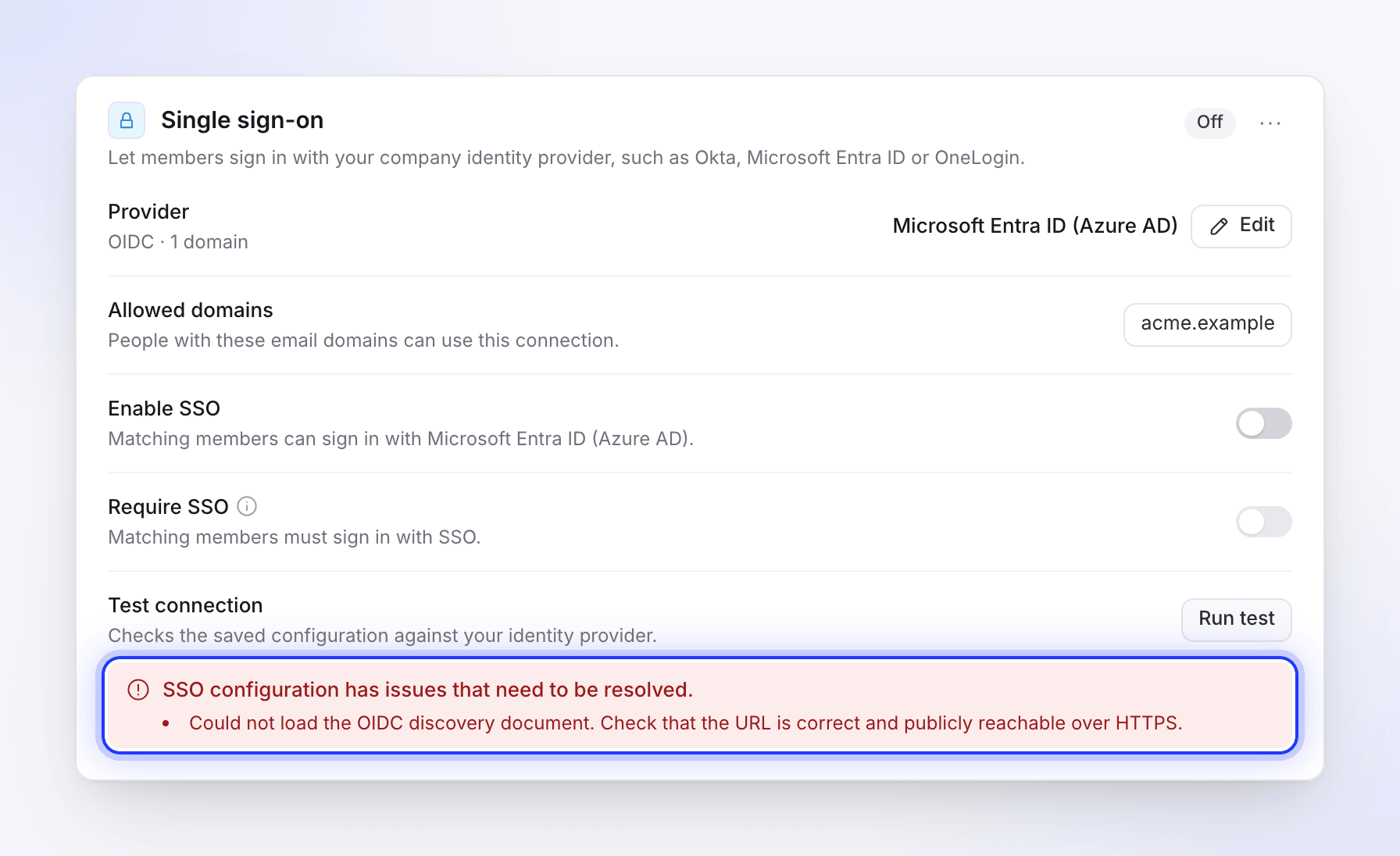
Run test checks the saved settings, not a real sign-in. It shows "SSO configuration is valid and ready to use." or "SSO configuration has issues that need to be resolved." with these issues:
| Issue | Fix |
|---|---|
| "IdP Entity ID is required." / "IdP SSO URL is required." / "IdP X.509 certificate is required." | Fill in the missing SAML field. |
| "IdP SSO URL is not a valid URL." | Paste the full sign-in URL. |
| "IdP certificate is not a valid X.509 certificate." | Paste the Base64 (PEM) text of the certificate, not a binary file or a fingerprint. |
| "IdP certificate has expired." | Get the IdP's current signing certificate and paste it. |
| "OIDC Client ID is required." / "OIDC Client Secret is required." | Fill in the missing OIDC field. |
| "Either a Discovery URL or manual endpoint URLs are required." | Add a Discovery URL, or the endpoints. |
| "Discovery URL is not a valid URL." | Paste the full address. |
| "Could not load the OIDC discovery document. Check that the URL is correct and publicly reachable over HTTPS." | Open the URL in a browser; it should show JSON. It must be reachable from the internet, not only inside your network. |
| "Discovery document does not contain an authorization endpoint." | The URL isn't an OpenID configuration. Use the one ending in /.well-known/openid-configuration. |
| "No SSO configuration found. Please configure SSO first." | Save a configuration first. |
| "The test could not run." | Check your connection and try again. |
Signing out
| Message | Meaning |
|---|---|
| "You have been signed out via SSO." | Your IdP signed you out of Clevera (SAML single logout). |
| "Single Logout is not available for this session." | The IdP sent a logout request, but SAML single logout isn't set up for your workspace (no Logout URL). |
| "Single Logout could not be completed." | The logout request couldn't be verified. Sign out in Clevera directly. |
Other situations
Someone you removed in the IdP is still signed in. Clevera doesn't sync users from your IdP, and SSO sessions stay signed in until the person signs out. Remove them in Team settings → Members.
Someone on your domain signed up with a password before joining. Their account is outside your workspace, so SSO refuses it. Invite them; after they accept, SSO works and, with Require SSO on, their password stops working.
A new SSO member is an Editor, not a Content Creator. Your default role is Content Creator, but every creator seat was taken when they first signed in, so they joined as an Editor. Add a seat, then change their role in Team settings → Members.
A member created by SSO needs a password (SSO was turned off, or your plan changed). They click Forgot password? on the sign-in page to set one.
Signing in to the desktop app with SSO. The desktop app opens the sign-in page in your browser. Type your work email, click Continue with your provider and sign in at your IdP: the browser then hands you back to the app. If it doesn't, start sign-in in the app again; because the browser is now signed in, it connects straight away. See Sign in to the desktop app.