

Tell the AI how to use a picture or PDF
On how-to and product demo videos, each picture or PDF can be shown on screen or only read for facts. Learn what the AI suggests, how to pick PDF pages, add a note, and answer the "A few quick questions" sheet.
When you add pictures or PDFs to a How-to or Product demo video, each one can either appear on screen or only be read for facts. The AI looks at every file and suggests a role; you confirm it or change it before you generate.
Before you start
- This applies to How-to and Product demo videos. Polish and Article don't take pictures or PDFs.
- On social clips there's no per-file setting: the AI director decides which pictures appear and where, and reads every PDF for facts. If one picture matters, say so in the brief ("use the dashboard screenshot in the last scene"). See Write a brief that gets a good video.
Show it or facts only
| Role | What happens | Good for |
|---|---|---|
| Show | The picture, or the PDF pages you pick, appear in the video, held on screen while the narration talks about them. | Screenshots, diagrams, product photos, slides you want people to see. |
| Facts only | The AI reads it and uses what it says in the narration. It never appears on screen. | Specs, price lists, release notes, long documents, anything that looks bad full screen. |
By default, pictures are set to Show and PDFs to Facts only. Logos are read rather than shown full screen.
Set the role for each file
Add the files
Click + → Upload images or PDF and add your pictures or PDFs. See Add materials.
Read what the AI made of each one
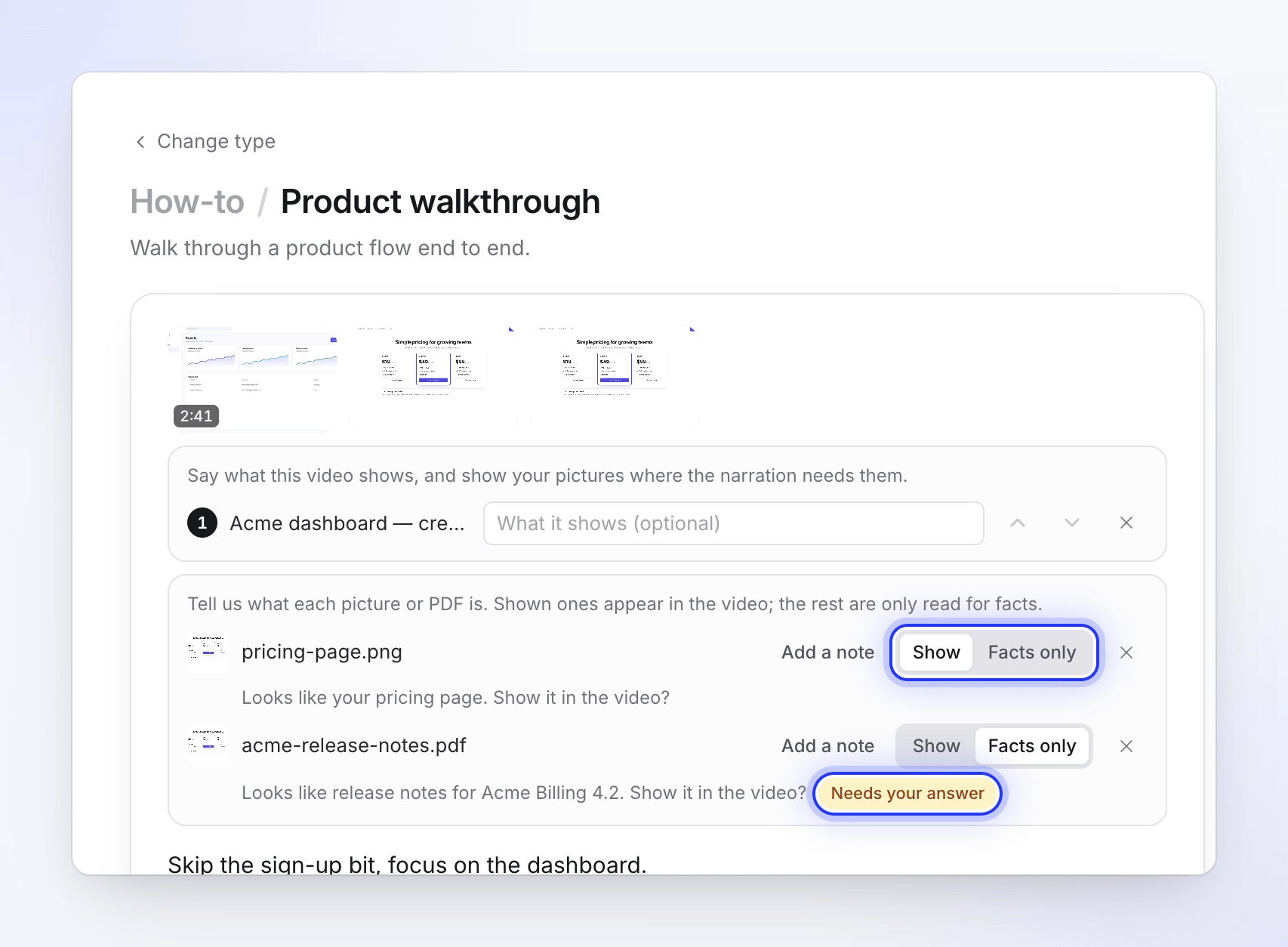
A panel in the Compose box lists every picture and PDF: "Tell us what each picture or PDF is. Shown ones appear in the video; the rest are only read for facts." While a file is being looked at, its row says "Reading this…". Then it says what the AI thinks it is, for example "Looks like your pricing page. Show it in the video?", with its suggested role already selected.
If the AI isn't sure, the row is marked Needs your answer. If it couldn't tell at all, it says "We couldn't tell what this is."
Pick Show or Facts only
Click Show or Facts only on each row. Picking the suggested one also counts as an answer.
Add a note if it helps
Click Add a note (or type in the field, "What is this? How should we use it?") to tell the narration what the file is, in up to 120 characters. For example: "Q3 pricing, mention the annual discount" or "the old design, show it before the new one".
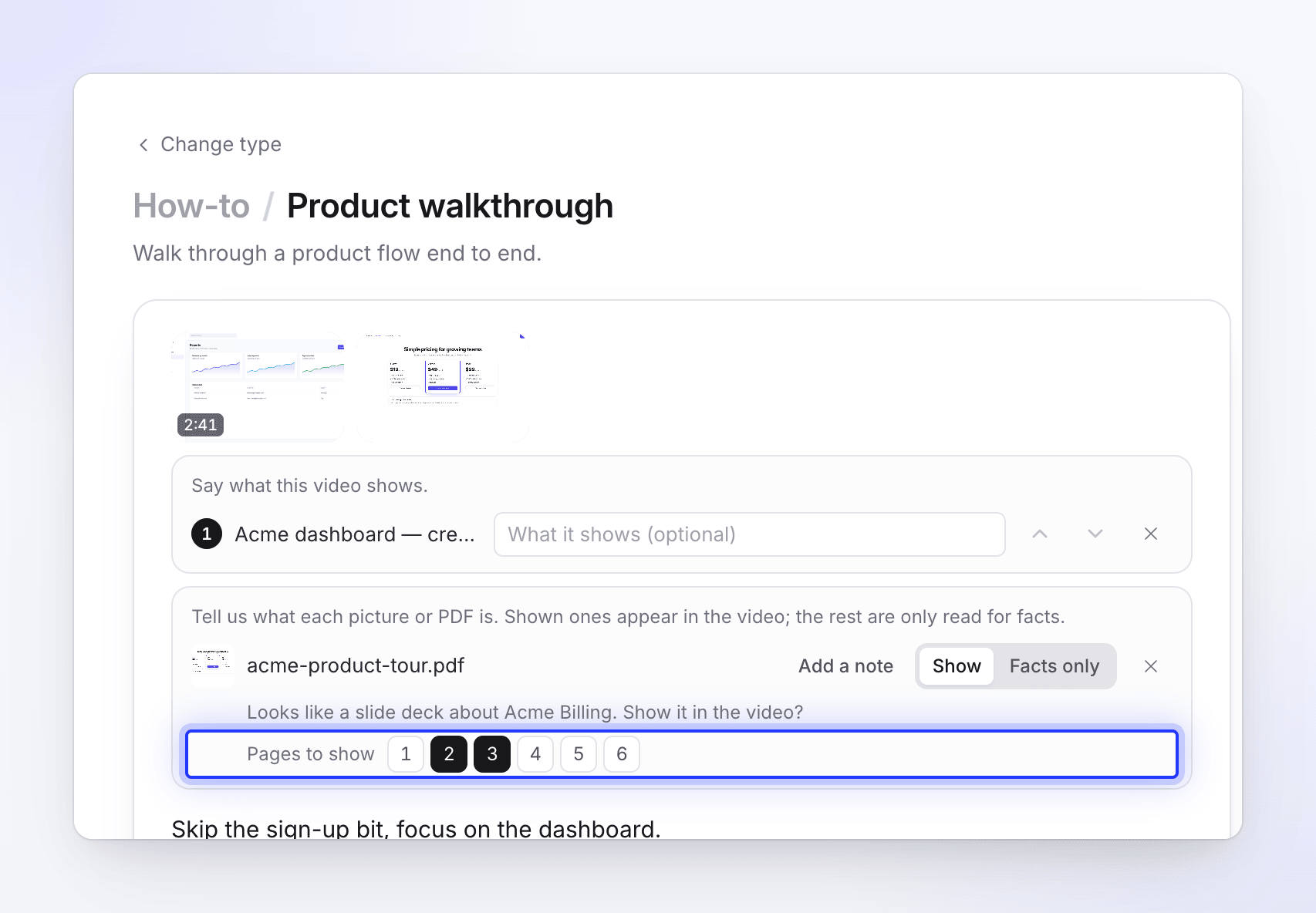
Choose PDF pages to show
For a PDF set to Show with more than one page, a Pages to show row of page numbers appears. Click the pages you want on screen. If you pick none, all pages count.
A few quick questions
If you press Generate while some files still need an answer, a sheet called A few quick questions opens first: "We weren't sure how to use these files. Pick one for each, or let the AI decide."
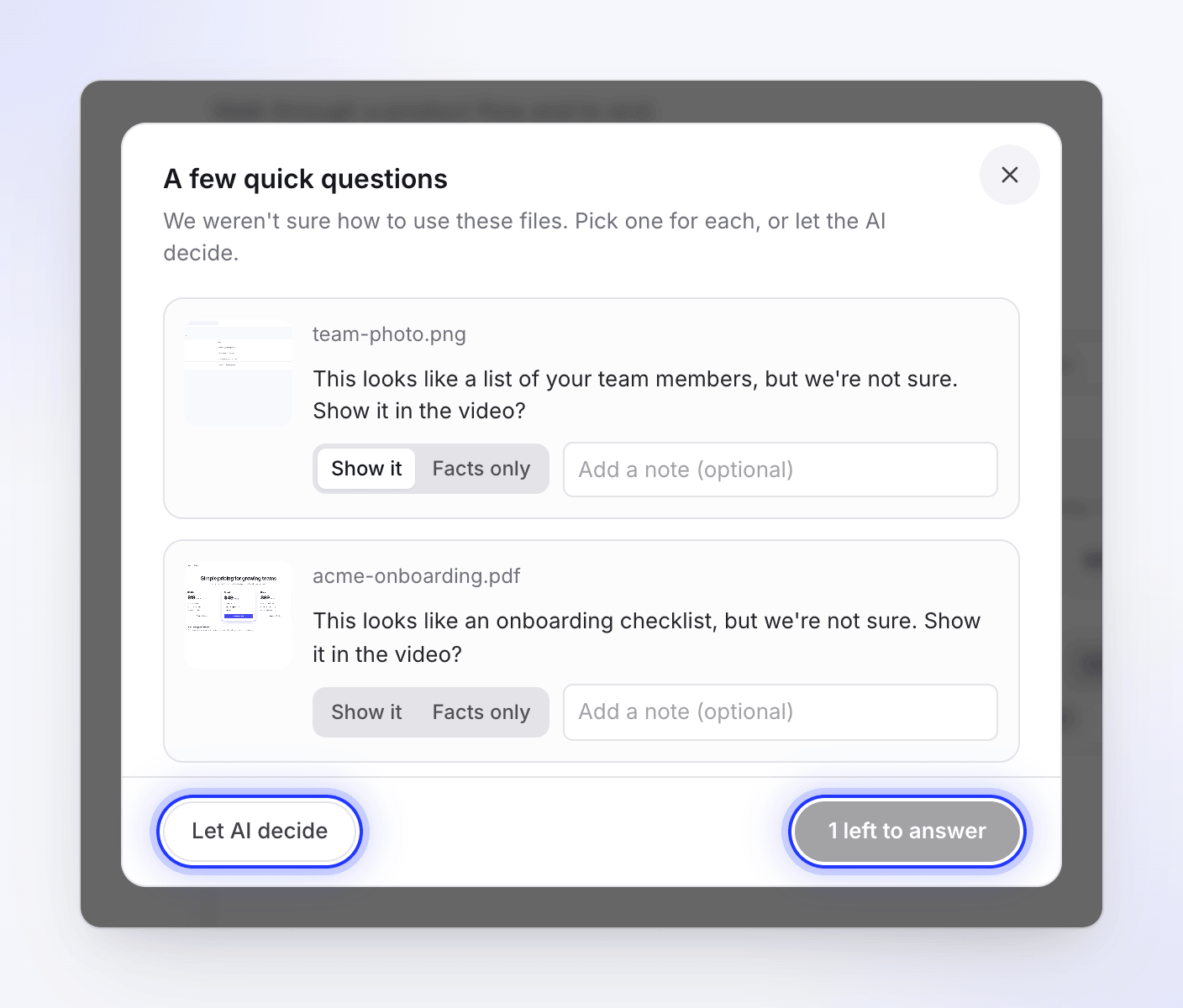
- Each file shows its thumbnail and a question, for example "This looks like your pricing page, but we're not sure. Show it in the video?" or "We couldn't read this one. Should it be shown in the video, or used for facts only?"
- Answer with Show it or Facts only, and add a note if you like ("Add a note (optional)").
- The button reads "2 left to answer" until every file is answered, then Generate.
- Let AI decide accepts every suggestion and goes on.
Nothing has started yet while this sheet is open, so it doesn't use credits.
If the AI asks during generation
In rare cases a file is still unresolved after the video starts. The generation page then asks "Should this appear in the video?" (or "Which of these should appear in the video?") with the thumbnails, and explains: "I wasn't sure how to use this file. Anything you leave out is only read for facts."
Tick the ones to show and click Continue. If you don't answer within 10 minutes, every file is kept as you set it on Compose and the video goes on. See Answer the AI's questions during generation.
Tips
- Crop screenshots to the part that matters. A picture is shown whole, so a full-desktop screenshot reads small on a 16:9 video.
- Split long PDFs. Only 30 pages and 20,000 characters of text are read per PDF. Upload the relevant section rather than a 200-page manual.
- Use notes for order. If pictures belong at a specific moment, say so in the note ("after the export step").