

Delete your account
Delete your Clevera account for good: what to do first, the steps, what's removed right away and over the next few hours (including workspaces you own and their subscriptions), and the messages you might see.
Deleting your Clevera account signs you out everywhere, removes your personal data and deletes every workspace you own, with all its videos, recordings and files. Workspaces you only belong to keep their content. This can't be undone.
Before you start
- Keep a workspace you own? Transfer its ownership to a teammate first. Otherwise it's deleted with your account, for every member.
- Want to keep videos? Export the videos and articles you need. Nothing can be recovered afterwards.
- Only want to stop paying? You don't need to delete your account: cancel your subscription instead.
- Only want to leave one workspace? Ask its owner or an Administrator to remove you. Administrators can also leave it themselves from Team settings → Danger zone → Leave team.
Delete your account
Open the Danger zone
Open the menu at the top of the sidebar, choose Account settings, then the Danger zone tab. The Delete account section says "Signs you out and permanently removes your personal data and every team you own. Teams you only belong to keep their content; you are removed from them."
If you own workspaces, they're listed under "These teams you own will be deleted too:".
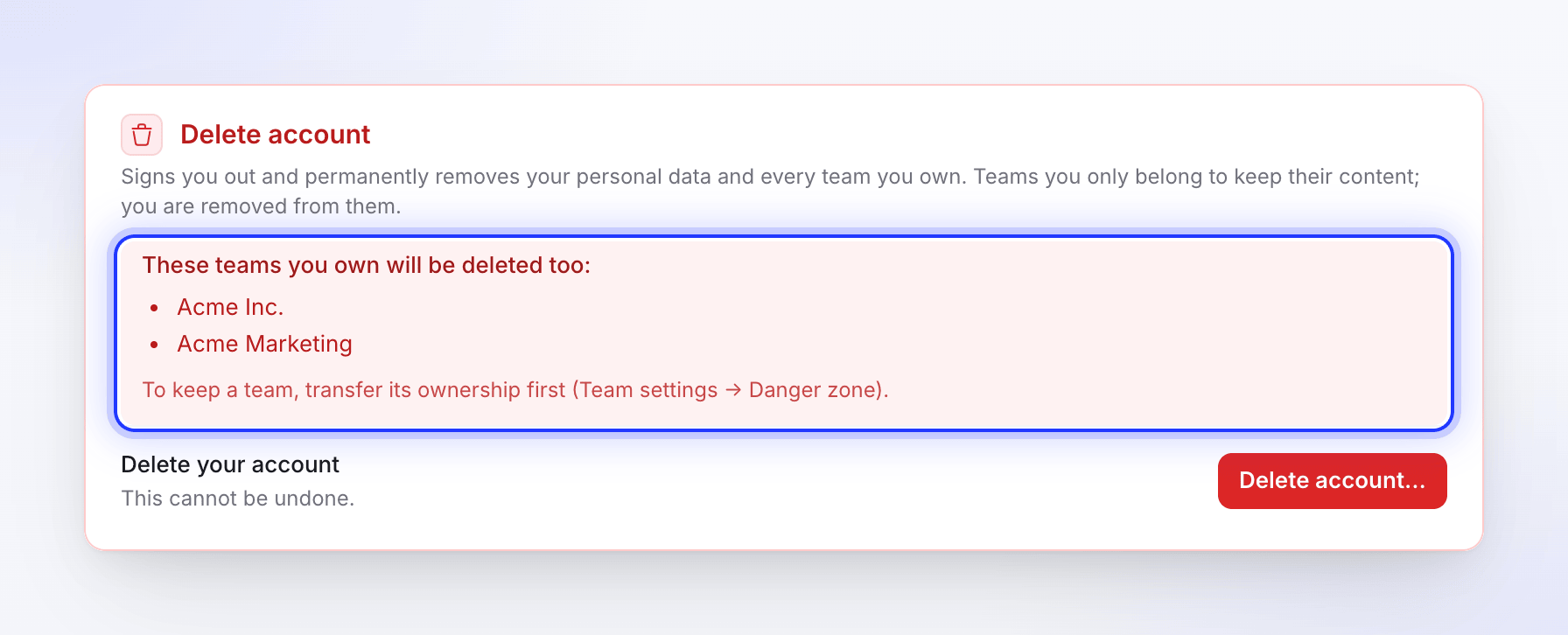
Transfer a workspace first if you want to keep it. Start
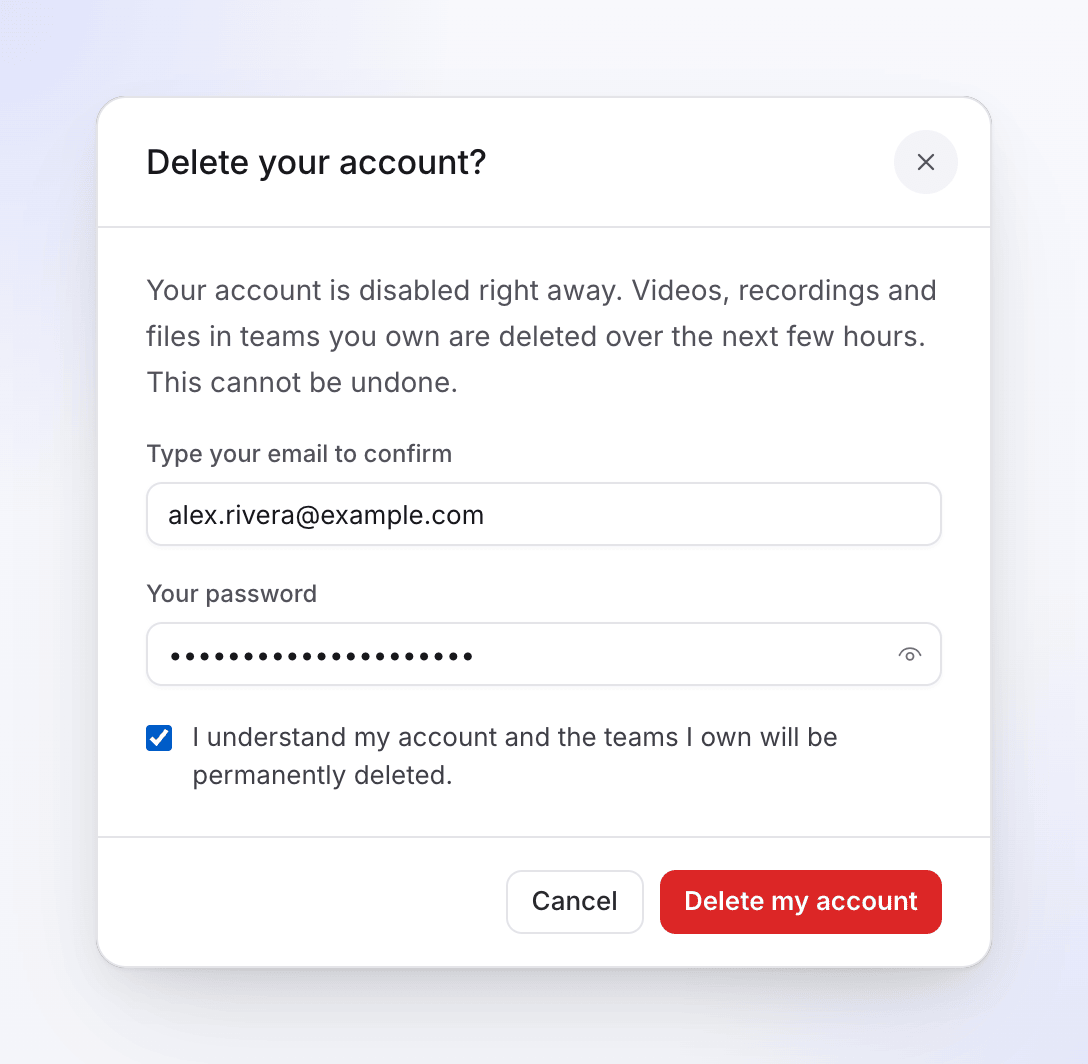
Click Delete account…. The Delete your account? dialog explains: "Your account is disabled right away. Videos, recordings and files in teams you own are deleted over the next few hours. This cannot be undone."
Confirm
- Type your email address under Type your email to confirm.
- Type Your password. If you sign in with Google or single sign-on, the dialog says "You sign in with Google or SSO, so no password is needed." instead.
- Tick "I understand my account will be permanently deleted." (it also mentions your teams if you own any).
Delete
Click Delete my account. You're signed out straight away.
What happens
Right away
| What happens | |
|---|---|
| Your account | Disabled. Signing in shows "This account is no longer available." |
| Your sessions | Every browser and desktop app is signed out. |
| Workspaces you belong to | You're removed and the workspace's owner and admins get a notification. The videos and articles you made there stay in the workspace. |
| Workspaces you own | Locked for everyone, and their members are told the workspace is closing. Pending invitations are cancelled. |
| Subscriptions of workspaces you own | Cancelled. |
| Your profile photo, notifications and pending invitations to your email | Deleted. |
| Sign-ins you agreed to save for Record with AI | Deleted. |
| Your support conversations | Kept without your name or email ("Deleted user"). |
Over the next few hours
Clevera deletes the workspaces you own and everything in them: videos, recordings, articles, uploads, exports and the stored files behind them. It works through this in small batches in the background.
Troubleshooting
| You see | What to do |
|---|---|
| "The email address does not match your account." | Type the email you sign in with. |
| "The provided password is incorrect." | Retype your password. |
| "Please acknowledge that you understand the consequences of deleting your account." | Tick the checkbox. |
| "Too many account deletion attempts. Please try again later." | Wait 15 minutes and try again. |
| "We couldn't delete your account right now. Please try again later." | Try again later. If it keeps failing, contact support. |