

Publish articles to Help Scout Docs
Connect Help Scout with a Docs API key and publish Clevera articles straight to your Docs site: choosing the site and collection, how images and video come across, updates and every error message.
Connect Help Scout once and you can publish any Clevera article to your Help Scout Docs site, with its screenshots, formatting and video. This article covers getting a Docs API key, choosing where the article goes, what it looks like in Help Scout and how updates work.
Before you start
- Plan: publishing to Help Scout is part of the Pro and Custom plans. On Free and Starter the Publish tab shows "Publishing to your tools is included in Pro". See Choose a plan.
- Role in Clevera: only the workspace owner or an Administrator can connect or disconnect Help Scout. Everyone else who can open the article can publish once it's connected.
- In Help Scout: a Docs site with at least one collection, and a Help Scout user who can edit that site. Clevera works through that user's Docs API key.
- An article: you publish the article that belongs to a video or recording. Generate it first; see Turn a recording into an article.
Publishing uses no credits.
Get your Docs API key
In Help Scout, click your avatar and open Your Profile → Authentication → API Keys. Generate a key if you don't have one and copy it. The Connect window gives the same path: "In Help Scout, open Your Profile → Authentication → API Keys, copy your Docs API key and paste it here."
Connect Help Scout
Open Integrations
In the sidebar, open the workspace menu and choose Integrations. Find Help Scout (under Customer support or Knowledge base) and click Connect.
Paste the key and check it
The Connect Help Scout window says "Paste a key. We check it before saving anything." Paste the key into Docs API key and click Check key. When Help Scout accepts it you see "Key accepted."
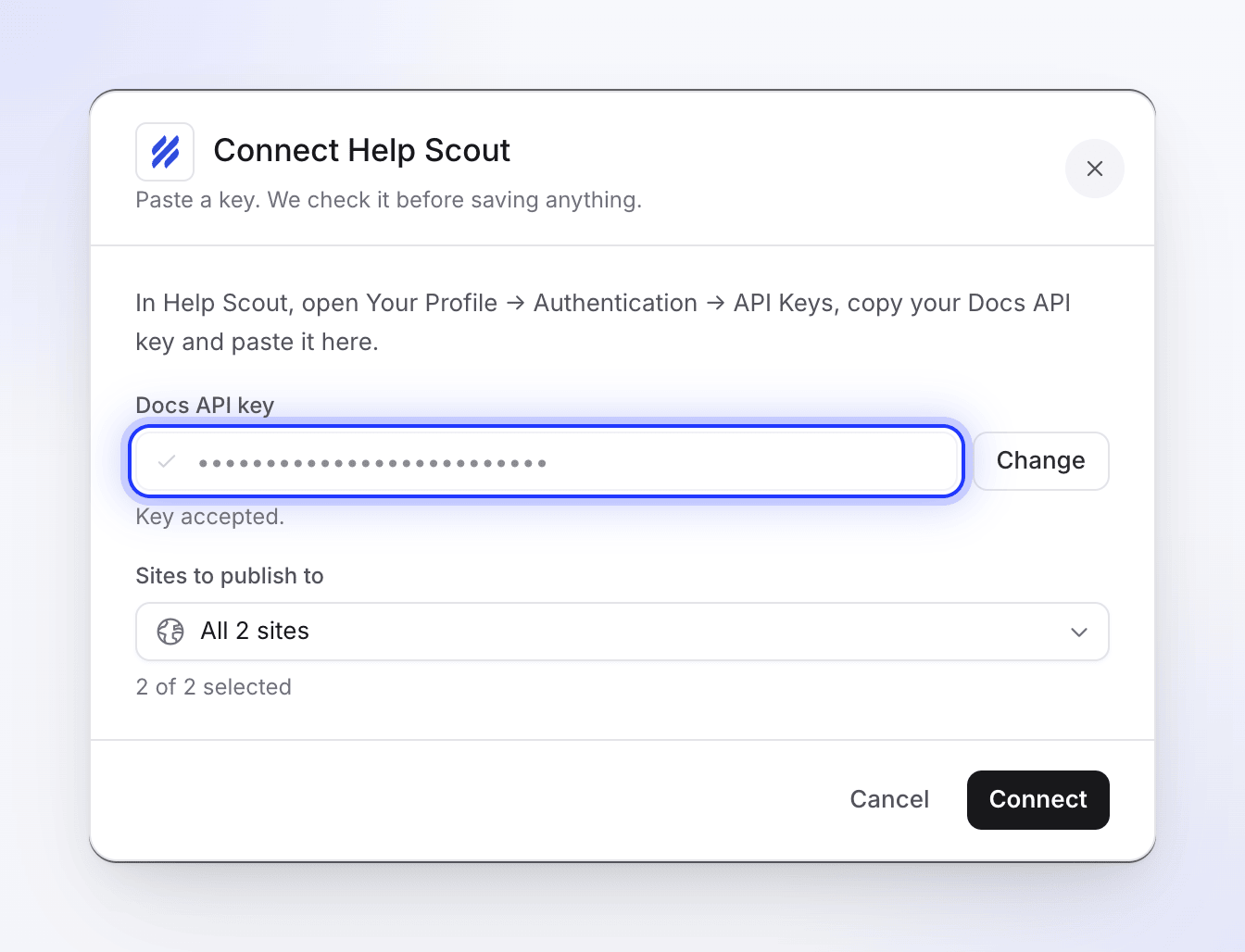
Clevera checks the key before saving anything. Pick the sites
Under Sites to publish to, all your Docs sites are selected. Clear any you don't want people to publish to; at least one must stay selected.
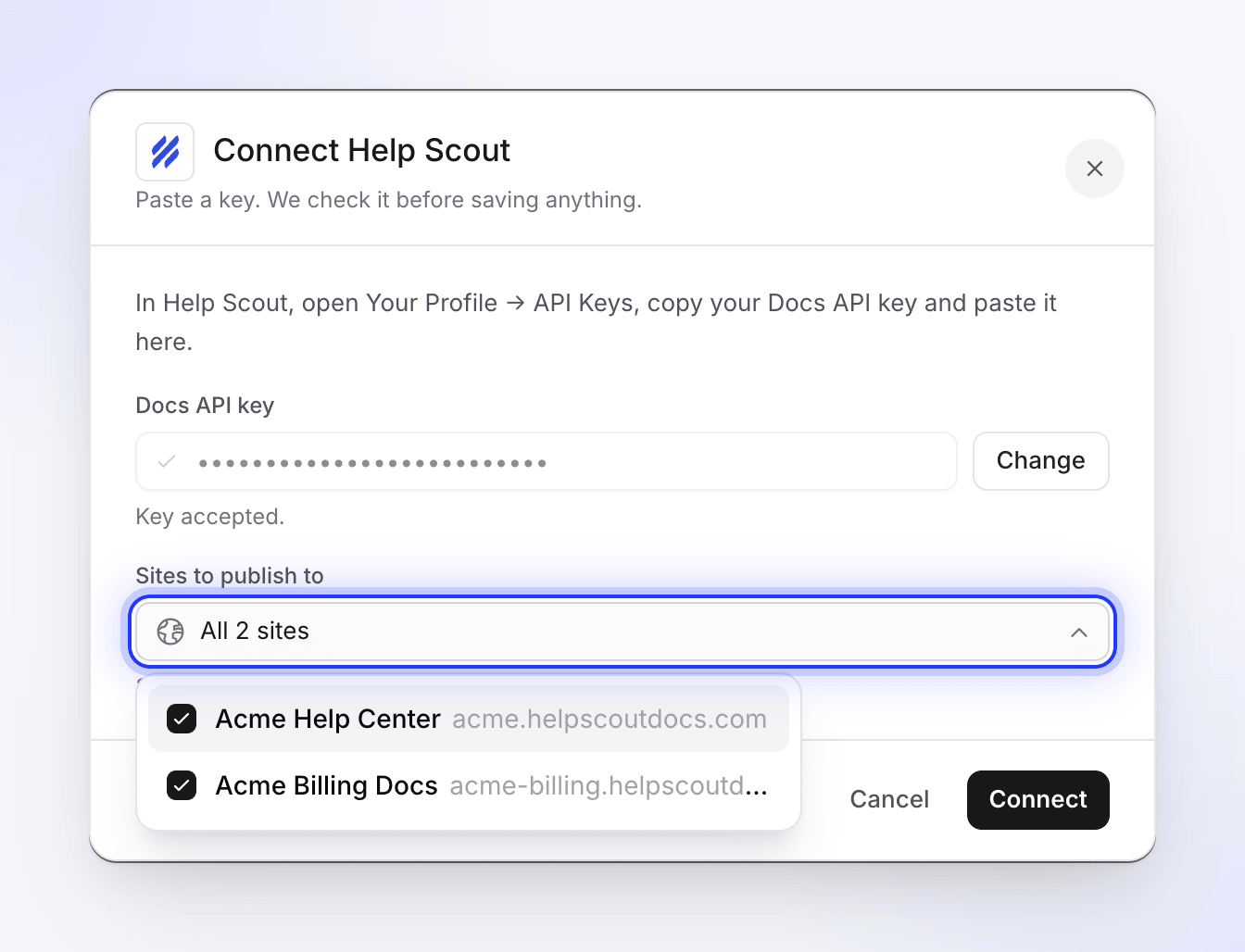
Connect
Click Connect. You see "Help Scout connected." and Help Scout moves to the Connected list, named after the first site you picked (with "+1 more" and so on for the others).
To change the sites later, open Integrations, click the ⋯ menu on the Help Scout row, choose Reconnect, paste the key again and pick the sites. Reconnecting replaces the old connection; a workspace holds one Help Scout connection.
Publish an article
Open the Publish tab
In the editor, click Share and open the Publish tab. Under Publish the article, Help Scout shows Connected and a Publish button.
The article is published in the language you have open in the editor. Switch language in the top bar first to publish a translation.
Choose the site and collection
Click Publish next to Help Scout, then choose where the article goes:
Field What it shows Notes Docs site The sites you picked when connecting With one site you see its name and address; with several, choose one. The first is selected for you Collection That site's Help Scout collections Shows "Loading collections…" while it loads. The article goes into the collection you pick 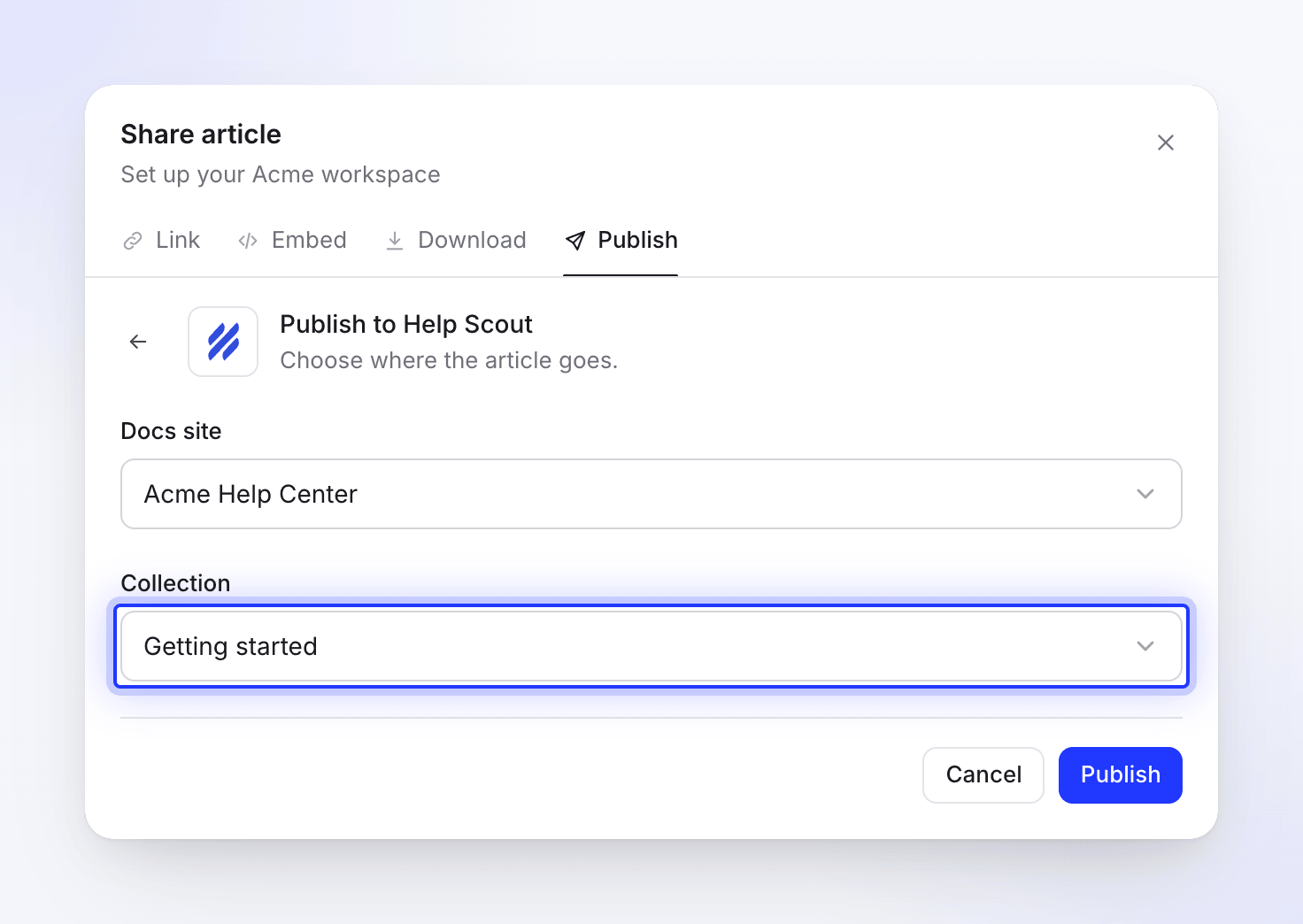
Clevera doesn't place the article in one of Help Scout's categories inside a collection. To add it to a category, do it in Help Scout after publishing.
Publish
Click Publish. You see "Checking for an existing article…", then "Publishing…". When it's done you see "Published to Help Scout." and the article opens in a new tab.
What the article looks like in Help Scout
- Title: the video's title in the language you published.
- Video: if the video's share link is on, a 16:9 video player sits at the top of the article. If the share link is off, there's no player, and turning the link off later makes an existing player stop working.
- Screenshots: uploaded into Help Scout and stored there, so they keep working without Clevera. An image added to the article by web address stays linked to that address.
- Formatting: headings, bold, italic, underline, strikethrough, links, lists, checklists, tables and code blocks come across as normal Help Scout formatting.
| In the Clevera article | In Help Scout |
|---|---|
| Callouts | A colored box with an icon (blue info, yellow warning, green tip, gray note, red danger) |
| Toggles | A collapsible section |
| YouTube videos | An embedded YouTube player |
| Highlight, superscript, subscript | Plain text |
| Step blocks you added by hand | A paragraph starting with "Step N:" and the step's text only |
Update an article you already published
Publishing only goes one way. Edits you make in Clevera stay in Clevera until you publish again, and changes made to the article in Help Scout never come back to Clevera.
When the collection you pick already has an article with the same title (case doesn't matter), Clevera asks what to do: "An article with this title already exists in Help Scout." Click View it to open it, then choose:
| Option | What happens in Help Scout |
|---|---|
| Publish as a new article | "Keep the existing one and add this under a new title." Clevera suggests a title such as "Create your first invoice (2)". Click Publish copy. |
| Replace the existing article | "Update it with this version." The existing article's title and text are replaced. Click Replace. |
Once a Clevera article has been published to Help Scout, Clevera remembers the Help Scout article it made. Publishing the same Clevera article again (in the same language) updates that Help Scout article in place, wherever it now lives. It doesn't create a second copy, even if you pick another collection or choose Publish as a new article.
Nothing in Clevera deletes articles from Help Scout.
Disconnect Help Scout
- Open Integrations, click the ⋯ menu on the Help Scout row and choose Disconnect (or click Help Scout and then Disconnect).
- Confirm. "You can no longer publish to it from the editor. Content you already published stays in Help Scout."
Disconnecting deletes the key from Clevera. The key itself still works in Help Scout until you delete or regenerate it under Your Profile → Authentication → API Keys in Help Scout.
Troubleshooting
| You see | What to do |
|---|---|
| "Integrations are included in Pro and Custom plans." | Upgrade the workspace to Pro. See Choose a plan. |
| No Connect button on the Integrations page | Only the owner or an Administrator can connect. Ask one of them. |
| "Paste a key first." | Paste the Docs API key before clicking Check key. |
| "Invalid API key. Please check your Help Scout Docs API key." | The key is wrong or was regenerated. Copy it again from Help Scout. Use the Docs API key, not a Mailbox app ID or secret. |
| "No Docs sites found. Please create a site in Help Scout Docs first." | The key's user has no Docs site. Create one in Help Scout, or use a key from a user who can reach it. |
| "Failed to fetch sites from Help Scout." or "We could not check that key. Try again." | Help Scout didn't answer. Try again in a minute. |
| "Pick at least one site." | Select at least one site under Sites to publish to. |
| "Failed to connect to Help Scout. Please check your API key." or "Could not connect. Try again." | Check the key and try again. |
| "Too many validation attempts. Please try again later." | You can check up to 10 keys a minute. Wait a minute. |
| "Connect Help Scout on the Integrations page first." | Help Scout isn't connected in this workspace yet. Ask an owner or Administrator to connect it. |
| "No Docs sites yet. Create one in Help Scout first." | Create a Docs site in Help Scout, then reconnect so Clevera can see it. |
| "No collections in this site" / "Create a collection in this Docs site to publish here." | The site has no collections. Create a collection in Help Scout, then open Publish again. |
| "Choose a site and a collection first." or "Please select a collection to publish to." | Pick both a site and a collection before clicking Publish. |
| "Couldn’t load your Help Scout locations" | Click Try again. If it keeps happening, reconnect Help Scout. |
| "An article with this title already exists in this collection. Please use a different title or update the existing article." | Publish again and choose Publish as a new article with another title, or Replace the existing article. |
| "Article was created but could not retrieve the article ID. Please check Help Scout." | The article was probably created. Check the collection in Help Scout before publishing again, so you don't make a duplicate. |
| "Failed to publish to Help Scout. Please try again." or "Failed to update article in Help Scout. Please try again." | Try again. If it keeps failing, reconnect Help Scout and contact support. |
| "API key not found. Please reconnect Help Scout." | Clevera no longer has the key. Reconnect Help Scout from Integrations. |
| "Article content is empty or invalid." | The article has no content in this language. Generate or write it, then publish again. |
| "No article found. Please generate an article first." | The video has no article in the language you have open. Generate it, or switch language. |
| "Too many publish attempts. Please wait a moment before trying again." | You can publish up to 20 times a minute. Wait a minute. |
| The connection shows Error or Needs attention | Help Scout stopped accepting the key. Click Reconnect and paste a current key. |
| Images are missing in Help Scout | Help Scout refused the upload, so the image kept its Clevera address. Publish again to retry. |