

Write pages for a doc site
Write a new article straight on your doc site, blank or from an AI draft, edit and preview pages in place, read page statuses, and add articles to a site from Content, the article editor or the Share window.
Every page on a doc site is an article in your library, so you can write it in two places: right on the site's Pages screen, or anywhere you already write articles in Clevera and then add it to a site. This article covers both, the page statuses you'll see, and how a page reaches readers.
Before you start
- To write new articles on a site you need to be an owner, administrator or Content Creator. Editors can edit existing pages but not create new ones; they see "Your role can edit existing content but cannot create new content."
- To publish you need to be an owner, administrator or editor. Content Creators write, and one of them publishes.
Write a new article on the site
Open New article
On Pages, click Add pages (or Add pages here… in a section's menu), choose Write it here and click Continue.
Fill in the dialog
New article says "It's saved in your library and shows on this site."
Field What to enter Title Up to 200 characters Add to The top level, a section or a group Language One of the site's languages Start with Blank: "An empty page, ready to write." Draft with AI: "From a topic, with the editor's AI. You review it before it stays." What should it cover? Shown for Draft with AI: describe the topic. "Nothing is spent until you run the draft in the editor." Create it
Click Create article (or Create and draft). The article opens in the editor on the Pages screen. With Draft with AI, the editor's AI starts from your topic, and you keep or change what it writes.
The new article goes into the folder the section follows, if it follows one. Otherwise it's saved at the top level of Content. It stays Not ready until it has text, so an empty article never publishes.
Edit and preview a page
Click any page on Pages to open it. The left rail lists the site's pages; the bar at the top shows the page, its status and these controls:
| Control | What it does |
|---|---|
| Edit / Preview | Write in the editor, or see the page as the site renders it |
| Preview as site (P) | Full preview with the site's header and navigation |
| Device | Desktop or Phone in the preview |
| Theme | Light or Dark in the preview |
| Details | Opens the right panel: Page (its settings), Insights and Feedback |
| More | Open in app editor, Open live page, and Open video editor for video pages |
| Back to Pages | Returns to the tree |
The editor is the same one you use for any article: text, headings, screenshots, callouts, video blocks and more. See Edit an article and its screenshots. Edits save as you type.
If an article is still being written by the AI, the page says "Being written by AI… It opens for editing when the run finishes." If the article is in a collection you can't open, you can still change the page's settings and see its insights.
Page statuses
The status next to a page tells you whether readers see your latest text.
| Status | Meaning | What to do |
|---|---|---|
| Live | Readers see this version. | Nothing |
| Changed | Edited since the last publish. | Publish to show the new text. |
| Not published yet | Added since the last publish. | Publish. |
| Not ready | The article is unfinished or empty. | Finish it in the editor; it publishes once it's ready. |
| Hidden | Published, but not in the navigation. | Turn on Show in navigation to list it. |
| Scheduled | Goes live on a set date. | Nothing; it publishes then. |
The page bar shows Live, or Not live yet with "Readers see this page after the next publish."
Add an article from elsewhere in Clevera
From Content
In Content, open an article's menu and choose Add to doc site…. The option appears when your workspace has a doc site, and only for articles.
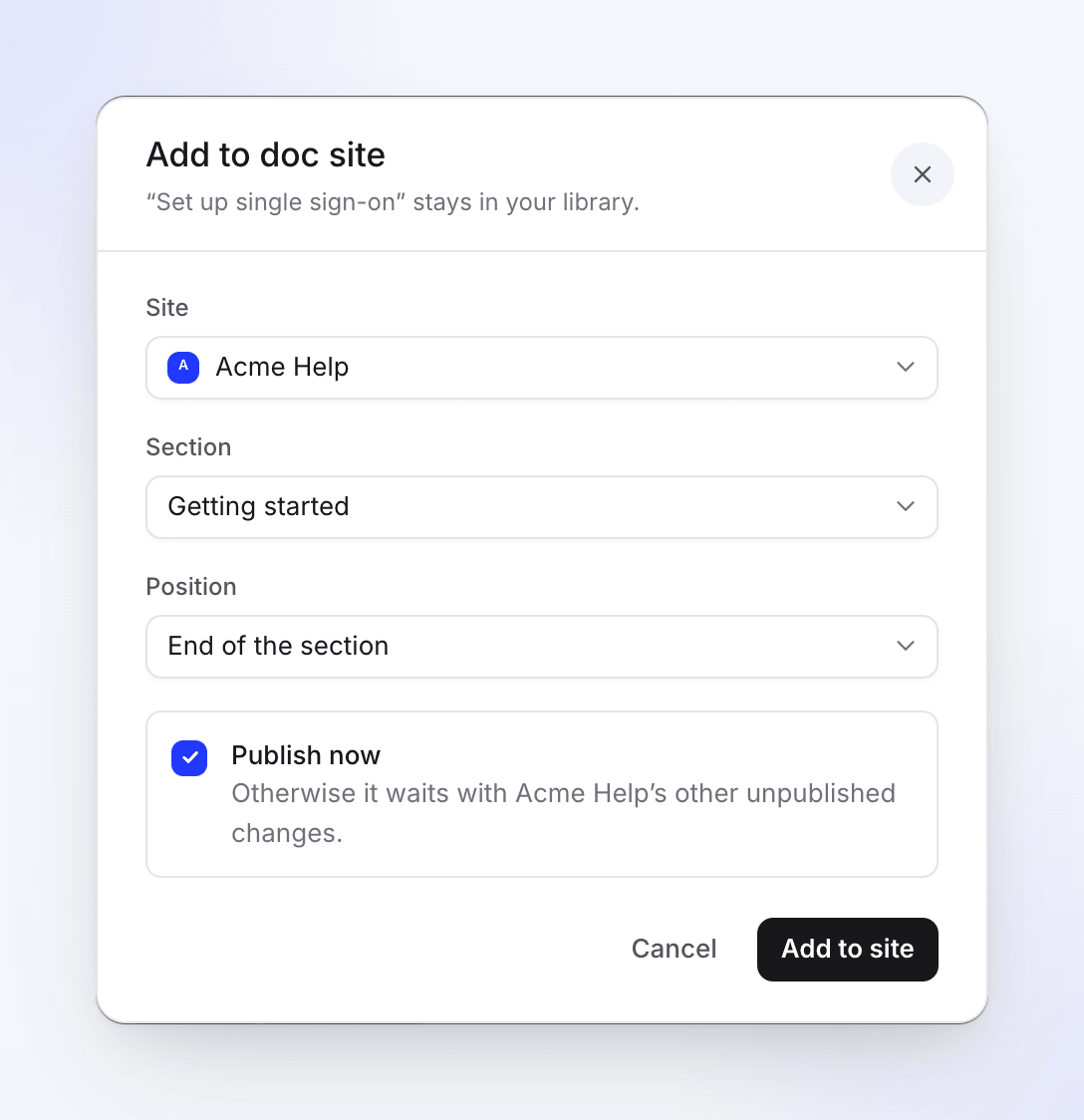
| Field | What it does |
|---|---|
| Site | The site to add it to. Sites it's already on show "Already on this site." |
| Section | Top level or a section |
| Position | End of the list, End of the section or After “Install the app” |
| Publish now | Publishes the site right after adding. With Publish automatically on, it's off: "Publish automatically is on: it goes live in a few seconds anyway." Without publish rights you see "It goes live when an admin or editor publishes the site." |
Click Add to site. The article "stays in your library", and a message confirms, for example, "Added to Acme Help › Getting started."
From the Share window
In the article editor, click Share → Publish. Clevera Doc sites ("Your hosted help centers") is listed first, with one row per site: "Not on this site" with Add to site, or the page's state with a link to it.
See where an article is live
- In Content, a globe next to an article's title means it's on a doc site. Hover it to see "Live on Acme Help" (or "On Acme Help" before the first publish) and the page's address. An amber dot means a publish would change something.
- In the article editor, a pill in the top bar names the site, for example "Acme Help · Changed since publish", with Publish. With several sites it reads "On 2 sites" and opens a list.
People who can't publish see the pill's state without the button.
Write in more than one language
A page has one article per language, and each is written and published on its own. On Pages, use the Language filter to see one language's pages. A page opened in a language it has no article for shows "No article in this language yet." Readers in a language without a translation see the default-language page with a short notice. See Add languages to a doc site.
Troubleshooting
| Message | What it means |
|---|---|
| "Give the article a title." | Title is empty. |
| "Couldn't create the article. Try again in a moment." | The article wasn't made. Try again. |
| "You can't create items in this workspace." | Your role can't create content. Ask an owner, administrator or Content Creator. |
| "You don't have a doc site you can add pages to yet." | No site exists, or your role can't change its pages. Click Open Doc sites. |
| "It couldn't be added. Try again." | The add failed. Try again; if the site is paused or suspended it's read-only. |