

Understand workspaces, roles and creator seats
How Clevera workspaces work: the four roles and what each can do, which roles take a paid creator seat and which are free, how many seats each plan has, and who spends the workspace's shared credits.
A workspace is where your team's recordings, videos, articles and collections live, with one shared credit balance and one plan. Everyone in it has a role. Three roles make new content and use a creator seat; the fourth, Editor, polishes existing content and is free and unlimited.
Workspaces in short
- Everything is shared per workspace: content, collections, the plan, connected integrations and one credit balance ("One wallet for everyone on this team.").
- Credits never move between workspaces. A video made in one workspace is paid from that workspace's credits.
- You can belong to several workspaces. Switch from the workspace menu at the top of the sidebar: Switch workspace. To start a new one, choose Create workspace. A name is 3–32 characters.
- New workspaces start on Free. Free monthly credits go to one workspace per owner; your other Free workspaces get no monthly credits but can use bonus credits.
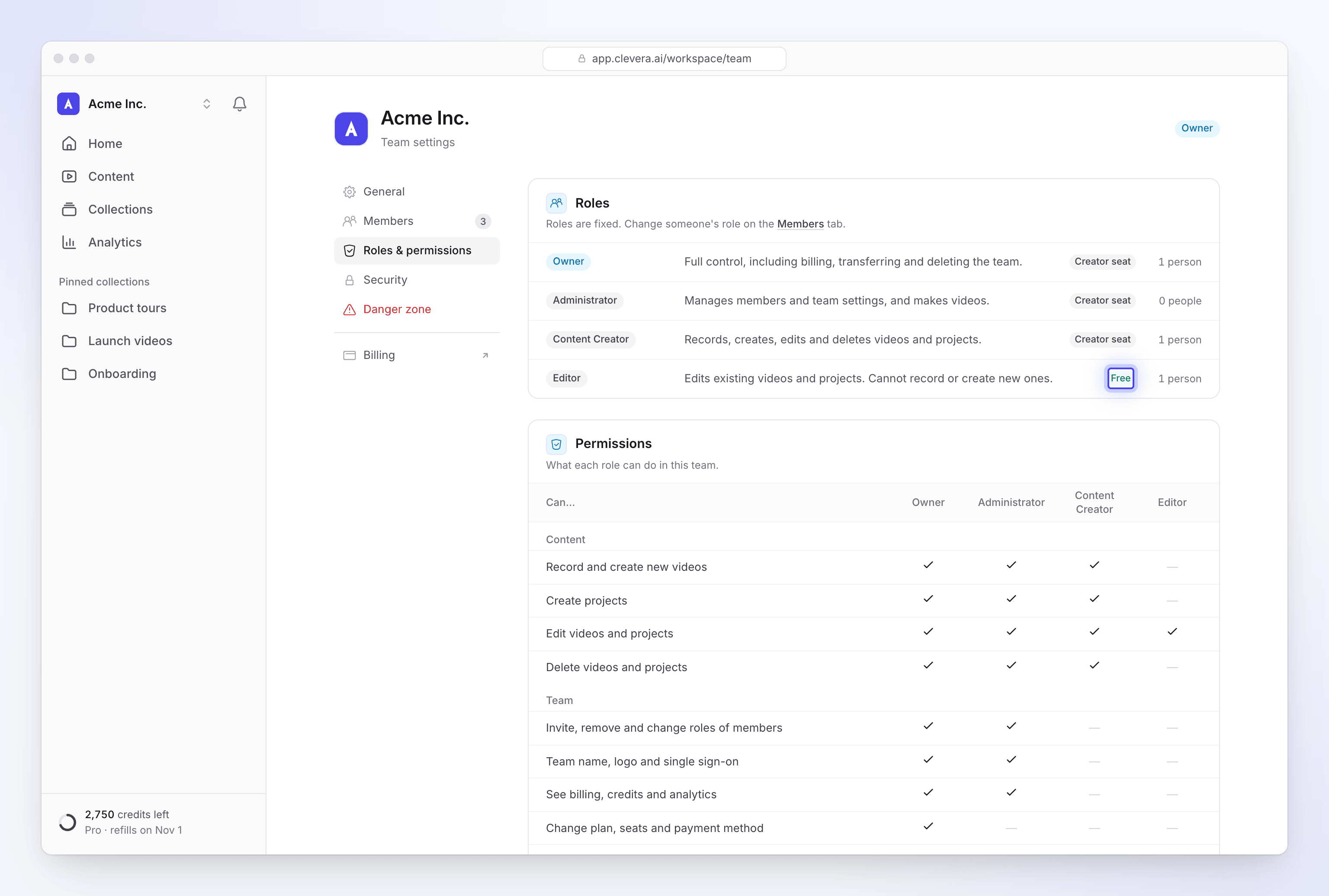
- Workspace settings live under the workspace menu → Team settings, with the sections General, Members, Roles & permissions, Danger zone and, on plans with single sign-on, Security.
The four roles
| Role | What the role is for | Creator seat |
|---|---|---|
| Owner | "Full control, including billing, transferring and deleting the team." | Yes |
| Administrator | "Manages members and team settings, and makes videos." | Yes |
| Content Creator | "Records, creates, edits and deletes videos and projects." | Yes |
| Editor | "Edits existing videos and projects. Cannot record or create new ones." | No, free |
Each workspace has exactly one owner. To hand the role to someone else, see Transfer workspace ownership. After a transfer the previous owner usually becomes an Administrator; if the new owner was an Editor and no creator seat is free, the previous owner becomes an Editor instead, and the dialog says so before you confirm.
What each role can do
| Can… | Owner | Administrator | Content Creator | Editor |
|---|---|---|---|---|
| Record and create new videos, clips and articles | Yes | Yes | Yes | No |
| Create projects (collections) | Yes | Yes | Yes | No |
| Edit videos and projects | Yes | Yes | Yes | Yes |
| Delete videos and projects | Yes | Yes | Yes | No |
| Invite, remove and change roles of members | Yes | Yes | No | No |
| Team name, logo and single sign-on | Yes | Yes | No | No |
| See billing, credits and analytics for the whole workspace | Yes | Yes | No | No |
| Change plan, seats and payment method | Yes | No | No | No |
| Transfer ownership or delete the team | Yes | No | No | No |
| Connect or disconnect integrations | Yes | Yes | No | No |
The same table is in Team settings → Roles & permissions.
Creator seats
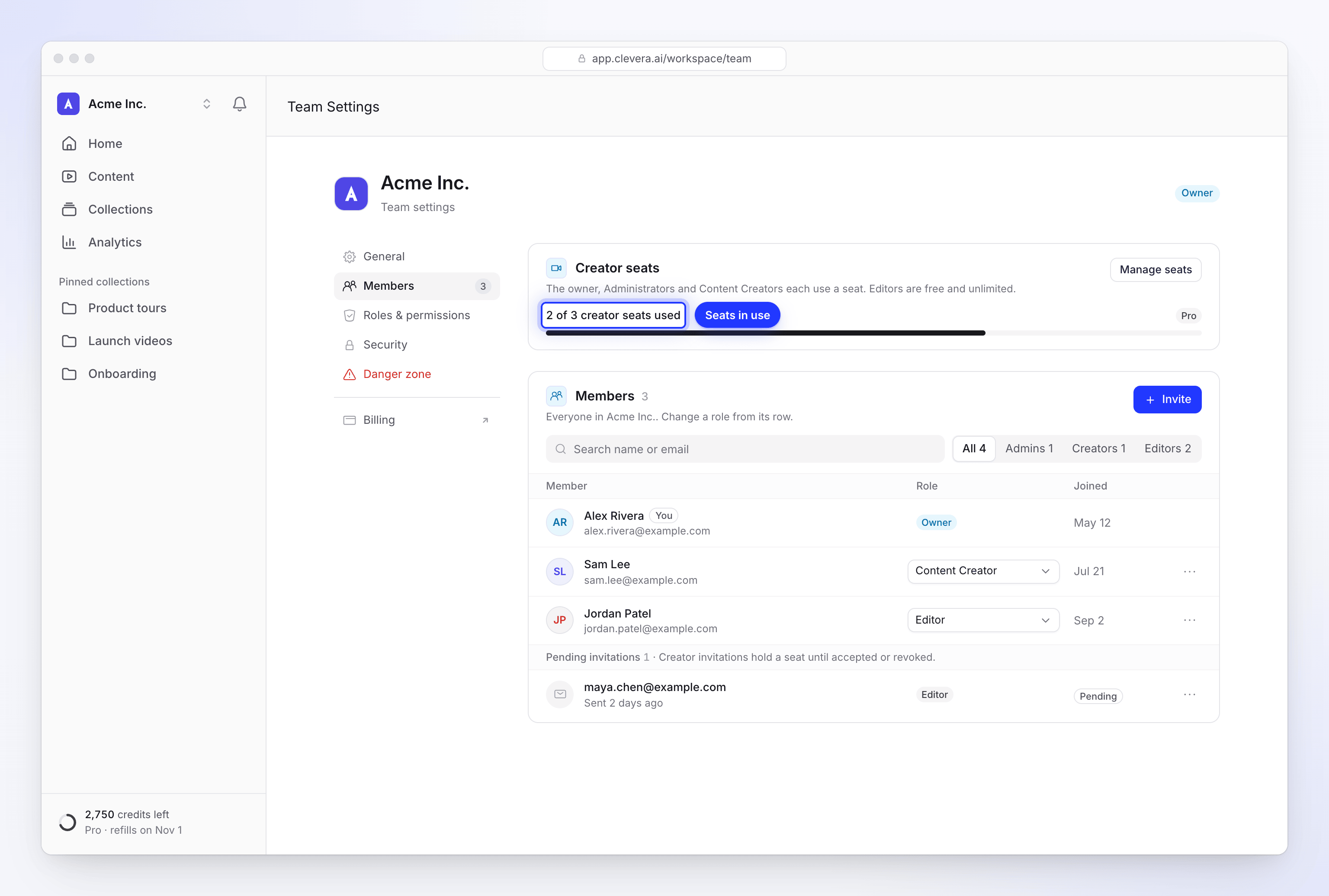
The owner, Administrators and Content Creators each use a seat. Editors are free and unlimited, so you can invite as many reviewers and polishers as you like.
| Plan | Creator seats |
|---|---|
| Free | 1 |
| Starter | 1 |
| Pro | 2–10, bought one at a time |
| Custom | As agreed with our team |
Seats are counted in Team settings → Members → Creator seats, which reads, for example, "2 of 3 creator seats used". Pending invitations count too; the Pending invitations list says: "Creator invitations hold a seat until they are accepted, revoked or expire." Invitations expire after 7 days, and an expired invitation no longer holds a seat. See Invite teammates.
When all seats are taken
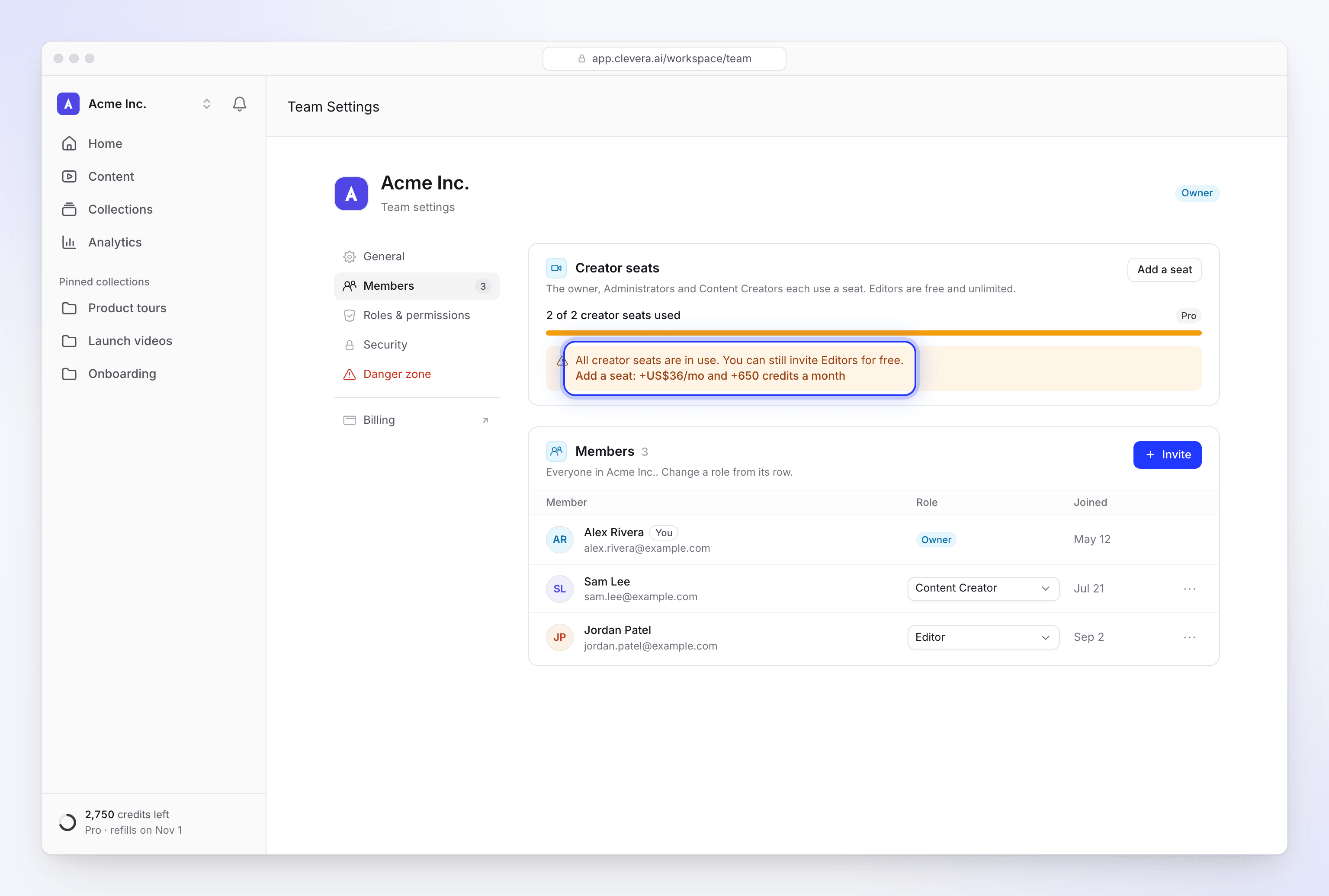
Creator roles are greyed out in the invite and role menus: "All 3 creator seats are in use. Add a seat or choose Editor." The panel says "All creator seats are in use. You can still invite Editors for free." What you're offered next depends on your plan:
| Plan | Offer | What happens |
|---|---|---|
| Pro, under 10 seats | Add a seat: "Add a seat: +US$36/mo and +650 credits a month" on monthly billing | The seat starts now, charged prorated for the rest of the period |
| Free or Starter | Explore Pro: "Upgrade to Pro for 2 creator seats" | Opens the upgrade |
| Pro at 10 seats, or Custom | Contact us: "Contact us for more creator seats" | Opens a message to our team |
Only the owner can add seats or upgrade. Anyone else sees "Only the team owner can add seats or upgrade. Ask them to do it from Billing." Fewer seats take effect at renewal. See Change your plan or seats.
Who spends credits
All members draw on the same workspace balance. Credits are used when someone:
| Action | Who can do it |
|---|---|
| Generates a video, social clip or article | Owner, Administrator, Content Creator |
| Uses Record with AI or website research | Owner, Administrator, Content Creator |
| Asks the assistant for a change | Anyone who can edit the item, Editors included |
| Translates a video or article | Anyone who can edit the item, Editors included |
Exports, downloads, links and embeds never use credits.
Owners and Administrators see the whole workspace's spending on the Usage page, broken down by member, item and collection. Other members see only their own usage. Only the owner can buy extra credits; others see "Ask your team owner to add credits."
Change someone's role
In Team settings → Members, open the role menu next to a member and pick a new role. Moving someone to a creator role needs a free seat. You can't change your own role: "You cannot change your own role. Ask another administrator to update it."
Remove a member or leave
- Remove: open the member's actions and choose Remove from team. "Alex Rivera loses access to Acme Inc. right away. You can invite them again later." Removing a creator frees a seat ("This frees a creator seat."). Their videos and articles stay in the workspace.
- Leave: in Danger zone, click Leave team…. "You lose access right away. To come back you need a new invitation." The owner can't leave; transfer ownership first.
- Delete the workspace (owner only): Danger zone → Delete team…. "Everything in this team is deleted for every member, and any active subscription is cancelled. Deleted data cannot be recovered." You confirm with your password, or, if you sign in with Google or SSO, by typing the workspace name. See Delete a workspace.