

Understand how website research works
What happens after you press Start research: the cloud browser, the five-page visit, the screenshots and pictures, how the AI reads it all for your clip, how long it takes, what it can't do and how your results are reused.
When you research a website, Clevera opens the site in a browser in its own cloud, an AI drives it to the pages your clip needs, and Clevera reads and photographs everything it shows. A second AI pass then turns that into facts, pictures and videos your social clip can use. This article explains each stage, so you know what to expect and how to steer it.
To start research, see Research a website for a social clip.
The short version
| Stage | What happens | What you see on the live page |
|---|---|---|
| 1. Open | A fresh browser opens your address in Clevera's cloud. | "Opening acme.com…" |
| 2. Browse | The AI goes where your note says, then to the pages your clip needs, opening tabs and accordions. Clevera reads every page as it goes. | "Collecting from acme.com…" and the live browser |
| 3. Photograph | Clevera revisits each page to take screenshots, find the logo and save pictures and videos. | "Taking pictures of the pages…" |
| 4. Read | The AI reads everything collected, with your note and your clip in mind, and writes up the facts. | "Reading what we collected…" |
| 5. Done | The results are saved to your workspace and the link's tile says Collected. | The results page |
Step by step
Clevera checks the address
Before anything opens, Clevera checks that the address is a public
https://page. Local addresses, company intranets and plainhttp://pages are refused.A fresh browser opens the site
The site opens in a new browser in Clevera's cloud, not in your own browser. It has no history, no cookies and no sign-ins, so it sees the site the way a first-time visitor does.
If the first page is a security check ("Checking your browser…") or the site refuses the visit, Clevera starts over once on a different connection, chosen to match the site's country where it can. Most sites open on the first try.
The AI browses the pages your clip needs
The AI knows which kind of clip you're making and its language. It works through the site in this order:
- Your note first. If What should we look at? names a page, a tab, a product or a section, the AI goes there before anything else.
- Then what the clip needs, as this kind of site has it. For a product or software site: features or how it works, pricing, customers or reviews. For a shop: the product you asked about, with its gallery, variants and reviews. For a restaurant, place or service: what they offer, the menu or prices, and reviews.
- At most five pages, the first one included. Depth on what you asked for beats a tour of everything.
On each page it scrolls from top to bottom once and opens what's folded away: tabs, accordions, FAQ items, monthly and yearly pricing toggles, variant pickers, galleries and "show more" or "see all reviews" buttons. It closes cookie banners, newsletter pop-ups and chat bubbles, and picks "reject" or "necessary only" on cookie banners.
The AI doesn't write anything down itself. Its job is to put the right things on screen.
Clevera reads every page as it goes
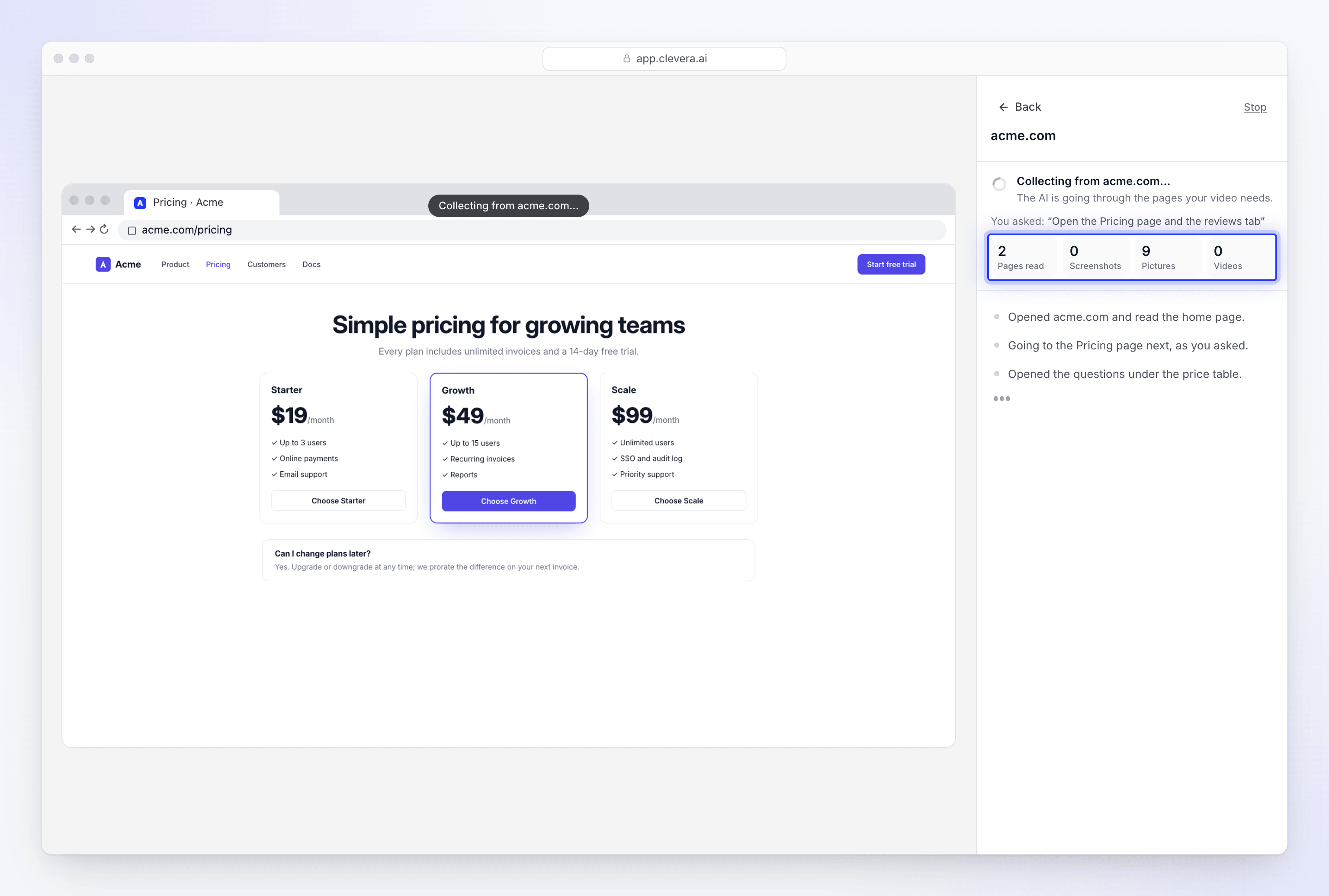
While the AI drives, Clevera reads each page directly from the browser: all the text, including text revealed when a tab or accordion opened, and the pictures on the page. You see the counters on the live page go up: Pages read, Screenshots, Pictures, Videos.
Clevera photographs the pages
When the AI is done, Clevera opens each page it visited again, in the same browser:
- It takes screenshots of the top of each page and its main sections.
- It looks for your logo on the first page.
- It scrolls to load lazy images and saves product images, photos and illustrations. Icons, tiny images, avatars and header, navigation or footer graphics are left out.
- It downloads videos hosted on the site itself. Videos embedded from YouTube or Vimeo are listed but not downloaded.
Each page also gets a check: is it the real site, or a security check, a refusal, a sign-in page or an empty page? Only real pages count. The words on a security check never reach your clip.
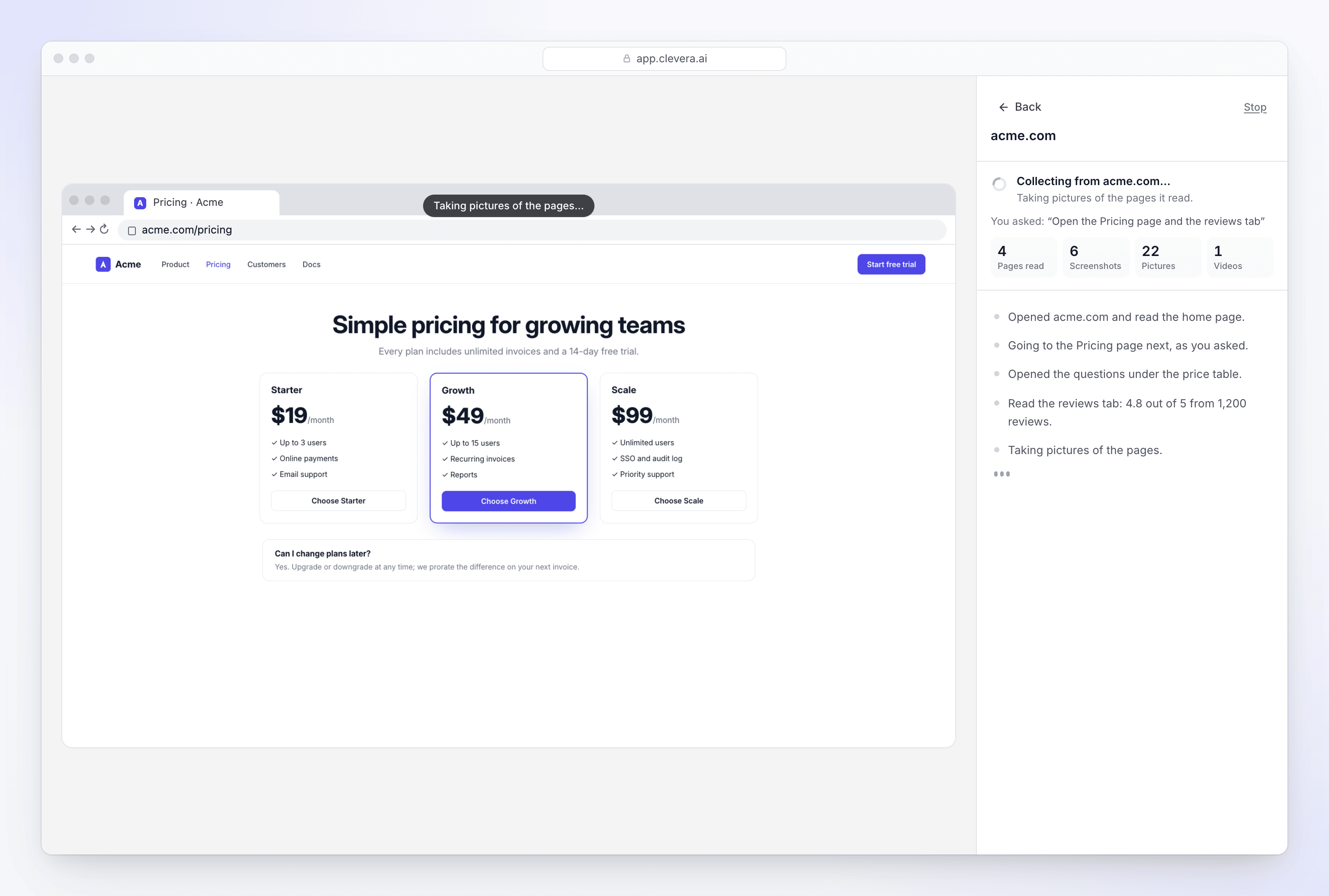
After browsing, Clevera revisits each page for screenshots and pictures. The AI reads what was collected
The visit is over, and the tile says Reading…. Now the AI reads the pages, screenshots and pictures together, with your note and the clip you're making in mind. It writes up:
- What the site says: what it does, who it's for, its features, proof such as reviews or customer numbers, the offer or pricing, and the call to action.
- How it sounds and looks: the site's voice, with examples, and its visual style.
- What you asked for: for each thing in your note, whether it was found and on which page.
- What each picture shows, so the AI director can choose the right one for each scene.
The results are saved
The pictures and videos worth keeping are saved to your workspace's media, and the results are stored with the link. The tile says Collected. When you generate, the AI director builds your clip from these facts and pictures. It doesn't visit the site again.
How long it takes
Research usually takes a few minutes in all. The dialog says "Takes a few minutes", and you can keep working on your brief while it runs.
| Part | Typical time |
|---|---|
| Browsing | Up to about 4 minutes. The AI stops sooner when it has what's needed. One page you named is about a minute's work. |
| Photographing | Usually under 2 minutes. |
| Reading | Usually a minute or two. |
You don't have to stay on the page. Your draft is kept, and Generate video waits until the link is ready.
What you see on the live page
Click Watch on the link's tile to open the live page. The banner reads "We are reading a website for you".
- While it browses: the live browser, a status line such as "Collecting from acme.com…", your note under You asked:, and the counters.
- When it's done: the browser is replaced by the results: facts, what you asked for, screenshots, pictures, logo, videos and pages read. Click Back to Compose to return.
- If it couldn't read the site: the reason, a Try again button, and "Back in Compose you can collect this link again, change it, or remove it."
You can watch, but you can't take over the browser or send notes during research. It's a reading job, not a recording. To stop it early, click Stop, then Yes.
What research can and can't do
| It can | It can't |
|---|---|
| Read up to 5 pages of one site and its subdomains | Follow links to other sites |
| Open tabs, accordions, FAQs, pricing toggles and galleries | Sign in, create accounts or use your saved sign-ins |
| Close cookie banners and pop-ups | Fill in or send forms, add to a basket or check out |
| Wait for most automatic security checks to clear | Solve every security check: some sites block automated visits |
| Save site-hosted MP4 and WebM videos | Download YouTube or Vimeo videos |
| Read web pages | Read PDF files. Upload the PDF to your clip instead |
If a site can't be read, see Fix a website the AI couldn't read.
Safety while it browses
- Pages can't give the AI orders. Everything on a page, including pop-ups, chat messages and hidden text, is treated as content to read, never as an instruction.
- It never types anything private. Research doesn't type passwords, codes or personal details, and never signs in, even if a page asks.
- It downloads nothing to run. It doesn't open or run files, install anything or grant the browser permissions a page asks for.
- Your accounts are never involved. Research uses a fresh browser with no sign-ins, never your browser or a saved sign-in.
How results are reused
| Situation | What happens |
|---|---|
| You press Start research | A fresh visit, every time. |
| You pick a site under Previous research | Its results are reused. No new visit, no new cost. |
| You paste a link into the brief and generate | Clevera reuses a reading of the same site with the same note from your workspace's last 7 days. Otherwise it researches the site then. |
| You change the note on a collected link | What was collected stays as it was. Click Collect again to research with the new note. |
What it costs
Research has no fixed price. It uses credits for the pages and pictures the AI reads and the time it spends on the site, so a bigger site uses more. The cost comes on top of your clip's estimate. See Understand what website research and Record with AI cost.