

Make a video from pictures or a PDF alone
No recording? A how-to or product demo can be made from screenshots, slides or PDF pages alone. The AI narrates each picture and holds it on screen for as long as its narration lasts.
You don't need a screen recording to make a how-to video or product demo. Give Clevera screenshots, slides or a PDF, and the AI writes a voice-over, shows each picture while it talks about it, and adds your template's background, music and cards.
Use it for a product you can't record yet, a slide deck you want narrated, or a process you've already documented in screenshots.
Before you start
- It works for How-to and Product demo videos only. Other types need a recording or, for social clips, work from pictures in their own way.
- Have at least one picture or PDF page to show. Pictures can be JPG, PNG or WebP up to 8 MB each; PDFs up to 40 MB and 30 pages. SVG files can be uploaded but not shown: export them as PNG.
- Put the pictures in the order you want them told, or name the files so the order is clear. The AI follows the story, not the file names, but a clear order helps.
Make the video
Pick a how-to or demo
Click Create and pick a card in the How-to or Product demo family.
Add your pictures or PDF
Click + → Upload images or PDF, or drop the files on the box. You don't need to add a video.
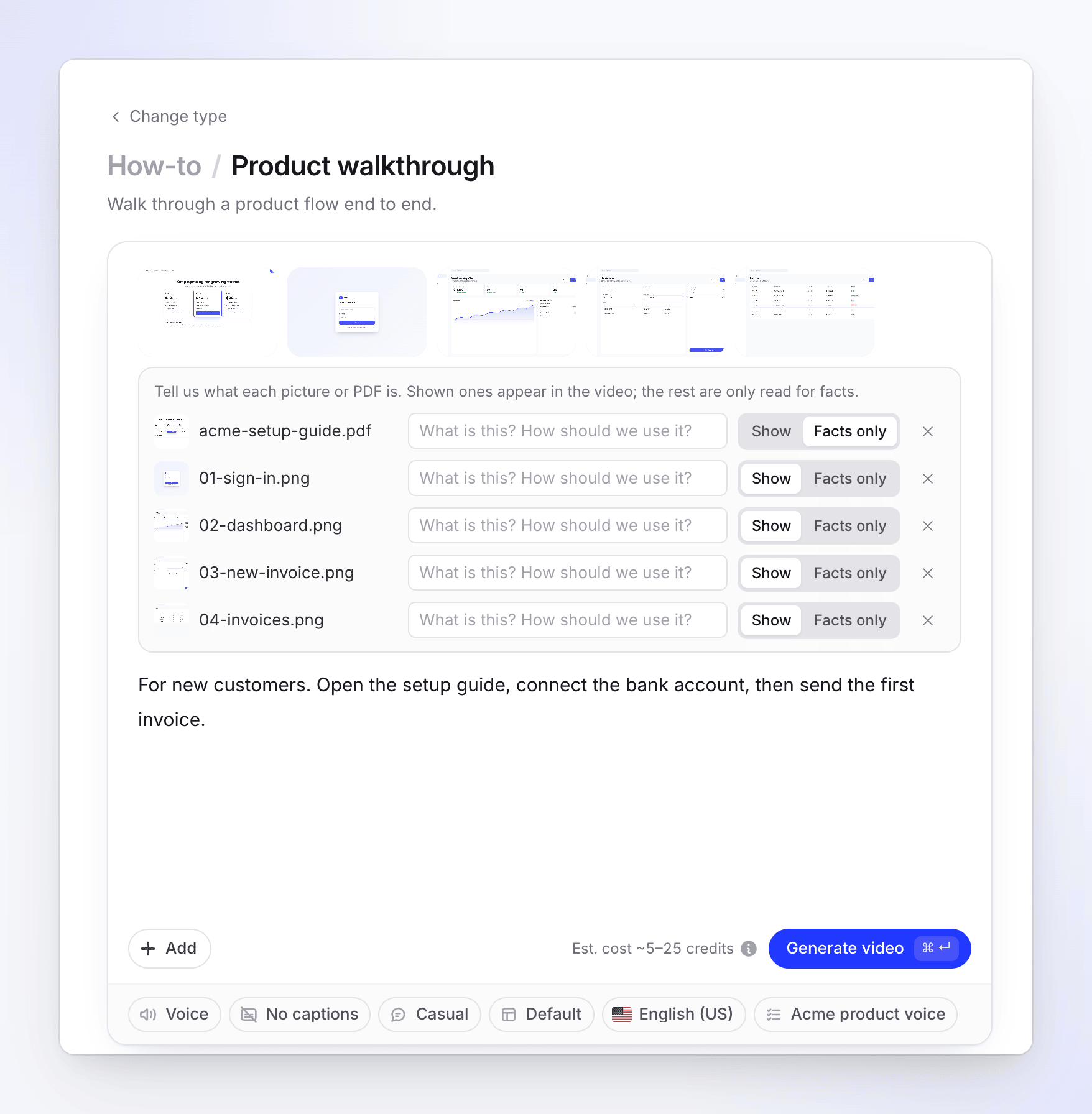
Choose what's shown
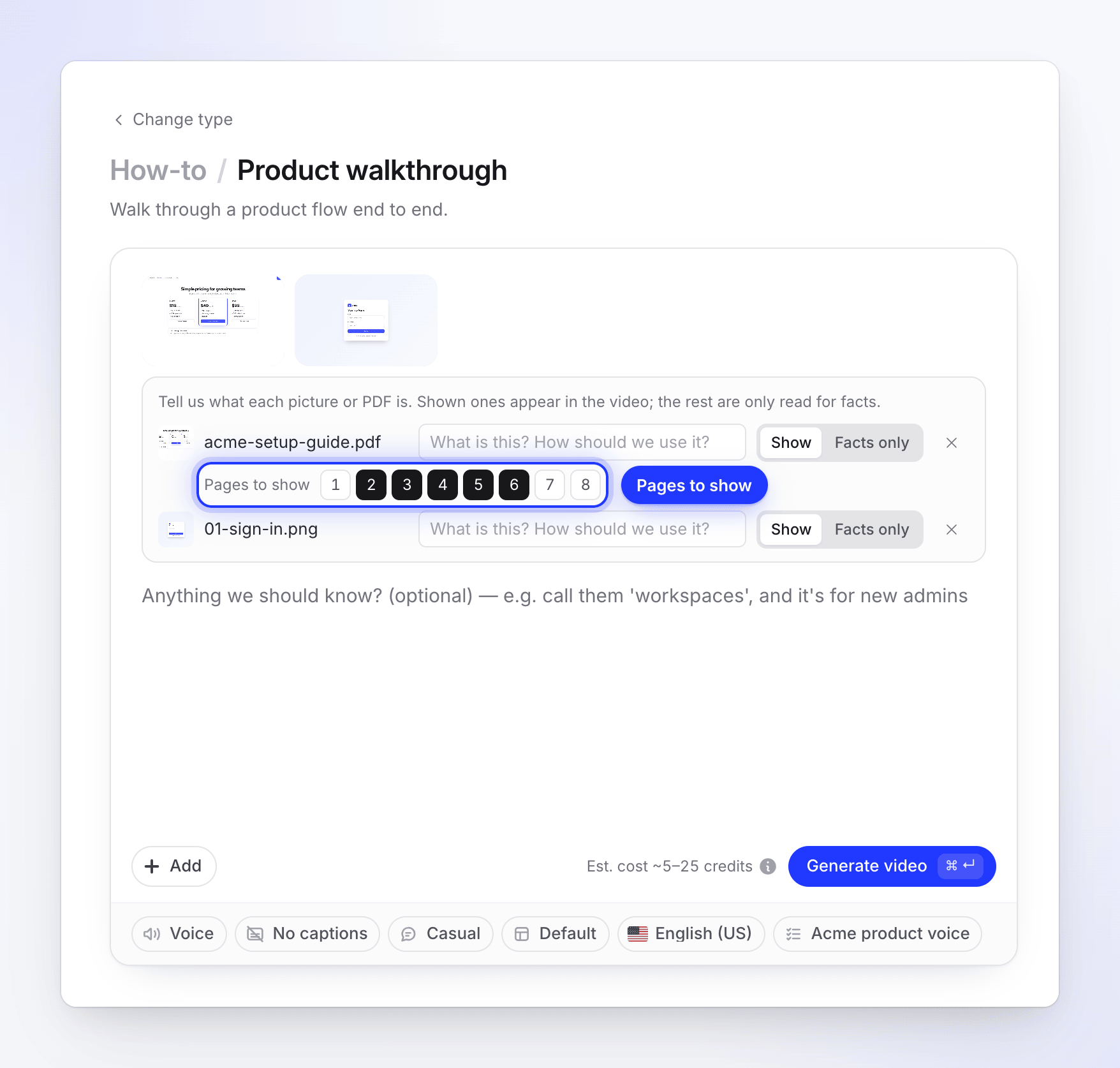
Each file gets a row with a Show / Facts only switch. Pictures start on Show. A PDF starts on Facts only: switch it to Show, then use Pages to show to pick the pages. Add a note in "What is this? How should we use it?" to tell the AI what a picture is.
Describe the process
Write a brief. With no recording and no voice of yours to listen to, the brief and your notes are where the AI learns what happens between the pictures. Say what the viewer should do on each screen and why.
Generate
Click Generate video. The AI reads every picture and page, writes the script, records the voice-over and builds the video.
How the video is built
| Pictures shown | Up to 20 in total, counting every shown picture and every shown PDF page. |
| Screen time | Each picture stays on screen for as long as its narration. The video is as long as its voice-over. |
| PDF pages | Only the pages you pick under Pages to show. If you pick none, pages are shown from the first, up to the limit. |
| Text in the PDF | Read for the script, whether the pages are shown or not. |
| Zooms | None. Zooms follow clicks in a recording, and pictures have none. |
| Look | Your template's background, music, intro card, title cards and logo reveal. |
| Shape | Landscape. |
Cost
The estimate counts a few seconds per shown picture or page, and a typical video costs 5–25 credits. You're charged what the job actually uses. On the Free plan the video can be up to 3 minutes long.
Messages you may see
| Message | What to do |
|---|---|
| "Add a picture or a PDF page to show in the video." | Every file is set to Facts only. Set at least one picture or page to Show. |
| "Only a how-to guide or a product demo can be made from pictures and PDFs alone." | Pick a How-to or Product demo card, or add a recording. |
| "Show at most 20 pictures and PDF pages in one video. Set the rest to "Facts only"." | Show fewer pictures, or pick fewer Pages to show. |
| "Your PDF is still being read — one moment." | Wait until the PDF tile is ready, then press Generate video again. |
| "SVG pictures cannot be shown in the video yet. Export it as PNG, or set it to "Facts only"." | Export the SVG as PNG, or set it to Facts only. |