

Get your logo into a social clip
Social clips find your logo automatically: from a logo file you attach, your website, your workspace logo or your footage. Learn the lookup order, how to make sure the right logo is used, and what happens when none is found.
When a social clip needs your logo, for example on the closing card or a badge, Clevera finds it for you. It checks a few places in a fixed order and uses the first real logo it finds. If you want a specific logo, attach the file with "logo" in its name; that beats everything else.
Where the logo comes from
The AI looks in this order and stops at the first real logo:
| Order | Source | How it works |
|---|---|---|
| 1 | A logo file you attach to this clip | A picture whose file name says "logo" (for example acme-logo.png) is used exactly as you uploaded it. |
| 2 | A website you attach | Clevera looks up the logo for that website's domain, for example from Research a website. |
| 3 | Your workspace logo | The logo in your team settings, used only if it looks like a logo. A photo or the default placeholder is skipped. |
| 4 | A website seen in your footage | If an attached video shows your site's address, Clevera looks up that domain's logo. |
| 5 | Your footage itself | If a frame of your video clearly shows the logo, the AI redraws a clean version from it and checks it twice before using it. |
If none of these gives a real logo, the clip sets your company or product name in type instead, in the clip's style. You still get a clean closing card, just without a mark.
Clevera keeps a light version and a dark version where it can, so the logo stays readable on both light and dark backgrounds.
Make sure your logo is used
Get a clean logo file
Use a PNG, SVG, WebP or JPG of your logo, ideally with a transparent background. Images can be up to 8 MB.
Put "logo" in the file name
Rename the file so its name contains the word "logo", for example
acme-logo.png,AcmeLogo.svgoracme_logo_white.png. The match is on whole words, sologout.pngorcatalogo.pngdon't count. Logos, logotype and logomark also work.Attach it to the clip
On the Compose page, click + → Upload images or PDF and choose the file, or drop it on the brief box. It's attached like any other picture; its tile shows the image itself.
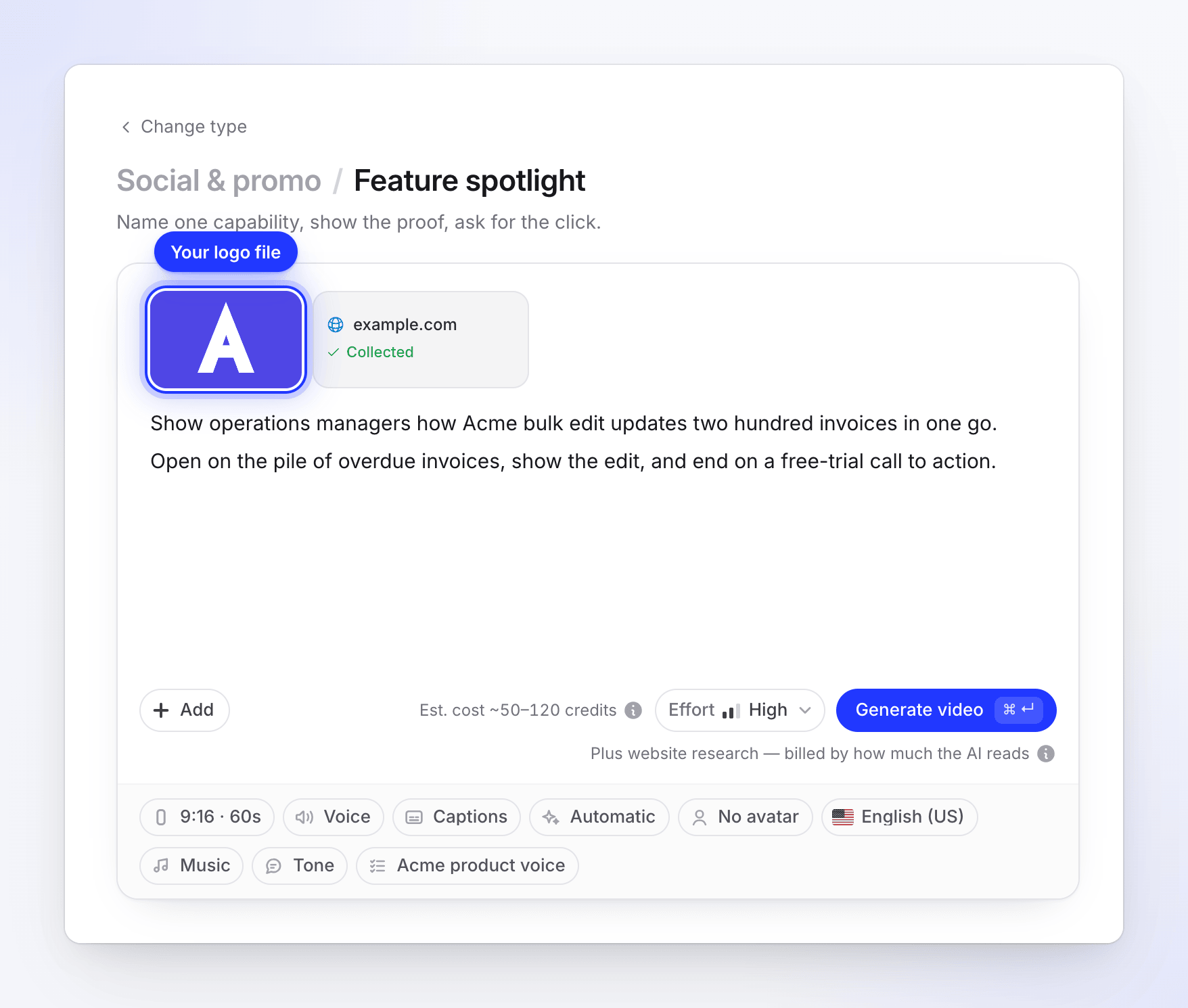
Generate
Click Generate video. Your file is used as it is: it isn't redrawn, recolored or replaced.
Set a workspace logo for every clip
The workspace logo is used when a clip has no logo file, and no attached website gave a logo.
- Open your team settings and go to General → Team profile.
- Next to Logo ("JPG or PNG, up to 8 MB. Square works best."), click Upload and choose your logo.
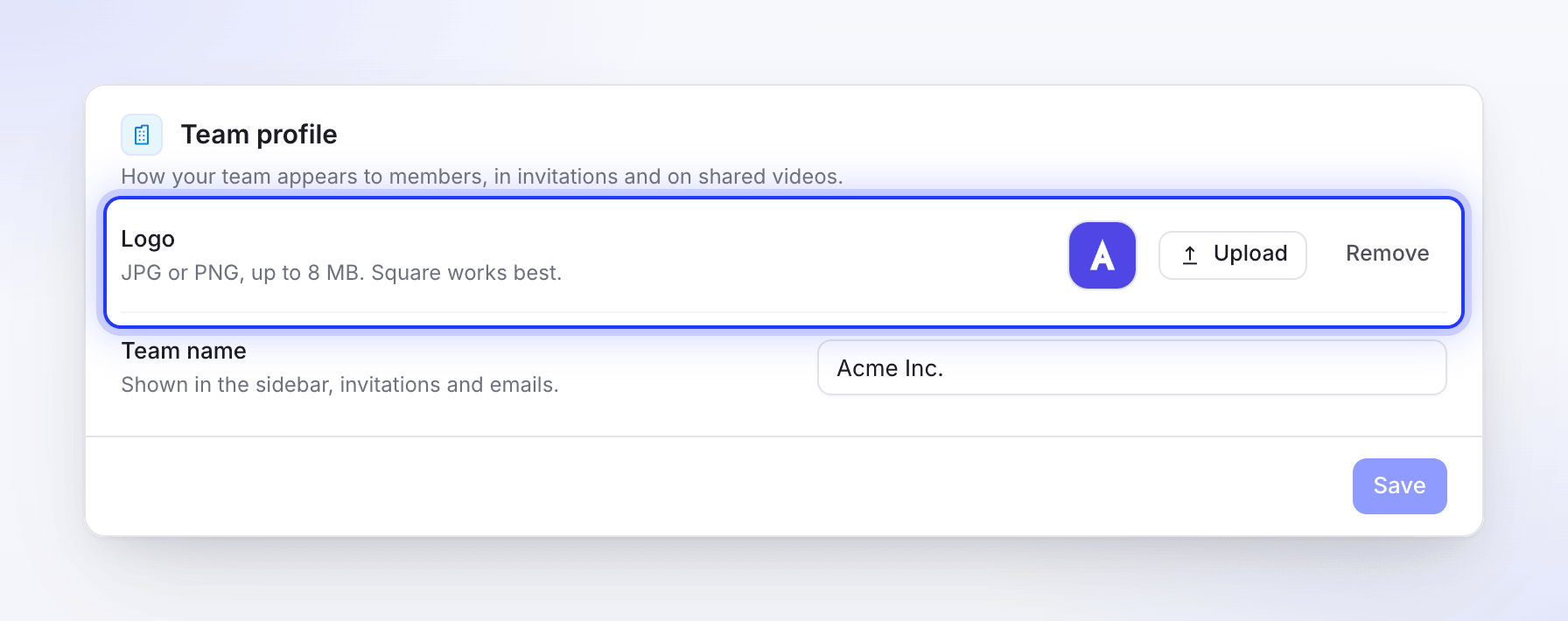
It's saved as soon as you pick it. Use a logo, not a photo: a workspace logo that doesn't read as a logo is skipped.
Tips
- Attach your website. A Research a website run usually gives the AI your logo, colors and real product pictures. See Research a website for a social clip.
- Changed your logo recently? A logo looked up for a website is remembered for up to 30 days, and "no logo found" for up to 7 days. To use a new logo straight away, attach it as a file named "logo".
- White logo? Name it clearly (for example
acme-logo-white.png). Clevera files a light logo as the version for dark backgrounds. - Several brands in one clip? Attach your own logo named "logo". Other logos you attach are treated as partner or customer logos.
Social clips vs. videos from your recording
This page is about social clips. How-to videos and product demos take their closing logo from your video template: built-in templates use your workspace name and logo, and your own templates can carry their own logo. See Use a video template for your brand.
Troubleshooting
| What you see | Why | What to do |
|---|---|---|
| The clip ends on your name in type, not your logo | No source gave a real logo | Attach a file named "logo", or set a workspace logo. |
| A customer's or partner's logo appears where yours should be | Your own logo wasn't marked as yours | Name your file "logo" and generate again. |
| An old logo appears | The website lookup is remembered for a while | Attach the new file named "logo". |
| The logo is hard to see on the background | Only one version (light or dark) was available | Attach both versions, each named "logo", or ask the assistant in the editor to change the background. See Edit a social clip. |