

Use speaker notes viewers never see
Keep talking points, URLs and reminders in a sticky note that stays on top of your screen while you record but is never captured in the video.
Speaker notes are a small sticky-note window for your talking points, URLs and follow-ups. It stays on top of every other window while you record, but Clevera leaves it out of the recording, so viewers never see it.
Open your notes
Use either:
- the Notes button at the bottom of the recording window, or
- the shortcut ⌘ ⌥ ⇧ N on a Mac (Ctrl Alt Shift N on Windows). It works any time, before or during a recording.
Press the shortcut again, or click the close button (Close notes), to hide the notes. Hiding them doesn't delete what you wrote.
Write and arrange your notes
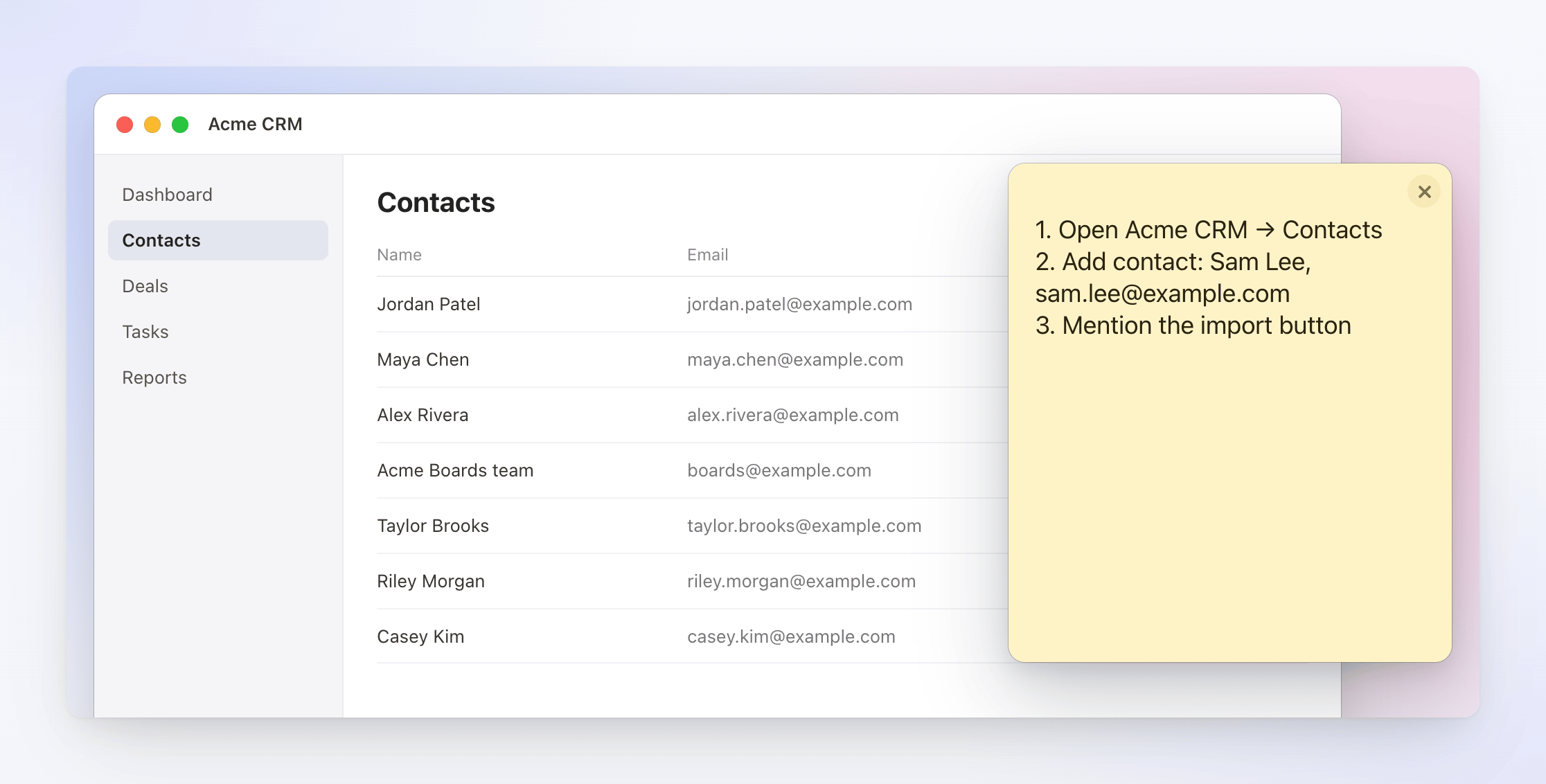
- Type anything: a script outline, the order of clicks, a URL to paste, a test account name. The empty note reminds you: "Jot down anything you want to remember while recording — talking points, URLs, follow-ups. This window stays on top, but it's excluded from your screen capture, so viewers will never see it."
- Drag the window anywhere. Put it next to the part of the screen you're recording, or on a second display.
- Drag an edge or corner to resize it. It opens at 320 × 360 the first time and can be as small as 220 × 200.
- On a Mac, the note stays visible on every desktop or Space and over full-screen apps.
Your text, the window's size and its position are saved as you go and come back the next time you open Clevera. There is one note per computer user; it isn't synced to your Clevera account or shared with your team.
How notes stay out of the video
Clevera tells your operating system to leave the notes window out of every screen capture, so it isn't in the video even when you record the full screen and the note sits on top. Clicks and typing inside Clevera's own windows aren't captured as recording input either.
The notes window is always left out of the recording.
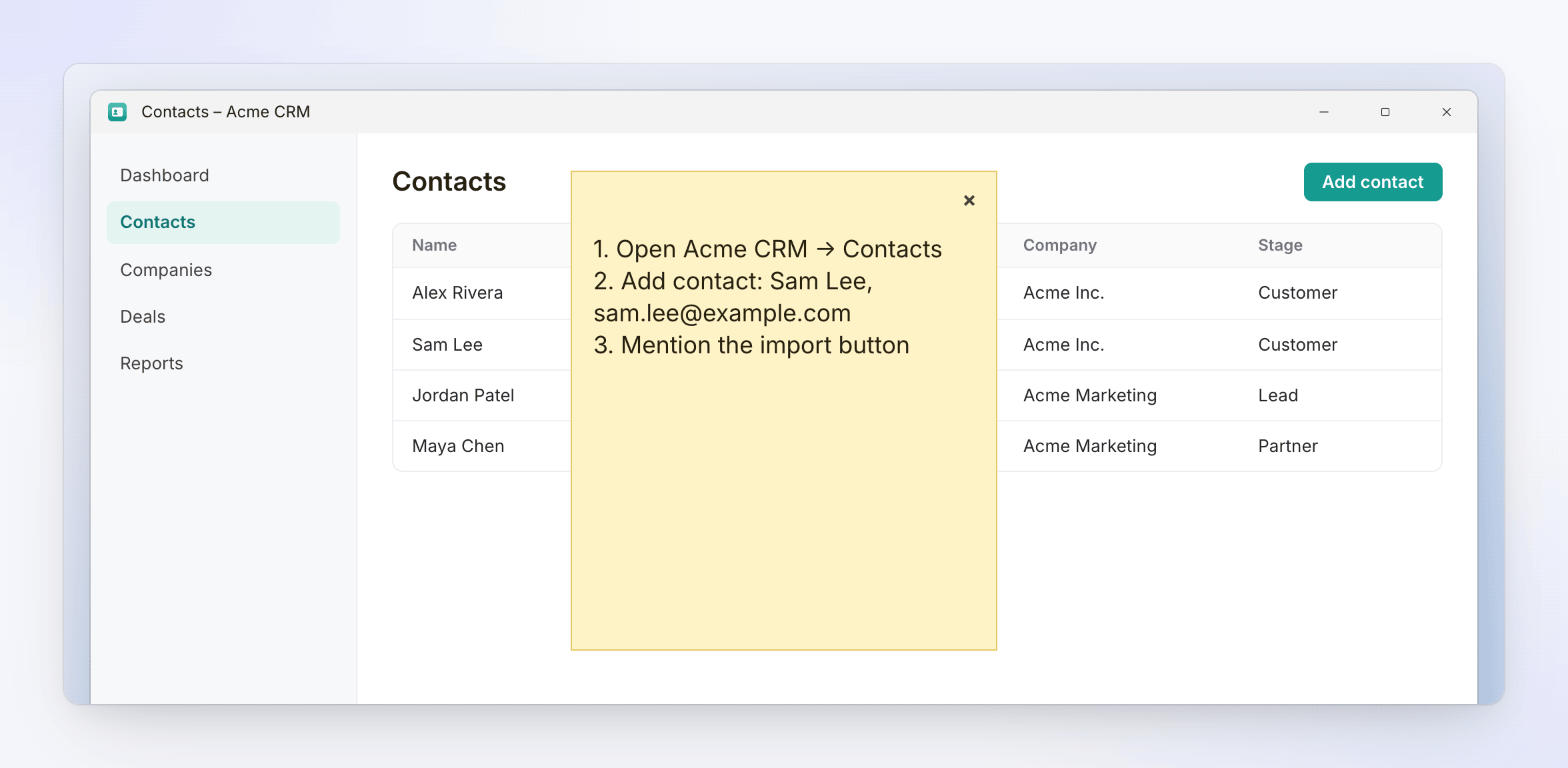
Leaving the note out of the recording needs Windows 10 version 2004 (build 19041) or later. On some Windows 10 versions the note can still appear in the video. If you're on Windows 10, move the note to a second display or outside the area you record, or do a short test recording first.
Ideas for what to put in your notes
- The three or four points you want the video to make, in order.
- The exact clicks of the task, so you don't wander.
- Sample data to type (fake names,
example.comaddresses), so no real customer data ends up on screen. - A closing line or call to action.