

Publish videos to Wistia
Connect Wistia with an API token and send finished Clevera videos into a Wistia folder as unembedded drafts, with an AI-written title and description.
Send a finished Clevera video straight into a folder of your Wistia library, with a name and description written by the AI. The video arrives as an unembedded draft: nothing appears on your site until you embed it from Wistia.
For how publishing works across every platform, see Publish videos to your platforms.
What lands where
| Where it goes | The Wistia Folder you pick. |
| How it arrives | As a new media item in that folder, not embedded anywhere. |
| What Clevera fills | Title and Description, written by the AI. You pick the Folder. |
| What it costs | No per-send fee. |
| After you send | Wistia processes the video. When it's ready, the status turns green and reads "In a folder on Wistia. Share or embed it from there." |
Before you start
- Plan. Publishing to video platforms is part of the Pro plan and above. On a lower plan the Publish tab says "Publishing is part of the Pro plan."
- Role. Only workspace owners and admins can connect or disconnect an account. Anyone who can edit a video can send it to an account that's already connected.
- A Wistia API token. Wistia connects with a token, not a sign-in, because Wistia only turns on app sign-in for some accounts. The Account Owner creates the token in Wistia under Account Settings → API. It needs two permissions:
- Read all folder and media data, so Clevera can list your folders.
- Upload videos, so Clevera can add the video.
Connect Wistia
Open Integrations
In Clevera, open Integrations from the sidebar. Wistia is under Video platforms.
Click Connect
Click Connect on the Wistia card. If an account is already connected, the button reads Add account.
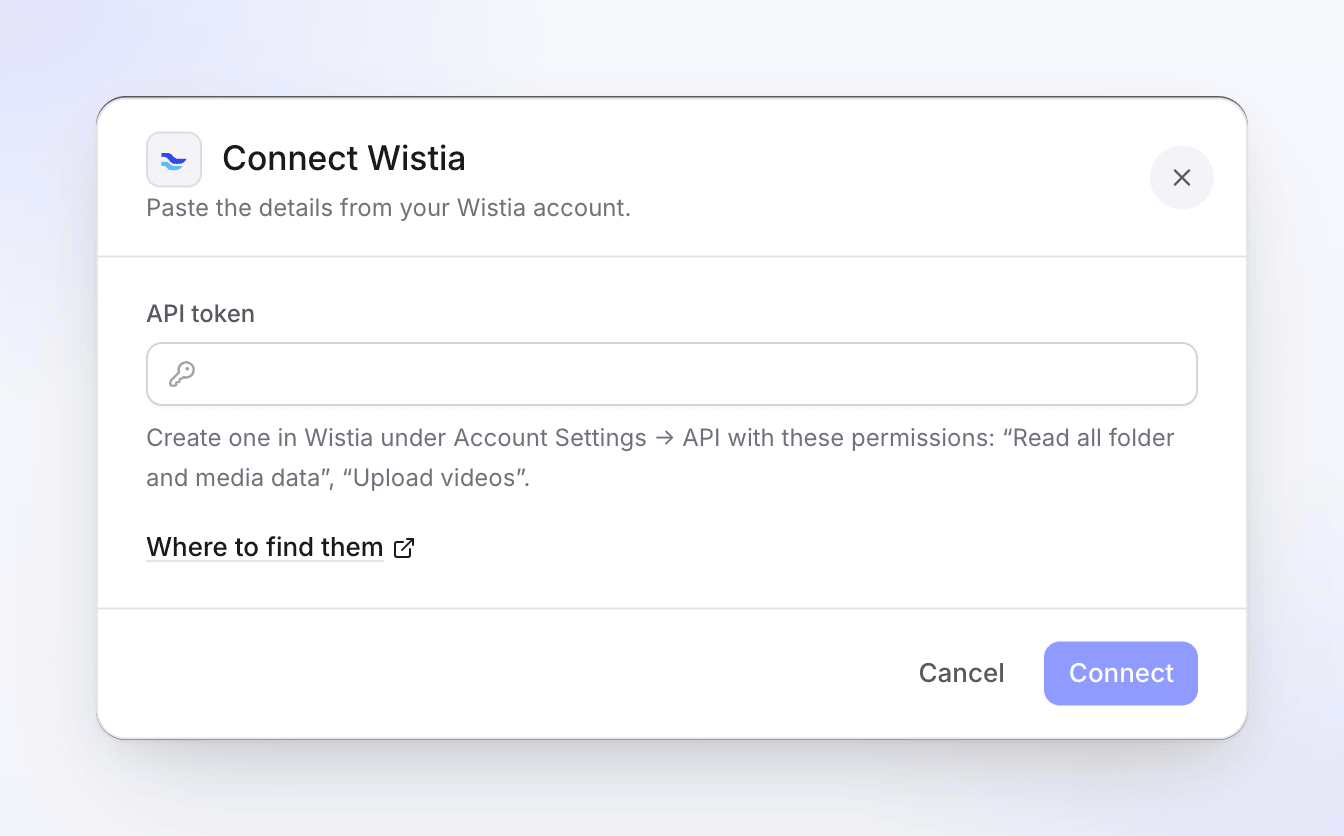
Paste the token. The help text lists the two permissions it needs. Paste the API token
Paste the token into API token and click Connect. Where to find them opens Wistia's API settings page.
Clevera checks the token before saving it. It must belong to a Wistia account, it must have upload permission, and Clevera must be able to read your folders. A token that can read but not upload is refused now, so you don't find out at your first send.
Check the card
The account appears on the Wistia card, named after your Wistia account. "Nothing sent yet" changes once you send a video.
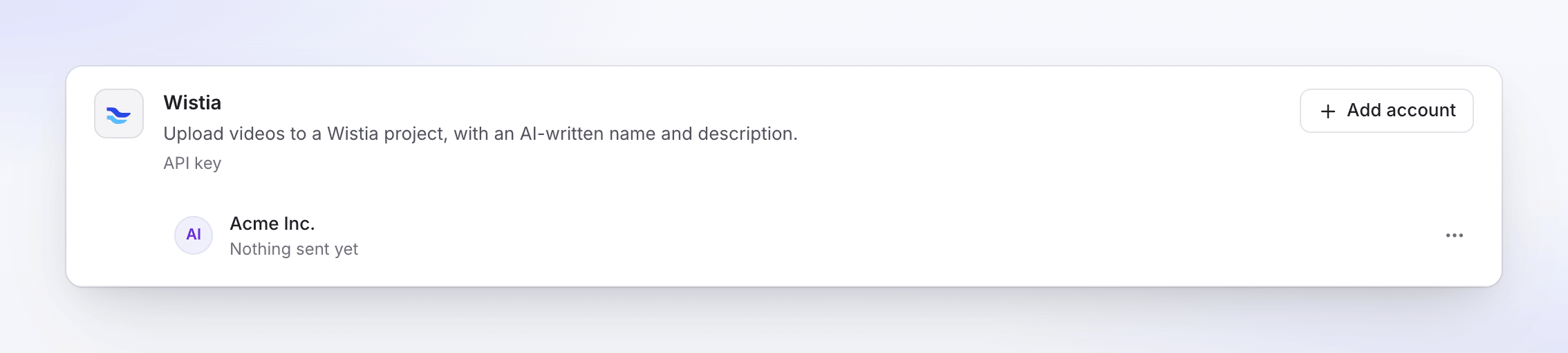
You can connect several Wistia accounts. Each one is a separate row, and Clevera keeps one connection per Wistia account.
Send a video to Wistia
Open the Publish tab
Open the video, click Share, then the Publish tab. Click Publish… (or Publish again if you've sent this video before).
Tick the Wistia account
Under Send to, tick the Wistia account in Video platforms. You can tick other accounts too and send everything at once.
Check the details
The AI writes the title and description in the language of the selected render, shown at the top right. Edit anything; changes save as you type. Pick the folder under Folder.
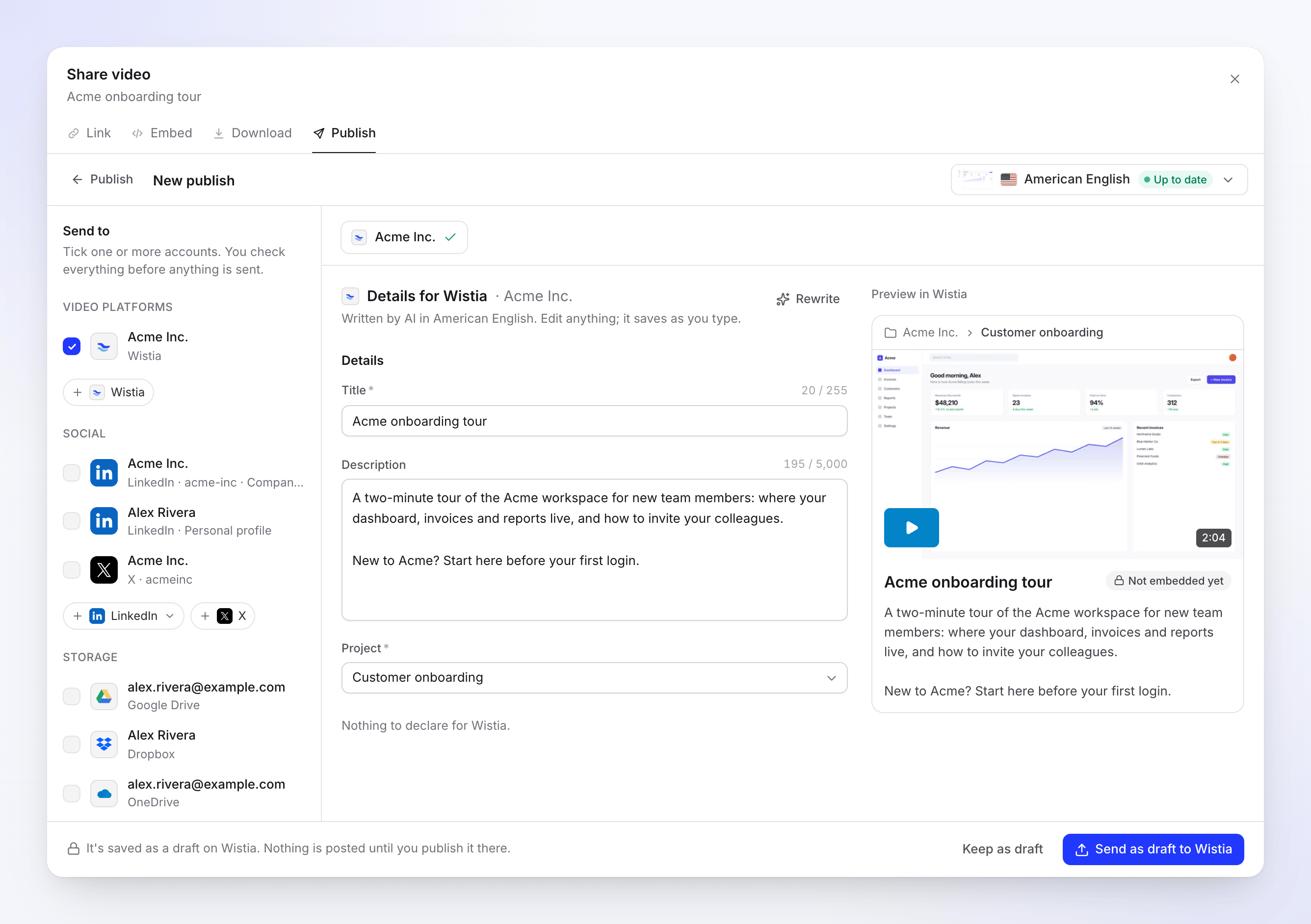
The preview shows the folder path, the title and the description as Wistia will list them. Send it
Click Send as draft to Wistia (or Send to N with several accounts ticked). To finish later, click Keep as draft.
Choose the folder
The Folder list shows every folder your token can read, sorted by name. Folders from your Video Library come first. Wistia's own system folders, such as Bumpers and Sample live event, go to the end, because they never show in your library.
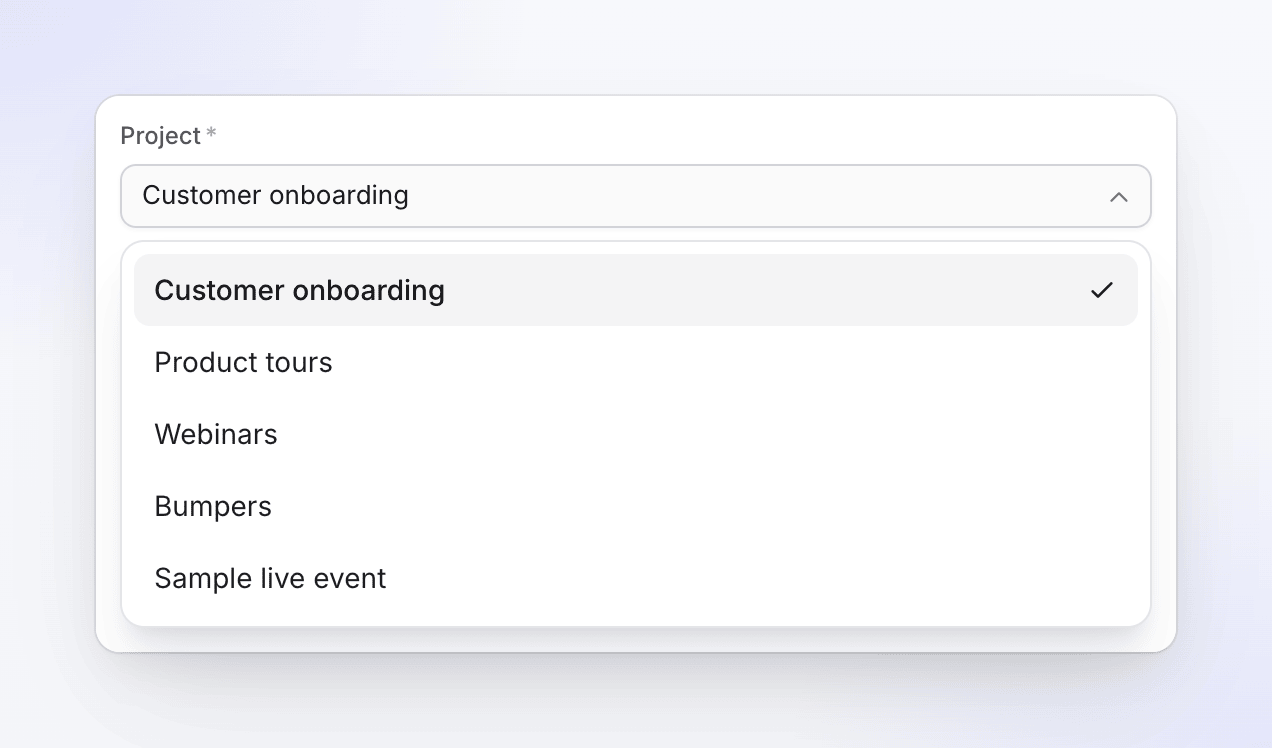
- Default: the folder you used last time for this account, if it still exists. Otherwise, the first folder in the list.
- Required: you can't send without a folder. If the list can't load, the form still opens, but Send waits until a folder is chosen.
- New folders show up within about an hour, because Clevera keeps the list for an hour. Reconnecting the account refreshes it at once.
Fields and limits
| Field | Filled by | Limit | Notes |
|---|---|---|---|
| Title | AI | 255 characters, required | < and > aren't allowed. |
| Description | AI | 5,000 characters | Plain text. < and > aren't allowed. |
| Folder | You | One of your folders, required | Remembered per account for next time. |
Wistia has no visibility setting in Clevera: the video is private to your Wistia account until you embed or share it from Wistia. The preview marks it Not embedded yet. There's no thumbnail, chapters, tags or scheduling for Wistia.
If you type < or >, the field names them: "Remove < >: the platform doesn't allow them."
Rewrite asks the AI for a fresh title and description. You can rewrite one draft up to 10 times a day.
Video requirements
| Limit | |
|---|---|
| File size | Up to 8 GB |
| Length | At least 1 second, no maximum |
| Format | Any video file Clevera renders (MP4) |
Statuses you'll see
| Status | What it means |
|---|---|
| Waiting for render | No render yet. It sends as soon as the render finishes. |
| Queued | "Starting the upload to Wistia." |
| Uploading N% | The file is on its way to Wistia. |
| Processing on Wistia | "Wistia is processing the video. This can take a few minutes." |
| Delivered (green) | Ready in your folder: "In a folder on Wistia. Share or embed it from there." Open on Wistia opens the media page. |
| Failed | Nothing reached Wistia, or Wistia rejected it. The message says why. |
| Removed | The video was archived or deleted in Wistia. |
You can close the Share window while a send is running. Click Cancel sending to stop one that hasn't finished.
On Wistia afterwards
The video is a normal media item in the folder you chose. Embed it, share it or move it from Wistia as you would any upload. Clevera doesn't change it again after it arrives. If you archive or delete it in Wistia, the row in Clevera changes to Removed.
Troubleshooting
Retry only shows when the platform says trying again can help.
| Message | What to do |
|---|---|
| "Wistia didn't accept these credentials. Check them and try again." | The token is wrong, deleted or has a stray space. Copy it again from Account Settings → API. |
| "The Wistia connection isn't allowed to do this. Reconnect it with upload permission." | The token lacks Upload videos. Create a token with both permissions and connect again. |
| "Enter the API token." / "The API token is too long (at most 255 characters)." | Paste only the token itself. |
| "Too many connection attempts. Please try again in a minute." | Wait a minute, then try again. |
| "Reconnect your Wistia account to send this." | The token was deleted or expired. Click Reconnect and paste a new token, then Retry. |
| "Wistia didn't accept some of the details. Check them and send again." | Most often the folder was deleted, or the token can't see it. Pick another Folder and send again. |
| "Wistia refused the upload: …" | Wistia's own reason follows, for example your plan's video limit. Fix it in Wistia, then Retry. |
| "Wistia rejected the video: the file is larger than allowed." | The render is over 8 GB. Render at a lower resolution. |
| "Wistia rejected the video: it didn't pass the platform's checks." | Wistia couldn't process the file. Click Retry: a fresh upload of the same render often goes through. |
| "Something went wrong while sending this to Wistia. Please try again. Reference: …" | Click Retry. If it keeps failing, contact support with the reference. |
Disconnect Wistia
- Open Integrations, find the account on the Wistia card and click ⋯ → Disconnect.
- Confirm. Sends still in progress stop, drafts stay in the Publish tab, and videos already in Wistia stay there.
- Delete the token in Wistia too. Wistia has no way for an app to revoke a token, so it stays valid until you delete it under Account Settings → API. The confirmation reminds you: "Also delete the API token you gave Clevera in your Wistia settings."
FAQ
Does Clevera embed the video on my site? No. It lands in your Wistia library, unembedded. Embed it from Wistia.
Can I pick a thumbnail? Not from Clevera. Wistia picks one; change it in Wistia.
I created a folder in Wistia and it isn't in the list. The folder list refreshes about once an hour. Wait, or reconnect the account to refresh it now.
Who pays for the upload? There's no per-send fee. The video counts toward your Wistia plan's limits like any upload.
Can I send the same video twice? Yes. Each send creates a new media item in Wistia. Use Send to this account again on a sent row.