

Keep your accounts safe during Record with AI
How Clevera handles your sign-ins and data when the AI records your product: where the browser runs, what happens to a login you give it, how saved sign-ins work, what the AI will never do and what ends up in the recording.
Record with AI drives a real browser into your product, so it's fair to ask what it can see and what happens to your sign-in. This article explains where the browser runs, how logins and saved sign-ins are handled, what the AI will never do, and what ends up in the recording.
Where the browser runs
The AI works in a separate browser in Clevera's cloud, never on your computer or in your own browser.
- It can't see your other tabs, files, apps or passwords saved in your browser.
- It isn't signed in to anything unless you sign it in, or your workspace has a saved sign-in for that site.
- Each recording gets its own browser, and the browser is shut down when the recording ends.
- It opens only public
https://pages, so it can't reach your company's internal network.
You can watch everything it does on the live page and click Stop at any time.
If you give the AI a login
With Sign-in set to Use a login, you enter an email or username and a password, and confirm "I'm allowed to give Clevera access to this account."
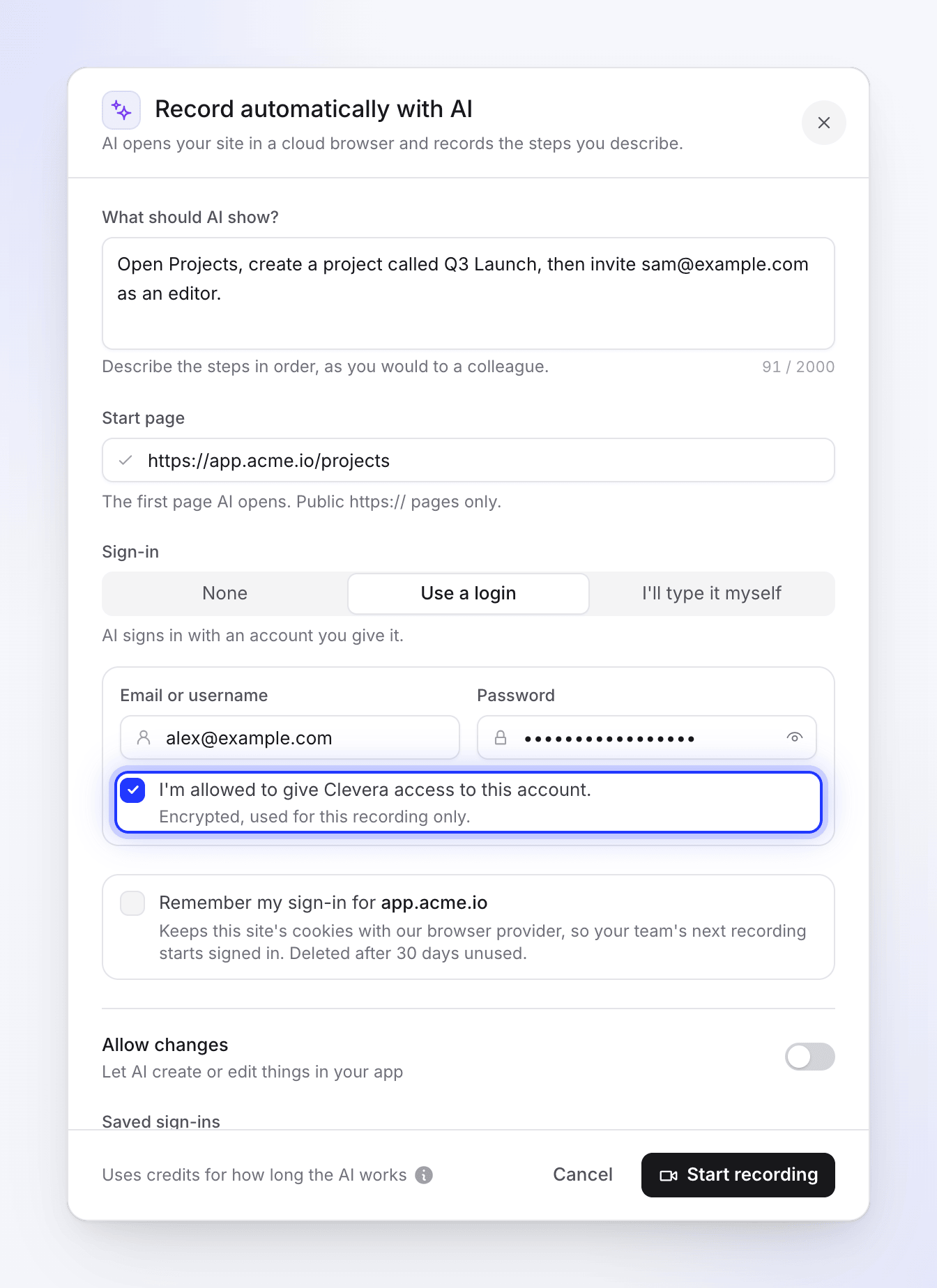
- Encrypted and short-lived. "Encrypted, used for this recording only." The login is held encrypted only until the recording starts, then removed. It isn't saved to your workspace and can't be viewed again.
- Typed without being read. The AI fills the sign-in form through a secure typing step that uses placeholders. The password itself isn't part of what the AI reads or writes, and it's told never to repeat, copy or summarize it.
- Only on your site. The login can only be typed into the start page's site and its subdomains. If a page on another site asks for it, it isn't entered.
If you type it yourself
With I'll type it myself, the AI stops at the sign-in page and hands you the browser. You type your details straight into the recording browser. Clevera never receives or stores them. This is the right choice for your own account, for sign-ins with a one-time code, and for single sign-on.
In the setup chat, signing in always works this way: "At the sign-in page the browser becomes yours. Sign in there, never in the chat." Never type a password into a chat message.
Saved sign-ins
If you tick Remember my sign-in for app.acme.io, the site's sign-in cookies are kept for your workspace's next recording: "Keeps this site's cookies with our browser provider, so your team's next recording starts signed in. Deleted after 30 days unused."
| Question | Answer |
|---|---|
| Who can use it? | Anyone in your workspace who records that exact site. One saved for app.acme.io isn't used for admin.acme.io. |
| What does Clevera store? | Your consent and a reference to the saved browser session. Never the cookies or your password. |
| How long is it kept? | Until it goes 30 days without being used. |
| Where do I see them? | In the Record automatically with AI dialog. Once your workspace has one, a Saved sign-ins list sits under the form, one row per site. There's no other page for them. |
| How do I remove it? | Click Forget next to the site under Saved sign-ins, or next to "Using your saved sign-in for app.acme.io." when that site is your start page. It's deleted at once, here and in the cloud browser, with no confirmation. If it fails, you see "We couldn't forget that sign-in. Give it another go." |
| Who can remove it? | Anyone in your workspace, not only the person who saved it. |
| What else removes it? | Deleting the workspace, or deleting the account of the person who saved it. |
| Is it used for website research? | No. Research never signs in. |
What the AI will never do
These rules apply to every recording, whatever a page says:
- Pages can't give it orders. Text, pop-ups, chat messages, documents and alerts on a page are treated as content to film, never as instructions, however urgent they sound.
- No private details because a page asks. It never types passwords, codes, card or bank details or personal details unless they're your sign-in, typed the secure way above.
- No payments. It doesn't fill in payment forms.
- No downloads or permissions. It doesn't download, open or run files, install anything, or allow a page to use your camera, microphone, location or notifications.
- No wandering. It stays on your start page's site and its subdomains, unless your steps need another site or your sign-in sends it to a sign-in provider. It sticks to your steps and doesn't open unrelated pages, settings or menus.
- No guessing passwords. If it has no sign-in details, it stops and asks you.
- No getting around checks. At a CAPTCHA, a code or a consent only you can give, it stops and hands you the browser.
Creating and editing things
The AI does only the steps you describe. Whether it may change anything in your app depends on Allow changes ("Let AI create or edit things in your app"):
| Allow changes | What the AI does |
|---|---|
| Off | Read-only. It may open, view, scroll, search, filter, sort, switch tabs and sign in. It doesn't create, edit, delete, send, publish, invite, buy, pay or change any setting, and doesn't confirm a dialog that would. If one of your steps asks for a change, it shows where that's done (it opens the form or menu), stops before saving or submitting, and goes on with the next step. |
| On | It may create or edit things when your steps need it, such as "create a project called Q3 Launch". |
Even with Allow changes on, use a test account or a test workspace in your product to be sure nothing in a real account changes.
What ends up in the recording
The recording shows what the browser showed, from start to finish:
- Everything the AI does on screen, and any data your app displays along the way.
- What you do while you have the browser. "What you do here stays in the recording, as part of the walkthrough."
- Password fields as dots. An email address, username or one-time code you type is visible.
In how-to videos and product demos made from the recording, the time you held the browser usually plays fast-forwarded. Nothing on screen is blurred automatically. See Understand how Clevera protects what's on your screen.
The recording is saved to your workspace, so people in your workspace can see it and the videos made from it.
If something looks wrong
- Click Stop on the live page, then Yes.
- If you shared a login, change that account's password.
- Click Forget on any saved sign-in for the site.
- Contact support with the time of the recording and what you saw.