

Share a video with a link
Turn on a share link so anyone can watch a video in the browser with no sign-in. Covers copying the link, who can open it, turning it off, what viewers see, and why there's no password or expiry.
Turn on a share link to let anyone watch a video in their browser, with no Clevera account and no download. The link always plays the latest version of the video, so edits you make later show up without sending a new link.
Before you start
- You need permission to edit the video. If you can only view it, Share is greyed out with "You don't have permission to edit".
- You don't need to export first. The share page plays the video straight from Clevera.
Share a video
Open Share
In the editor, click Share in the top-right corner. The window opens on the Link tab.
Turn on the link
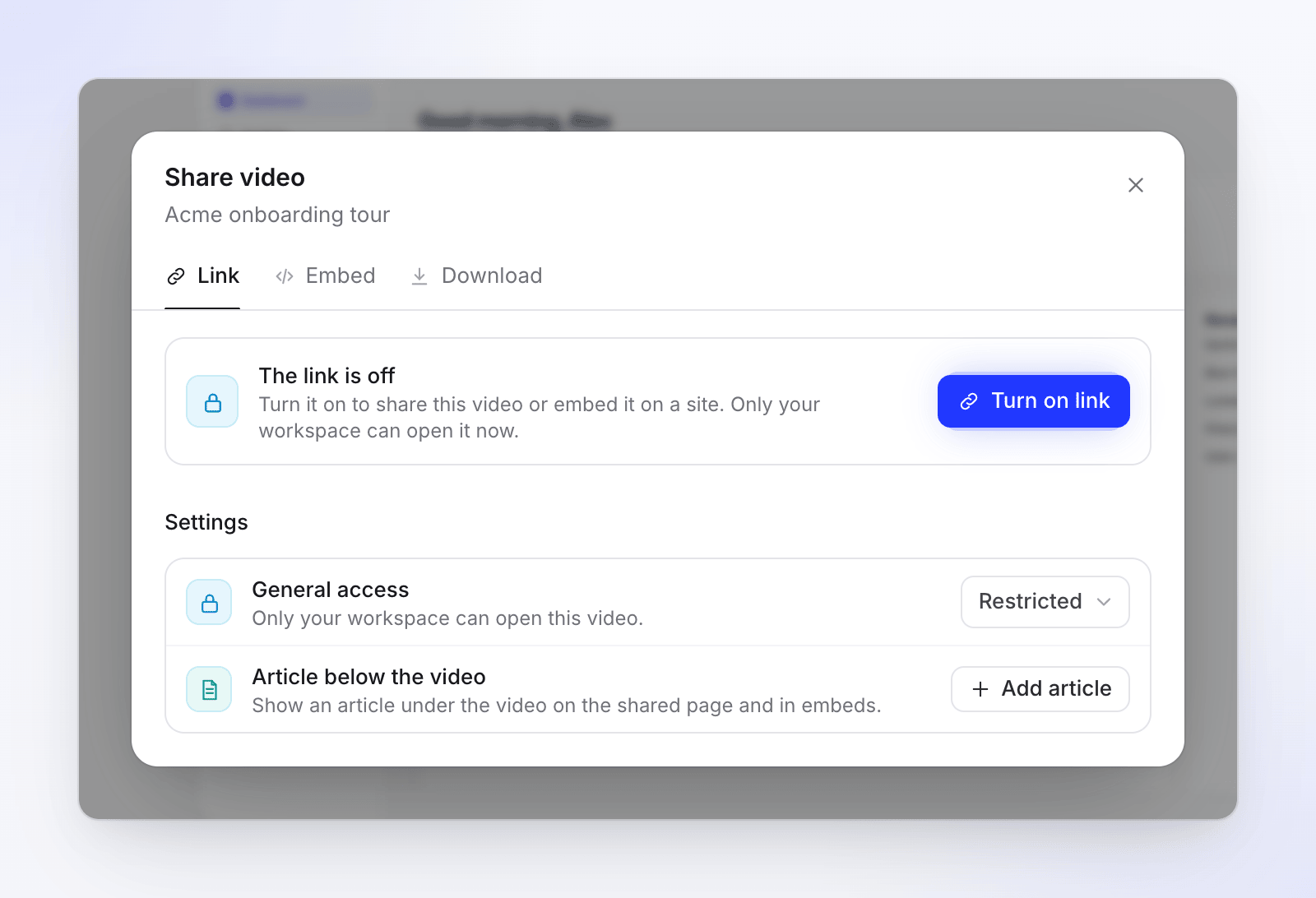
A new video says "The link is off". Click Turn on link. You see "Link is on. Anyone with it can view."
Copy the link
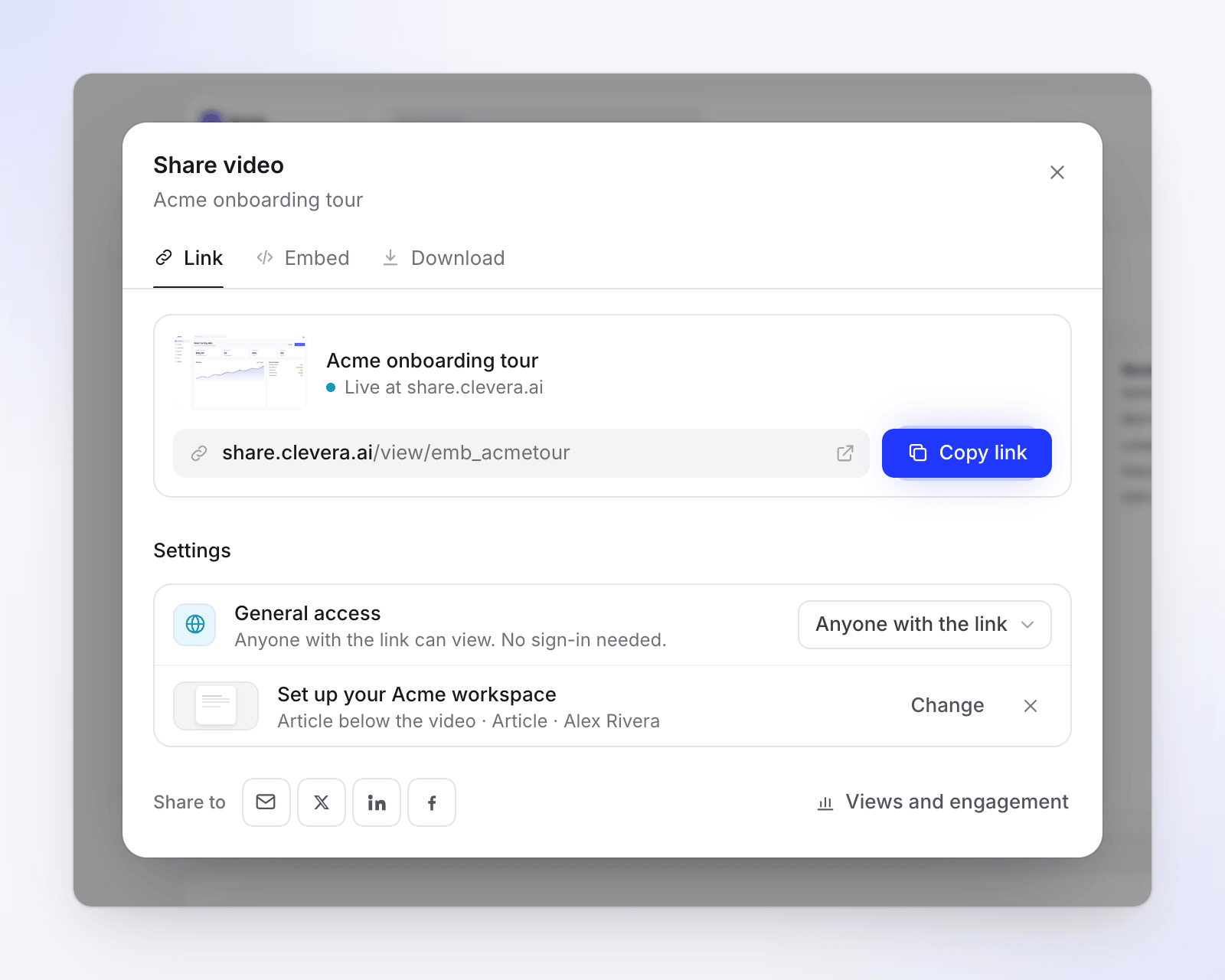
The card shows the video, "Live at share.clevera.ai" and the link. Click the copy button next to it, then paste the link into an email, chat or doc.
Copy the link or send it straight to a site. Or send it straight to a site
Next to Share to, pick email, X, LinkedIn or Facebook. Each opens that site's share window with the link filled in.
Who can open the link
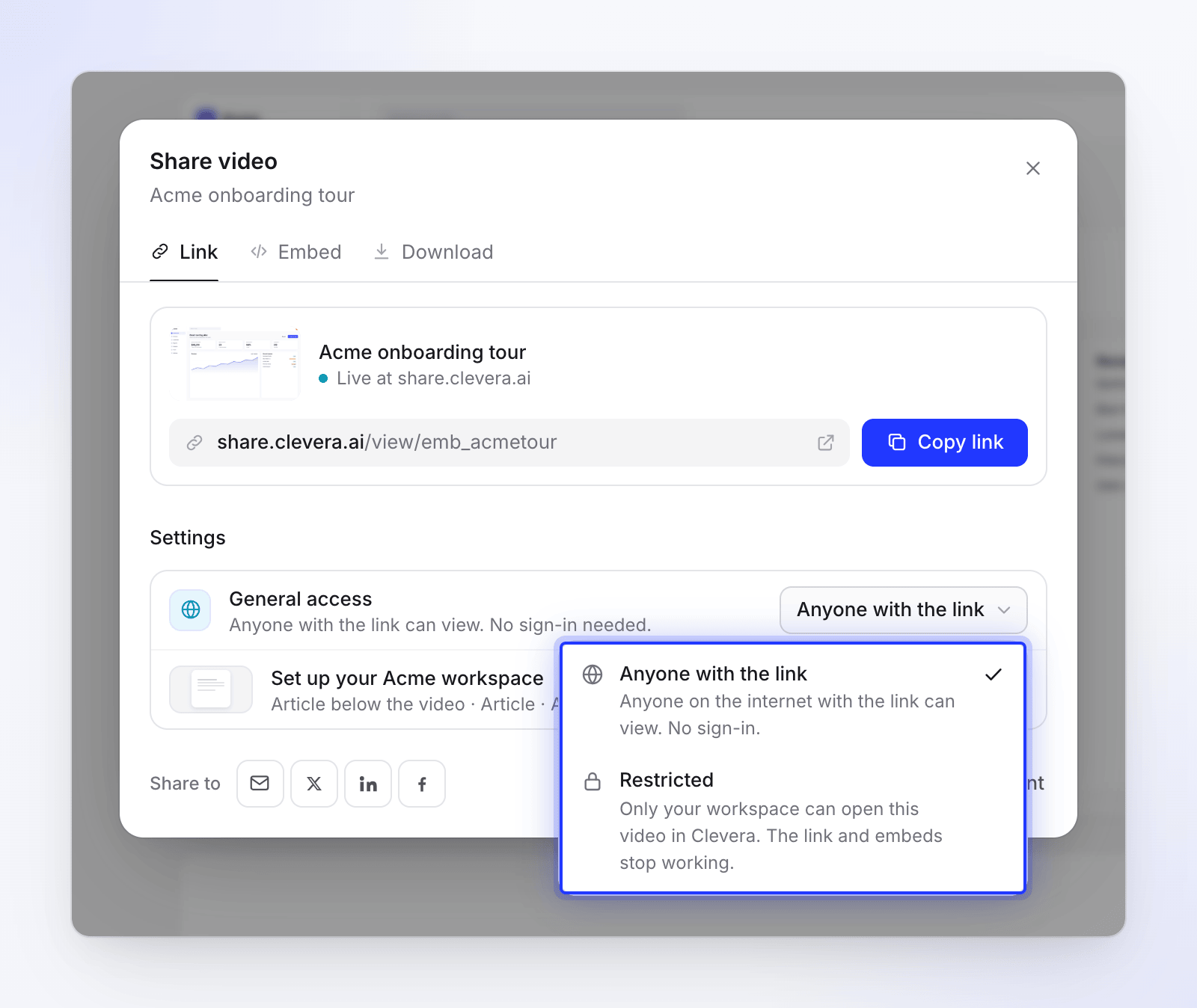
General access in the Settings section has two choices:
| Choice | Who can watch |
|---|---|
| Anyone with the link | "Anyone on the internet with the link can view. No sign-in." |
| Restricted | "Only your workspace can open this video in Clevera. The link and embeds stop working." |
What protects a shared video
Share links are deliberately simple. Here's what is and isn't there:
| Control | Available? |
|---|---|
| Turn the link (and every embed) off and back on | Yes |
| Hard-to-guess link: each link carries its own random key | Yes |
| Kept out of search engines: share pages tell search engines not to index them | Yes |
| Only people who can edit the video can turn its link on or off | Yes |
| Collection access: who can open the video inside Clevera | Yes, see collections |
| Password protection | No |
| Link expiry date | No |
| Limit the link to certain people, emails or domains | No |
If a video shouldn't be seen outside your team, keep it Restricted and share it with teammates inside Clevera instead.
Turn the link off
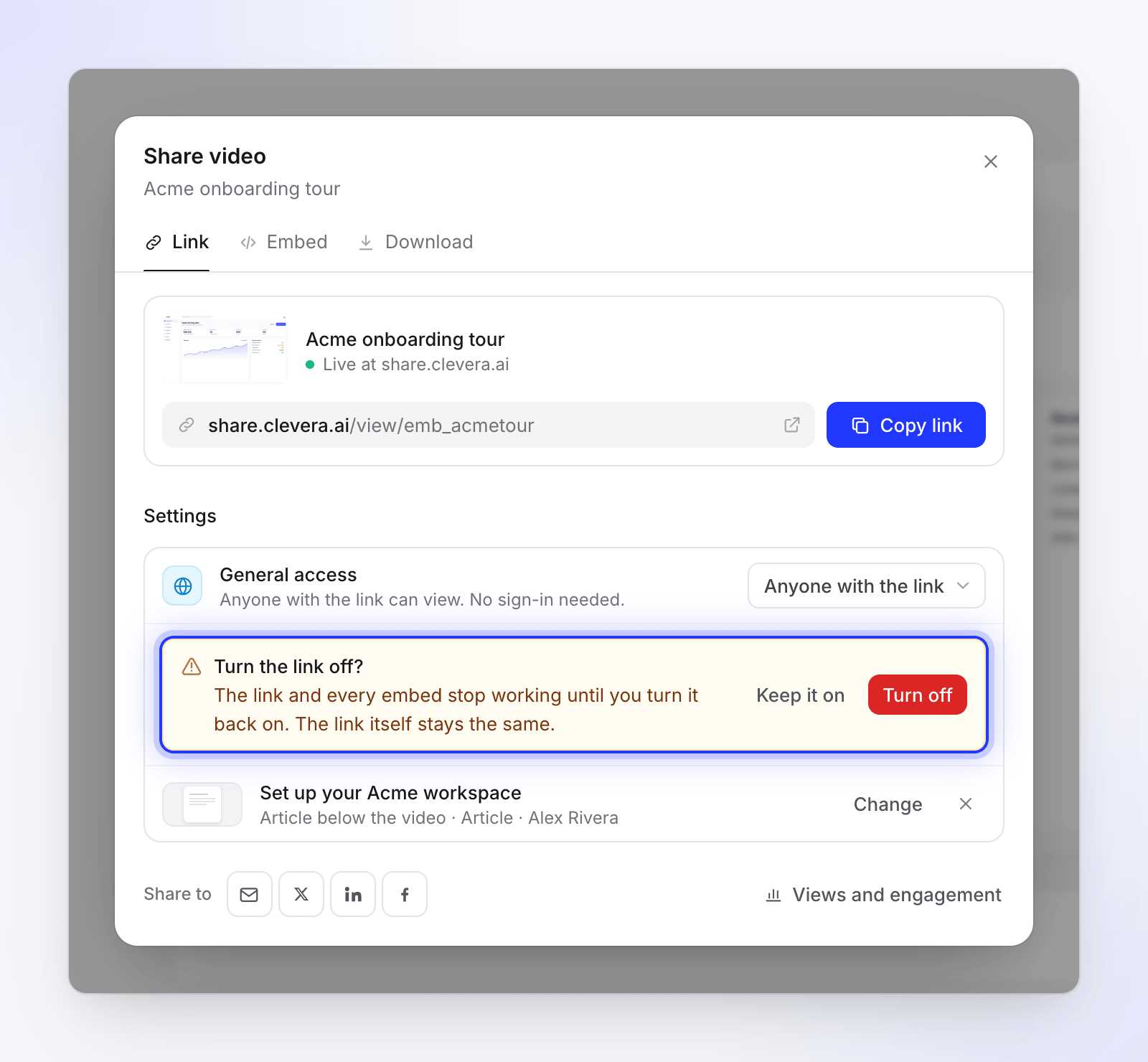
- In General access, choose Restricted.
- Read the warning "Turn the link off?" — "The link and every embed stop working until you turn it back on. The link itself stays the same."
- Click Turn off, or Keep it on to cancel.
You see "Link turned off. The link and embeds no longer open." Anyone who opens the old link sees "This video isn’t available" and "The owner has stopped sharing this video."
What viewers see
The share page shows:
- the video's title, who made it, your workspace's name, and when the video was last updated
- the player, with play, seek, volume, captions (when the video has them), speed from 0.75× to 2× and fullscreen
- Chapters beside the player for how-to and demo videos
- a Language menu when the video has translations; the link opens in the language you were editing
- a light/dark switch and Copy link
- an article under the video, if you attached one. See Attach a companion article.
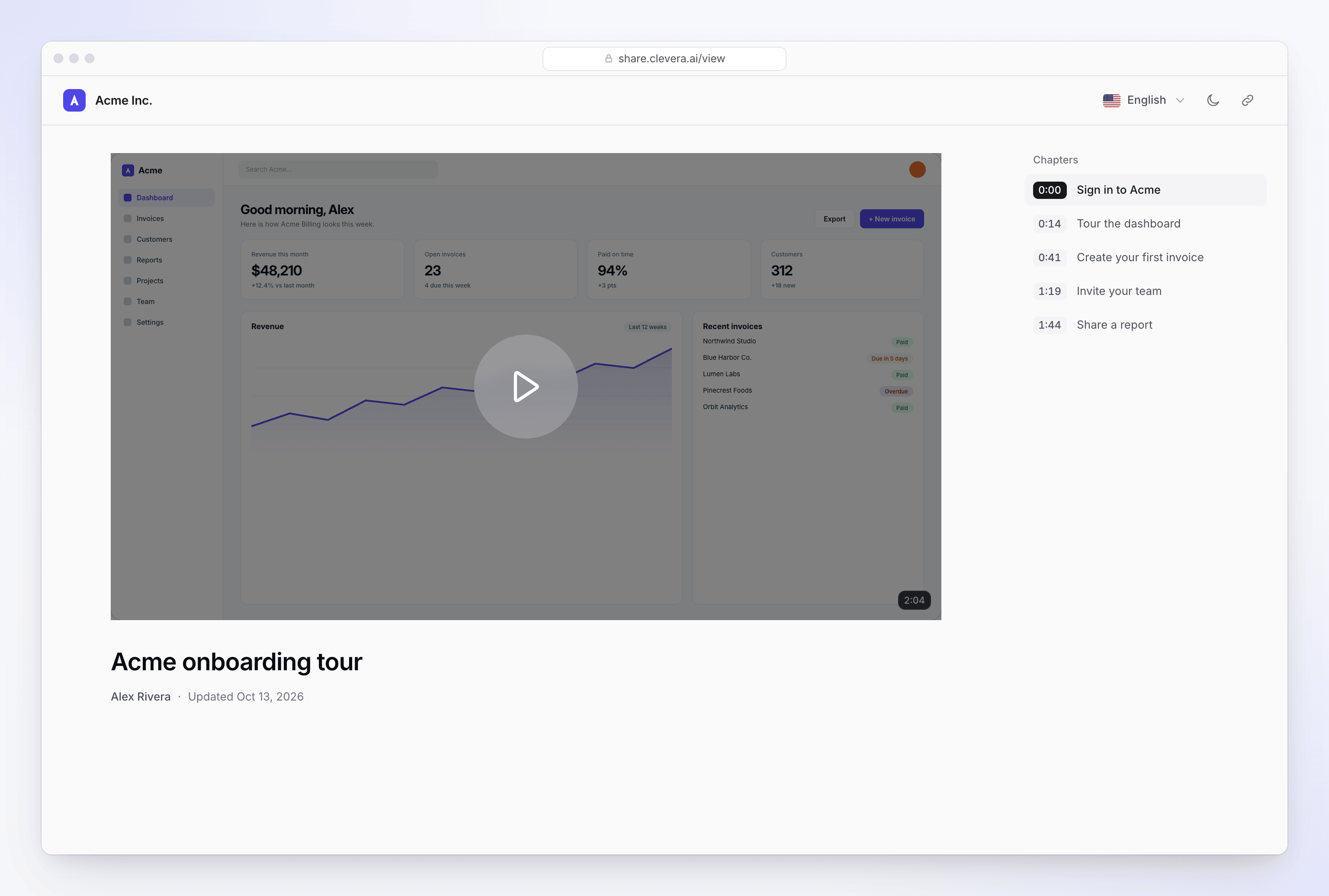
On the Free plan the page also shows Clevera branding. See Remove the Clevera watermark.
Keyboard shortcuts in the player
| Key | Action |
|---|---|
| Space or K | Play or pause |
| J / L | Back or forward 10 seconds |
| ← / → | Back or forward 5 seconds |
| ↑ / ↓ | Volume up or down |
| M | Mute |
| F | Fullscreen |
| C | Captions on or off |
| 0–9 | Jump to 0%–90% of the video |
| Home / End | Jump to the start or end |
Edits and the shared page
The share page always plays the current version of the video. After you edit, viewers see the change the next time they open or reload the page. If you need a fixed copy that never changes, export an MP4 instead.
See who watched
Click Views and engagement at the bottom of the Link tab to open the video's analytics: views, completion, watch time and where viewers stop. Your teammates' views aren't counted. See Read video analytics.
When a viewer can't open the link
| What the viewer sees | Why |
|---|---|
| "This video isn’t available" — "The owner has stopped sharing this video." | The link was turned off. |
| "This video isn’t available" — "This video has been removed." | The video was deleted. |
| "This video isn’t available" — "Check the link, or ask the person who shared it for a new one." | The link is wrong. |
| "This video isn’t available" — "This link is incomplete. Check that you copied all of it." | Part of the link is missing. Copy it again with the copy button. |
| "We couldn’t load this video" — "Check your connection, then try again." | The viewer is offline. Try again reloads it. |
| "We couldn’t load this video" — "Something went wrong on our side. Try again in a moment." | A problem on our side. Try again reloads it. |
Older videos
Some older videos have a video and an article in one. Their Link tab adds The link shows, with Video & article, Video or Article, to choose what the link opens.