

Change or pause an Autopilot task
Change what an Autopilot task does, its schedule, budget or approval by clicking Change and saying it in the chat, then Apply. Pause, resume, run now, edit or delete a schedule, and cancel a task from its page.
You can change an Autopilot task after you create it: what it does each time, its instructions, its budget and, for a Repeat, its schedule and whether its runs wait for you. You change it by clicking Change on the task and saying what should be different in the chat. Pausing, resuming, running now and editing a schedule are also buttons on the task page.
Before you start
- You need a role that can create content (Owner, Administrator or Content Creator). Editors see every task, but every button is turned off for them with the reason as a tooltip.
- Raising a monthly budget, or setting one above the suggested amount, is for workspace owners and admins.
Change a task by asking
Open the task
Click Autopilot in the sidebar, then the task under Always on, Needs you, Running now, All tasks or Repeats. Near the top, a line reads When (what starts it) → do (what it does), with Change at the right.
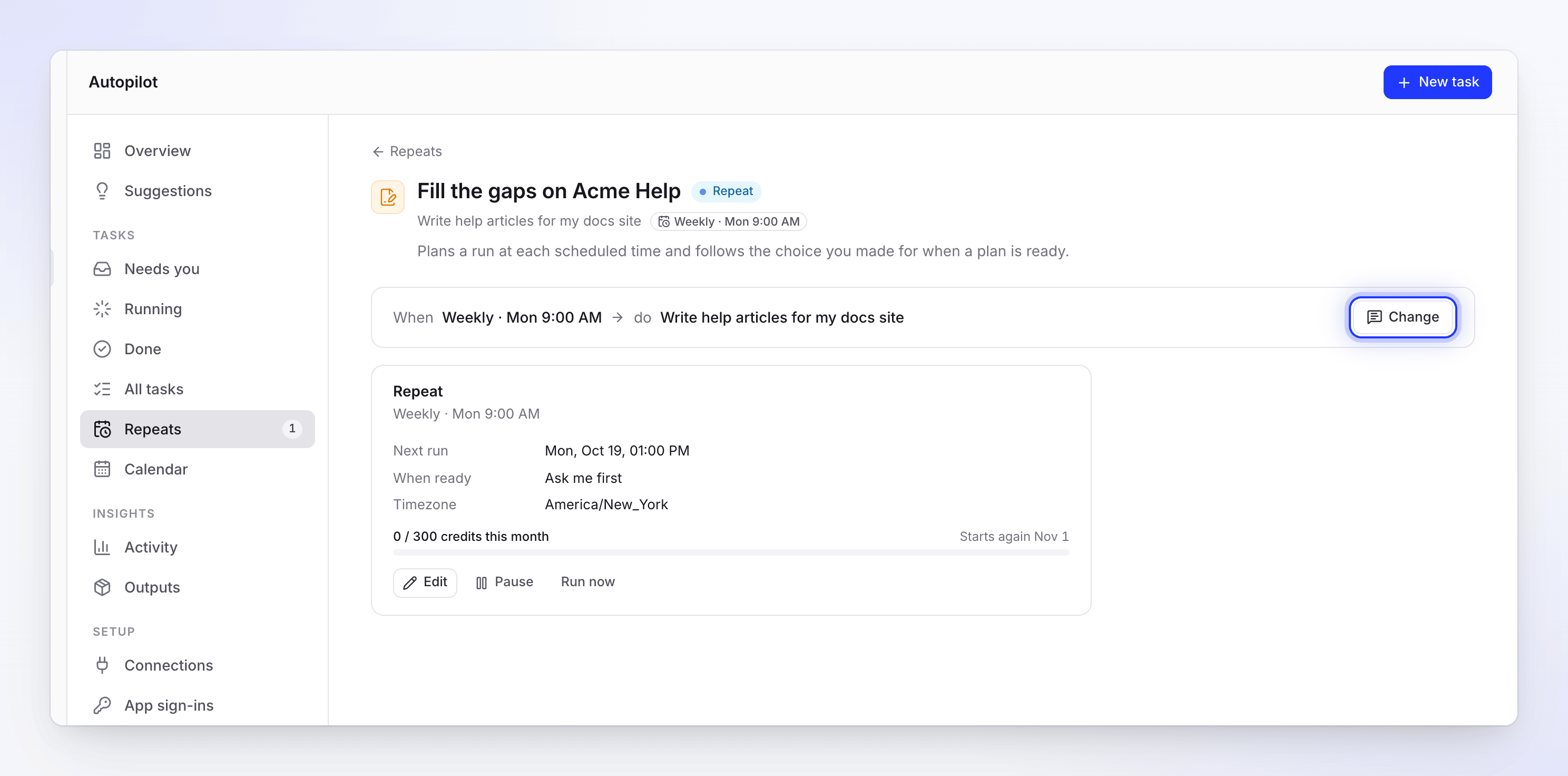
Change opens the task's chat. The Repeat card has the direct controls. Click Change
The chat panel opens on the task's own conversation (the chat you set it up in), or a new one tied to the task. Clevera asks what to change, without you typing anything first.
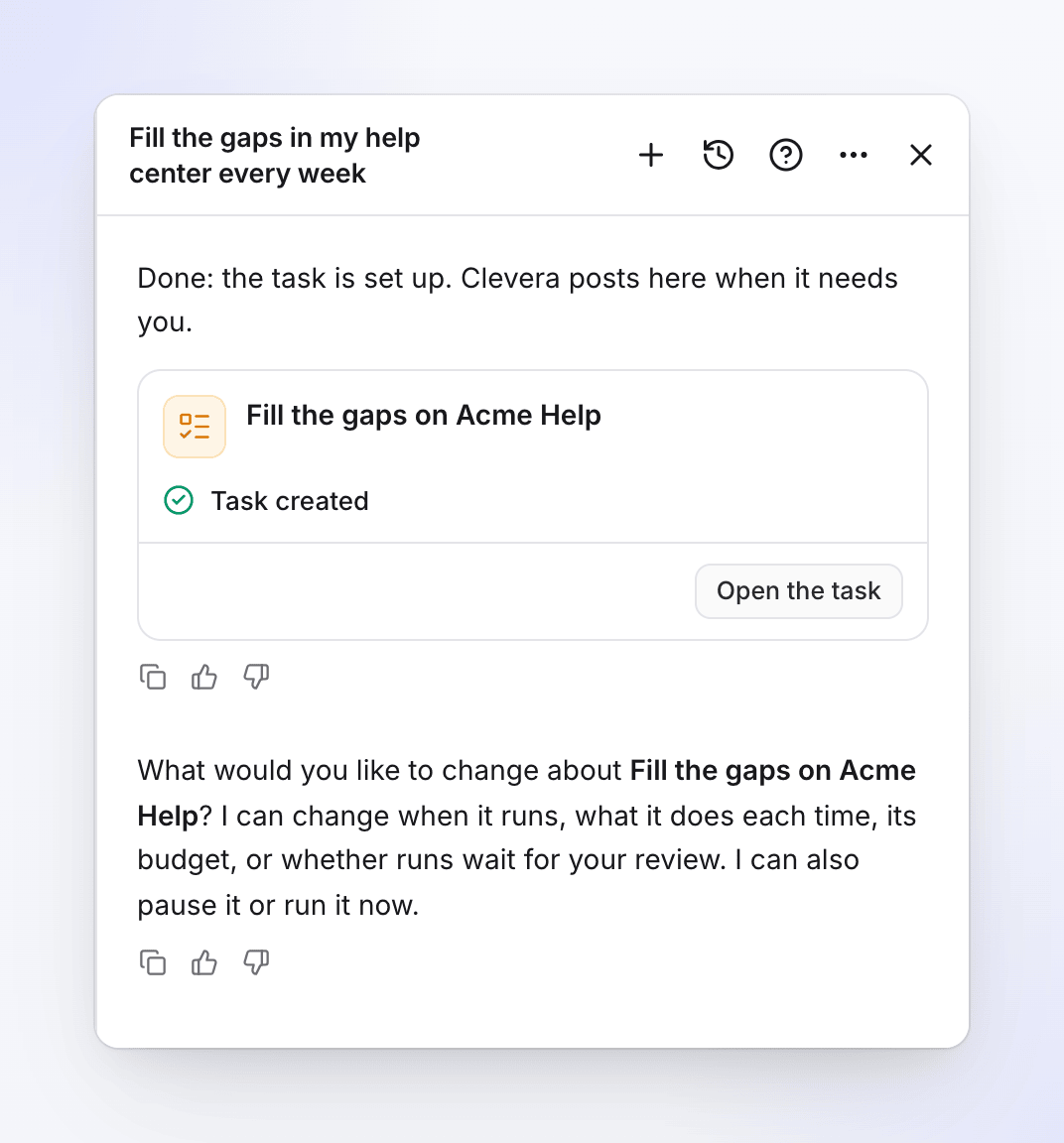
Say what should change
For example "Move it to Fridays at 8 in the morning", "Also mention the version number in every article" or "Only the billing videos from now on". Times are in your own time zone.
Click Apply
Clevera shows a card titled Change the task, with each setting before → after. Click Apply. The change is used from the next run, and the task's history notes "Setup changed" with the settings that changed.
You can also ask from any chat by naming the task ("In Fill the gaps on Acme Help, …"). If more than one task could fit ("make my task run every day"), Clevera asks which one first. It never picks for you.
What Clevera asks, by task state
| The task is | Clevera says | What you can do |
|---|---|---|
| A Repeat (on a schedule) | "What would you like to change about" the task? "I can change when it runs, what it does each time, its budget, or whether runs wait for your review. I can also pause it or run it now." | Change its setup (see below) |
| A triggered task (each release, a changelog page, each new video) | "What would you like to change about" the task? "I can change what it does each time or its budget. I can also pause it or run it now. What starts it can’t change; for that I can set up a new task." | Change what it does or its budget, pause it or run it now. For a different trigger, Clevera sets up a new task. |
| Plan ready | "What should change in" the task? "Tell me and I’ll redo its plan before anything is made." | Clevera plans it again from your note (Plan the task again → Plan again). Nothing has run yet. |
| Planning | The task "is still being planned, so it can’t change yet." | Wait: Clevera posts in the chat when the plan is ready. |
| Running | The task "is running now, so its setup can’t change." | Stop it, or set up a new task with your changes |
| Failed or Canceled | The task "stopped before it finished. What should change?" | Clevera sets it up again with your changes, on a new setup card |
| Done | The task "has finished. What should be different?" | Clevera sets up a new task with your changes |
What you can change
| Setting | Repeat (on a schedule) | Triggered (each release, changelog page, each new video) | One-off |
|---|---|---|---|
| Instructions and what it works on (help center, videos, collection, app address) | Yes | Yes | No: ask for changes on its plan |
| Schedule (how often, day, time) | Yes | No: it has no schedule | No |
| How many articles each time | Yes | No | No |
| Monthly budget | Yes (raising it: owner or admin) | Yes (raising it: owner or admin) | No |
| Approval (Ask me first or Make drafts, I publish) | Yes | No: every run waits for your review | No |
| What starts it (the trigger) | No | No | No |
What starts a task can't change. Clevera answers "What starts a task can’t be changed yet. Set up a new task with the new trigger, then delete this one." For a one-off it answers "This task runs once, so its setup can’t change now. To change what it plans, ask for changes on its plan." A change Clevera can't make shows a Can’t apply row on the card.
Pause, resume, run now
These are buttons on the task page, and you can also ask in the chat.
| Control | Where | What it does |
|---|---|---|
| Pause | The Repeat card, or the Keep it up to date card of a triggered task | Nothing new is planned until you resume. Runs already open carry on. Message: "Schedule paused". |
| Resume | Same place | The task runs again; the next check counts from now. Message: "Schedule resumed". |
| Run now | The Repeat card (Repeats only) | Plans the next run now instead of waiting: "Planning the next run now. It shows under Running." The plan still follows your approval choice. |
In the chat, "Pause the weekly gaps task" pauses it at once. Resuming, running now and canceling show a card first (Resume, Run now, Cancel task): nothing happens until you click it. For a triggered task, "run it now" checks the repository, page or collection straight away and plans a run only if something new came in. Run now is refused while a run is still open, or when a Repeat's budget for the month is used up.
Edit a schedule directly
| Card | Edit opens | Delete |
|---|---|---|
| Repeat (a scheduled task) | How often, the day and time, At most each time, Monthly budget, When a plan is ready. Repeat saved confirms it. | ⋯ → Delete Repeat → "Delete this Repeat?" "No more runs are planned. What its runs already made stays." |
| Keep it up to date (a triggered task) | The repository, page or collection it watches and, for a changelog page, how often it is checked: Every day, Every week, Every 2 weeks or Every month. Save or Cancel. | Delete → "Delete this schedule?" "No more follow-ups are planned. Tasks it already made stay." |
The task page shows the same cadence on its chip, for example Every day or Every week.
A finished one-off of some recipes offers Keep it up to date → Turn on: "Plans a follow-up when something changes. You still approve each plan."
Cancel a task
While a task is Planning, Plan ready or Running, the header shows Cancel task. Clevera asks "Cancel this task?" and explains what stops: while planning, "The plan stops here. You can start a new task any time."; otherwise "Items not finished yet stop. What was already made stays in your library." Click Cancel task to confirm, or Keep going.
There is no delete for a task itself: a canceled or finished task stays in All tasks with what it made. To stop a Repeat or a triggered task for good, delete its schedule (above).
Why a task paused on its own
| Status | Why | What to do |
|---|---|---|
| Paused at budget | It used this month's budget. | It starts again on the 1st, or an owner or admin raises the budget. |
| Paused: connection | The repository connection stopped working. | Reconnect it under Autopilot → Connections, then Resume. |
| Paused: lost access | The person who set it up can no longer run it. | Someone who can, resumes it to keep it going as themselves. |
| Paused: creator removed | The person who set it up left the workspace. | Someone who can, resumes it. |
| Paused by Clevera | Clevera support paused it. | Contact us to resume. |
| Ended | The schedule reached its end. | Set up a new task. |
| Paused | Someone paused it. | Resume it any time. |