

Change your account email
Change the email address you sign in with. Confirm with your password (or a code for Google and SSO accounts), then open the link sent to the new address within 60 minutes. Until then your email stays the same.
You can change the email address you sign in with in Account settings. To keep your account safe, Clevera asks you to prove it's you, then waits until you confirm the new address from its own inbox. Until you do, nothing changes.
Before you start
- A password account confirms the change with its current password.
- A Google or SSO account has no Clevera password. It confirms with a 6-digit code sent to the current address instead. Afterwards you sign in with Google or SSO using the new address, so the new address must also work with your Google account or your company's sign-in.
- You need access to both inboxes: the current one (for the code, if you use Google or SSO) and the new one (for the confirmation link).
Change your email
Open your profile
Open the menu at the top of the sidebar, choose Account settings and stay on the Profile tab.
Enter the new address
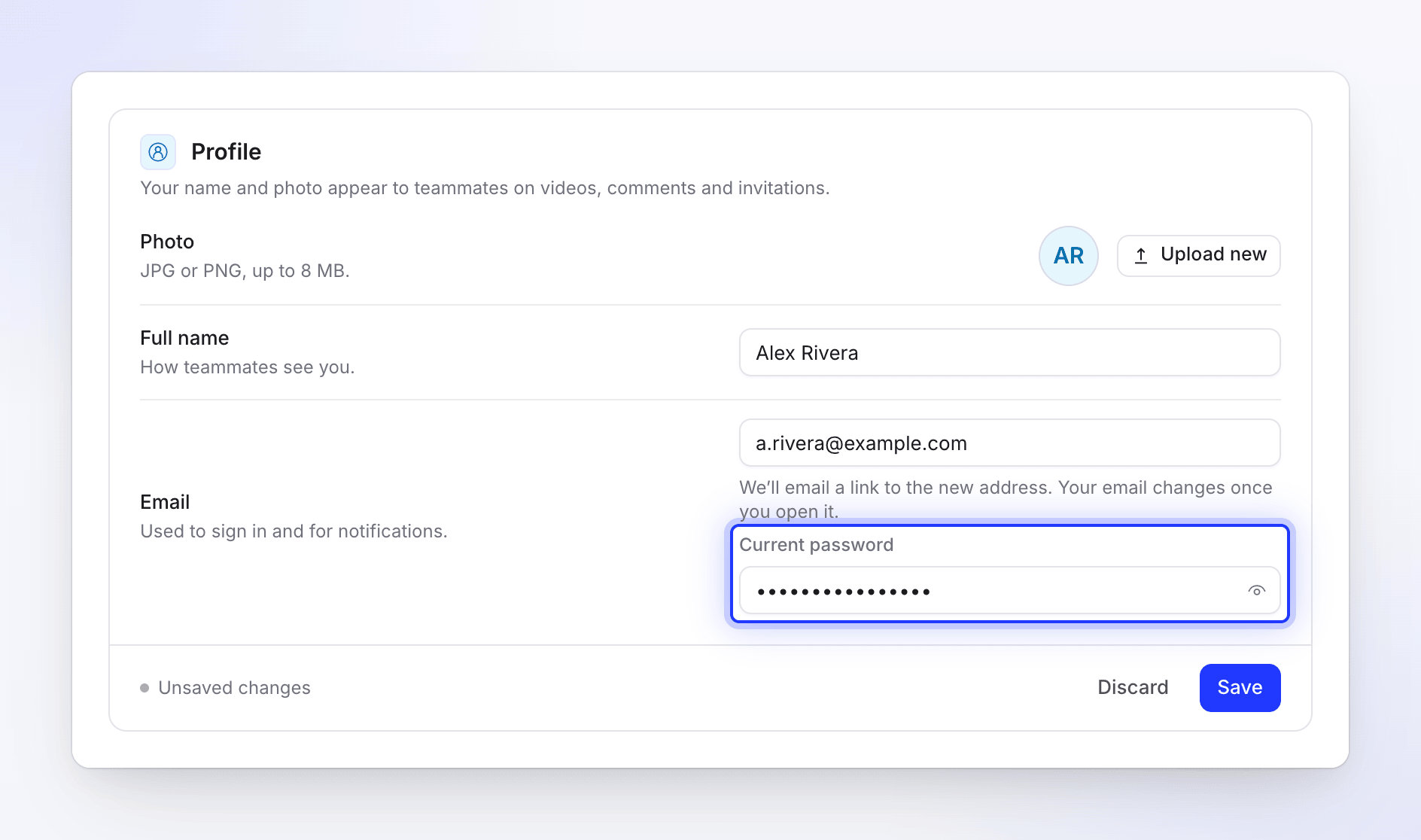
Type the new address in Email ("Used to sign in and for notifications."). Under it Clevera explains what happens next: "We’ll email a link to the new address. Your email changes once you open it."
Prove it's you
- With a password: enter your Current password.
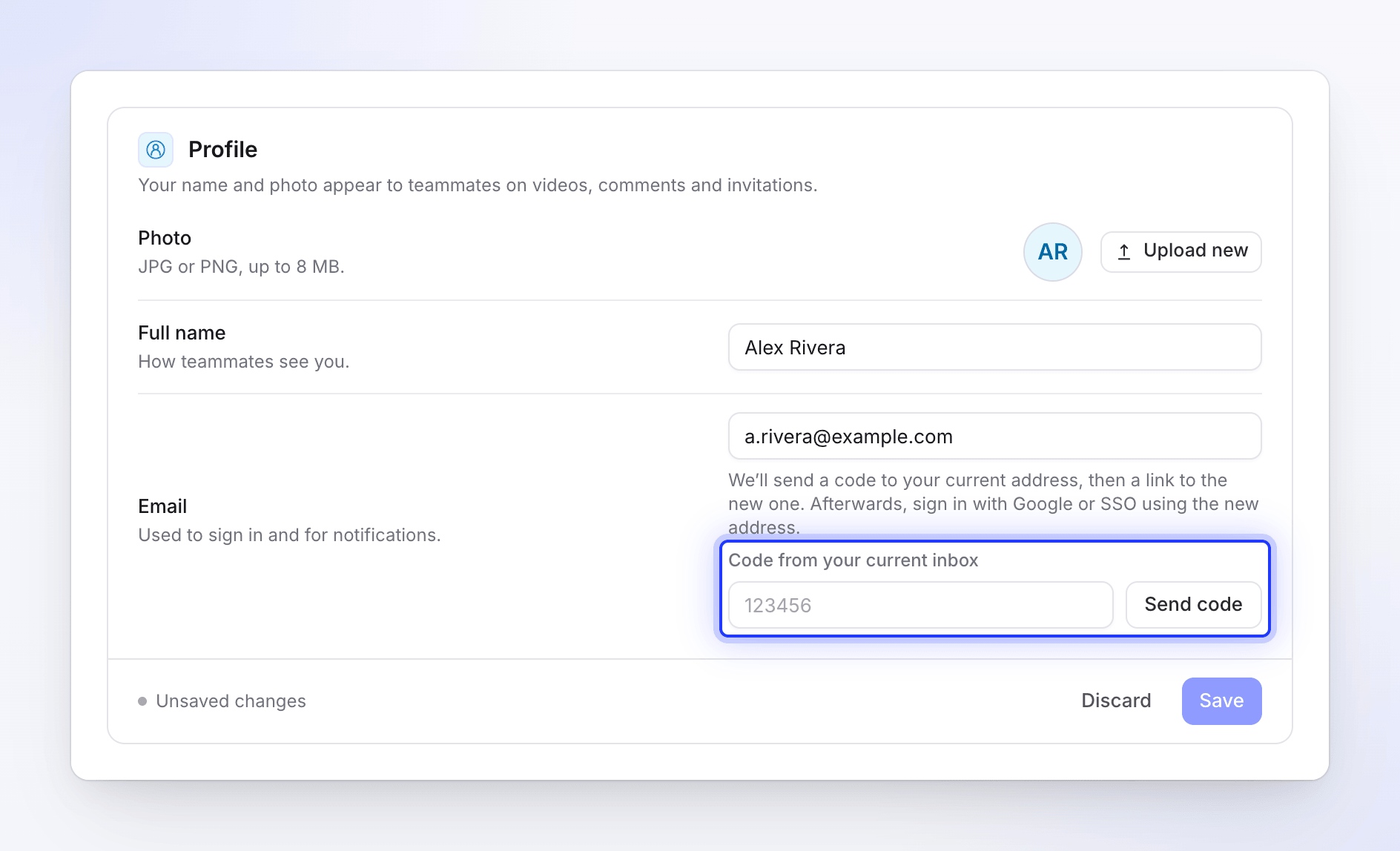
- With Google or SSO: click Send code. "We sent a code to" your current address. Enter it in Code from your current inbox. The code works for 10 minutes; Send again gets a new one.
Save
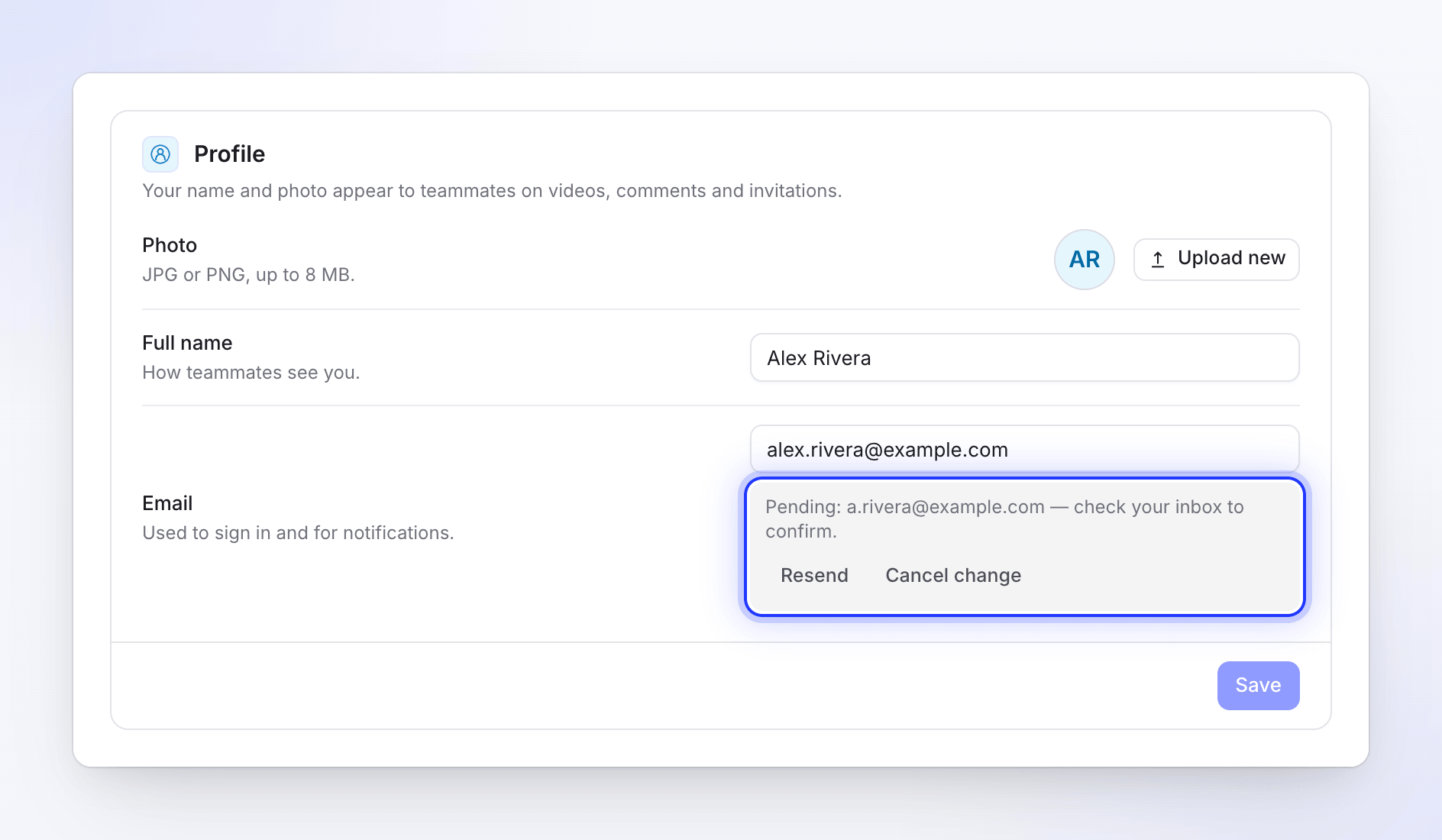
Click Save. You see "Check [email protected] for a link to confirm the change. Your email stays the same until then." The profile shows "Pending: [email protected] — check your inbox to confirm."
Confirm from the new inbox
Open the email Confirm your new email address in the new inbox and click Confirm new email address. A page opens with Confirm email address; click it. You see "Your email address is now [email protected]."
The link works for 60 minutes. You don't need to be signed in to use it.
While the change is pending
The pending row on your profile has two buttons:
| Button | What it does |
|---|---|
| Resend | Sends a fresh link to the new address: "A new confirmation link is on its way." The older link stops working. |
| Cancel change | Drops the change: "Email change cancelled." Your address stays as it is. |
Limits
| Limit | Value |
|---|---|
| Confirmation link | Valid for 60 minutes |
| Email change requests | 5 per hour |
| Resending the link | 3 times per 10 minutes |
| Code for Google and SSO accounts | 6 digits, valid for 10 minutes, 5 sends per 30 minutes; 5 wrong tries lock it for 15 minutes |
Troubleshooting
| You see | What to do |
|---|---|
| "Enter your current password to change your email address." | Fill in Current password. |
| "The provided password is incorrect." | Check the password. Forgot it? Sign out and reset it from the sign-in page. |
| "Enter the code we sent to your current email address." | Click Send code and type the 6 digits from your current inbox. |
| "This is already your email address." | You typed the address you already use. |
| "Too many email change attempts. Please try again in 30 minutes." (or another number) | Wait, then try again. |
| "This link has expired or was replaced by a newer one. Your email was not changed." | Use the newest link, or start the change again. |
| "Another account already uses this email address. Your email was not changed." | That address belongs to another Clevera account. Use a different address. |
| "There is no email change waiting. Enter the new address again." | The change was cancelled or ran out. Start again. |