

Add materials: recordings, footage, pictures, PDFs and links
Give the AI something to work from: record your screen, upload or reuse a video, add pictures and PDFs, or let the AI record your app or research a website. Includes every limit per video type.
Materials are what the AI works from: a screen recording, other footage, pictures, PDFs, a website or a recording the AI makes for you. You add them with the + button in the Compose box. Which ones you can add, and how many, depends on the video type.
What each type can use
| Video type | Videos | Pictures | PDFs | Websites |
|---|---|---|---|---|
| Social clips (every Social & promo type and Start from scratch) | Up to 3 | Up to 40 | Up to 3 | Up to 10 |
| How-to and Product demo | Up to 3, played in the order you set | Up to 20 | Up to 3 | No |
| Polish (Clean-up, Styled for sharing) | 1 | No | No | No |
| Article | 1 | No | No | No |
A social clip can be made from any mix of these, or from the brief alone. How-to and Product demo need at least a video, or pictures or PDF pages that stand in for one: the AI then makes a narrated slideshow that shows each picture for its part of the narration, with up to 20 pictures and PDF pages combined. Polish and Article are made from one video and nothing else.
Add material
Open the + menu
Click + at the bottom-left of the Compose box. The menu has up to three groups:
- Footage: Record your screen, Upload a video, Choose from library.
- With AI: Record with AI and Research a website. These carry an AI · credits tag because the AI does paid work for them.
- Context: Upload images or PDF.
Rows you can't use for this type, or that are full, don't appear.
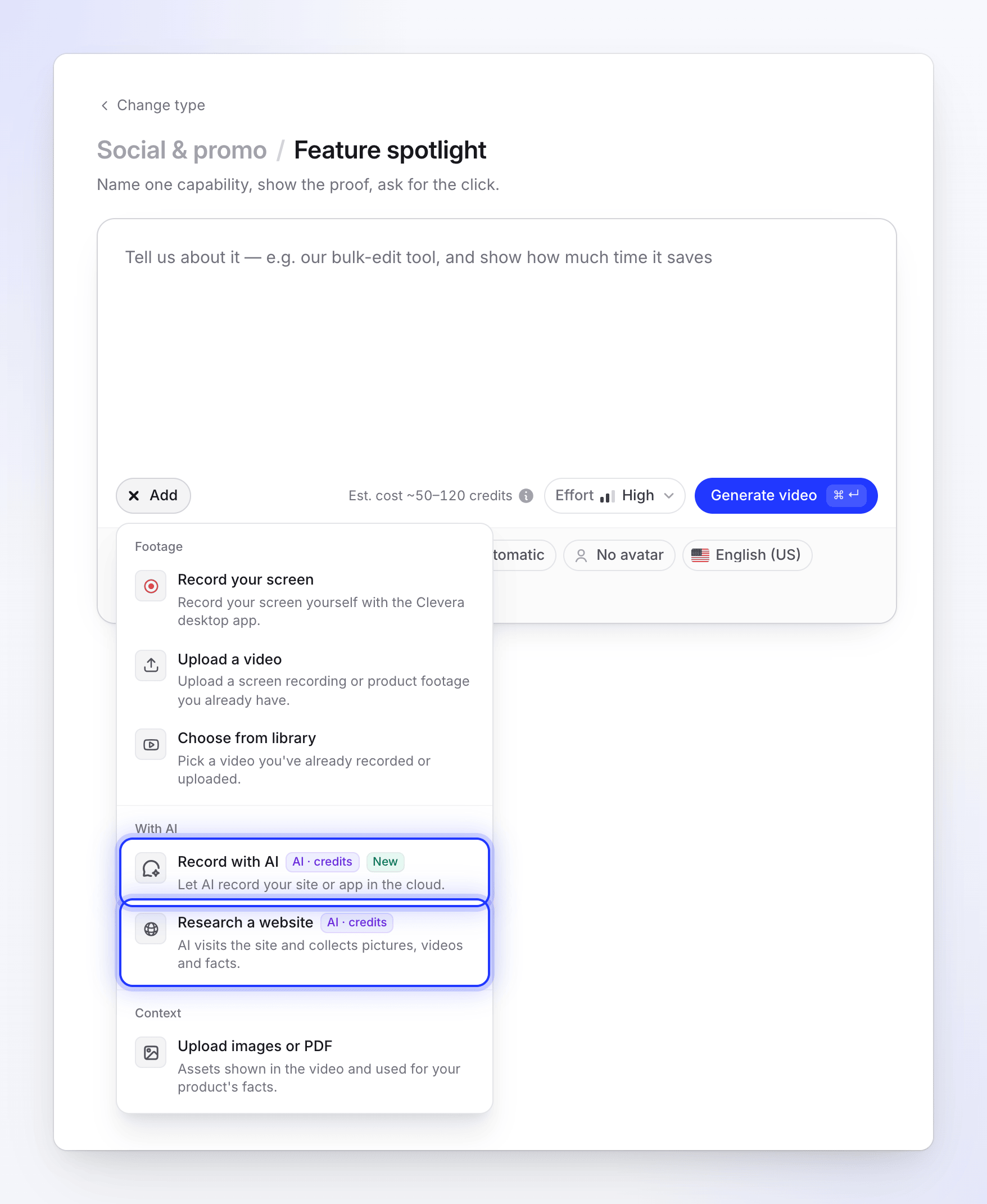
Rows tagged AI · credits start paid AI work. Pick what to add
Each row opens its own window. The sections below explain each one. You can also drop files straight onto the box ("Drop to add").
Check the tiles
Everything you add appears as a tile in the box, with its progress. You can keep writing while files upload.
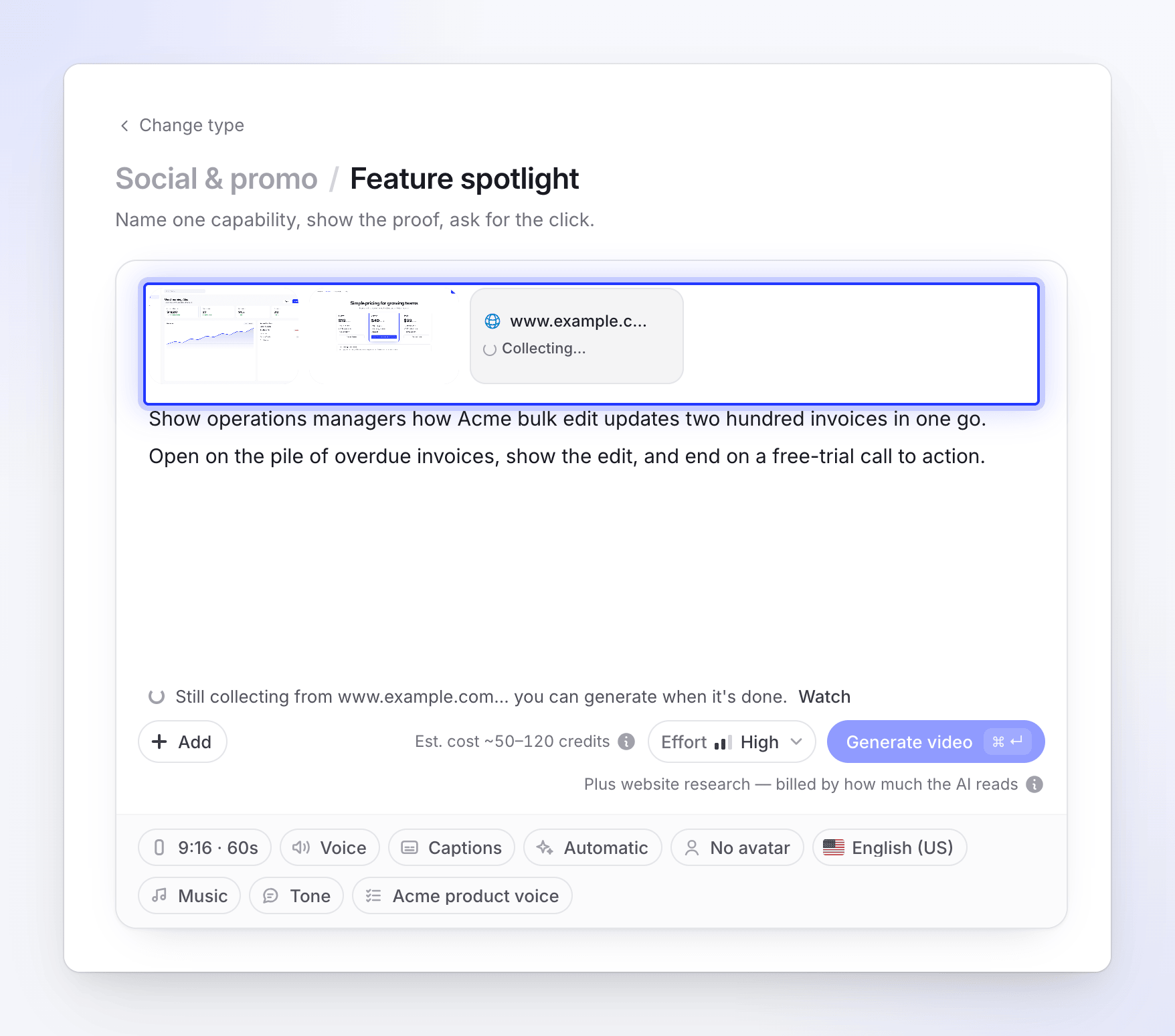
Generate when everything is ready
Uploads, recordings and research must finish before the video can start. If something is still on its way, Generate says so, for example "Still collecting from example.com… you can generate when it's done."
Footage
Record your screen
Opens the Clevera desktop app so you can record now. The page shows Continue from Clevera desktop app ("Switch to the Clevera app and click Start recording.") with Open Clevera app and Download the app if you don't have it yet. The finished recording uploads to your library, and you add it here with Choose from library. See Install the Clevera desktop app.
The desktop app records clicks and cursor moves separately from the picture, which is what lets Clevera add smooth zooms that follow your actions. If you recorded with another tool, upload the MP4 instead.
Upload a video
| Video type | Formats | Size per file |
|---|---|---|
| How-to, Product demo, Polish, Article | MP4 | Up to 250 MB. It joins your library too. |
| Social clips | MP4, MOV or WEBM | Up to 100 MB and about 3 minutes each |
You can close the upload window while it uploads: "You can close this; the upload keeps going on the page." If it fails, use Retry on the window or on the video's tile.
Choose from library
Pick a recording you've already made or uploaded. You can search by name and filter by who made it. A recording that is still processing can be picked; Compose shows it processing and Generate waits for it.
Recordings that no video uses for 15 days are deleted automatically, so make something from a recording soon after you record it.
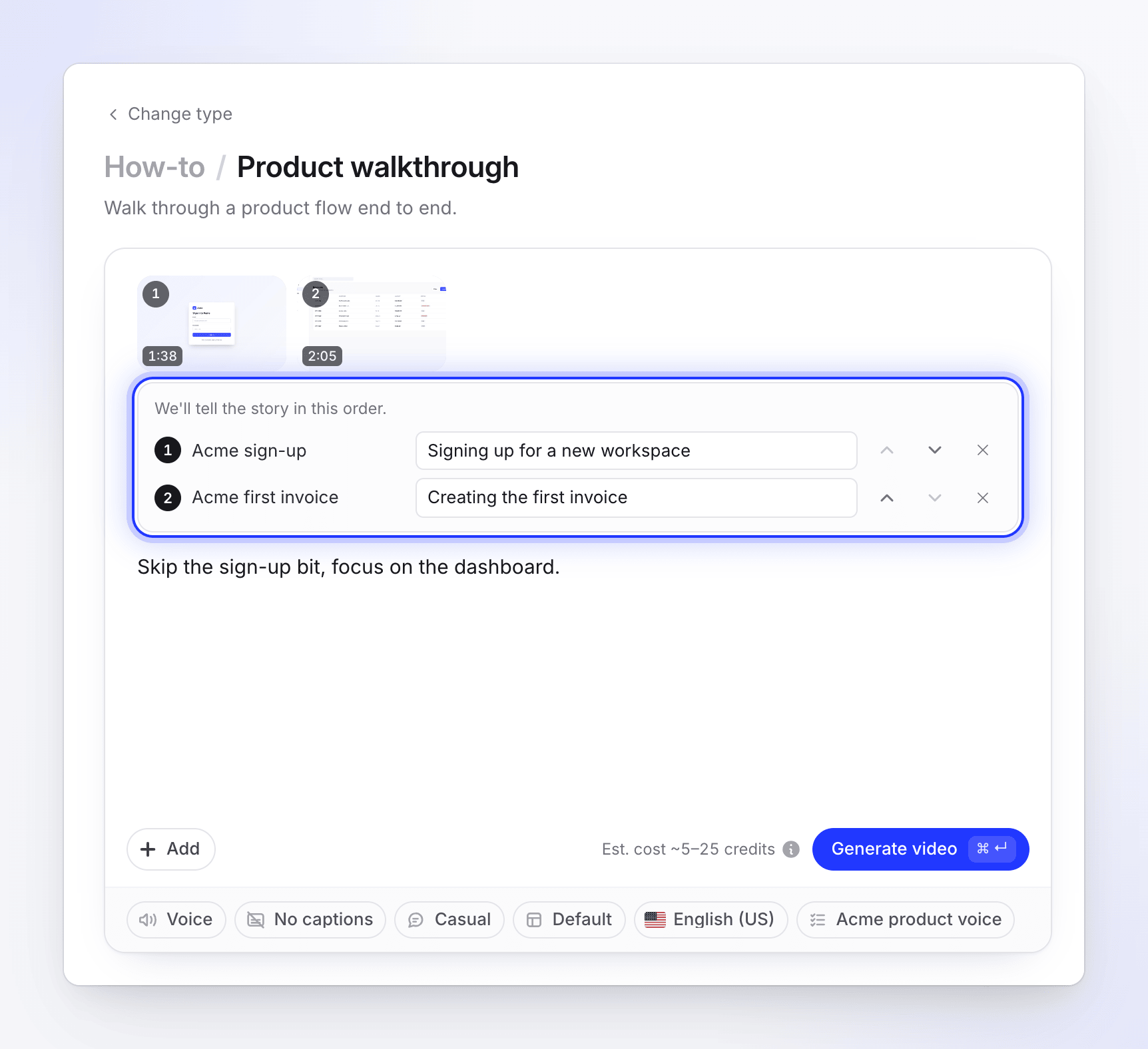
Several videos in one how-to or demo
On How-to and Product demo, the videos play in the order shown under We'll tell the story in this order. Use Play earlier and Play later to reorder them, and add What it shows (optional) so the narration introduces each one properly. See Use several recordings, pictures and PDFs in one video.
With AI
| Row | What it does | Cost |
|---|---|---|
| Record with AI (badge New) | "Let AI record your site or app in the cloud." You describe what to show; the AI drives a browser and records it. The result counts as one of your videos. | Billed by how long the AI works, on top of the estimate. |
| Research a website (social clips only) | "AI visits the site and collects pictures, videos and facts." You can say what to look at. | Billed by how much of the site the AI reads, on top of the estimate. |
Both take a few minutes and you can watch them live. See Let the AI record your product and Research a website for a social clip.
Pictures and PDFs
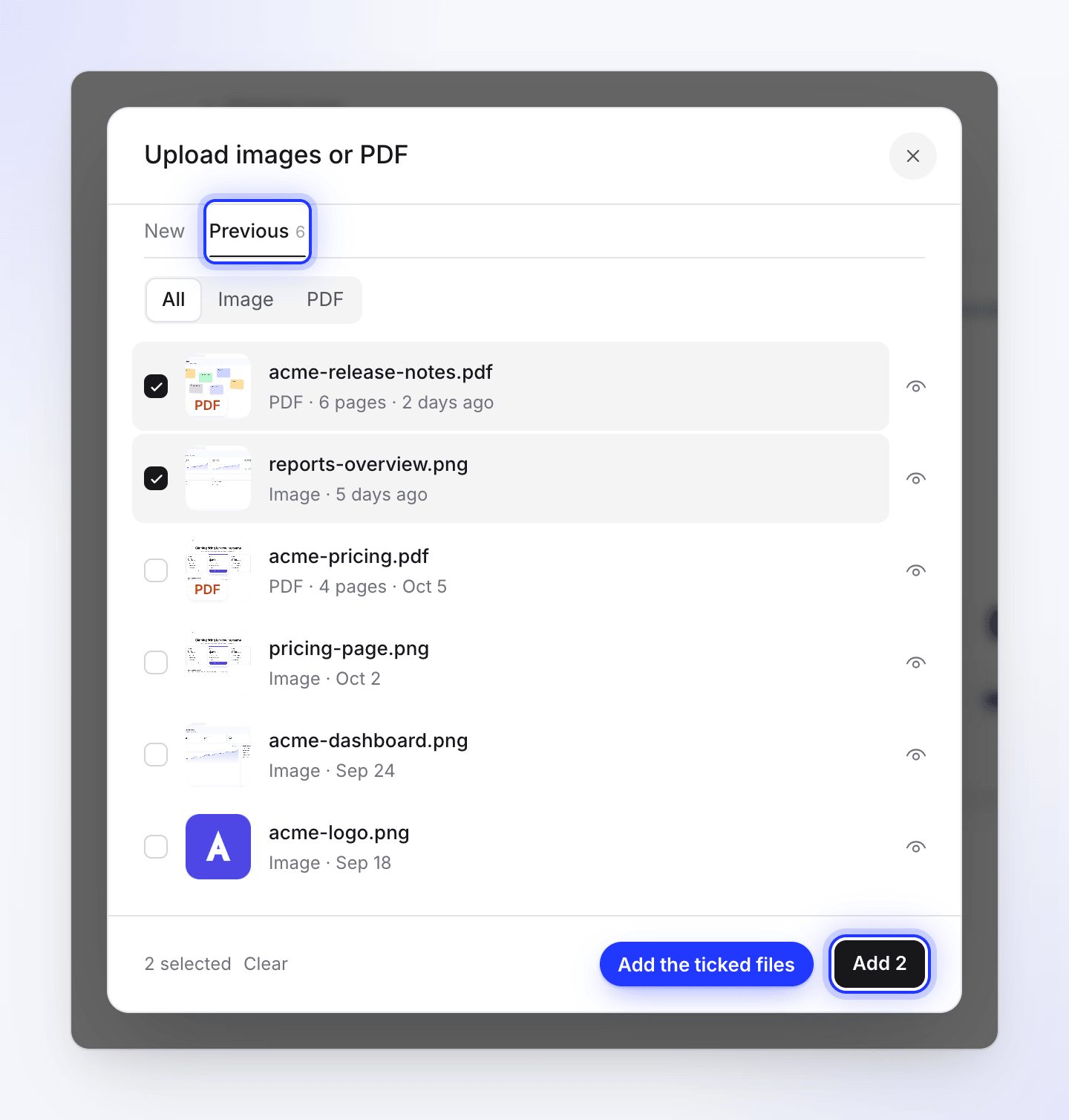
Choose Upload images or PDF. The window has two tabs:
- New: drop files or browse files. Use JPG, PNG or WebP pictures. SVG files upload, but they can't be shown in the video.
- Previous: everything you uploaded here before, with a File type filter and search. "Images you upload here show up for the next video too." Tick the files and click Add.
| Limit | Value |
|---|---|
| Picture size | Up to 8 MB each |
| PDF size | Up to 40 MB each |
| PDF pages | Up to 30 pages each |
| PDF text read | Up to 20,000 characters per PDF |
| PDF pages used as pictures in a social clip | Up to 10 per PDF; the AI picks the most useful ones |
How the AI uses them depends on the type:
- Social clips: "Assets shown in the video and used for your product's facts." The AI director decides which pictures appear and where.
- How-to and Product demo: "Pictures are shown in the video; PDFs are read for facts, or shown if you choose." You can change that per file, add a note, and pick which PDF pages to show. See Tell the AI how to use a picture or PDF.
Messages you may see
| Message | What it means |
|---|---|
| "You've added the most images we can use." | You've reached the picture limit for this type. Remove one to add another. |
| "We'll take the first N — that's all the images we can add." | You dropped more files than there's room for; the first ones were added. |
| "We can't use {file} here." | The file type isn't accepted in this window. |
| "{file} is larger than 8 MB." | The file is over the size limit. Compress or resize it. |
| "Wait for the current video to finish uploading, then add the next one." | Videos upload one at a time. |
| "This type works on your video alone — pictures and PDFs are not used." | You dropped pictures or PDFs on a Polish or Article page. |
| "Pictures, PDFs and links were removed — this video type works on your video alone." | You switched to Polish with other materials attached. They were taken off. |
| "Links were removed — not supported for this video type." | Website research is for social clips only. |
| "Your PDF is still being read — one moment." | Generate waits until the PDF is read. |
| "This upload failed — try again or remove it." | Retry the tile, or remove it to go on without it. |