

Set the video's options with the pills
The row of pills under the Compose box holds every setting for your video: format and length, voice, captions, look, AI avatar, language, music, tone, template and AI rules. See every option and its default, per video type.
Under the brief on the Compose page sits a row of pills. Each pill shows one setting's current value; click it to change it. Every pill already holds a sensible default, so you only touch the ones you care about.
How the pills work
- A pill with an outline shows an Automatic value: Clevera's default or what the type suggests.
- A filled pill was Set by you. Hover it and click ✕ ("Reset to automatic") to go back to the default.
- Hover any pill to see what its value means, for example "Music: we'll pick a track".
- Pills wrap onto a second line when there are many. None are hidden.
- Look, AI avatar and Template open a window; the others open a small menu.
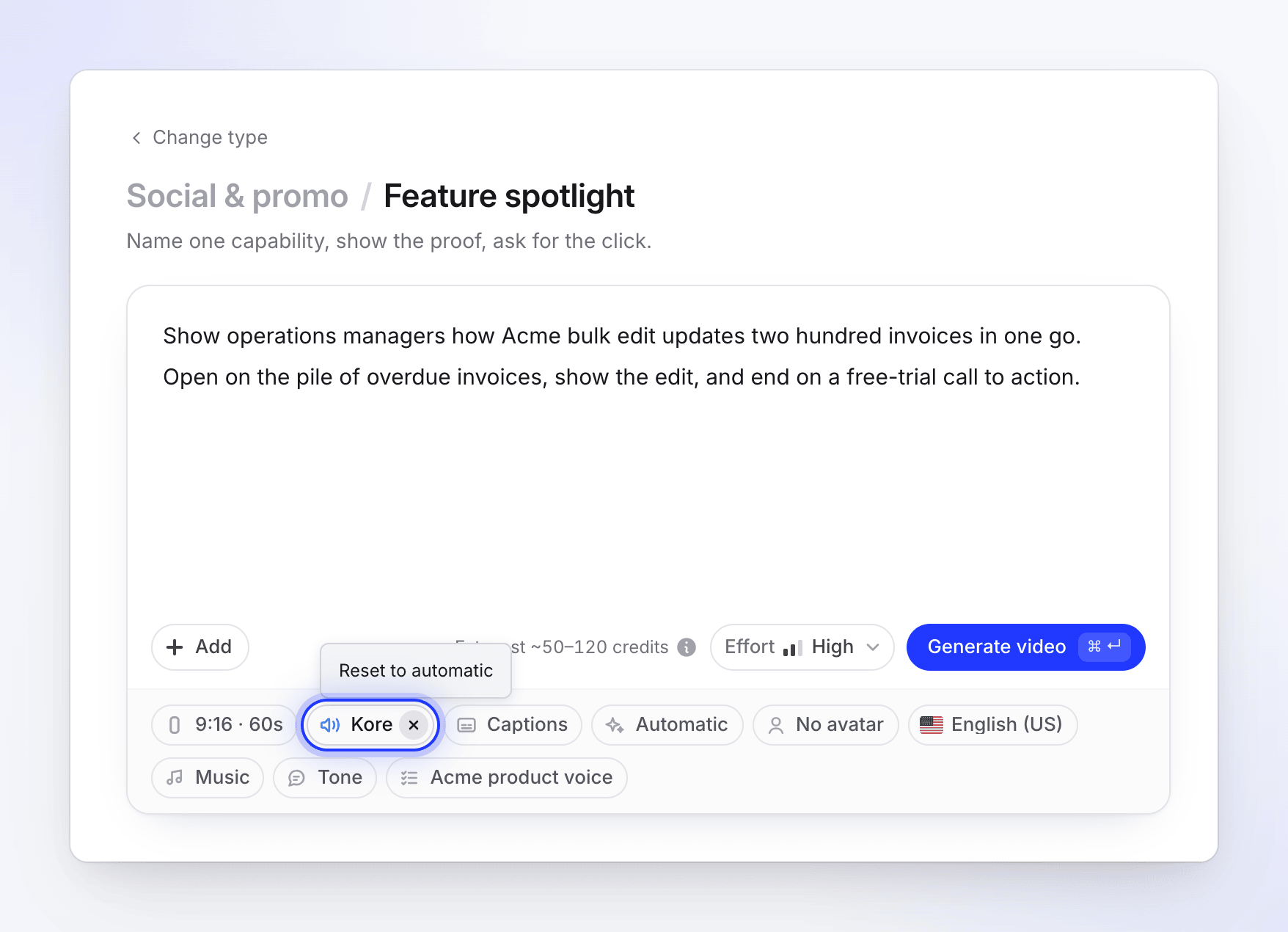
Clevera remembers your last Look, Language and Voice in this browser for each workspace, so your next video starts with them.
Which pills each type shows
| Video type | Pills |
|---|---|
| Social clips | Format · Voice · Captions · Look · AI avatar · Language · Music · Tone · AI rules, plus Effort beside Generate |
| How-to and Product demo | Voice · Captions · Tone · Template · Language · AI rules |
| Clean-up | Template · Language · AI rules (it keeps your own voice) |
| Styled for sharing | A Title field, then Template · Language · AI rules |
| Article | Tone · Depth · Screenshot marker · Language · AI rules |
Videos from your recording follow the shape of the recording (usually 16:9), so they have no Format pill. You can change the aspect ratio in the editor after the video is made. Polish videos (Clean-up and Styled for sharing) can't be translated after they're made, so pick their language here.
Social clip options
| Pill | Options | Default |
|---|---|---|
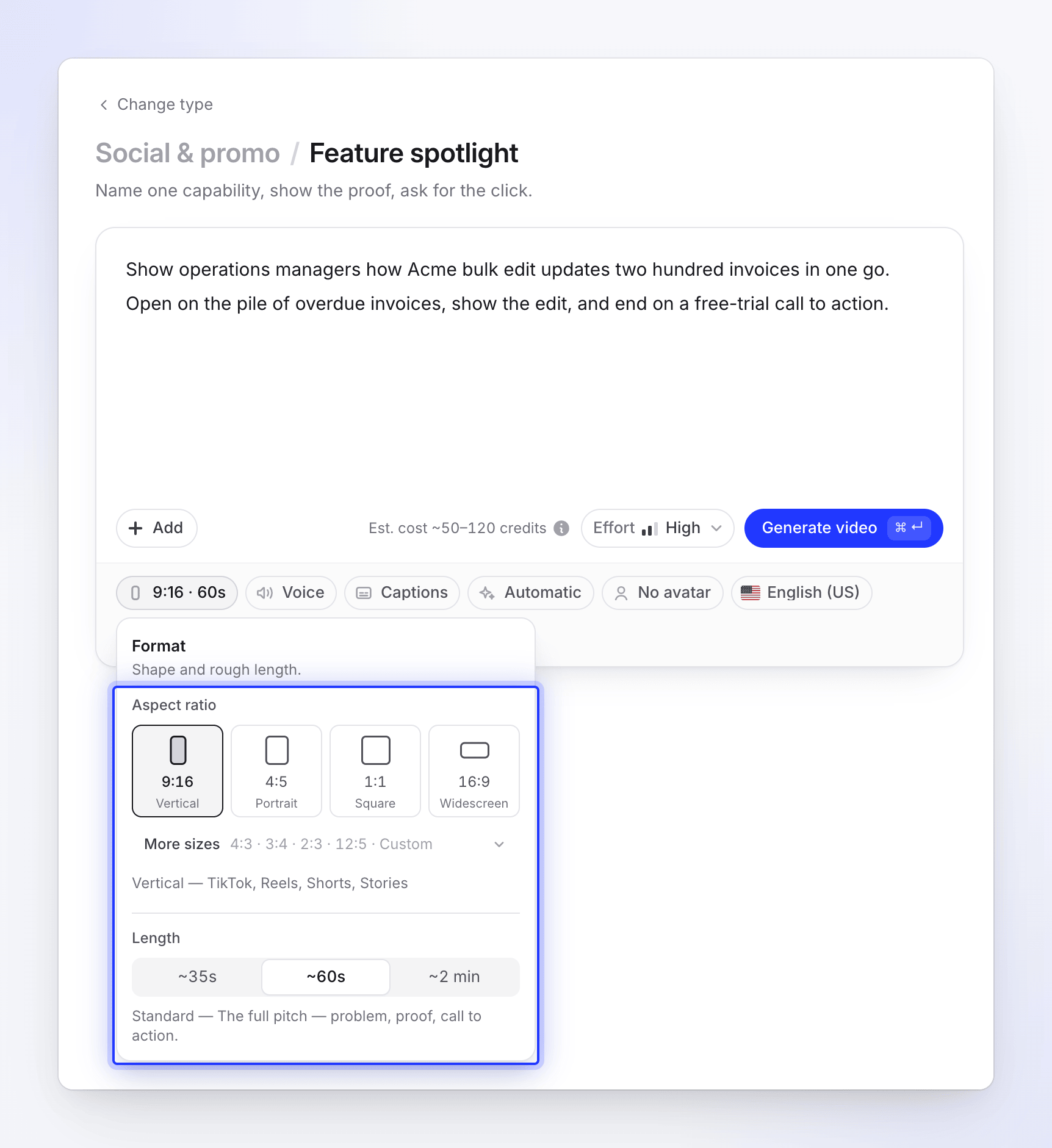
| Format ("Shape and rough length.") | Shapes 9:16, 4:5, 1:1, 16:9; under More sizes: 4:3, 3:4, 2:3, 12:5 and Custom size ("Any width and height, in pixels"). Lengths Short (~35 s), Standard (~1 min), Long (~2 min), Full walkthrough (~4 min). | Set by the type, for example 9:16 · ~1 min. The pill reads like "9:16 · 60s". |
| Voice ("Who reads the script. Press play to hear one.") | No voice, your Recent voices, then All voices. Tabs Built-in and ElevenLabs. | On, with a voice picked to suit the language. Off on music-led types. |
| Captions ("Show what the voice says.") | Show captions ("The spoken words, on screen.") or No captions ("Voice only."). Only shown while there's a voice. | On, except Launch teaser and Mystery teaser. |
| Look | Automatic ("we'll choose the style, colours and fonts") or one of 7 styles, with the style's own colors, a palette or up to 5 custom colors. | Automatic |
| AI avatar | A presenter and their look, plus Screen time: Opening, Hook & close, Most, Whole video. Paid plans only. | No avatar, except the AI avatar type, which needs one. |
| Language ("For the script, voice and on-screen text.") | 74 languages and variants, with search and your recent ones first. | English (US), or the one you used last |
| Music ("The bed under the voice.") | Pick a track for me ("A track that fits the pace and mood.") or No music ("Voice and sound effects only."). | Pick a track for me |
| Tone ("How the script sounds.") | Auto ("Match the look and the material."), Confident, Friendly, Playful, Calm, Authoritative. | Auto |
| AI rules | Your workspace's rule sets and Clevera's. Tick as many as you like. | Your workspace default, if you set one |
| Effort (button beside Generate, "How much care goes into the video.") | Medium ("Quick and clean, ready sooner.", lowest cost), High ("Richer motion, checked as it is built.", standard cost), Extra ("Extra review on every scene. Slowest.", highest cost). | High |
When you change the shape, lengths that are too long for it disappear and the length moves to the longest one that fits. For example, 9:16 goes up to Long, because vertical platforms cap videos at 3 minutes.
Music-led types (Hook reel, Music & motion, Launch teaser, Mystery teaser, Offer promo, Event promo) start with No voice. You can turn a voice on for any of them.
More detail: Set the format, size and length, Pick a look, Add an AI avatar and Choose an effort level.
How-to and Product demo options
| Pill | Options | Default |
|---|---|---|
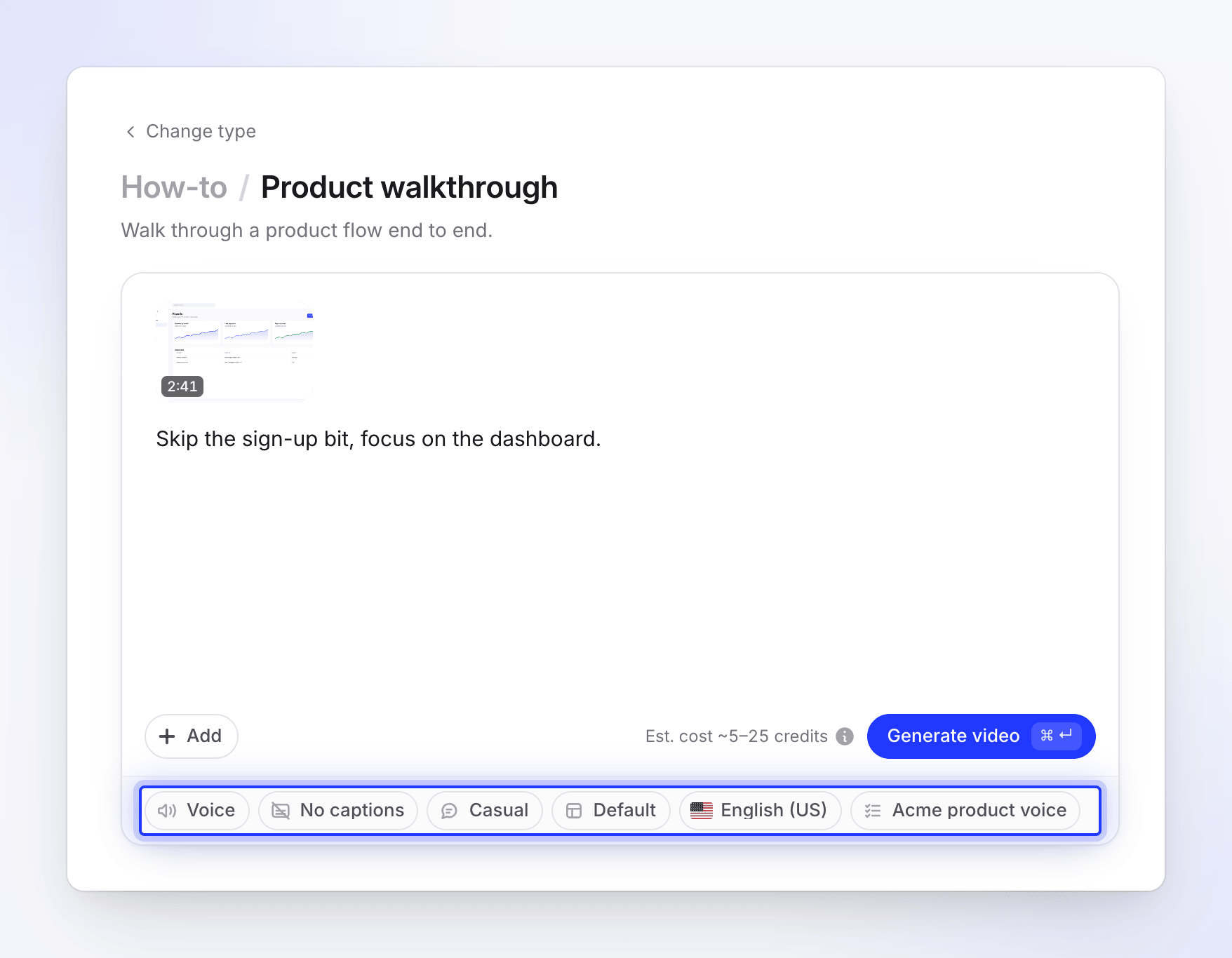
| Voice | Same menu as above: Built-in and ElevenLabs voices, each with a sample. | A voice picked to suit the language |
| Captions | Show captions or No captions | No captions |
| Tone (the speaking style) | Casual ("Conversational and approachable, like a colleague explaining a task."), Expressive ("Energetic and engaging with natural expressions like laughter and enthusiasm."), Formal ("Professional and authoritative. Best for corporate tutorials and official documentation.") | Casual |
| Template ("The background, music, intro and title cards of your video.") | Built-in templates or your workspace's own. You can create, duplicate and set a default here. | Your workspace default, or a built-in one |
| Language | 74 languages and variants | English (US), or the one you used last |
| AI rules | As above | Your workspace default |
The music for these videos comes from the template, not from a pill. See Use a video template for your brand.
Article options
| Pill | Options | Default |
|---|---|---|
| Tone | Auto ("We choose from the recording and the depth."), Professional, Friendly, Technical, Conversational | Auto |
| Depth ("How much detail the article covers.") | Auto, Brief ("A quick reference: the steps and the key screens, little else."), Standard ("A full guide: every step, why it matters, and the main screens."), In-depth ("Everything: context, prerequisites, every screen, troubleshooting and FAQ.") | Auto |
| Screenshot marker ("Drawn where the recording clicked.") | Green, Red, Blue, Yellow, Purple, Orange, Pink | Green |
| Language | 74 languages and variants | English (US), or the one you used last |
| AI rules | As above | Your workspace default |
See Turn a recording into an article.
Options and cost
Most pills don't change the price much. The ones that do:
- Effort sets the credit range of a social clip: Medium 30–60, High 50–120, Extra 80–160.
- AI avatar adds credits on top, more for longer screen time.
- Format length: longer videos take more work within the range.
The estimate beside Generate updates as you change them. See Read the credit estimate before you generate.