

My video came out silent, without music or without the avatar
Your video finished, but the generation page showed an amber Heads-up note: no voice, no music, no avatar, a website it couldn't read or a recording it couldn't watch closely. Here is what each note means and how to fix the video.
Sometimes a video finishes, but one part didn't go as planned. The AI doesn't stop for these: it finishes the video and tells you what to check in an amber Heads-up note on the generation page. This page explains every heads-up, why it happens and how to fix the video.
Quick checks
Before you look for a heads-up, rule out the settings you chose:
| What you notice | Check first |
|---|---|
| No voice-over | Was the Voice pill set to No voice? Music-led clip types (Hook reel, Music & motion, Launch teaser, Mystery teaser, Offer promo and Event promo) start without a voice-over on purpose, so they read with the sound off. |
| No music | Was the Music pill set to No music ("Voice and sound effects only.")? |
| No avatar | Did you click Use avatar in the AI avatar window? The pill shows the avatar's name and face when one is on. Avatars are for social clips on paid plans. |
| No captions | Was No captions ("Voice only.") picked? Captions also need a voice-over. |
If the setting was right and the part is still missing, look for a heads-up.
Where to find heads-ups
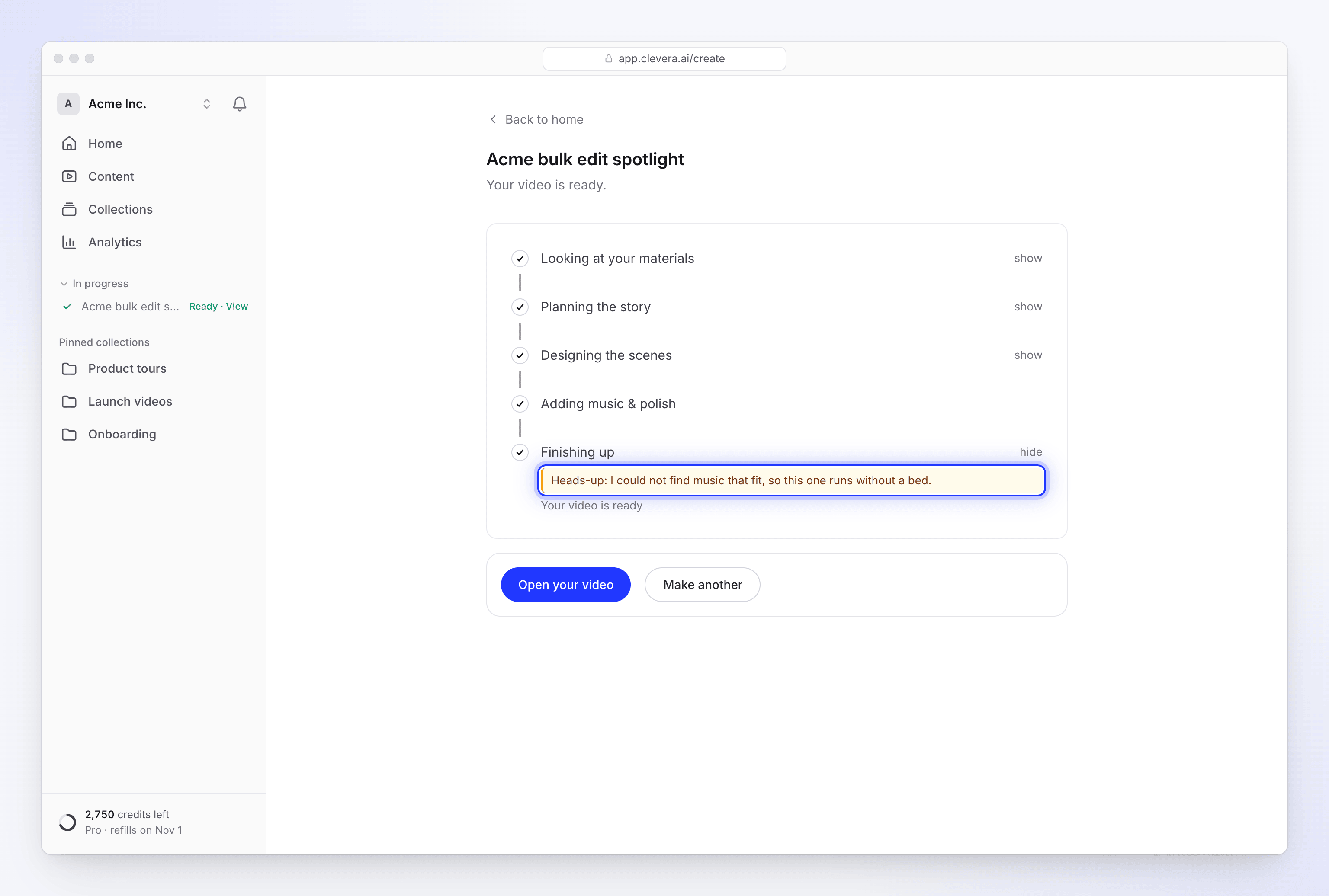
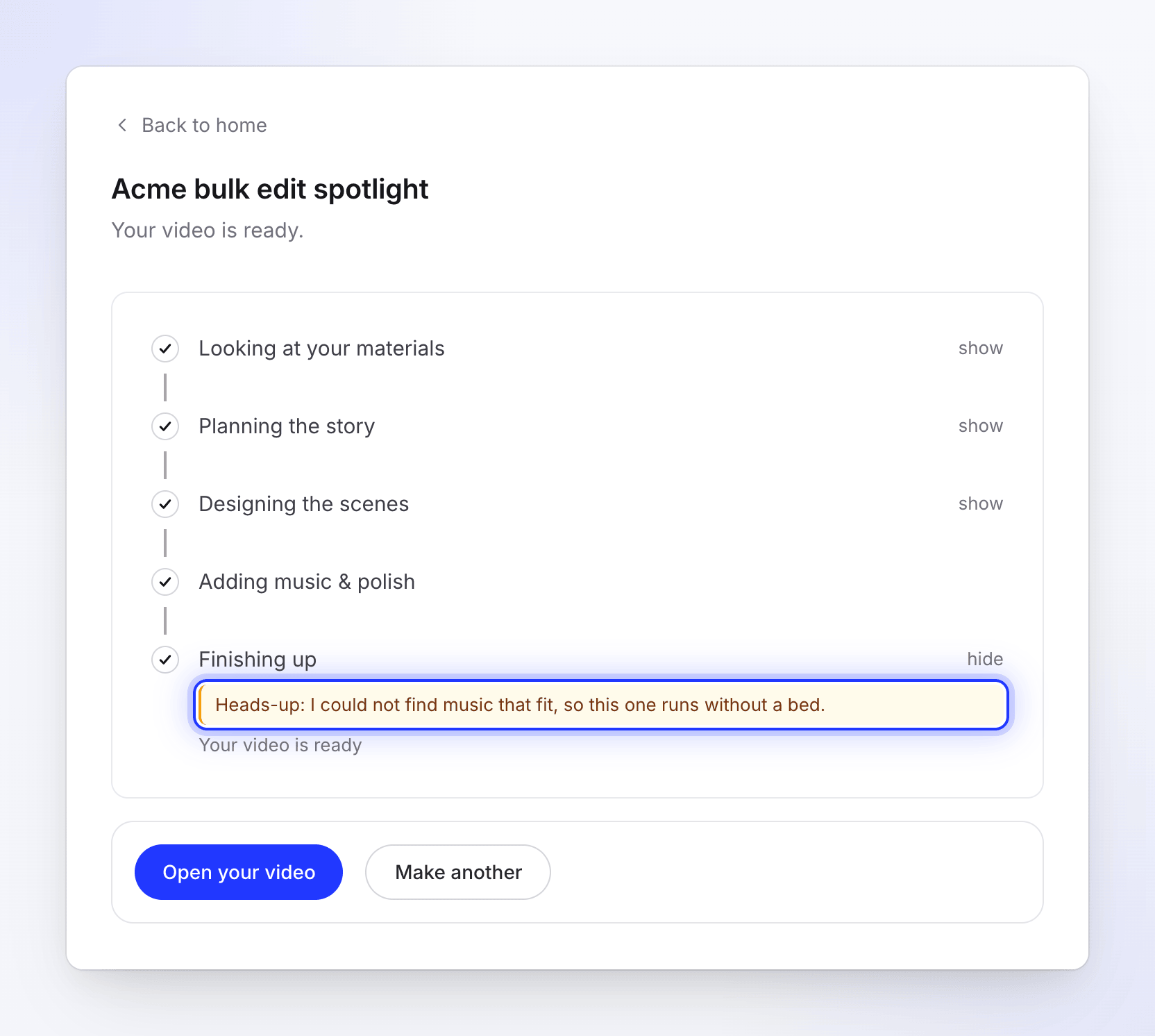
- On the generation page, in an amber box starting with Heads-up, under the stage where it happened. Finished stages fold up; click show to open them.
- In your inbox, the ready notification adds "One thing to check before you share it." (or "2 things to check…").
See Follow your video while it generates.
Every heads-up and how to fix it
Sound and voice
| Heads-up | Why it happens | How to fix it |
|---|---|---|
| "Heads-up: the voice did not come out at all, so this one is silent." | The voice-over was on, but no recording of it made it into the video. | Open the clip and ask the assistant to record the voice-over again, or select a voice-over line on the timeline and click Regenerate. If the clip has no voice-over lines, make the clip again. See Edit a social clip. |
| "Heads-up: I could not find music that fit, so this one runs without a bed." | The AI couldn't choose a music track for this video. | Add one yourself: Clip settings → Sound → Add music, then Choose music or Upload audio. Or ask the assistant for music in the mood you want. See Edit a social clip. |
AI avatar
| Heads-up | Why it happens | How to fix it |
|---|---|---|
| "Heads-up: I left the avatar out of this one." | The avatar couldn't be made when the clip got to it, for example because the workspace didn't have enough credits left for the avatar's screen time. The clip is narrated over your product instead. | Make sure the workspace has credits, then make the clip again with the avatar. You can also add one to the finished clip: + → Media → UGC Character. |
| "Heads-up: the avatar's voice did not work, so this one is narrated by a built-in voice, without the avatar." | The avatar's voice failed before its first line, so the clip switched to a built-in voice with no presenter. | The voice of a finished clip can't be switched. Make the clip again if you need the avatar. |
An avatar that couldn't be made isn't charged. See Add an AI avatar and set its screen time.
Websites and links
| Heads-up | Why it happens | How to fix it |
|---|---|---|
| "Heads-up: there was not much on that page, so the video leans on what you wrote." | The page had little text or few pictures the AI could use, or it only learned the site's address and title. | Check the facts in the video. Next time link a richer page (a product or feature page rather than a login page), or add pictures and a fuller brief. |
| "Heads-up: I couldn't read example.com, so I worked from what you wrote." | A link that wasn't essential to the video, such as one given as a style reference, couldn't be opened. | Check the video's look and facts. If the site matters, see Fix a website the AI couldn't read. |
| "Heads-up: that site would not let me look around, so I worked from what you wrote." | The address was refused before it was read, for example a private or internal address, or an unusual port. | Use a public https:// address that opens for anyone. |
| "I read example.com, but I couldn't use what's on it: its content falls outside what our AI can work with. Try another link, or add pictures and a description instead." | The site opened, but its content is something the AI can't work with. | Use another link, or attach pictures and describe the product in the brief. |
A link the video depends on that can't be read stops the run instead. See My video couldn't be finished.
Recordings and attached videos
| Heads-up | Why it happens | How to fix it |
|---|---|---|
| "Heads-up: I could not watch your recording closely, so the video uses it as one long take." | The AI couldn't map out the moments in your recording, so it couldn't pick the best parts. | Check the cuts and the camera in the editor, or ask the assistant to focus on specific moments. If the recording was still processing, wait until it's ready and make the video again. A shorter recording also helps. |
| "Heads-up: I could not watch the video you attached, so this one was made without seeing it or hearing what is said in it." | An attached video couldn't be read at all, so the AI planned the clip without it. | Check how the footage is used. Make sure the file plays and is within the limits in Add materials, then make the clip again. |
A note that isn't a heads-up
Social clips can also end with this note in the normal list of updates: "I didn't get to watch every scene change back, so give the joins a look". The AI director checks its own scenes as it builds them; this means it didn't get to review every transition. Play the clip and look at the moments where one scene hands over to the next. Ask the assistant to fix any that jump.
Do I pay again to fix it?
Editing by hand is free. Asking the assistant, regenerating a voice-over line and making the video again use credits, as with any AI work. See Know when credits are charged.
When to contact support
Contact support from the chat in the app if:
- the same heads-up comes back every time you make the same video,
- your voice-over is silent again after you regenerate it,
- the avatar is left out even though the workspace has plenty of credits.
Include the video's name and the exact heads-up text.