

Move, share or delete several items at once
Select several videos, clips or articles on the Content page and move them to a collection or folder, copy their links, or move them to the trash at once. Covers the bulk bar, the ⋯ item menu, the 500-item limit and permissions.
On the Content page you can select several videos, clips and articles and move them to a collection, copy their links or delete them in one go. Each item also has a ⋯ menu for one-off actions.
Select items
Pick the first item
Hover a card and tick the checkbox in its top-left corner. In the table view, tick the box at the start of the row. A bar appears at the bottom of the page with the number selected.
Add more
While anything is selected, clicking a card selects it instead of opening it. To select a run of items, hold Shift and click the last one: everything between the two takes the same state.
Select everything
Press ⌘ A (Ctrl A on Windows) or tick the box in the table header to select every loaded item. If the list has more items than are loaded, Select all with the total appears above the list. Click it to select every item that matches your tab and filters, up to 500.
Act on the selection
Use the bar at the bottom of the page (see The bulk bar). Press Esc or click Clear selection to start over.
On a phone or tablet, press and hold a card to select it.
Select with the keyboard
| Keys | What it does |
|---|---|
| J / K or the arrow keys | Move between items |
| X | Select or unselect the focused item |
| Shift X | Select everything from the last item you picked to the focused one |
| ⌘ A | Select all loaded items (press again to unselect them) |
| M | Move the selection to a collection |
| Delete or Backspace | Move the selection to the trash |
| Esc | Clear selection |
The full list is in Find, filter and sort your content.
The bulk bar
The bar shows how many items are selected, then its actions:
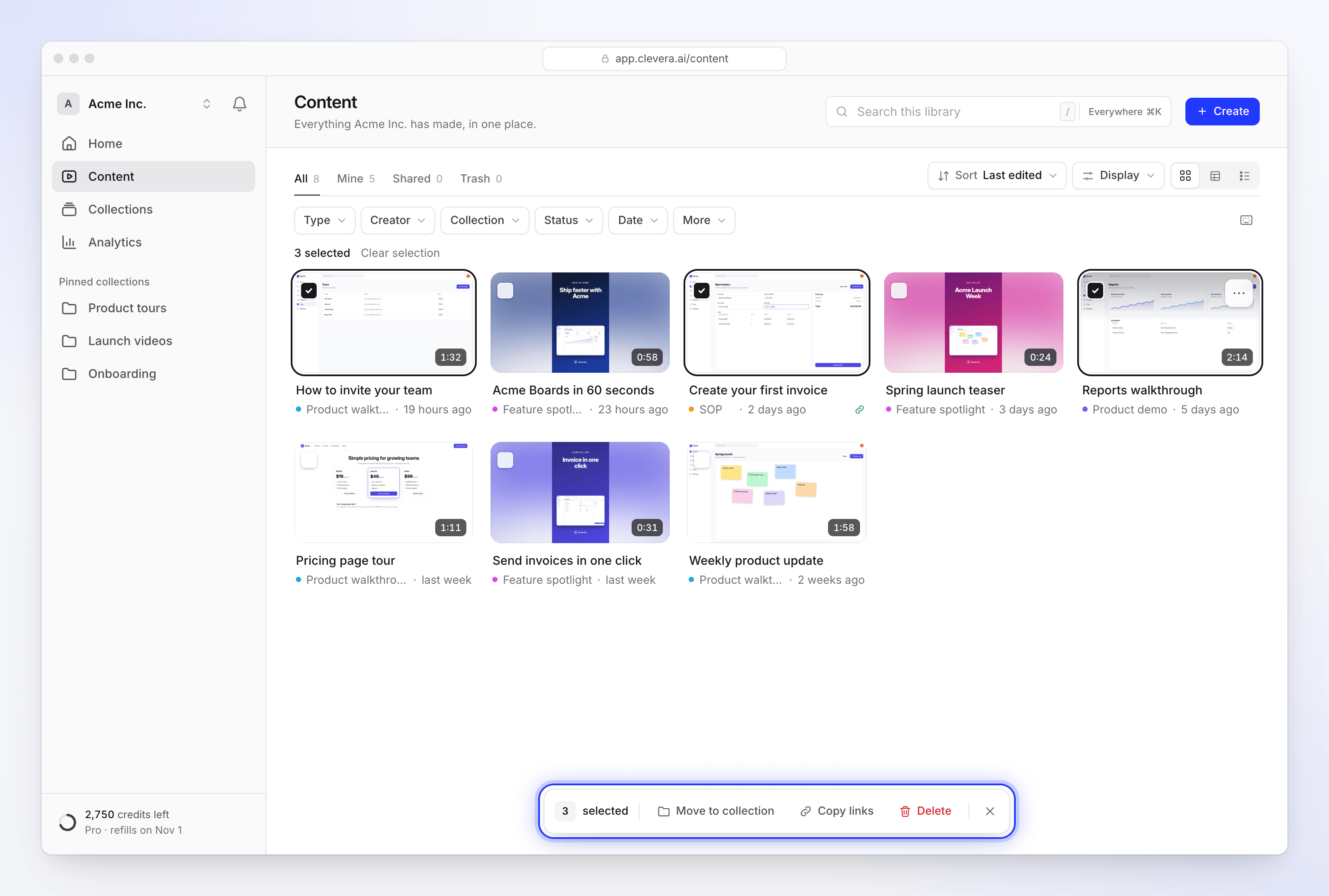
| Action | What it does |
|---|---|
| Move to folder | Puts the items in a folder. Only on a collection's page that has folders. See folders. |
| Move to collection | Opens Move to collection. Pick a collection, or Remove from collection, then click Move 3 items (the button names the count; for one item it reads Move here). |
| Copy links | Copies the share link of every selected item, one per line. Shown when at least one selected item is shared. |
| Delete | Moves the items to the trash, after you confirm |
| × (Clear selection) | Unselects everything |
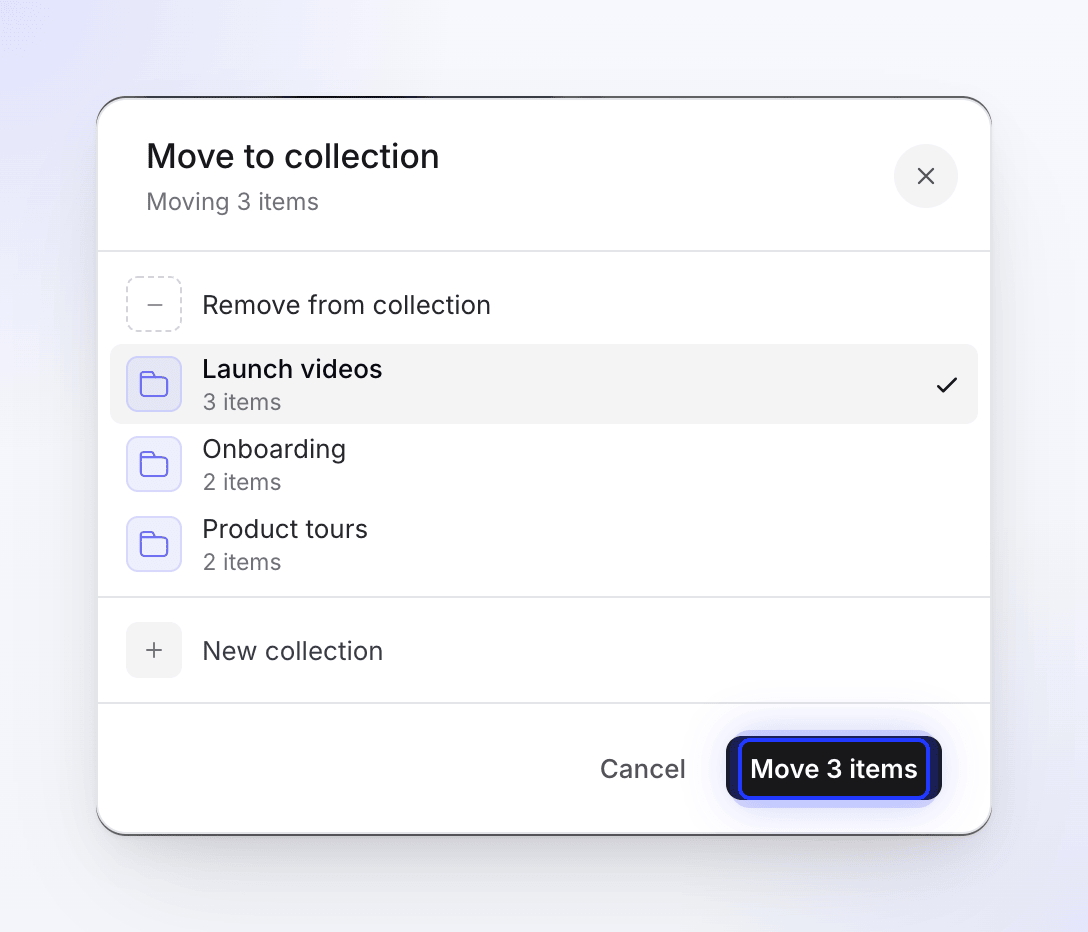
In the Trash tab, the bar offers Restore and Delete forever instead. See Delete and restore videos and articles.
You can also drag a card, or a selection of cards, onto a collection in the sidebar to move them there.
Confirm a delete
Delete asks first: "Move 3 items to trash?" with "3 items go to the trash. You can restore them there for 7 days." Click Move to trash.
After an action
When an action finishes, the bar shows what happened for a few seconds, for example "3 items moved to Q3 launch". After a move to the trash, click Undo to put everything back.
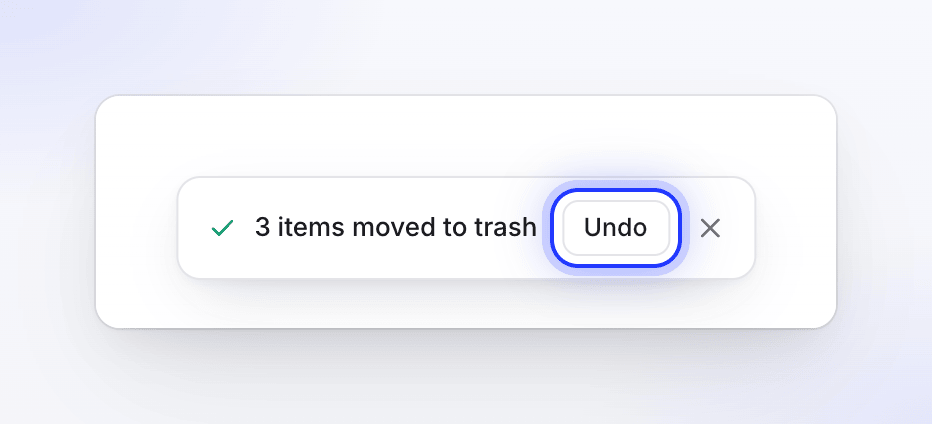
If some items couldn't be changed, the line says so and why:
| Part of the message | Meaning |
|---|---|
| "1 already there" | The item was already in that collection |
| "2 not allowed" | You don't have the right to change those items (see Who can do what) |
| "1 couldn’t be changed" | Something went wrong for that item. Try again. |
| "first 500 only" | You selected more than 500 items. Run the action again for the rest. |
| "2 links copied · 1 not shared yet" | Items without a share link are left out of Copy links |
The other items are still changed: one item that can't be moved never stops the rest.
The item menu
Each item has a ⋯ menu (on hover in the grid, at the end of the row in the table). It shows only what you're allowed to do with that item.
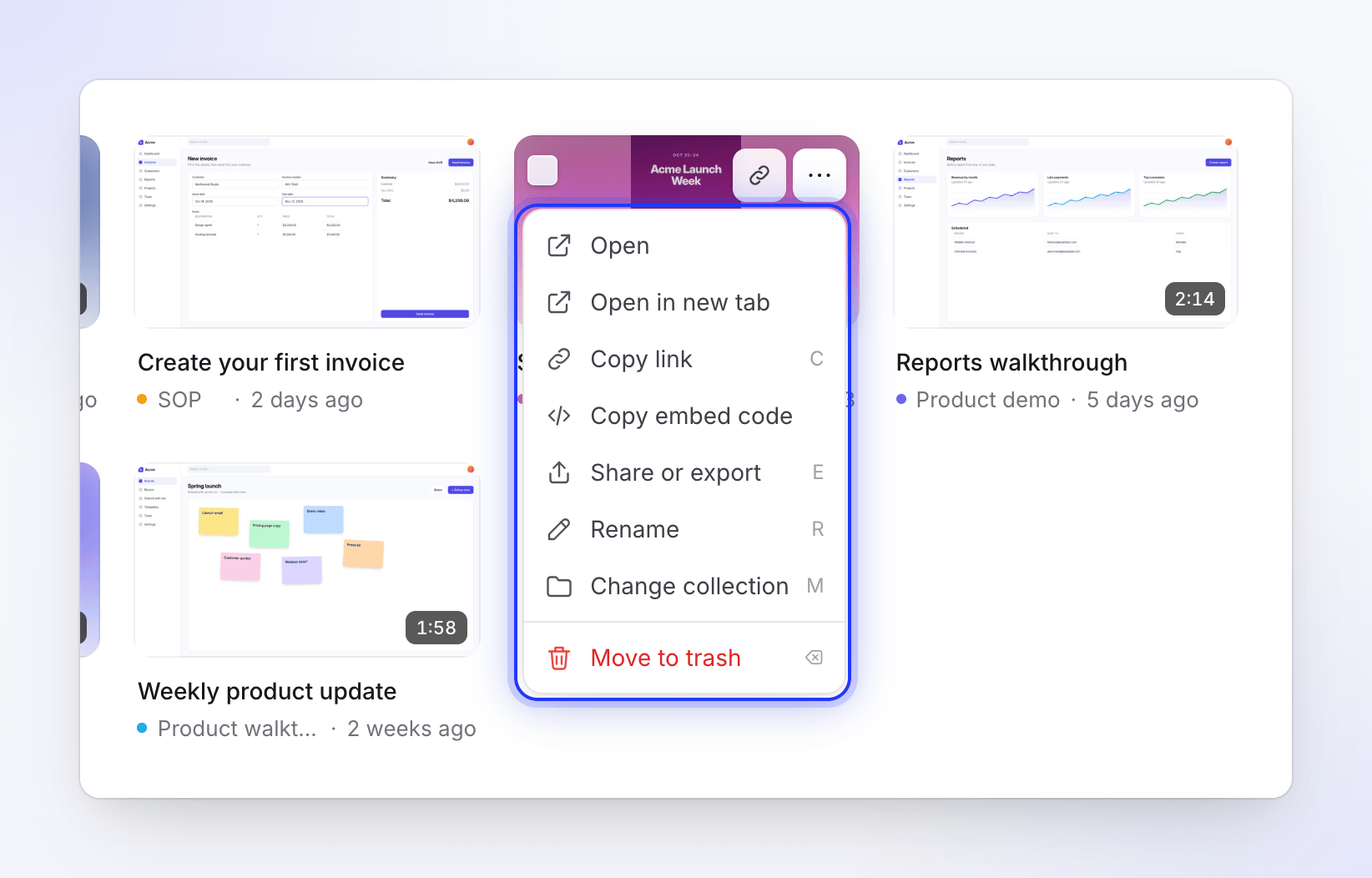
| Menu item | What it does | Shortcut |
|---|---|---|
| Open | Opens the editor | Enter |
| Open in new tab | Opens the editor in a new browser tab | ⌘ Enter |
| Copy link | Copies the share link. Only for shared items. | C |
| Copy embed code | Copies the code to embed it on a site. Only for shared items. | |
| Share or export (Share for articles) | Opens the item with its share window | E |
| Rename | Changes the title | R |
| Move to folder… | Only on a collection's page that has folders | |
| Add to collection / Change collection | Opens Move to collection | M |
| Move to trash | Moves it to the trash right away, with Undo | Delete |
In the Trash tab, the menu has Restore and Delete forever.
There's no duplicate action, and items can't be moved to another workspace.
Who can do what
What you can do with an item depends on your workspace role and the item's collection. See roles and creator seats and collection access.
| Action | Who can do it |
|---|---|
| Move to or out of a collection | The person who made the item, and the workspace owner. The collection you move it to must be one you can add items to. |
| Rename, share | Anyone, on items they made or in a collection where they can edit items |
| Move to trash, restore, delete forever | The workspace owner, Administrators and Content Creators, on items they made or in a collection where they have full access (Manager). Everyone has full access in a Team-wide collection. Editors can't delete. |
Items you aren't allowed to change are skipped and counted as "not allowed".
Troubleshooting
| You see | What to do |
|---|---|
| "None of these are shared yet." | No selected item has a share link. Share them first. See Share a video with a link. |
| "Share it first to get a link." | Copy link needs the item to be shared. |
| "That collection isn’t available." | The collection was deleted or you can no longer add to it. Pick another. |
| "That didn’t work. Nothing was changed." | Check your connection and try again. |
| "Couldn’t copy to the clipboard." | Your browser blocked clipboard access. Allow it and try again. |
| Add to collection is missing from an item's menu | You didn't make this item. Ask its creator or the workspace owner to move it. |