

Add a Clevera help center to WordPress
Install the Clevera plugin, connect your WordPress site to a workspace and add a Clevera Help Center block or Elementor widget that shows a collection's videos and articles, kept up to date automatically.
The Clevera plugin for WordPress puts a full help center on any page of your site: the videos and articles from one Clevera collection, grouped by folder, with search and a language switcher. It reads from Clevera each time the page loads, so what you change in Clevera shows on your site without republishing anything.
Before you start
- Plan: the WordPress connection is part of the Pro and Custom plans. See Choose a plan.
- Role in Clevera: you must be the owner or an Administrator of the workspace you connect.
- In WordPress: an administrator account, WordPress 5.8 or later and PHP 7.4 or later. Elementor is optional; you only need it for the Elementor widget.
- A Team-wide collection to show: put the videos you want on the page in one collection shared with the whole workspace (Team-wide), and use folders to group them. See Organize videos in collections and folders.
- Share links on: only videos whose share link is on appear on your site.
The plugin is free and uses no credits.
Install and connect the plugin
Get the plugin
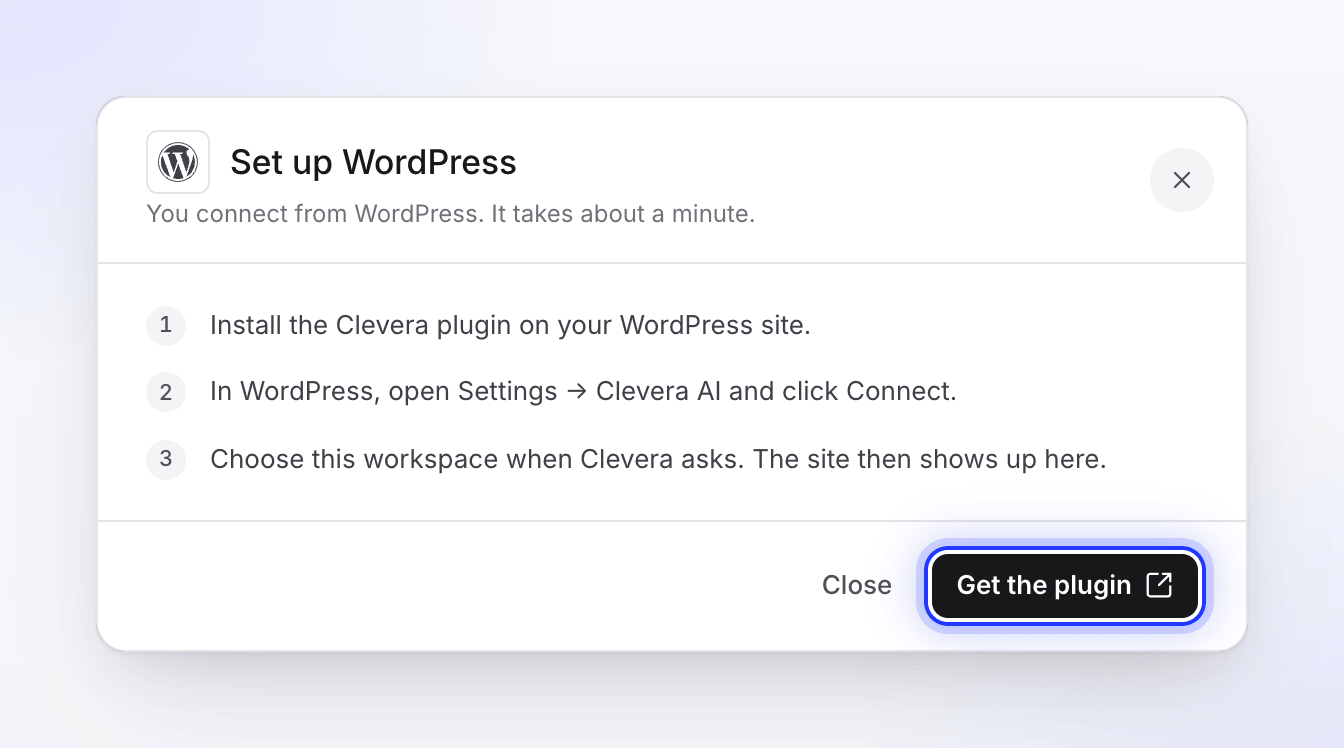
In Clevera, open the workspace menu in the sidebar, choose Integrations, find WordPress (under Websites & CMS) and click Set up. The window lists the steps and has a Get the plugin button that opens the plugin's page on wordpress.org.
In WordPress, go to Plugins → Add New, search for "Clevera", then click Install Now and Activate on Clevera — AI Tutorial Videos & Help Center.
Open the plugin settings
In WordPress, go to Settings → Clevera AI. Under Before you connect the plugin lists what it sends to Clevera: your site URL, your site name, a return address and a signed state token.
Confirm and connect
Check "I understand that connecting this plugin will send the site details above to Clevera to authorize and operate the integration." and click Connect to Clevera.
Choose the workspace
Clevera opens a Connect WordPress page that says your site "wants to connect to Clevera". Sign in if asked, pick the workspace under Select a workspace and click Connect Workspace.
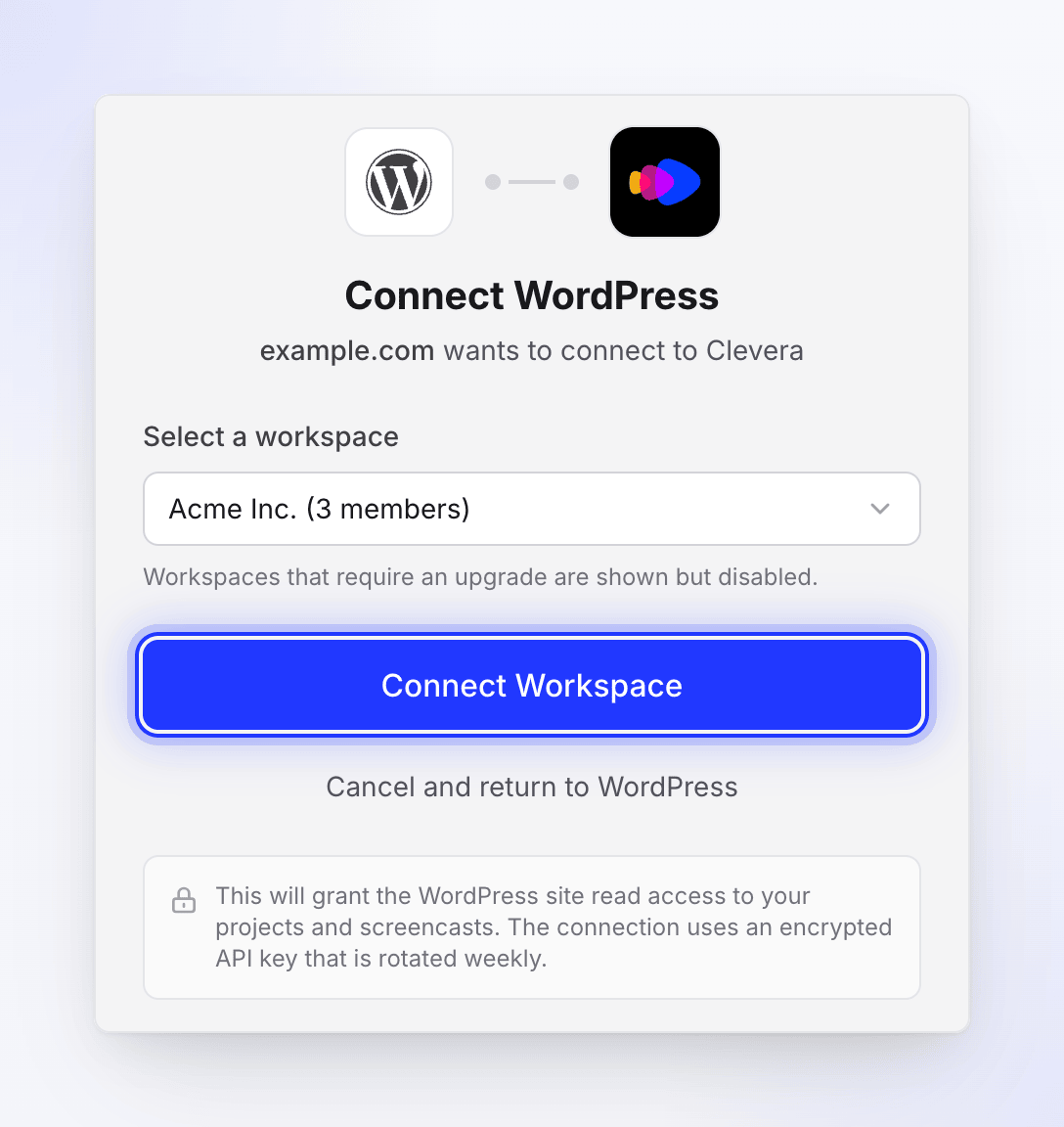
Only workspaces you own or administer are listed. Only workspaces where you're the owner or an Administrator are listed. Workspaces whose plan doesn't include integrations are shown but can't be picked.
Check it in WordPress
You're sent back to WordPress with "Successfully connected to Clevera!" The settings page now shows the Workspace, Connected since and Last key rotation. Click Test connection to check it; you should see "Connection is healthy."
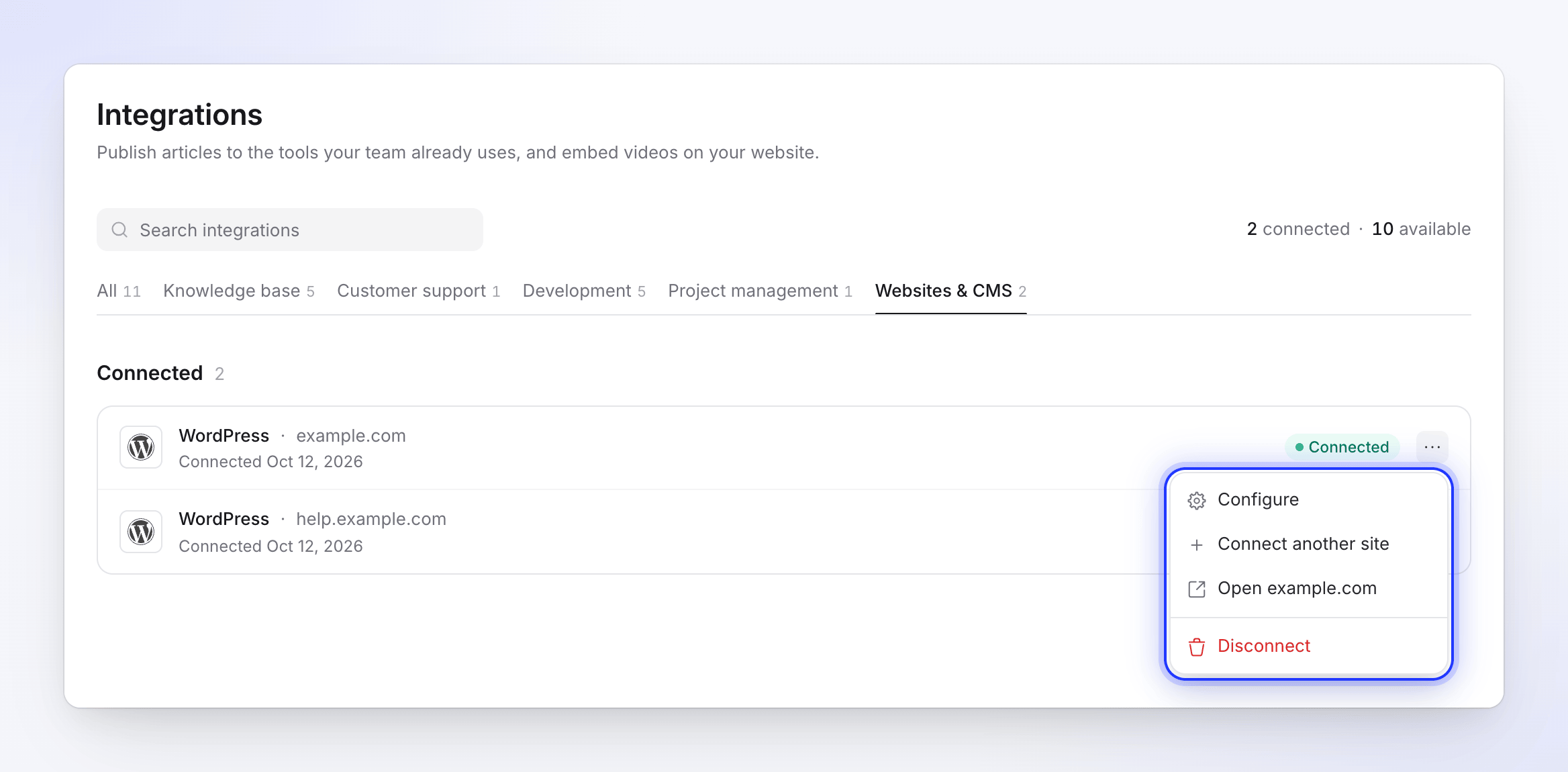
In Clevera, the site appears under Integrations → Connected as WordPress, with your site's name or address and "Connected" plus the date.
Add the help center to a page
- Open the page in the WordPress block editor and add the Clevera Help Center block.
- In the block settings, under Content, pick the collection in Project. Each Team-wide collection shows how many of its videos it can show.
- Choose the other settings (see below) and publish the page.
@tab Elementor
- Open the page in Elementor and find the Clevera widget category.
- Drag the Clevera Help Center widget onto the page.
- Pick the collection in Project, set the options and publish.
Each page holds one help center. The plugin calls collections "projects" and folders "categories".
Block settings
| Setting | Options | Default |
|---|---|---|
| Project | Any Team-wide collection in the connected workspace | None; the block asks you to "Select a Clevera project to display the help center." |
| Layout | Sidebar + Content, Category Grid, Full-width List | Sidebar + Content |
| Articles per page | 1–50 | 12 |
| Show search | On or off | On |
| Show thumbnails | On or off | On |
| Show author | On or off | On |
| Show category icons | On or off | On |
| Show article tree in categories | On or off | Off |
| Show article content | On or off | On |
The style panels (General Style, Sidebar, Category Grid, Screencast Cards and Article & Player) set colors, borders, corner radius, widths and spacing so the help center matches your theme. In the editor the block may show "Preview unavailable. The block will render correctly on the page."; check the published page instead.
What visitors see
- The collection's folders as categories, with their icons and descriptions.
- Each finished video whose share link is on, as a card with its title, thumbnail, author and length. Drafts, videos still being made and videos with the share link off don't appear.
- On a video's page: the Clevera player, then the article.
- A language switcher with flags when the video has translations, and search when Show search is on.
Videos, articles and folders load from Clevera when the page loads, so edits, new videos, translations and share links you turn on or off show up on the next visit (after your site's own page cache clears, if you use one).
Manage connected sites
You can connect several WordPress sites to one workspace; each one is its own row under Integrations. Click the ⋯ menu on a row for:
| Option | What it does |
|---|---|
| Configure | Shows the site, its address, when and by whom it was connected |
| Connect another site | Opens the setup steps again for a second site |
| Open (site name) | Opens the site in a new tab |
| Disconnect | Ends the connection for that site |
The site's key rotates automatically every week. You don't need to do anything; Last key rotation in WordPress shows when it last happened.
Disconnect a site
You can disconnect from either side:
- In WordPress: go to Settings → Clevera AI, click Disconnect and confirm "Are you sure you want to disconnect from Clevera?" You see "Disconnected from Clevera."
- In Clevera: on Integrations, click the ⋯ menu on the WordPress row, choose Disconnect and confirm. "Embeds you placed there stop updating. Content you already published stays in WordPress." Clevera also tells the site it was disconnected.
After disconnecting, pages with the help center show an error or an empty state until you reconnect or remove the block. To remove everything, deactivate and delete the plugin in WordPress.
Troubleshooting
| You see | Where | What to do |
|---|---|---|
| "Please confirm that you want to send your site details to Clevera before continuing." | WordPress | Check the confirmation box, then click Connect to Clevera. |
| "None of your workspaces have the Integrations feature. Integrations are included in Pro and Custom plans." | Clevera | Upgrade the workspace to Pro, then connect again. |
| "You don't have any workspaces where you are an owner or administrator." | Clevera | Ask the workspace owner to connect the site, or to make you an Administrator. |
| "Integrations are included in Pro and Custom plans. Please upgrade first." | Clevera | Pick a workspace on Pro or Custom, or upgrade. |
| "You do not have permission to connect integrations for this workspace." | Clevera | Only the owner or an Administrator can connect. |
| "The return address does not belong to this WordPress site." | Clevera | Your site address and WordPress address differ (for example www and no www). Make them match under Settings → General in WordPress, then connect again. |
| "Failed to create connection. Please try again." | Clevera | Start again from Settings → Clevera AI. |
| "Invalid authorization state. Please try again." or "No authorization token received." | WordPress | The round trip took too long or was interrupted. Click Connect to Clevera again and finish within 10 minutes. |
| "Failed to receive API key from Clevera." | WordPress | Connect again. If it repeats, check that your server can reach app.clevera.ai. |
| "Connection test failed." | WordPress | Disconnect and connect again. If you moved the site to a new domain, you must reconnect: the key only works for the address it was made for. |
| "Connect the plugin to Clevera first to load projects here." | Block editor | Connect the plugin under Settings → Clevera AI. |
| "Select a Clevera project from the block settings to display the help center." | Page | Pick a collection in Project. |
| A collection is missing from Project | Block editor | Only Team-wide collections are listed. Change the collection's access to Team-wide, or move the videos to one that is. |
| A video is missing from the help center | Page | Check that it's finished, isn't a draft, is in the chosen collection and has its share link on. |
| The help center stopped loading | Page | Check that the workspace is still on Pro or Custom, and that the site is still connected. |