

Change Chrome extension settings
Every Clevera Chrome extension setting and its default: countdown, tab audio, microphone and camera, shortcuts, account and sign-out, the welcome guide, sending logs and the version.
The Chrome extension's settings hold your recording defaults, keyboard shortcuts, account and help. This article lists every setting, its default, and how to open the welcome guide again or send logs to Clevera.
Open Settings
- Click the Clevera icon, then Settings at the bottom of the popup. While the popup is open you can also press ⌘, on a Mac or Ctrl+, elsewhere.
- In the popup, ⋯ → Report a problem… opens Settings at Help.
Settings opens in its own tab, Clevera settings, with five sections on the left. Changes are saved at once. Settings and the popup follow your system's light or dark appearance and Chrome's language.
Recording
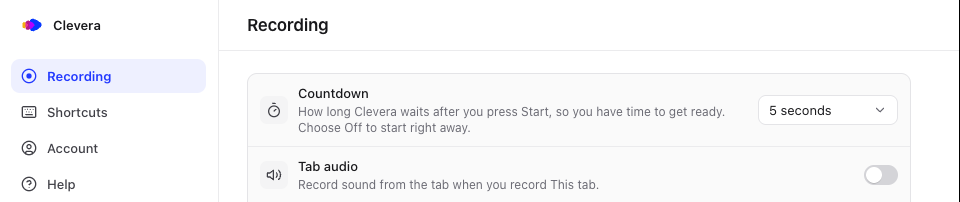
| Setting | What it does | Default |
|---|---|---|
| Countdown | How long Clevera waits after you press Start, so you have time to get ready. Off, 3, 5 or 10 seconds. | 3 seconds |
| Tab audio | Records sound from the tab when you record This tab. The same switch is in the popup; on Windows and ChromeOS it also turns on Computer audio for Screen. | Off |
| Microphone | The microphone you record with ("Records your voice with the screen."), or No microphone. | Chrome's default microphone, once you allow it |
| Camera | The camera you record with ("Recorded as its own video. Clevera places it in the editor."), or No camera. | Chrome's default camera, once you allow it |
Until you allow the microphone or camera, its row has an Allow button. You can also change these in the Clevera popup before each recording. See Microphone and camera.
Shortcuts
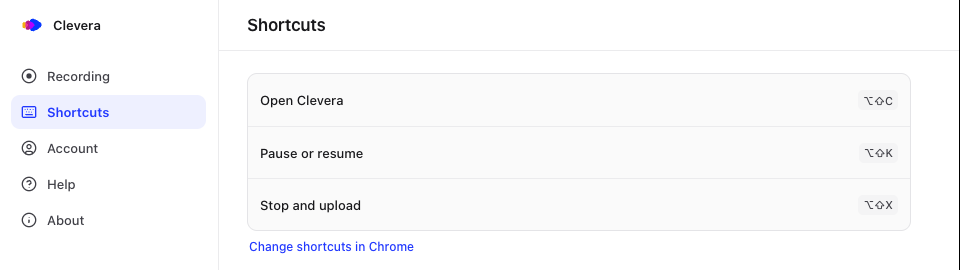
| Shortcut | Mac | Windows, Linux and ChromeOS |
|---|---|---|
| Open Clevera | ⌥⇧C | Alt+Shift+C |
| Pause or resume | ⌥⇧K | Alt+Shift+K |
| Stop and upload | ⌥⇧X | Alt+Shift+X |
Chrome owns extension shortcuts. To change them, click Change shortcuts in Chrome, which opens chrome://extensions/shortcuts. A shortcut that isn't assigned shows Not set.
Account
| Item | What it shows or does |
|---|---|
| Clevera account | The email you're signed in with, and "Records to" your workspace. |
| Sign out | Asks Sign out? ("You'll need to sign in again to record."). Recordings in this browser stay until they upload. Not available while you record ("Available after the recording finishes."). |
When you're signed out, this section says You're not signed in with Sign in. To record to another workspace, see Sign in.
Help
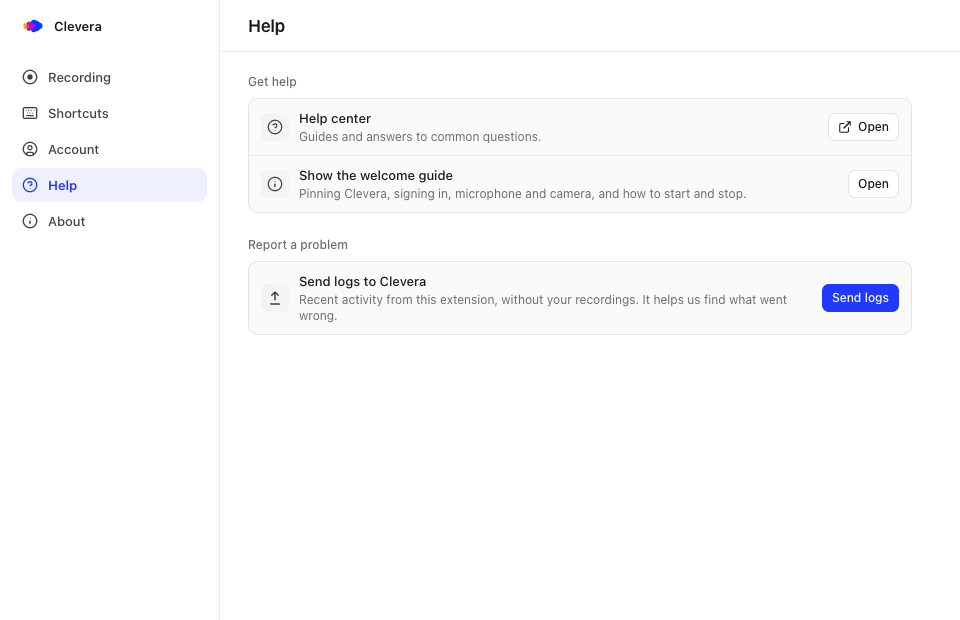
| Item | What it does |
|---|---|
| Help center | Opens this help center. |
| Show the welcome guide | Opens the welcome guide again: pinning Clevera, signing in, microphone and camera, and how to start and stop. See The welcome guide. |
| Send logs to Clevera | Sends recent activity from this extension, without your recordings, so support can find what went wrong. Click Send logs; it says "Sent. Thank you, we'll take a look." You need to be signed in. |
The logs reach Clevera with your account. To tell us what happened and when, also contact support.
About
Shows Clevera for Chrome and its version and build number, for example "Version 1.0.0 (12)", with links to the Privacy policy and the Terms of service.