

Connect GitHub or another repository to Autopilot
Connect GitHub (or GitLab or Bitbucket where available) so Autopilot can follow your releases and merged changes. Access is read-only, limited to the repositories you allow, and never includes your code.
Connect a code repository and Autopilot can follow your product's releases and merged changes, so tasks such as Keep my help center up to date when we ship plan fixes as soon as something ships. Access is read-only, covers only the repositories you allow, and never includes your code.
Before you start
- You need to be the workspace owner or an admin. Everyone else sees Connections with every control disabled: "Only the workspace owner or an admin can connect or change these."
- GitHub connects through Clevera's own read-only GitHub app, installed on your account or organization. If an organization owner must approve it, connect again once they have.
- GitLab (gitlab.com only, not self-managed) and Bitbucket (Bitbucket Cloud) are listed on the same page. When one of them reads "This connection isn’t available yet." it can't be connected for now: use GitHub or a changelog page instead.
Connect a repository
Open Connections
In Autopilot, open Connections under Setup. Repository connections lists each provider with its status.
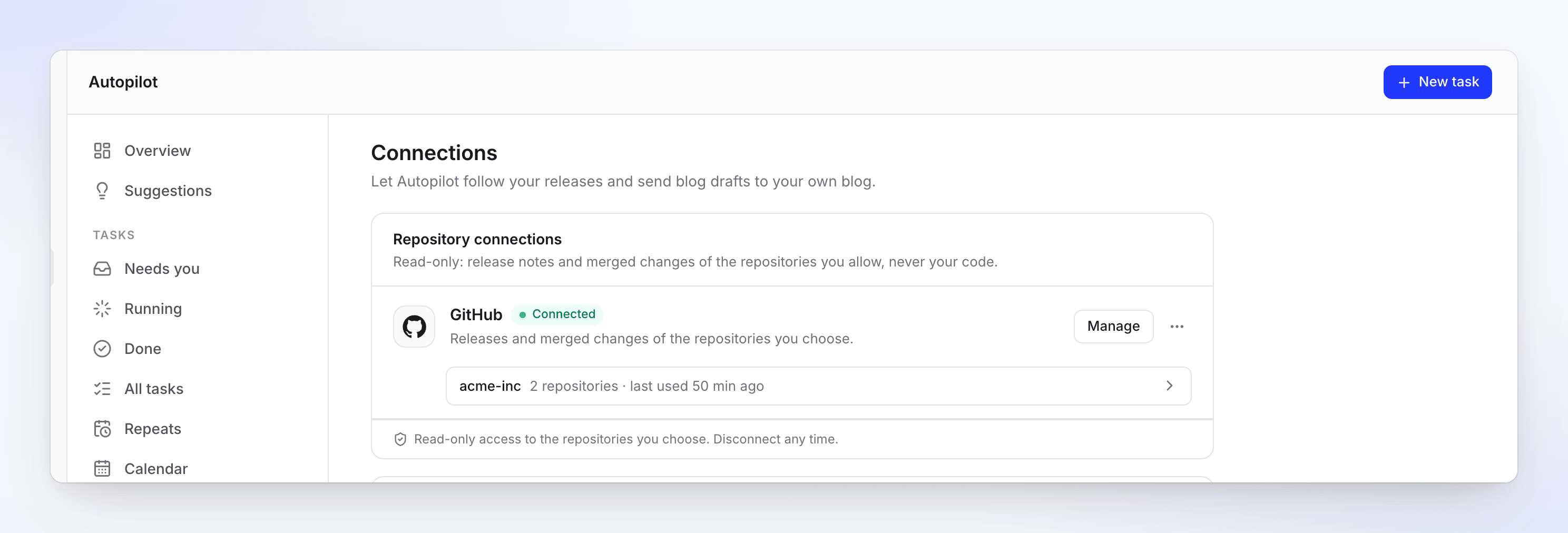
A GitHub account connected, with two allowed repositories. Click Connect
Click Connect next to your provider and approve the read-only access on its page. You come back to Connections, and the new connection opens.
Choose the repositories
Click Choose repositories, search, and click Allow next to each repository Autopilot may read. Click Done. Until you allow one, Autopilot reads nothing: "None yet. Autopilot reads nothing until you allow a repository."
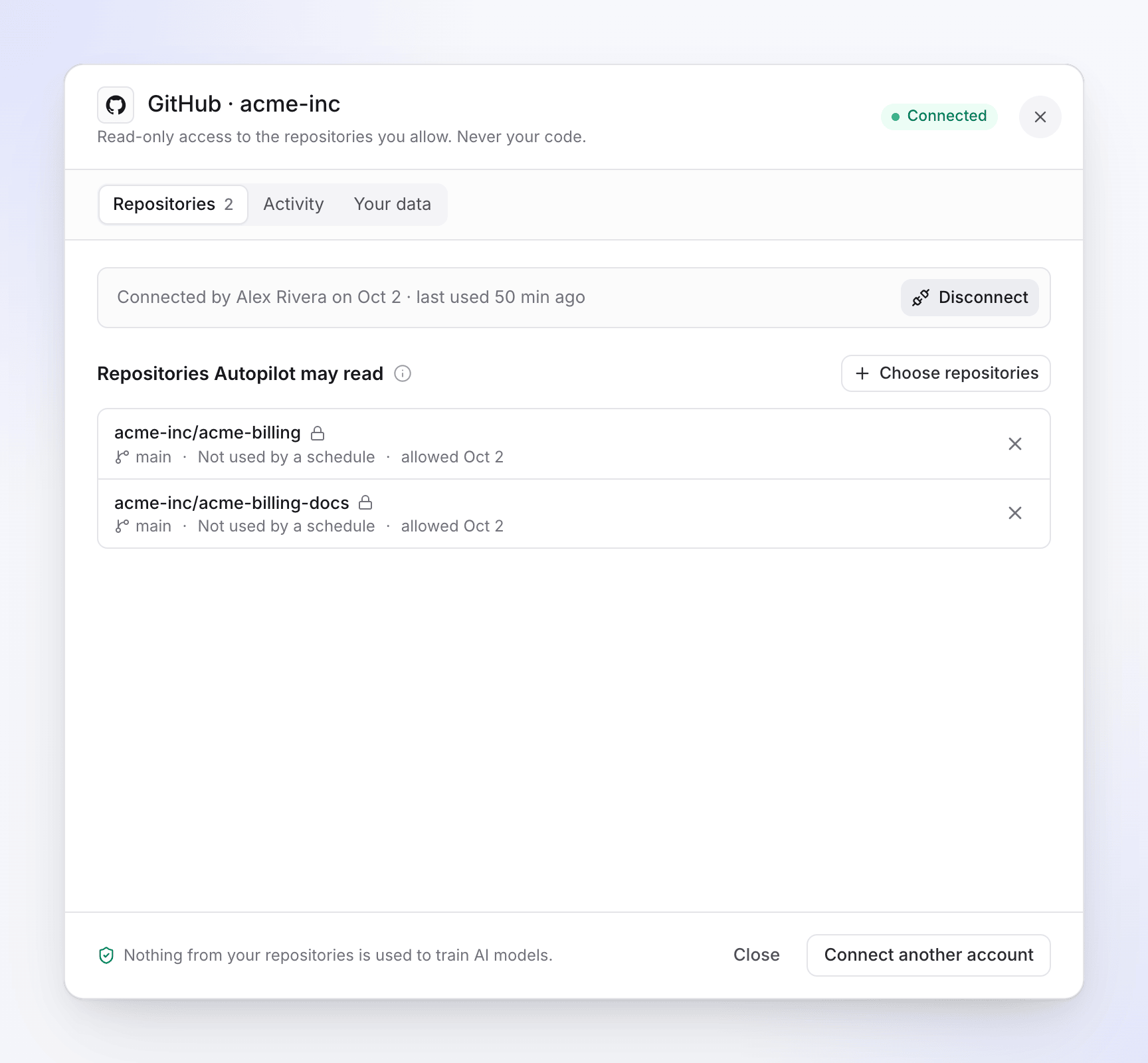
Repositories Autopilot may read. Each shows its default branch and how many schedules use it. Use it in a task
Set up a task that runs on Each release: Keep my help center up to date when we ship, Update my videos when the product changes, Record a video for every new feature or Your own task. In the setup card, pick the Connection, the Repository and what to Read: Releases ("Each release you publish.") or Merged changes ("Each merged pull request."). See Set up an Autopilot task.
If no repository is allowed yet, the setup card says "No repository is allowed yet. Connect an account and choose the repositories Autopilot may read." with Open Connections, and Continue answers "Connect a repository first." To allow another repository from the card, use Allow more repositories.
On Autopilot home, the Get started checklist ticks Connect a repository once a repository connection exists.
What happens after you connect
- Clevera checks each watched repository about once an hour. Nothing is pushed to Clevera: there are no webhooks.
- A new release (or merged change) starts a run of the task: Clevera reads what changed, plans the fixes and waits for your review before anything is made.
- Release notes and pull-request text are written outside Clevera, so runs that read them always wait for your review.
- On the task, the trigger reads "Releases on acme-inc/acme-billing" or "Merged changes on …". In lists it reads "After every release".
What Autopilot reads
Open a connection (Manage, or What we read in the provider's ⋯ menu before you connect). The Your data tab lists everything.
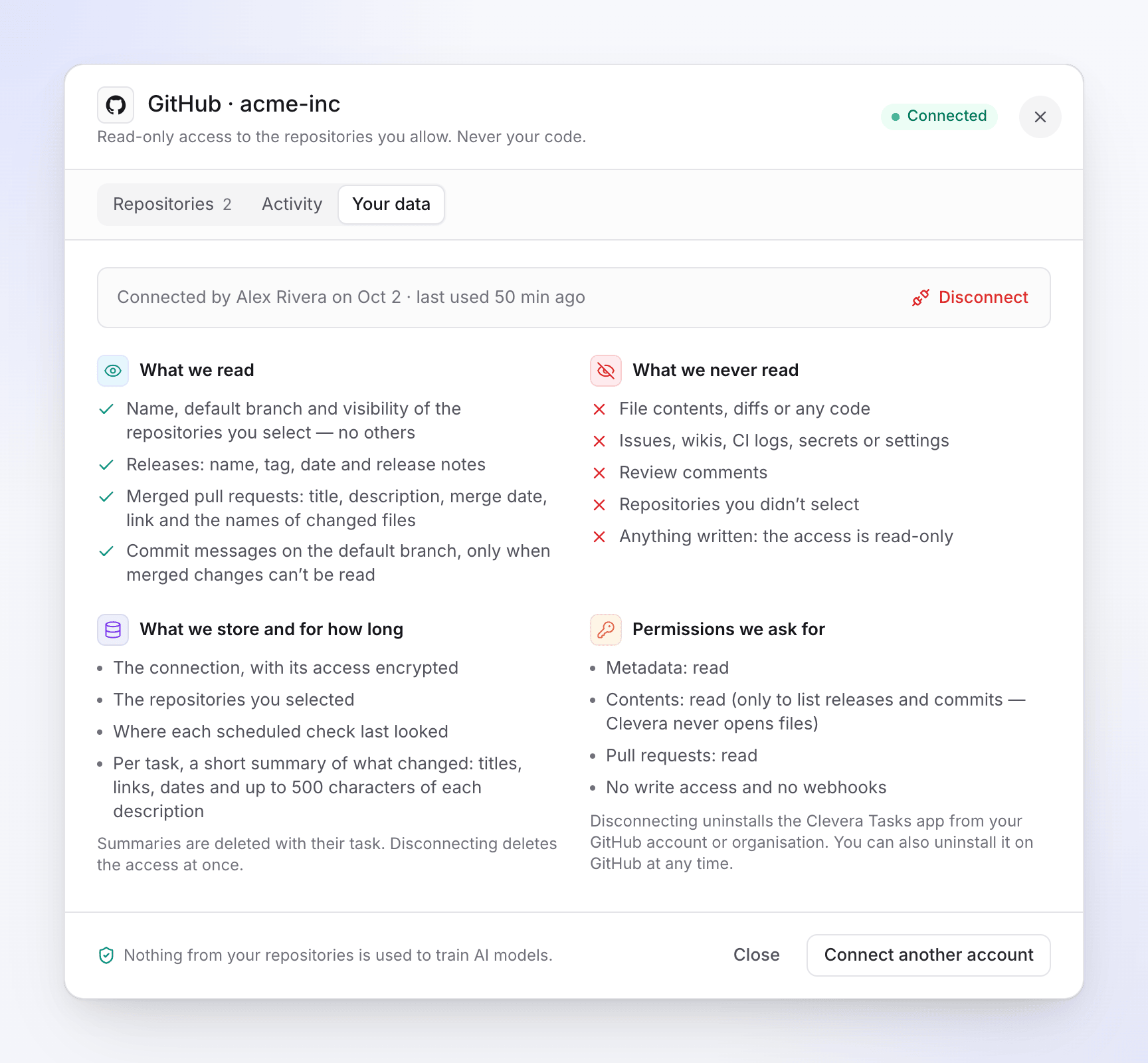
| What we read | Name, default branch and visibility of the repositories you select, no others. Releases (GitHub, GitLab) or tags (Bitbucket): name, tag or message, date and release notes. Merged pull or merge requests: title, description, merge date and link (GitHub and Bitbucket also the names of changed files). Commit messages on the default branch, only when merged changes can't be read. |
| What we never read | File contents, diffs or any code. Issues, wikis, CI logs, secrets or settings. Review comments. Repositories you didn't select. Nothing is ever written: the access is read-only. |
| What we store | The connection, with its access encrypted; the repositories you selected; where each scheduled check last looked; and per task a short summary of what changed (titles, links, dates and up to 500 characters of each description). Summaries are deleted with their task. |
"Nothing from your repositories is used to train AI models."
| Provider | Permissions asked for |
|---|---|
| GitHub | Metadata: read. Contents: read, only to list releases and commits; Clevera never opens files. Pull requests: read. No write access and no webhooks. |
| GitLab | read_api (read-only API access). No write access, no repository download access, no webhooks. |
| Bitbucket | Account: read. Repositories: read. Pull requests: read. No write access and no webhooks. |
Clevera refuses a connection that grants more than read access.
The Activity tab lists the last 20 events, newest first: connects, allowed and removed repositories, checks ("Checked acme-inc/acme-billing: 2 changes"), renewals and errors. "Reads list counts, never content."
Statuses
| Status | What it means |
|---|---|
| Not connected | Connect an account to pick repositories. |
| Connected | Autopilot can read the repositories you picked. |
| Needs attention | A connection lost its access. Open it to fix. |
| Access revoked | The provider stopped accepting the connection. Click Reconnect: its Repeats and schedules pick up again. |
| Paused briefly, retrying | "The provider asked us to slow down or had a hiccup. Autopilot retries on its own; nothing to do." |
When a provider stops accepting the connection, the schedules that use it pause and the person who connected it gets the notice "GitHub stopped accepting your Autopilot connection" (or GitLab, Bitbucket) by email and in the inbox, with Open connections. On the Repeats page those tasks show Connection lost.
You can connect several accounts of one provider: Connect another account in the provider's ⋯ menu or in the connection.
Remove access
- One repository: click × next to it ("Stop reading it; its schedules pause." when tasks use it).
- The whole account: open the connection and click Disconnect, then confirm "Disconnect acme-inc?". Autopilot stops reading its repositories and pauses the schedules that use them. Clevera deletes its access at once.
- GitHub: this uninstalls Clevera's app from your account or organization. You can also uninstall it on GitHub at any time.
- GitLab: access is revoked on GitLab too. You can also revoke it under Applications in your GitLab settings.
- Bitbucket: also remove the authorization under App authorizations in your Bitbucket settings.
Connecting the same account again later restores the connection, and its paused tasks can resume.
Troubleshooting
| What you see | What to do |
|---|---|
| "An owner of the GitHub organisation needs to approve the Clevera Tasks app. Connect again once they have." | Ask an organization owner to approve the app on GitHub, then click Connect again. |
| "Your GitHub account can’t see this installation. Ask an owner of the organisation to connect it." | Someone with access to the installation connects it. |
| "The Clevera Tasks app is suspended on this GitHub account. Unsuspend it on GitHub, then connect again." | Unsuspend the app in your GitHub settings. |
| "GitHub didn’t confirm who you are. Try again." / "GitLab didn’t confirm the connection. Try again." | Start Connect again. |
| "… granted different access than read-only. Contact support." | Contact support; Clevera only accepts read-only access. |
| "This account can’t see any repositories yet." | Give the app access to repositories on the provider's side, then open Choose repositories again. |
| "GitHub didn’t let Clevera read this repository. Check the connection can still see it." | The repository was removed from the app's access, renamed or deleted. Allow it again. |
| "This connection isn’t available yet." | That provider can't be connected yet. Use another, or a changelog page. |