

Plan a video with the setup chat
The setup chat turns one sentence into a ready Compose setup: it picks the type, collects your material and required facts, then walks you through the settings. It's free and generates nothing until you press Generate.
The setup chat is a short conversation that turns a sentence you type on Home into a ready Compose setup. It picks the video type with you, collects your material and any facts the video can't do without, then walks you through the settings. It's free, and nothing is generated until you press Generate on the next page.
How a setup chat goes
When you send a description from the Home box, the chat opens on a page titled New video, with the line "A few questions, then everything is ready to create." As you answer, a summary of what's settled (Type, Footage, Language) builds up under the title.
The chat asks one question per turn, usually no more than four in total, in this order:
- The type. If two types could fit, it asks you to choose and says what each costs.
- What to make it from. A recording, an upload, pictures, a PDF, a website or Record with AI.
- What the video is about, if your first message didn't say.
- A fact the type needs, such as an offer's terms or an event's date.
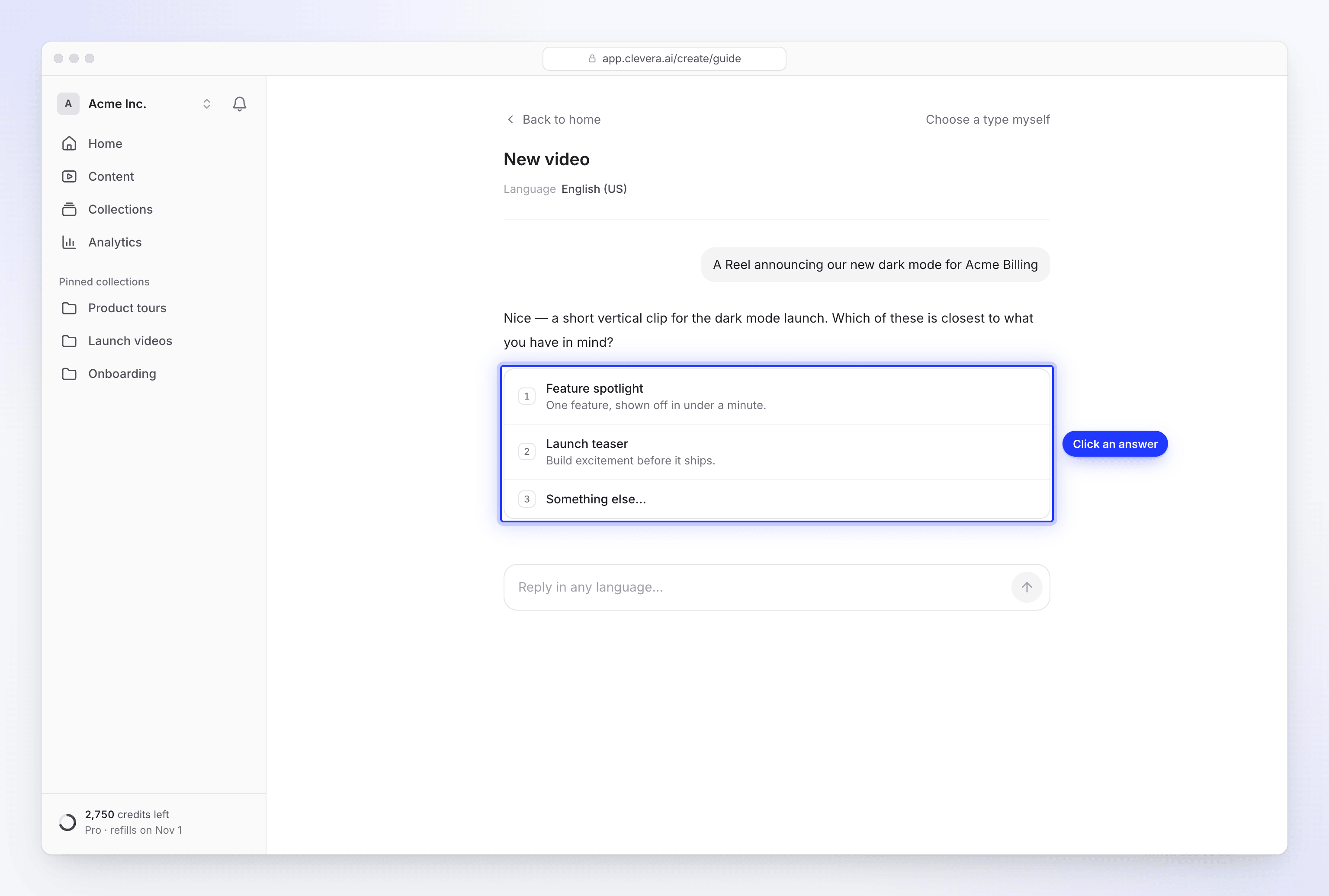
It never asks about settings like voice, format or music in the conversation. Those come afterwards as settings steps, with every option in front of you. If you mention one yourself ("make it 16:9", "no music"), the chat applies it without asking.
How the chat picks a type
The chat steers you by what you want to achieve, not by what you happen to have:
- Teaching (tutorials, walkthroughs, onboarding, help docs, troubleshooting, product demos) goes to a how-to video, a product demo or an article, even if you don't have a recording yet. The chat offers ways to get one.
- Ads, Reels, TikTok and Shorts, launches, teasers, offers and events go to a social clip.
- Cleaning up a video you already have goes to Polish my footage.
- When nothing fits, the fallback is a social clip from your own description (Describe what you want).
Website links work only for social clips. If you give a link for a how-to video, the chat tells you and moves on. Only types your workspace can make are offered; on the Free plan, that means no social clips.
To pick the type yourself, click Choose a type myself at the top of the page. It opens the Create gallery and carries your text with you.
Answering questions
You can click an answer or type freely. The box at the bottom says Reply in any language…; Enter sends, Shift+Enter adds a line. Each message can be up to 2,000 characters.
| Question | What you see |
|---|---|
| A choice | Answer chips, plus Something else… to type your own (Type your answer). |
| What to make it from | The sources that work for the chosen type (see the table below). |
| A website | A Website address field and Use this site. Enter a full address, like acme.com. |
| An upload | Drop files here, or choose them. Videos, pictures and PDFs go straight into your setup. |
| A recording | Choose a recording: one from your library, or an MP4 you upload. |
| Yes or no | Two buttons. |
Sources by type
| Source | How-to and product demo | Article | Polish my footage | Social clips |
|---|---|---|---|---|
| A recording already in Clevera | Yes | Yes | Yes | Yes |
| Upload a video | Yes | Yes | Yes | Yes |
| Record with AI | Yes | Yes | No | No |
| Pictures | Yes | No | No | Yes |
| Yes | No | No | Yes | |
| A website | No | No | No | Yes |
| Just a description | No | No | No | Yes |
For a social clip, the chat offers a website, pictures or a PDF instead of Record with AI. On Compose, the + menu has more options for every type. See Add materials.
Write in any language
The chat replies in the language you write in, and says once that you can write in any language. The video's language is a separate setting: it starts as the language you're writing in, and you can change it in the first settings step. You can also just say "make it in German" and keep chatting in English.
Facts some types need
A few types are built on a fact only you can give. The chat won't finish without it, because the AI won't invent your offer or your customer's words.
| Type | What it needs |
|---|---|
| Offer promo | The offer: what it is, the terms, and until when. |
| Event promo | The event: name, date, place and how to register. |
| Customer story | A real quote or result, and who said it. |
| Any social clip with nothing attached | A brief of at least 100 characters about what the video should say. |
Record with AI from the chat
For a how-to video, product demo or article without a recording, choose Record with AI. A card appears in the chat with:
- Start page: the page the browser opens first, such as
app.acme.com. - What it should show: the steps to record, up to 2,000 characters. The chat fills this in from what you said.
- No sign-in ("The page opens without signing in.") or I'll sign in myself ("It stops at the sign-in and hands you the browser.").
- It may create or edit things: off by default.
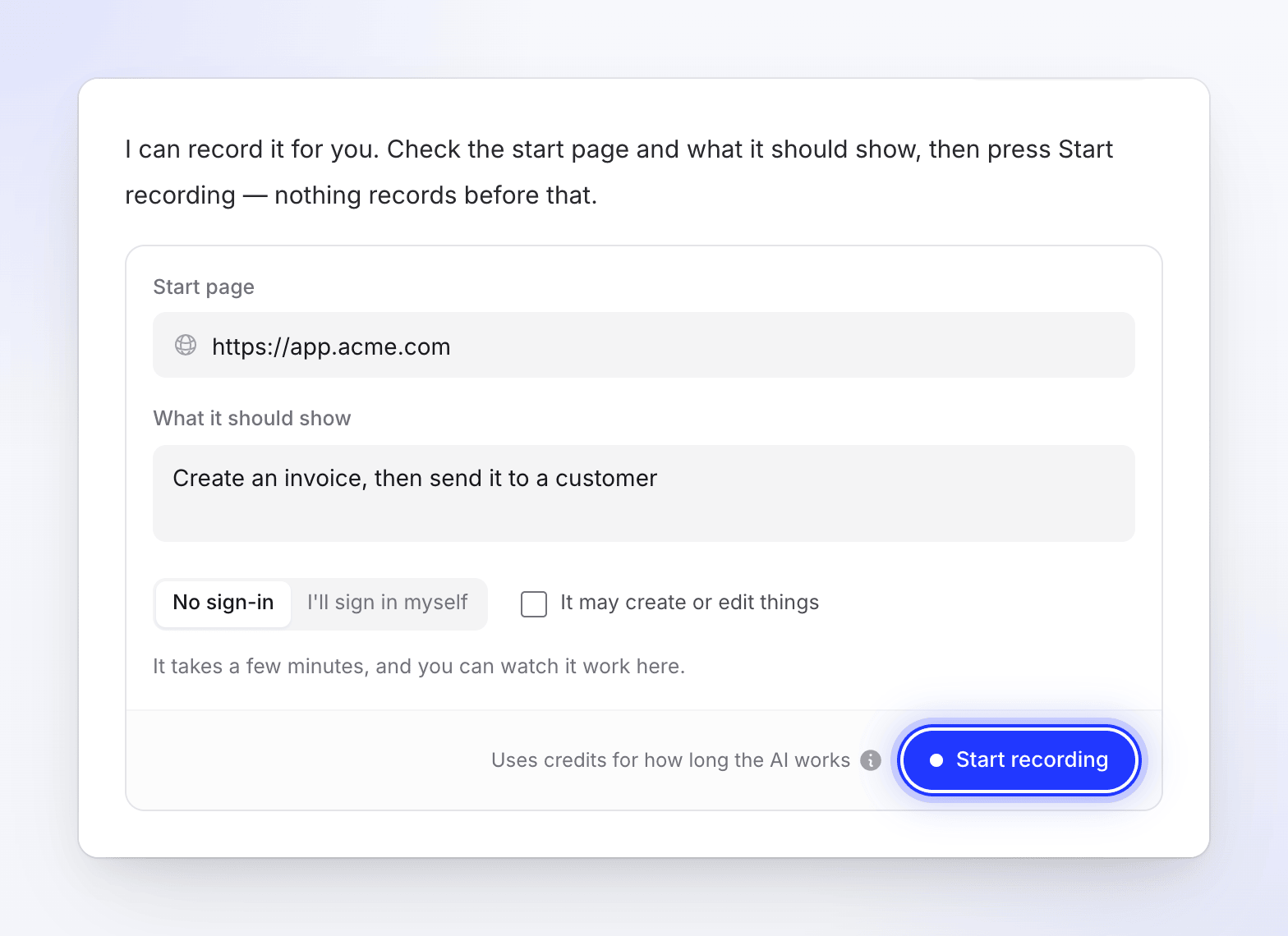
The recording never starts by itself. Click Start recording when you're ready. It takes a few minutes, and you can watch the browser work in a panel above the chat box, Take over at any time, then Hand it back. When it's finished, the panel says "The recording is in your setup."
Record with AI uses credits by the time the AI spends in the browser, on top of the video's estimate. See Let the AI record your product with Record with AI.
Settings steps
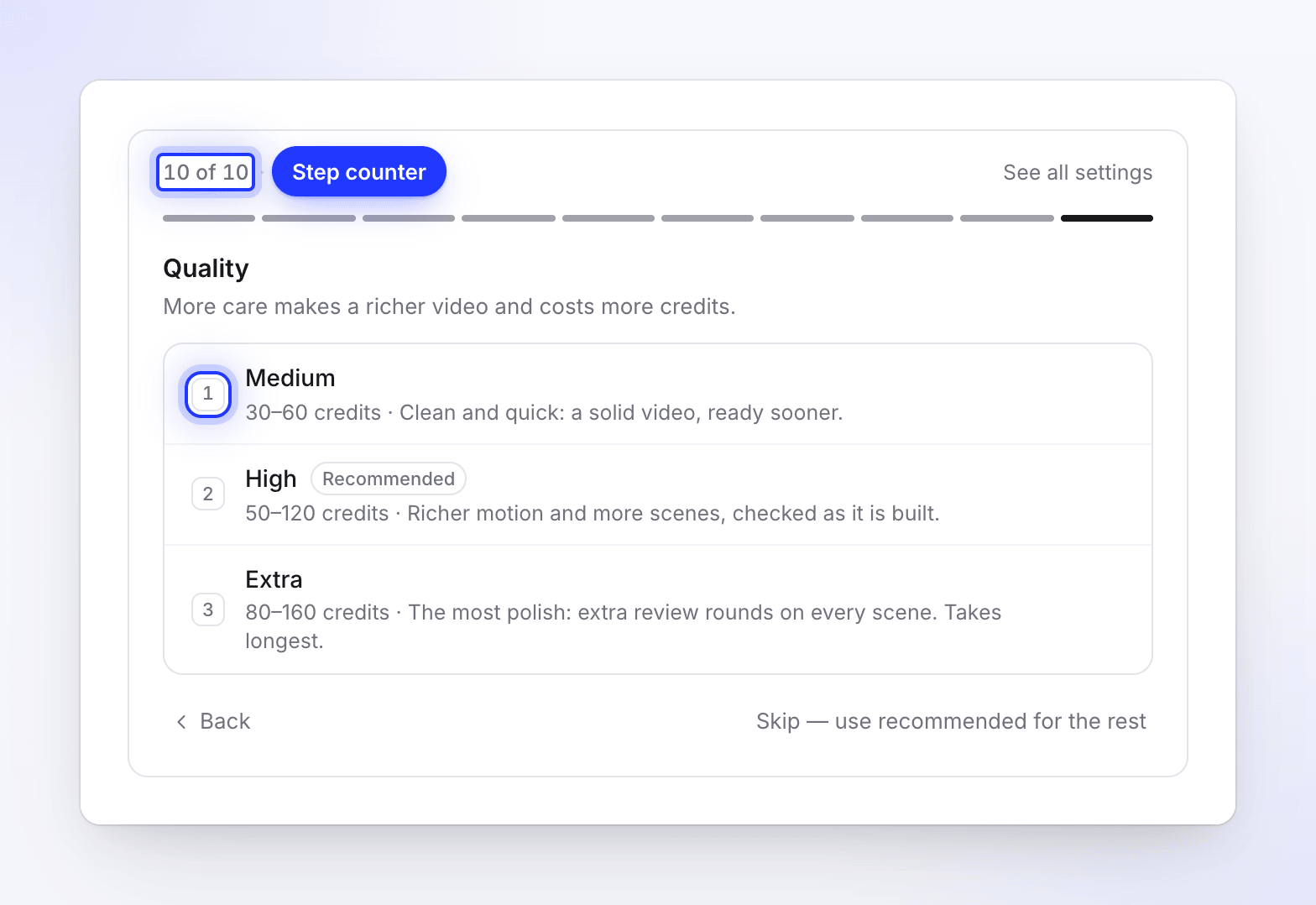
When the essentials are in, a settings panel appears under the chat. It shows where you are ("2 of 4 · Voice") and one setting at a time. Each starts on the option marked Recommended.
- Click an option, or press its number key (1–9). The panel moves to the next step.
- Back returns to the previous step; the bar at the top jumps to any step you've done.
- See all settings goes straight to the summary.
- Skip — use recommended for the rest accepts the recommended choice for every remaining step.
The steps depend on the type:
| Type | Steps, in order |
|---|---|
| Social clips | Video language, Format, Length, Voice-over ("With a voice-over" or "Music only"), Voice (with a voice-over), Tone, Look, Music ("Automatic" or "No music"), Captions (with a voice-over), Quality |
| How-to video and product demo | Video language, Voice, Speaking style, Captions |
| Polish my footage | Video language, plus Voice and Speaking style when the kind is narrated |
| Article | Video language, Tone (how the article reads), Depth (how much it covers) |
A few details worth knowing:
- Voice lists Automatic first, then every voice for the chosen language. Press play beside a voice to hear a sample.
- Length marks lengths a format can't take. Reels, Shorts and TikTok allow up to 3 minutes, so Full walkthrough is unavailable for 9:16.
- Quality in the chat is the same as Effort on Compose: Medium (30–60 credits), High (50–120 credits, recommended) or Extra (80–160 credits). See Choose an effort level.
- Speaking style is Casual by default. Captions on how-to videos and product demos start Off.
Review and continue
The last panel, Ready to create, reads "Check the setup, then continue. You can still change anything on the next page." It lists:
- The type, your material and any facts you gave.
- Every setting, with recommended beside the ones you didn't change. Click Change on a row to change it.
- The Brief, which the chat wrote from your messages in your words. Edit it here if you like (up to 4,000 characters); it saves when you click away.
- The credit estimate for the video.
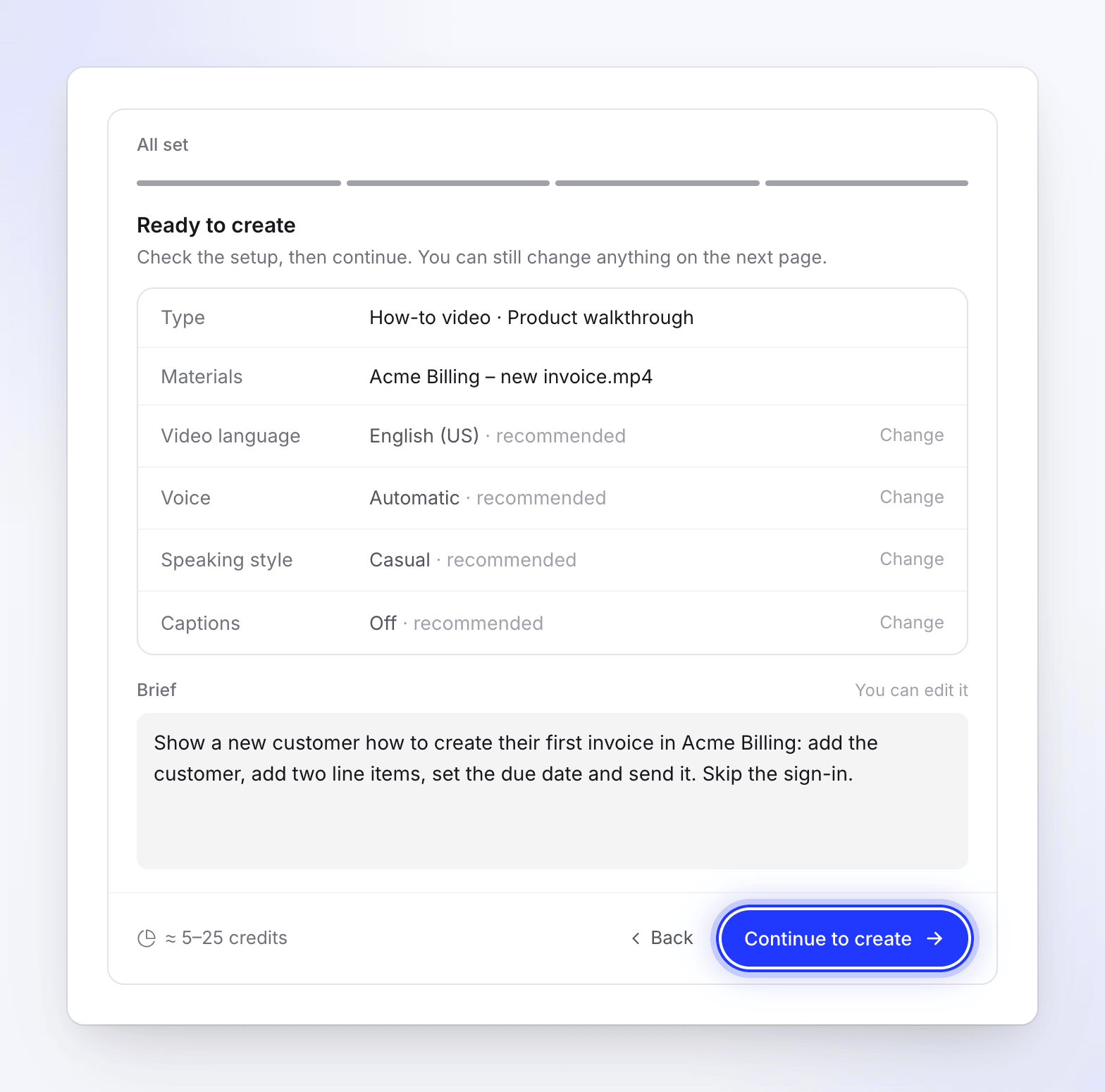
Click Continue to create. Compose opens with everything filled in and a line reading Set up from your chat · Back to chat, so you can return if you want to change an answer. Press Generate on Compose to make the video. See Make your first video from the Home prompt.
Leave and come back
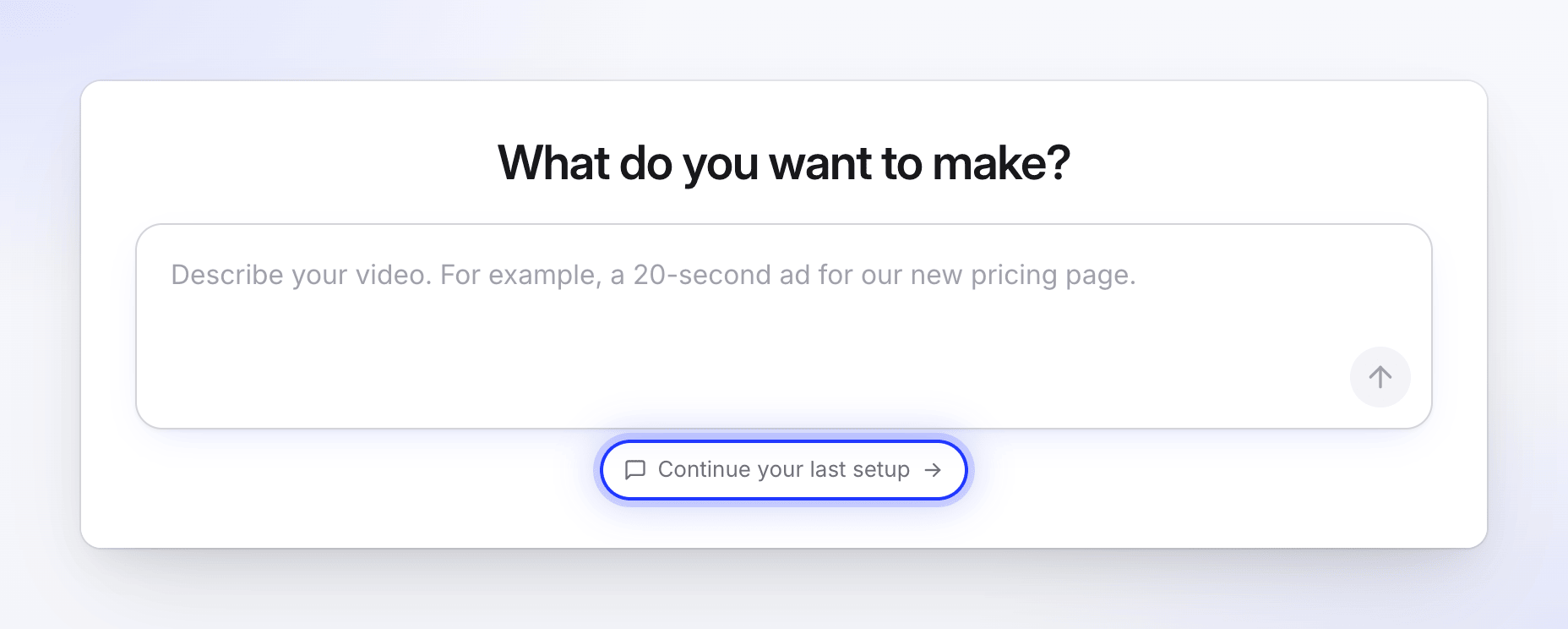
If you leave a setup unfinished, Home shows Continue your last setup under the prompt box. A setup that sits unused for about 15 minutes is cleared, unless a Record with AI recording is still running in it. A setup is also cleared once you generate from it.
Opening a cleared setup shows "This setup expired" and "Setups that sit unused for a while are cleared. Start again from Home — it only takes a moment."
Limits
| Limit | Value |
|---|---|
| Cost | Free. The chat never uses credits. |
| First message on Home | 2–1,000 characters |
| Each message in the chat | Up to 2,000 characters |
| Brief in the review | Up to 4,000 characters (5,000 on Compose) |
| Your messages per setup | 30. After that, or if a chat runs unusually long, it goes straight to the review with recommended settings. |
| Messages per person | 20 a minute, 400 a day |
| Messages per workspace | 60 a minute |
Troubleshooting
| Message | What to do |
|---|---|
| "We couldn't follow up on that just now." | Click Retry. |
| "That took too long. Try again." | Click Try again. |
| "We couldn't get a reply just now. Try again, or choose a type yourself." | Try again, or click Choose a type myself to use the gallery. |
| "Too many messages in a short time. Wait a moment and try again." | Wait a minute before sending. |
| "Still working on the last reply. One moment." | The chat is still answering your last message. |
| "Still working on it — refresh in a moment." | A reply is taking longer than usual. Click Retry or refresh the page. |
| "That one needs a paid plan." | That option isn't on your plan. Pick another. |
| "This setup has ended" | The setup was used or closed. Describe your video again on Home. |