

Attach a companion article to a shared video
Show an article under a shared video, or a video above a shared article, on the share page and in every embed. Covers picking a companion, automatic companions, who sees it, and what to do when it doesn't show.
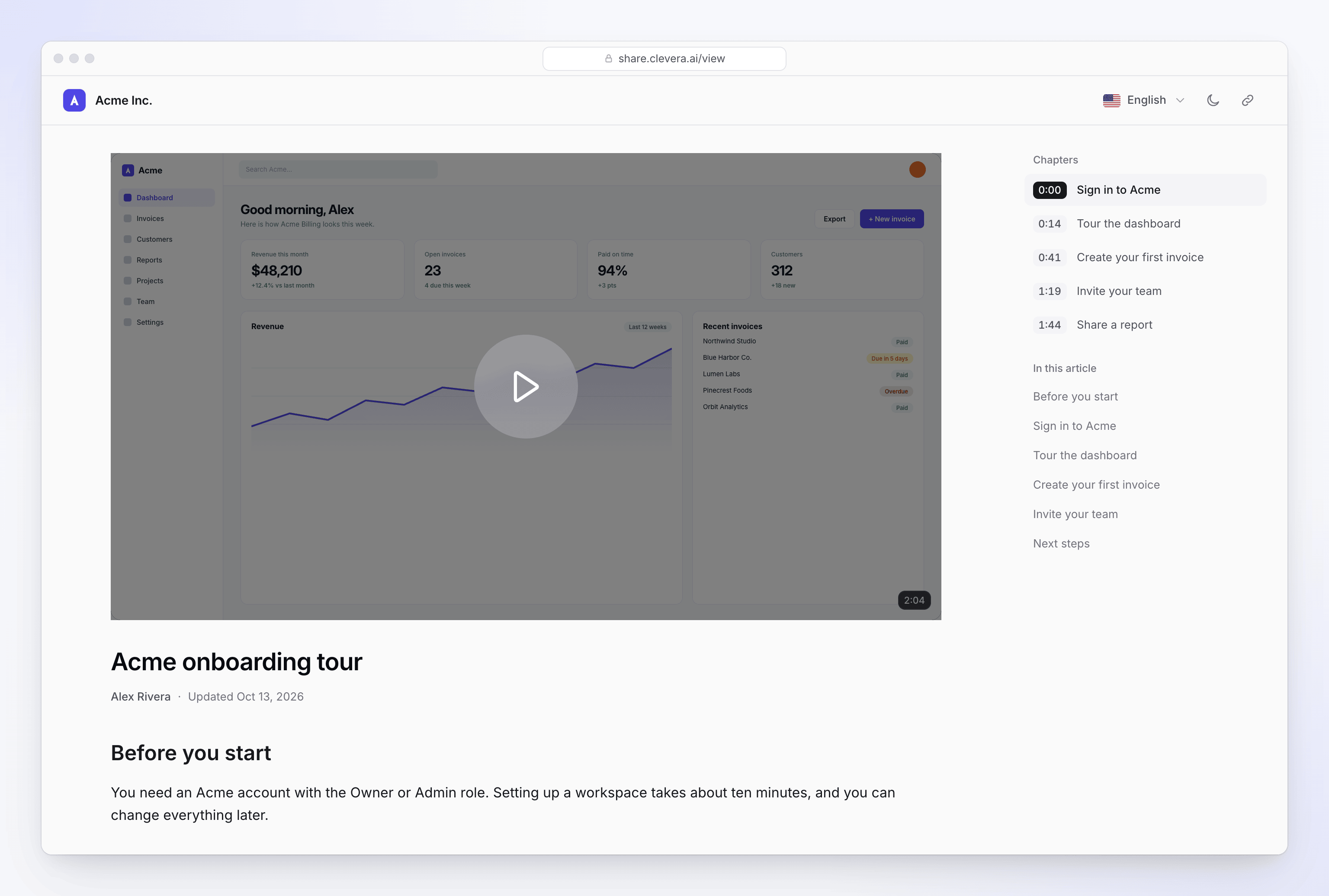
A companion puts a video and an article on the same shared page: the video on top, the article underneath. Viewers can watch, then skim or copy the written steps without leaving the page. It works the same in every embed.
How it works
| You're sharing | Its companion | The row is called |
|---|---|---|
| A video | An article, shown under the video | Article below the video |
| An article | A video, shown above the article | Video above the article |
The companion is saved on the share link, so it applies to the share page and to every embed of it. The link itself doesn't change.
Companions aren't available for social clips.
Before you start
- The companion must be finished and in the same workspace.
- For an article companion, the article needs content in the language you're editing.
- You need permission to edit the video or article you're sharing.
Attach a companion
Open Share
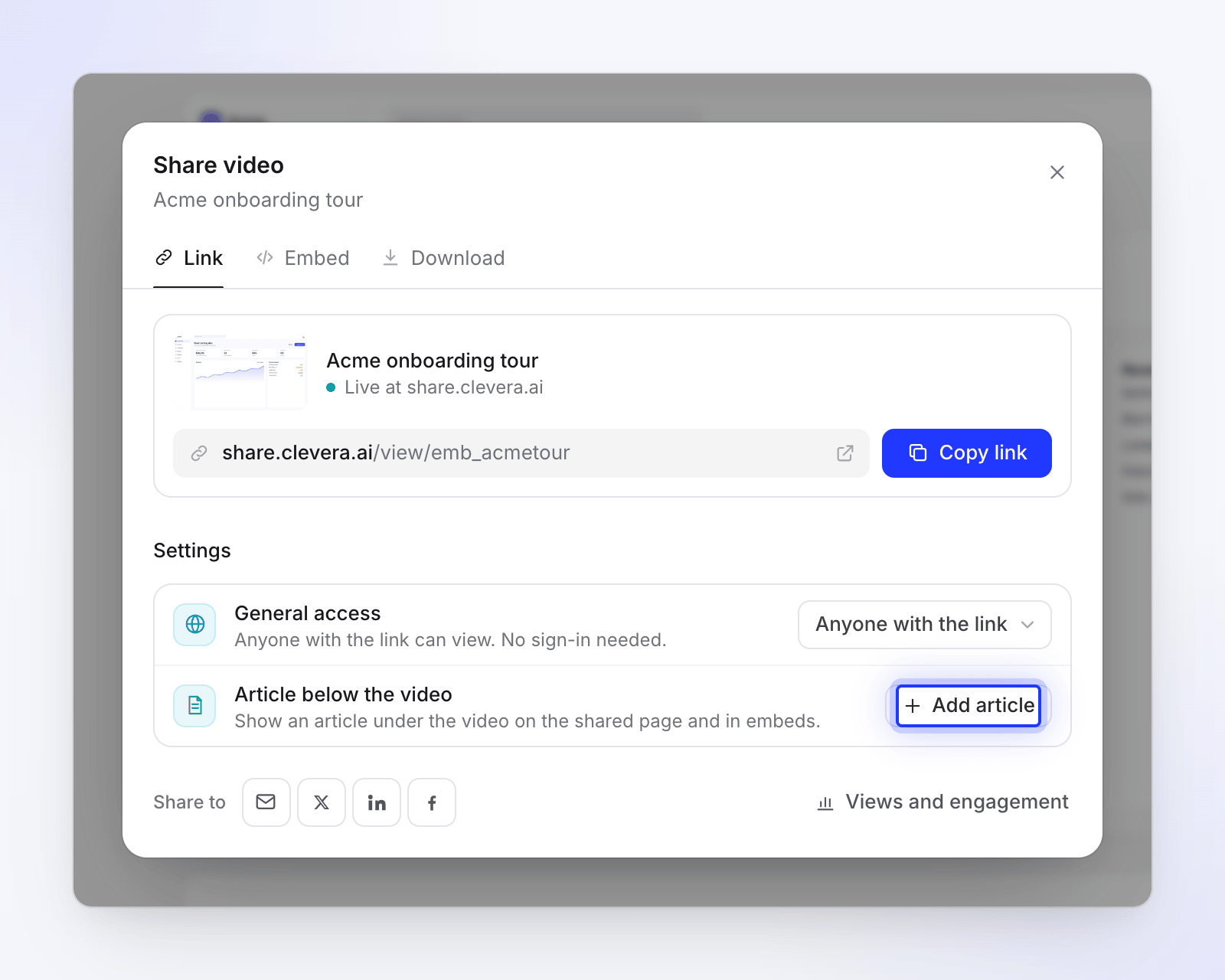
In the editor, click Share. The companion row is in the Settings section of the Link tab, and also on the Embed tab.
Click Add article
On a video, the row reads "Show an article under the video on the shared page and in embeds." Click Add article. On an article, click Add video.
Pick one
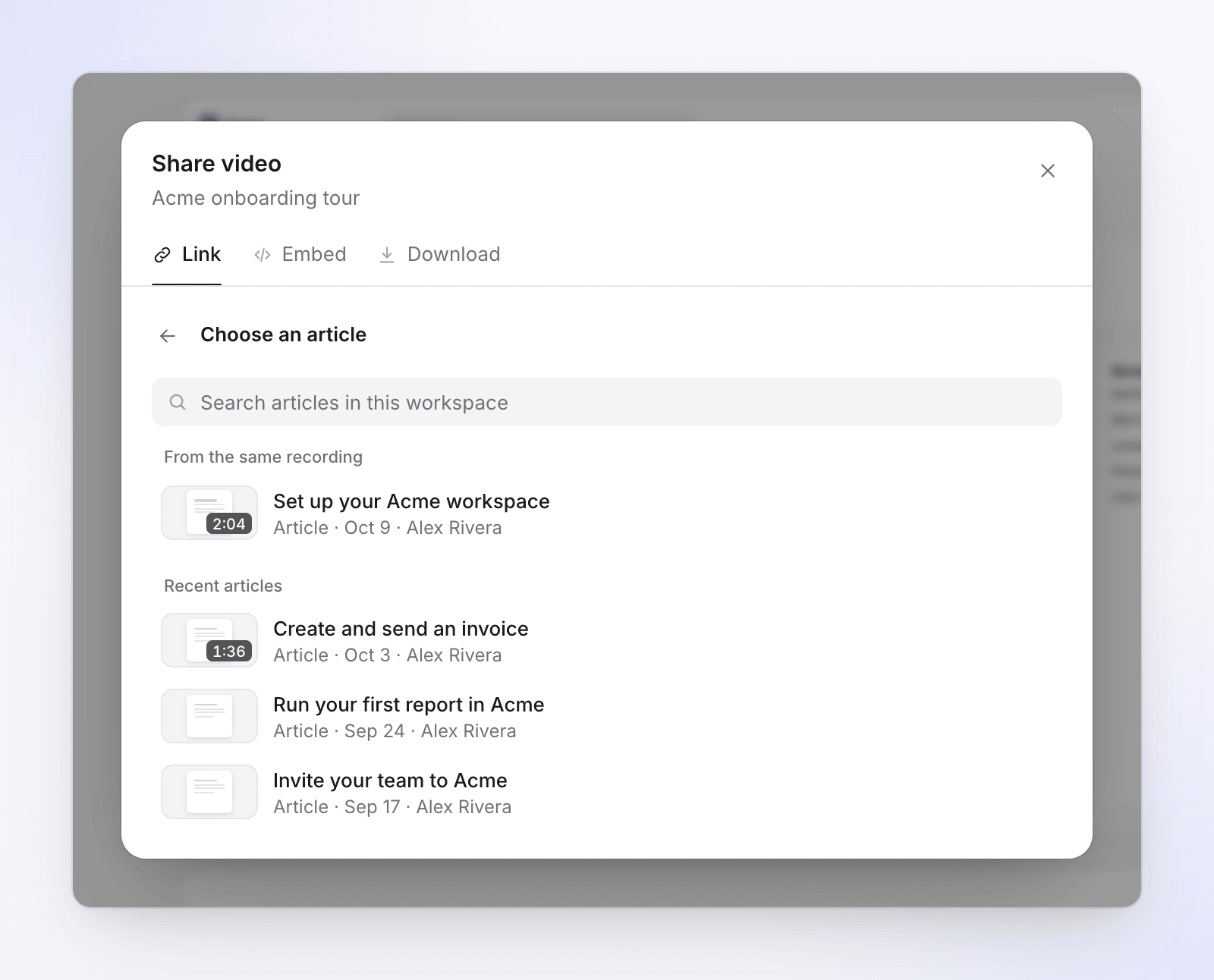
The Choose an article list shows From the same recording first, then Recent articles. Type in "Search articles in this workspace" to find any other. Click one to attach it.
Check it saved
The row shows the article's title, type and author, then "Saving…" and "Saved". Open the share link to see the page.
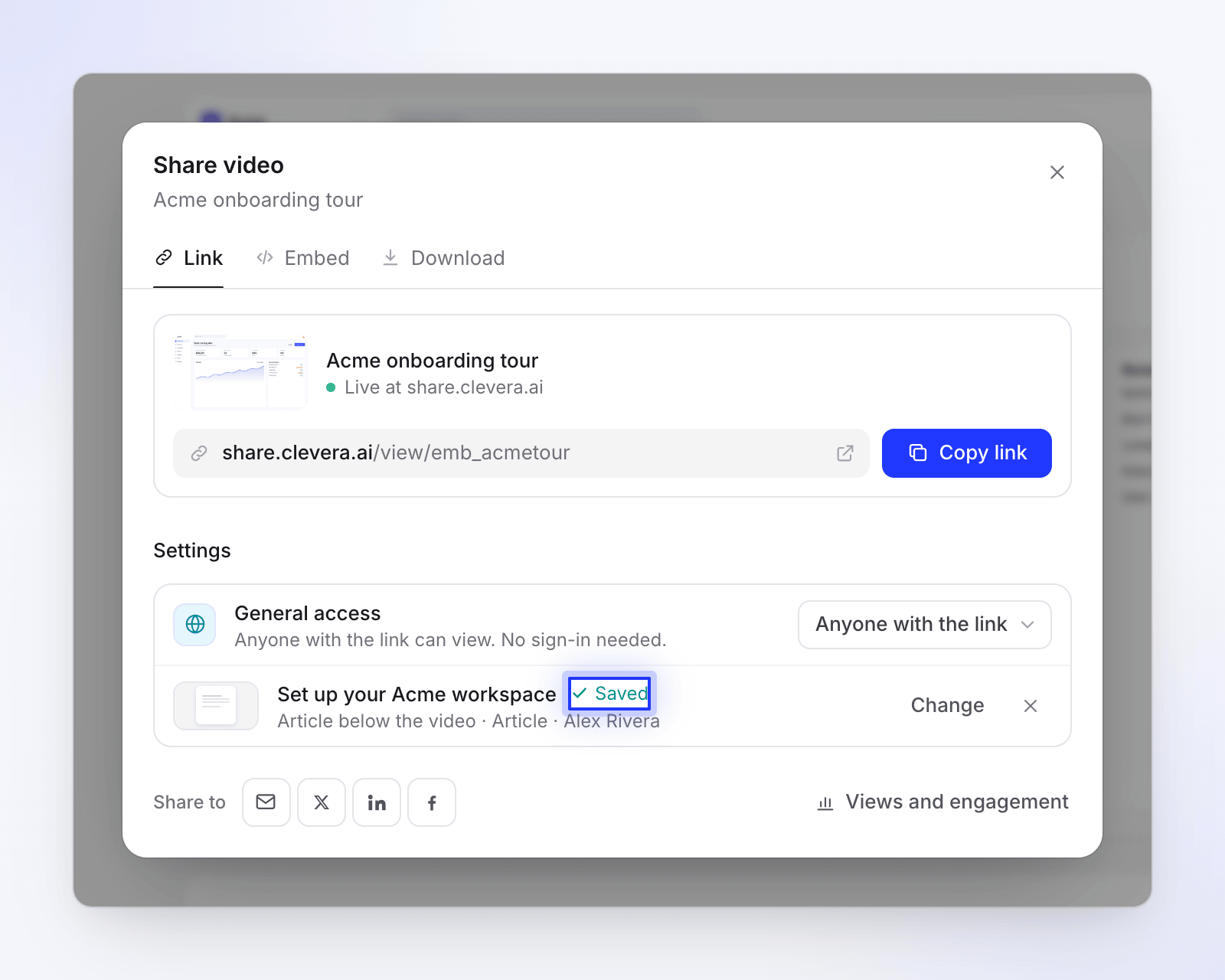
To swap it, click Change. To take it off, click the × (Remove the article). Both save at once.
Automatic companions
You don't always have to attach one yourself:
| Situation | What happens |
|---|---|
| You made a video and an article together from one recording | They're linked to each other for you. |
| You never set a companion, and an article from the same recording has been published | The newest one shows under the video automatically. Articles that aren't published don't. |
| You removed a companion | It stays off. Nothing is added automatically again. |
Who sees the companion
Anyone with the share link or an embed sees the companion, even if the companion's own share link is off. Attach only something you're happy to share alongside.
Clevera protects private collections: a companion only shows while the person who attached it can still open it. If it moves to a private collection they can't open, or they leave the workspace, it disappears from the page. Teammates who can't open it see Not available to you in the row, with Change and remove still available.
On the shared page
- The video plays on top; the article follows with an In this article list of its sections.
- Viewers who switch language see the article in that language when it exists.
- In an embed, a video with a companion becomes a fixed-height frame with an Article theme and Frame height. See Embed a video or article.
Troubleshooting
| What you see | What to do |
|---|---|
| "No articles in this workspace yet." | Make an article first. See Turn a recording into an article. |
| The article you want isn't in the list | It may not be finished, may have no version in the language you're editing, or may be in a collection you can't open. Switch the language in the top bar, or ask for access. |
| "Couldn’t load your articles." | Click Try again. |
| "Couldn’t save that choice. Try again." | Pick the article again. |
| The page shows no article although you attached one | The person who attached it lost access to it. Attach it again yourself. |