

Diese Seite ist noch nicht übersetzt und wird daher auf Englisch angezeigt.
Connect a custom domain to a doc site
Serve your doc site on a subdomain you own, like help.example.com: add one plain CNAME record, check it, and Clevera issues the certificate. Steps per provider, every status, and fixes for proxied, flattened, CAA and certificate problems.
A custom domain lets readers open your doc site at an address you own, such as help.example.com, instead of the free yoursite.clevera.help address. You add one DNS record at your domain provider. Clevera checks it, issues the security certificate and renews it for you.
This page covers the setup, every status and message on the Domain screen, and how to fix each problem. If something isn't working, go to Troubleshooting.
Before you start
- Plan: custom domains are included in Starter, Pro, Business and Custom. On Free, the Custom domain card shows "Use help.yourcompany.com" and Upgrade.
- Role: the workspace owner, admins and editors can connect, check and remove a domain. Other roles see "Only admins and editors can change the domain."
- A subdomain only: connect
help.example.com,docs.example.comorsupport.example.com. Root domains such asexample.comandwww.example.comcan't be connected. - DNS access: you need to add a record where your domain's DNS is hosted. That's usually your registrar (GoDaddy, Namecheap, Squarespace) or a DNS service such as Cloudflare or Route 53.
- One domain per site: each doc site has one custom domain. To use another, remove the current one first.
Connect your domain
Open Domain
Open your doc site and click Domain under Site in the sidebar. The Free address card shows the address that always works.
Enter your subdomain
In the Custom domain card, type the domain under Domain, for example
help.example.com. Enter only the domain: nohttps://and no path. Click Connect. Clevera says "Add the DNS record below at your domain provider."Add the record at your provider
Clevera shows Records to add. Sign in where your domain's DNS is hosted and add the CNAME record exactly as shown. Each name and value has a copy button. See Records to add and Steps for your provider.
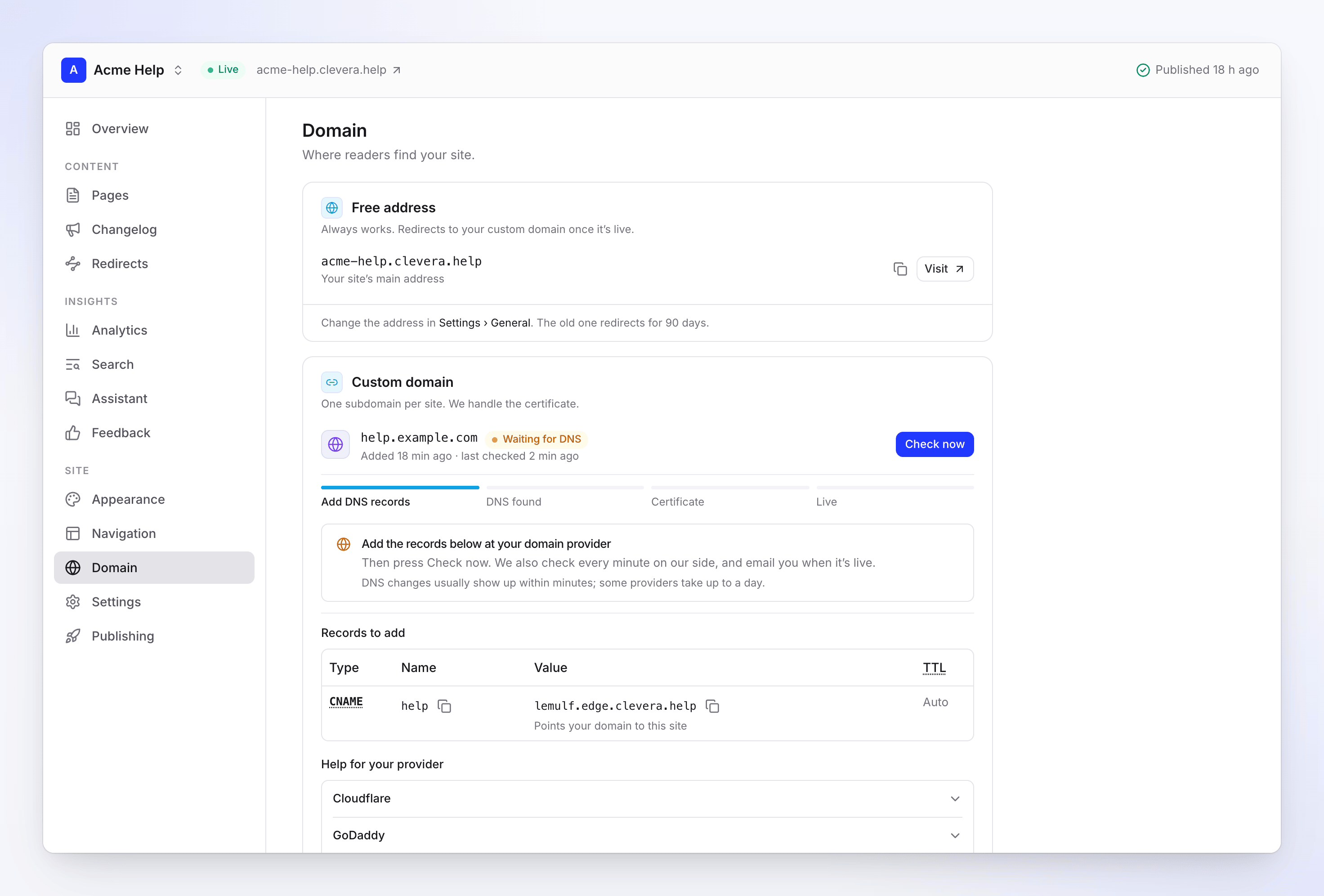
The record to add while the domain waits for DNS Check it
Back in Clevera, click Check now. Clevera also checks on its own every minute at first, so you can leave the page. You get a notification when the domain is live.
Wait for the certificate
When the record is found, the status moves to Checking DNS and then Issuing certificate. The certificate usually takes 5–30 minutes.
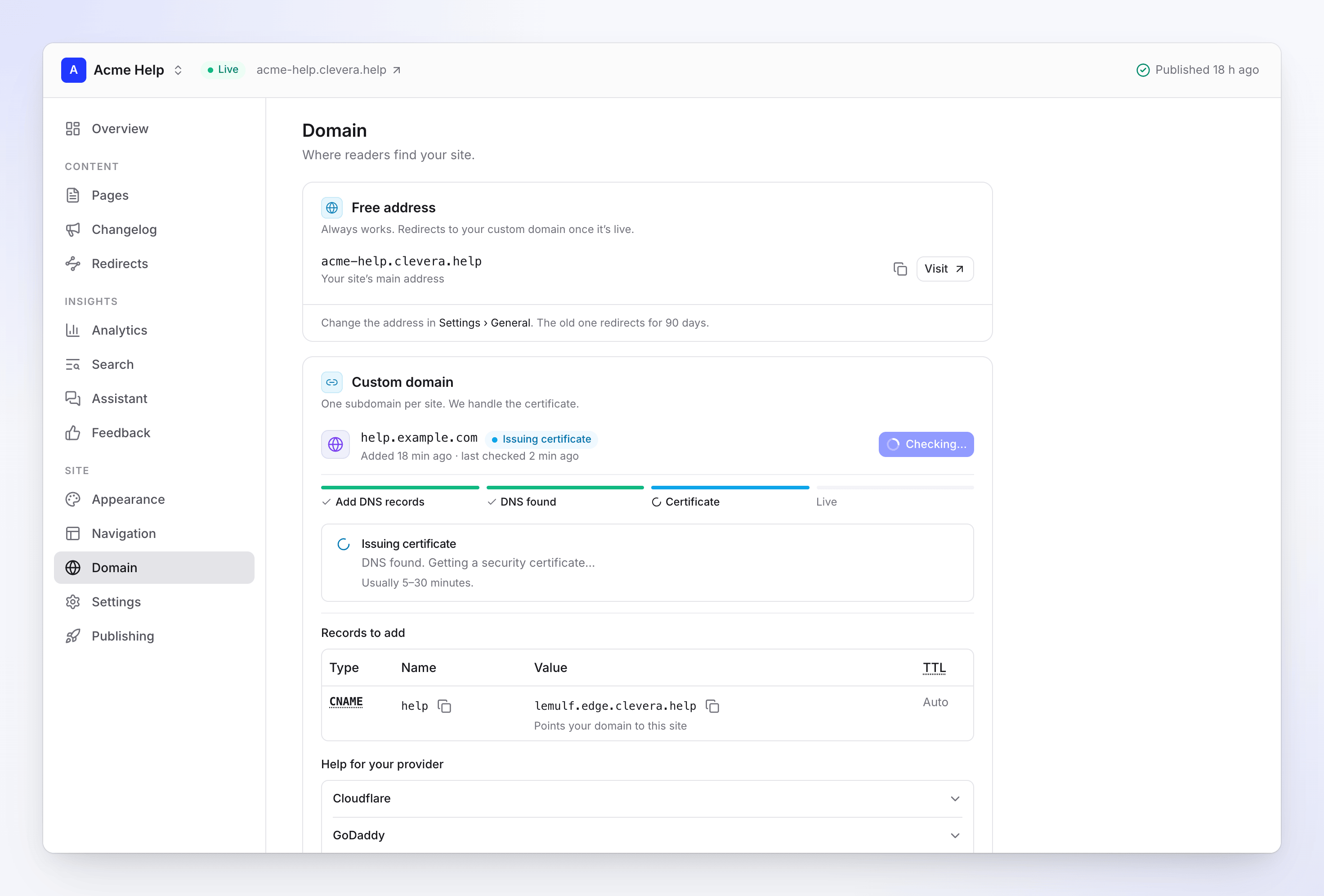
DNS found: the certificate is on its way Open your site at the new address
When the status is Live, your site answers at your domain and the free address redirects to it. For the first few minutes the new address can still show "not found": see The site shows "not found" right after Live.
Records to add
| Type | Name | Value | TTL |
|---|---|---|---|
| CNAME | help (the part before your domain) |
Your site's own target, such as a1b2c3d4.edge.clevera.help |
Auto |
| TXT | _clevera-verify.help.example.com |
A code shown in Clevera | Auto |
- The CNAME "Points your domain to this site". Copy its value from the Domain screen: every site has its own target.
- The TXT record "Proves the domain is yours". It's listed only when Clevera needs proof: when the domain is connected to another Clevera site, or when you reconnect a domain you disconnected in the last 90 days. Otherwise you add only the CNAME.
- It must be a plain CNAME. Not an A record, not ALIAS or ANAME, not a Route 53 Alias, not a flattened or proxied record. Our hosting provider only accepts a domain whose DNS answers with a CNAME to your site's target.
- Delete other records on the same name first. An old A, AAAA or CNAME record for
helpconflicts with the new one.
How to enter the name
Clevera shows the CNAME name short (help) and the TXT name in full (_clevera-verify.help.example.com). Most providers add your domain to the name for you, so enter help and _clevera-verify.help.
If you type the full name at such a provider, the record becomes help.example.com.example.com and Clevera never finds it. If your provider asks for the full name (some do, and Route 53 shows the domain next to the box), check what it saves.
Steps for your provider
The Domain screen has the same guides under Help for your provider. "The Name" and "the Value" mean the values in Records to add.
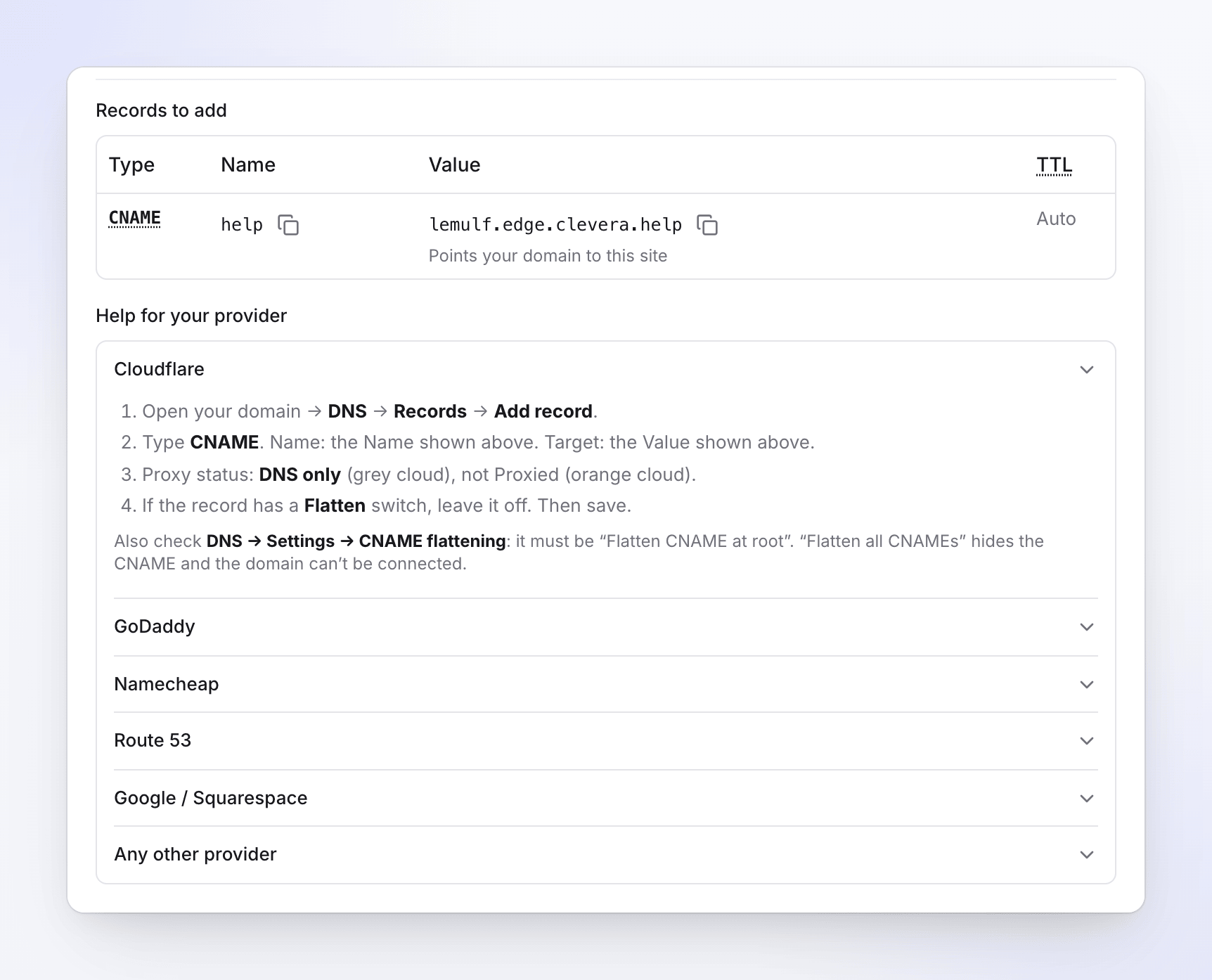
- Open your domain → DNS → Records → Add record.
- Type CNAME. Name: the Name shown in Clevera. Target: the Value shown in Clevera.
- Proxy status: DNS only (grey cloud), not Proxied (orange cloud).
- If the record has a Flatten switch, leave it off. Then save.
Watch out: also check DNS → Settings → CNAME flattening. It must be "Flatten CNAME at root". "Flatten all CNAMEs" hides the CNAME and the domain can't be connected. Keep the record on DNS only after the domain is live, too.
- My Products → your domain → DNS → Add New Record.
- Type CNAME. Name: only the part before your domain (
help, nothelp.example.com). - Value: the Value shown in Clevera. Leave TTL as it is, then save.
Watch out: GoDaddy refuses a CNAME when another record already uses that name. Delete the old A or CNAME record for it first.
- Domain List → Manage → Advanced DNS → Add New Record.
- Type CNAME Record. Host: only the part before your domain. Namecheap adds the rest.
- Value: the Value shown in Clevera. Then click the check mark to save.
Watch out: if your domain uses custom nameservers (another DNS host), add the record there instead. Namecheap's records are ignored then.
- Hosted zones → your domain → Create record.
- Record name: only the part before your domain. Record type: CNAME.
- Value: the Value shown in Clevera. Routing policy: Simple. Then create the record.
Watch out: leave the Alias switch off. An alias record answers with addresses instead of a CNAME, and the domain can't be connected.
- Squarespace Domains → your domain → DNS → DNS Settings.
- Under Custom records, click Add record.
- Type CNAME. Host: only the part before your domain. Data: the Value shown in Clevera. Then save.
Watch out: changes usually show within an hour.
- Add a CNAME record with the Name and Value shown in Clevera.
- Delete any other record that uses the same name (A, AAAA or CNAME) first.
- Use a plain CNAME. ALIAS, ANAME or "flattened" records answer with addresses instead, and the domain can't be connected.
- If your provider has a proxy or CDN switch for the record, turn it off.
- If Clevera lists a TXT record, add it the same way.
Watch out: changes usually show within minutes; some providers take a few hours.
What the statuses mean
The pill next to your domain shows its status. The progress bar under it moves through Add DNS records, DNS found, Certificate and Live.
| Status | What's happening | What you do |
|---|---|---|
| Waiting for DNS | Clevera hasn't found the CNAME yet. "DNS changes usually show up within minutes; some providers take up to a day." | Add the record, then click Check now. |
| Checking DNS | The record was found and our hosting provider is confirming it. "You can leave this page — we keep checking." | Nothing. Check now shows Checking… meanwhile. |
| Issuing certificate | "DNS found. Getting a security certificate…" Usually 5–30 minutes. | Nothing. Keep the record as it is. |
| Live | Your site answers at your domain. "Live since date · the certificate renews automatically." | Keep the record in place. |
| Needs a fix | Something blocks the connection. The red box says what Clevera found and what to change. | Fix it, then click Check again. See Troubleshooting. |
| DNS record missing | A live domain's CNAME stopped answering correctly. | Put the record back. See We can't find your CNAME record any more. |
| Paused | Your plan no longer includes custom domains, or the site is paused. "Readers are sent to your free address for now." | Upgrade, or keep the site. See Paused. |
How often Clevera checks
| Status | Checks |
|---|---|
| Waiting for DNS (also with a fix needed) | Every minute for the first hour, every 15 minutes for the next 3 days, then once a day |
| Checking DNS | Up to 3 tries within about 3 minutes |
| Issuing certificate | Every minute, for up to about a day |
| Live | Once a day. After a failed check, again every 3 hours |
| DNS record missing | Once a day, for up to 14 days |
| Needs a fix after Checking DNS or Issuing certificate | Not checked again until you click Check again |
- Check now runs a check right away. You can use it once a minute.
- When the domain needs a fix or its record is missing, the button reads Check again. On a domain that failed while checking or issuing, it starts the whole process over, including the minute-by-minute checks.
- Problems found while Waiting for DNS (wrong target, proxy, flattening, CAA) are re-checked on their own: fix the record and the domain moves on without you clicking anything.
Notifications
The workspace owner, admins and editors get these in Clevera's notifications:
| Notification | When |
|---|---|
| "help.example.com is live for site" | The domain went live. |
| "help.example.com couldn't be connected" | The domain failed while checking or issuing. Emailed if still unread after 10 minutes. |
| "The DNS record for help.example.com is gone" | The domain became DNS record missing or Paused. Emailed if still unread after 10 minutes. |
| "The certificate for help.example.com expires in n days" | The certificate can't renew, usually because the record changed. |
After the domain is live
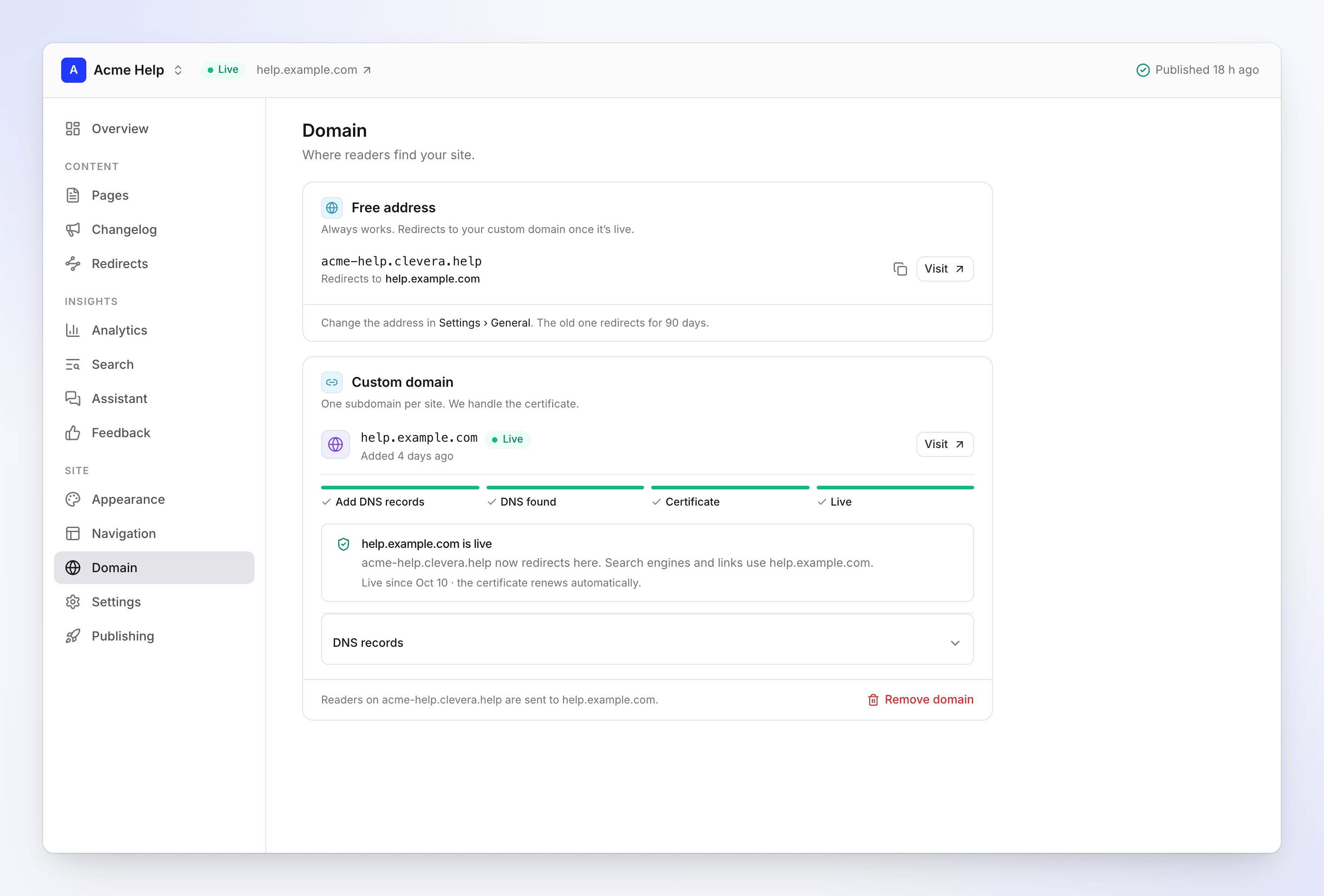
- "Readers on acme-help.clevera.help are sent to help.example.com." The free address keeps working and redirects, so old links don't break.
- "Search engines and links use help.example.com." Clevera republishes the site once so its links, sitemap and search-engine tags use the new address.
- The certificate renews automatically as long as the CNAME stays in place, unproxied and unflattened.
- The records move into DNS records: "Keep these at your domain provider. We check them daily."
- Private sites work on the custom domain too; readers sign in there. See Control who can read a doc site.
If the record disappears
One failed check changes nothing. Clevera checks again every 3 hours. If the CNAME fails 3 checks in a row over at least 6 hours, the status becomes DNS record missing and you get "The DNS record for help.example.com is gone".
- "Readers on acme-help.clevera.help still get the site."
- Readers on your custom domain may not reach the site.
- Put the CNAME back and the domain recovers on its own at the next check, or right away with Check again.
- You get reminders after 7 and 13 days. If it isn't fixed within 14 days, Clevera disconnects the domain. The date shows on the Domain screen.
If your plan changes
If your workspace moves to a plan without custom domains, the domain is Paused and readers are sent to your free address. "We'll disconnect the domain in 14 days unless the site is back on a plan with custom domains." Upgrade before then and it turns back on with the same records.
The same happens when a site is paused because your plan includes fewer doc sites: the domain is paused until the site's offline date. See Doc site plans and limits.
Disconnect a domain
Click Remove domain at the bottom of the Custom domain card and confirm Disconnect.
- "Readers will see an error there until you remove the DNS record." Remove the CNAME at your provider afterwards.
- The free address becomes the main address again: "acme-help.clevera.help is the main address again."
- "We hold help.example.com for this workspace for 90 days, so nobody else can take it over." Connecting it again within those 90 days asks for the TXT record: "help.example.com was disconnected. Connecting it again needs the TXT record."
- If the domain was live, Clevera republishes the site so its links use the free address again.
To change the free address itself, go to Settings → General. The old address redirects for 90 days.
Troubleshooting
Find what you see below. Each fix ends with Check again (or Check now) on the Domain screen. DNS changes can take a few minutes to show, sometimes hours: resolvers keep the old answer until its TTL runs out. If Clevera still sees the old record right after you changed it, wait a few minutes and check again.
Stuck on Waiting for DNS
You see: the pill stays Waiting for DNS with "Add the records below at your domain provider".
Why: Clevera can't find any record for the name yet. The usual causes:
- The record is at the wrong DNS host. If your domain's nameservers point elsewhere (for example Namecheap with custom nameservers, or a domain moved to Cloudflare), records added at the registrar are ignored. Add the record where the nameservers point.
- The name is doubled. You entered
help.example.comwhere the provider adds the domain, so the record ishelp.example.com.example.com. Change the name tohelp. - The record wasn't saved. Some providers need an extra confirm (Namecheap's check mark).
- It hasn't shown up yet. A new record usually shows within minutes; some providers take a few hours.
Fix: correct the record, wait a few minutes and click Check now. Use Check a record yourself to see what the world sees. If nothing appears after a day, check the nameservers.
"Your CNAME points somewhere else"
You see: Needs a fix and "help.example.com points to something. Change the CNAME to your target."
Why: the name answers, but not with your site's target:
- The CNAME has a typo or points at an old host (your previous help desk or docs tool).
- An old A or AAAA record for
helpis still there, so the message shows IP addresses. - You just changed the record and resolvers still have the old answer.
Fix: set the CNAME's value to the target shown in Records to add, and delete any other record that uses this name. "If you just changed it, wait a few minutes: DNS servers can keep the old answer for a while." Then click Check again.
"Your record goes through Cloudflare's proxy"
You see: Needs a fix and "Set it to DNS only (grey cloud). The orange cloud hides our target and the certificate can't be issued."
Why: the record is Proxied (orange cloud), which is Cloudflare's default. Cloudflare then answers with its own addresses, so our hosting provider can't see the CNAME or issue the certificate.
Fix: in Cloudflare, open DNS → Records, edit the record and set Proxy status to DNS only (grey cloud). Save, then click Check again. Keep it on DNS only after the domain is live too.
"Your DNS provider flattens the CNAME"
You see: Needs a fix and "help.example.com answers with addresses instead of a CNAME to your target. Turn off CNAME flattening for this record."
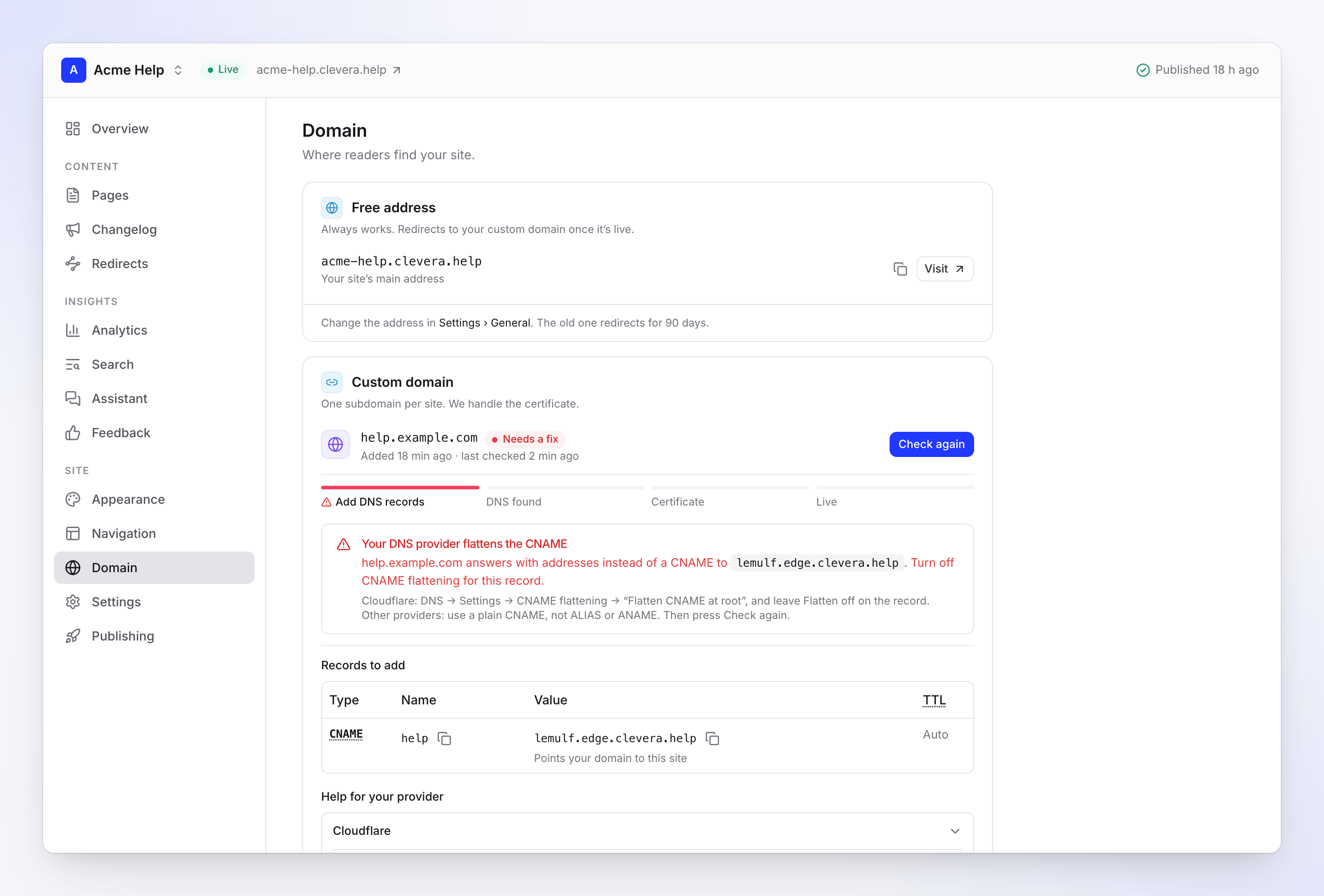
Why: the record points to the right place, but your provider publishes the addresses behind it instead of the CNAME itself. Our hosting provider only accepts a domain that answers with a real CNAME, so it refuses a flattened one. These all flatten:
- Cloudflare's zone setting DNS → Settings → CNAME flattening → "Flatten all CNAMEs"
- Cloudflare's Flatten switch on the record
- ALIAS or ANAME records (offered by many DNS hosts)
- Route 53 Alias records
Fix:
- Cloudflare: set DNS → Settings → CNAME flattening to "Flatten CNAME at root", and turn the record's Flatten switch off.
- Route 53: delete the Alias record and create a plain CNAME with the Alias switch off.
- Other providers: replace the ALIAS or ANAME record with a plain CNAME.
Then click Check again.
"Our hosting provider couldn't confirm the domain"
You see: Needs a fix and "It didn't see help.example.com pointing to your target. This usually means the record changed in the last few minutes, or your DNS provider flattens it or sends it through a proxy."
Why: Clevera found the record, but when our hosting provider looked a moment later, it didn't see the CNAME. Usually:
- The record changed in the last few minutes, so some DNS servers still give the old answer.
- The record is flattened (see above) or proxied (see above).
Fix: "Make sure it's a plain CNAME with the proxy off, wait a few minutes, then press Check again. Still failing after an hour? Contact support." Clevera doesn't retry this one on its own, so click Check again after each change.
Stuck on Issuing certificate, or "The certificate wasn't issued"
You see: Issuing certificate for more than an hour, or after about a day Needs a fix with "We couldn't get a certificate within a day. Usually a CAA record blocks it, or the CNAME goes through a proxy or is flattened."
Why: the certificate is validated through your CNAME, so the record must keep pointing straight at your site's target until it's issued. It doesn't arrive when:
- a CAA record doesn't allow Amazon (see the next section);
- the record was proxied or flattened after Clevera found it;
- the record was changed or removed while the certificate was being issued.
Normal is 5–30 minutes.
Fix: check the CAA records and make the CNAME a plain, unproxied record pointing at your target. Then click Check again. This starts over and issues a new certificate.
"Your CAA records block the certificate"
You see: Needs a fix and "Your domain's CAA records don't allow Amazon to issue a certificate. Add 0 issue "amazon.com" as a CAA record on example.com."
Why: CAA records name the certificate authorities allowed to issue certificates for your domain. Certificates for every Clevera doc site are issued through Amazon. The closest name with CAA records decides: for help.example.com, CAA records on help.example.com win, otherwise those on example.com. If those records name other authorities but not Amazon, the certificate is refused. With no CAA records at all, nothing is blocked.
Fix: add a CAA record on the zone the message names (usually your root domain):
| Type | Name | Value |
|---|---|---|
| CAA | @ (or the name in the message) |
0 issue "amazon.com" |
Keep your other CAA records. Then click Check again.
"This domain is already used by another service"
You see: Needs a fix and "help.example.com is connected to another hosting service, perhaps your previous docs host. Remove it there first."
Why: the same hostname is attached somewhere else on the hosting provider we use, often your previous docs host or your own setup there. A hostname can only be attached once.
Fix: remove help.example.com from the other service (your old docs tool's custom-domain setting, or your own hosting setup), then click Check again. If you can't find where it's attached, contact support.
"This domain is connected to another Clevera site"
You see: Needs a fix, "Add the TXT record below to prove it's yours.", and a TXT row under Records to add.
Why: another Clevera doc site has this domain, or held it in the 90 days after it was disconnected. To move it, you prove you control the DNS.
Fix: add the TXT record (name _clevera-verify.help, value from Clevera) and point the CNAME at this site's target. When Clevera finds both, the domain moves to this site and the other site goes back to its free address. Or remove the domain from the other site first. Unproven requests are dropped after 30 days.
The browser shows "403 ERROR" or "Not secure"
You see: on your custom domain, a plain page that reads "403 ERROR — The request could not be satisfied. Bad request…", or a "Not secure" / certificate warning.
Why: this is normal until the status is Live. The domain isn't connected yet (its certificate isn't issued), or it was disconnected while the CNAME still points at Clevera.
Fix:
- Not live yet: finish the setup until the status reads Live. Readers can use your free address meanwhile.
- Disconnected: remove the CNAME at your provider, or connect the domain again.
- Live but still shown: your browser may have cached the old page. Hard refresh (Cmd+Shift+R on Mac, Ctrl+Shift+R on Windows) or try a private window.
The site shows "not found" right after Live
You see: the status is Live, but the custom domain shows the site's "not found" page.
Why: when the domain goes live, Clevera republishes the site under the new address. That takes a few minutes.
Fix: wait a few minutes, then hard refresh (Cmd+Shift+R or Ctrl+Shift+R) or open a private window.
"We can't find your CNAME record any more"
You see: DNS record missing and "Readers may not reach the site. We'll disconnect the domain on date if it isn't fixed — add the CNAME below again."
Why: a live domain failed Clevera's DNS check for at least 6 hours. The record was deleted or edited, or it still exists but was proxied or flattened (both hide the CNAME), or the domain moved to another DNS host without it.
Fix: put the CNAME back exactly as shown under Records to add, as a plain record with the proxy off, then click Check again. The domain goes back to Live. Readers on your free address get the site in the meantime.
Paused
You see: Paused and "help.example.com is paused": "Readers are sent to acme-help.clevera.help for now. We'll disconnect the domain on date unless the site is back on a plan with custom domains."
Why: the workspace moved to a plan without custom domains, or the site was paused because the plan includes fewer doc sites.
Fix: upgrade, or keep this site when you choose which sites to keep, before the date shown. The domain turns back on with the same record. Leave the CNAME in place.
Other messages
| Message | What to do |
|---|---|
| Root domains can't be connected | "Remove this domain and connect a subdomain instead." Forward the root domain at your provider. |
| The domain couldn't be connected | "Check the records below, then press Check again." "If it keeps failing, contact support." |
Messages when you connect
| You see | What to do |
|---|---|
| "Enter a domain like help.example.com." | Type a full domain with a dot, such as help.example.com. |
| "Leave out https:// — enter just the domain." | Remove https://. Click Use help.example.com to fix it in one step. |
| "Enter only the domain, without a path." | Remove everything after the domain, such as /docs. |
| "Use a domain you own. Your clevera.help address already works." | Clevera's own addresses can't be connected. |
| "Root domains like example.com can't point to a doc site directly…" | Click Use help.example.com, or type another subdomain. Forward the root domain at your provider. |
| "Custom domains are included in paid plans. Upgrade to use your own domain." | Upgrade to Starter or higher. |
| "This doc site already has a custom domain. Disconnect it first." | Each site has one custom domain. Remove the current one. |
Check a record yourself
Run this in a terminal (macOS or Linux), with your own domain:
dig +short CNAME help.example.com
- It prints your site's target (such as
a1b2c3d4.edge.clevera.help.): the CNAME is right. - It prints something else: the CNAME points somewhere else. Fix the value.
- It prints nothing: run
dig +short help.example.com. If that prints IP addresses, the record is flattened, proxied or an A record. If it prints nothing too, the record doesn't exist where the world looks: check the name and the nameservers.
On Windows, use:
nslookup -type=CNAME help.example.com
A public DNS lookup website works too: look up the CNAME record for your domain.
What to send support
If a fix doesn't work, contact Clevera support with:
- the doc site's name;
- the domain, such as
help.example.com; - the exact message on the Domain screen;
- the output of
dig +short CNAME help.example.com(or thenslookupline on Windows).