

Changelog
New features, improvements and fixes in Clevera.
- NewImprovedFixed
Article version history, collection folders and a calmer editor
New
- Article version history. Open History in the article editor to see every version, preview one with its changes marked, name or pin the ones that matter, and restore with one click (and undo it). See Restore an earlier version of an article.
- Folders in collections. A folder row sits above a collection's items. Move items with Move to folder or by dragging them, and rename or reorder folders. Each item lives in one folder. See Organize videos in collections and folders.
- Render files are kept for 90 days. The render history shows who made each export and when its file will be removed. See Export a video as MP4.
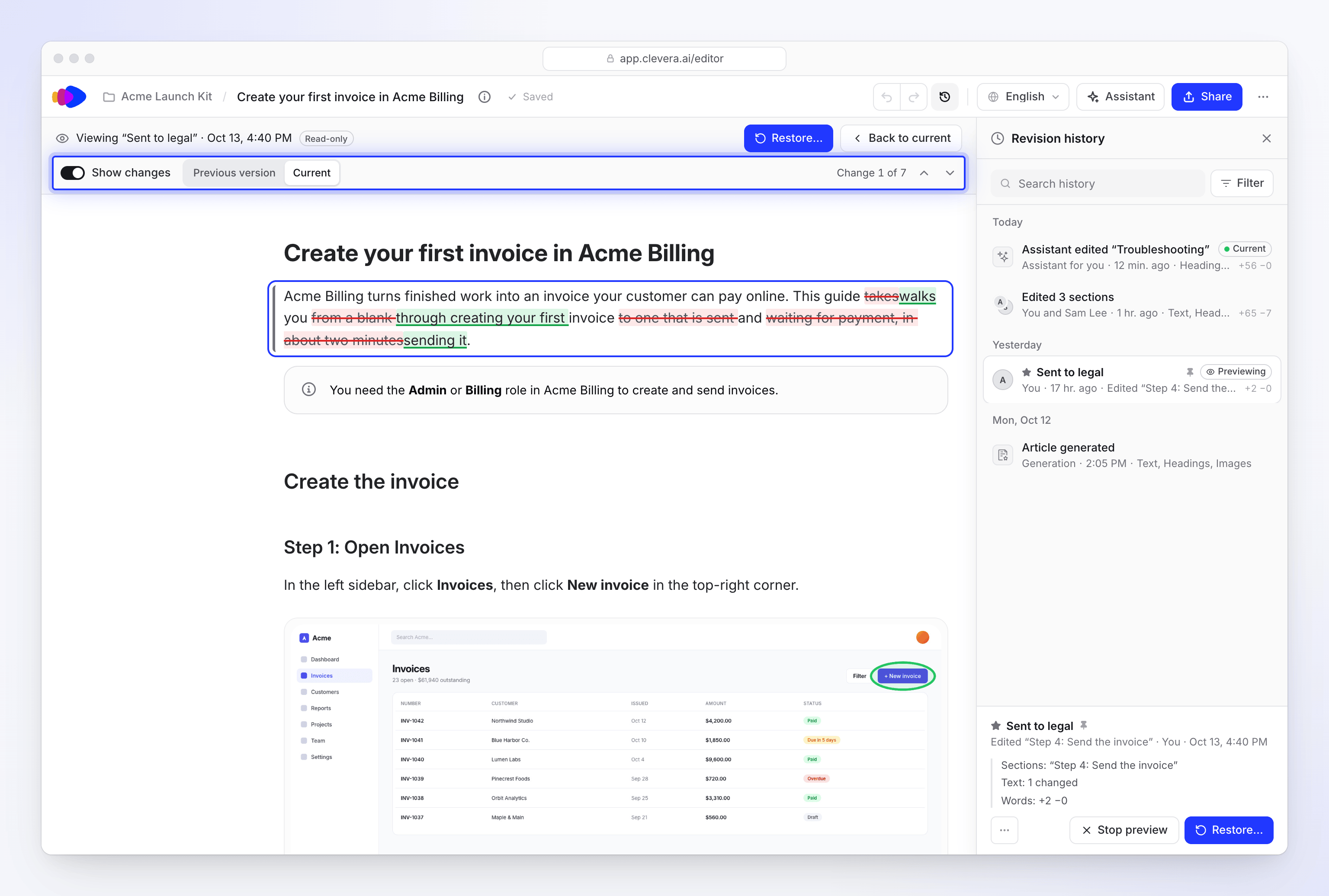
Preview any version with its changes marked, then restore it. 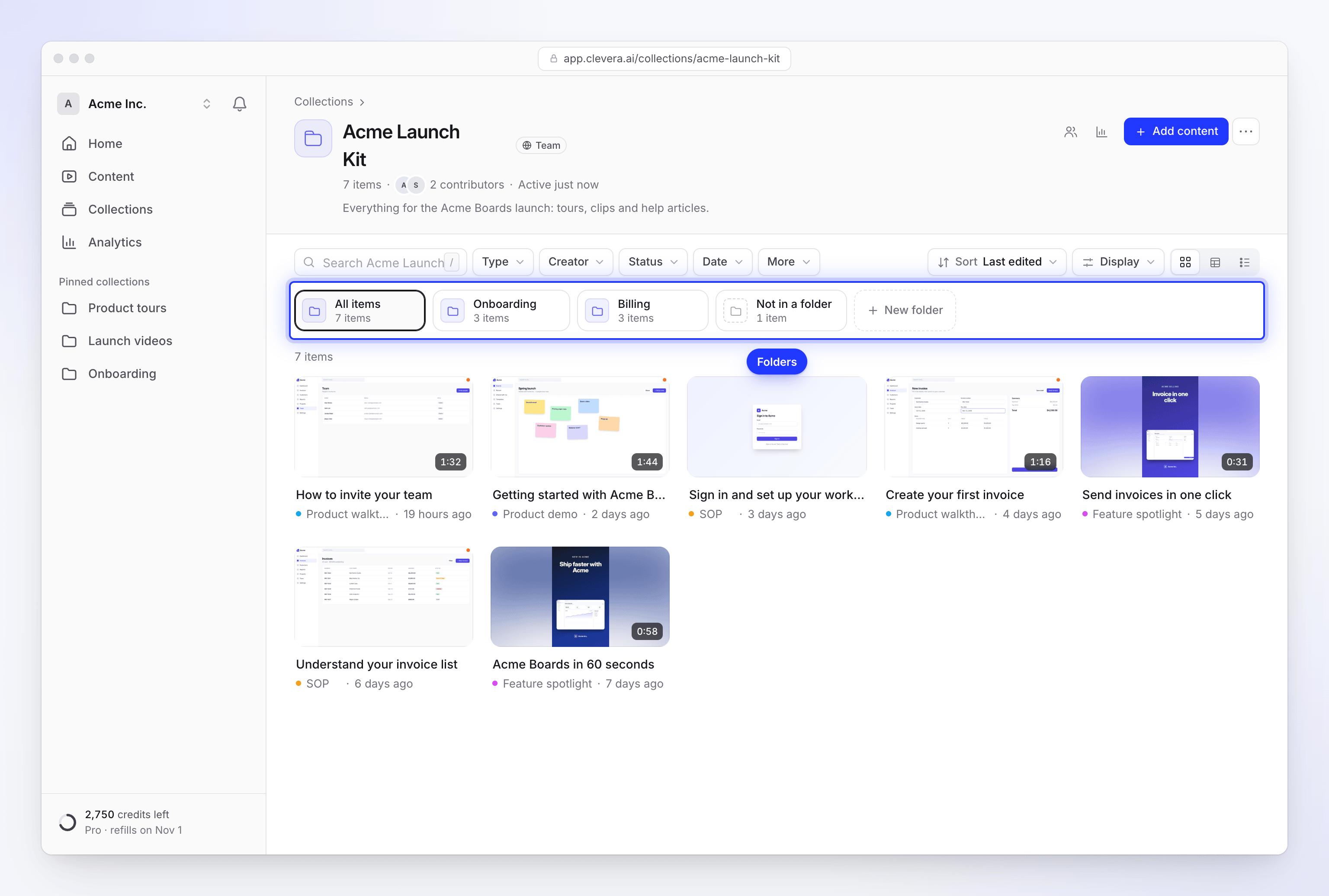
Folders sit above the items in a collection. Improved
Editor
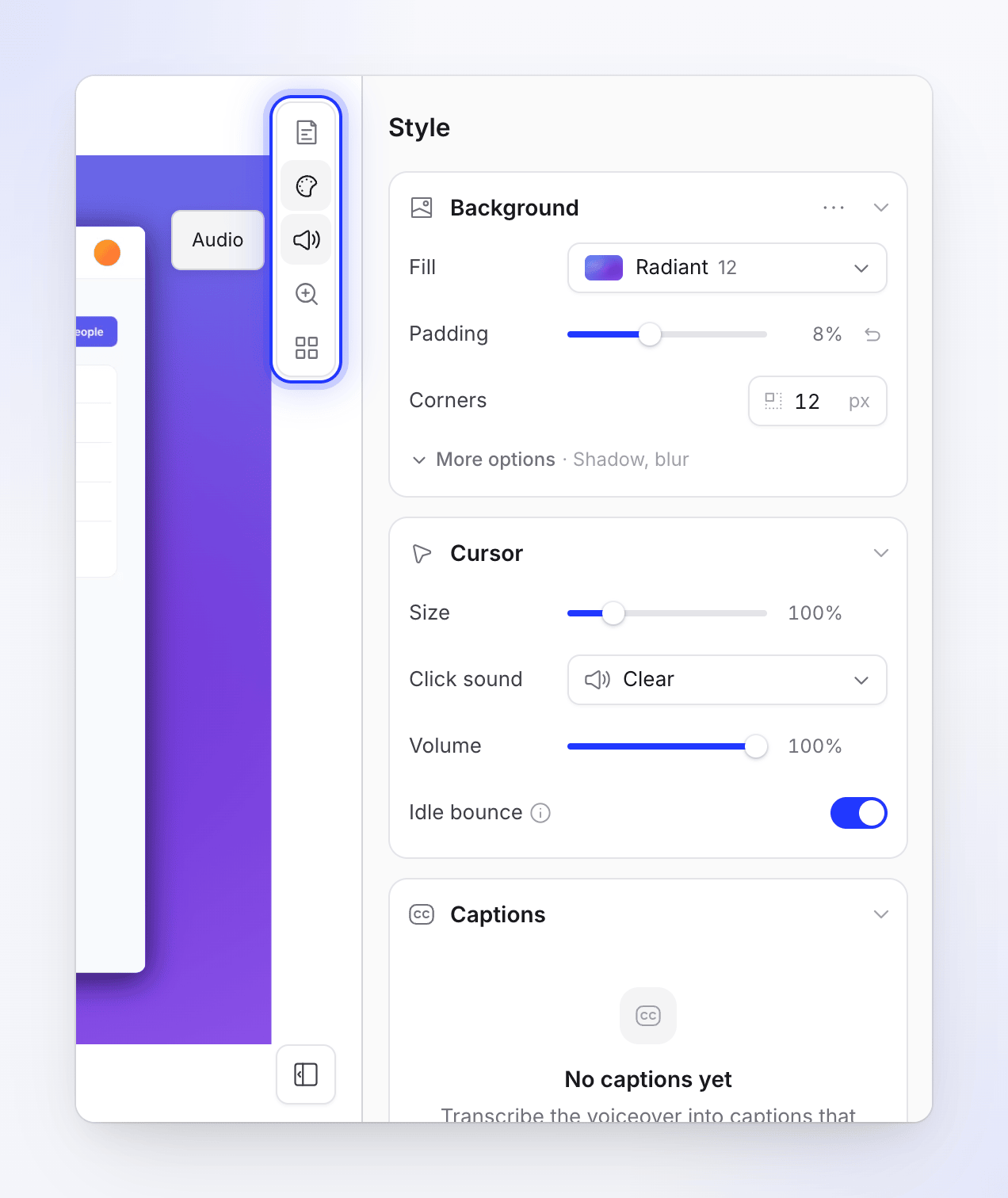
- A calmer video editor. The side panel has five tabs: Script, Style, Audio, Zoom and Elements. Style groups background, cursor, captions and camera. Voice and music have searchable pickers with previews, and Elements lists what's already in the video. See Find your way around the video editor.
- Script tab. Chapters show their step count and length, and AI suggestions appear as marked changes. See Edit the script and voice-over.
- Scene editors for title cards, logo reveals, lists, text beats, transitions and backgrounds share one compact layout with a fitted preview. See Edit scenes and cards.
- Moving previews in effect and animation pickers, and the click sound has a play button. See Add and edit elements.
- Sync & pacing is one linked timeline with a timing inspector. See Use sync and pacing to match footage to narration.
- The timeline is more compact, and you can drag layers to reorder them. See Understand the timeline.
- Languages. A searchable language menu in the top bar includes Translate…, and the Translate window shows each language's status. See Understand language versions of a video.
- The media library is one view with All, This video and My uploads filters and drag-and-drop upload.
- Revision history for videos and articles has compact rows, one filter and a clearer restore dialog. See Restore an earlier version of a video.
- The social clip editor has a tidier inspector, add menu and playback controls. See Edit a social clip.
- Assistants suggest follow-up requests, have a New chat button and format their replies. The article assistant is wider and can be resized. See Ask the assistant to change your video.
- Templates and AI rules. The template picker has All, Built-in, Your team and Mine tabs, and a viewer where every part plays. The template editor no longer loses unsaved changes when you click outside it. Built-in AI rule sets can be duplicated. See Use a video template for your brand and Create and apply AI rules.
Five tabs instead of eight. Creating videos
- Compose. The brief box is taller, Effort and the cost sit beside Generate, and pills show what you set, with a reset. The Look window is larger, and Add a link is now Research a website. See Set the video's options with the pills.
- The Create gallery shows categories as tabs, or as a side rail on wide screens, with full descriptions. See Pick a video type in the Create gallery.
- Website research starts reading as soon as you add the link, takes sharp full-width screenshots and reads answers hidden in FAQs and tabs. If a link can't be read, generation stops and tells you. See Research a website for a social clip and Fix a website the AI couldn't read.
- How-to and demo videos no longer get a generated list scene. Every zoom eases in and out, and zooms are spaced further apart. See Understand automatic zooms and cursor effects.
Sharing and exports
- A rebuilt share page and player. The player shows a poster first, has new controls and fits the screen. Unavailable videos show a calm message. See Share a video with a link and Embed a video or article on your site.
- Faster exports in your browser. Time estimates use your real connection speed, and an export interrupted by sleep resumes instead of failing. See Understand on-device and cloud rendering.
- Sharper wallpaper backgrounds in high-resolution exports.
- The watermark is smaller and lighter, and stays in the corner through zooms. See Remove the Clevera watermark.
Workspace and account
- Settings, Billing, Usage, Analytics, Notifications, Integrations, Referrals, Collections and Content share one calm design with sortable tables. The Collections list has All, Team and Private tabs.
- Add to collection and Move to collection have search, filters and shift-click selection. See Move, share or delete several items at once.
- Search (⌘K) is a compact command palette. See Search everything with ⌘K.
- Sign-in and sign-up pages are redesigned, with show/hide password, a Caps Lock warning, live password rules and a code box you can paste into. Resetting your password signs you out everywhere, and viewing two-factor recovery codes asks for your password again. See See where you're signed in and sign out other sessions.
- The notification inbox has roomier rows, and grouped rows name the videos. See Choose which notifications you get.
Fixed
- Social clips didn't play on share pages and embeds.
- A companion article didn't show on the share page until someone opened it in the editor. See Attach a companion article to a shared video.
- Record with AI said "The selected purpose is invalid" from some Create cards, and a video could start before its AI recording was ready. See Let the AI record your product with Record with AI.
- How-to narration could read out markers like "[1]".
- Click sounds were missing from exports made on our servers, and a still image could show over earlier scenes.
- Exports of small portrait recordings framed as 16:9 could fail. See My export stopped or failed.
- The low-credit banner ignored bonus and bought credits. See I ran out of credits.
- The article editor could lose your last edit when you closed the tab. See Edit an article and its screenshots.
- A cancelled voice change could stay on "Applying voice".
- Voice tags couldn't be inserted. See Use voice tags in narration.
- Text beats could use dark text on a dark background.
- Switching folders in Content could mix in items from the previous folder, and filter checkboxes didn't toggle.
- A two-factor setup you never finished showed as on. It now says Finish setup.
- Editing a social clip with a logo clipped to a shape could fail.
- Support pages showed the wrong email address. See Contact support.
- NewImprovedFixed
The new Clevera: start from one sentence, social clips, Record with AI and credits
This is the biggest update Clevera has had. You can now start any video from one sentence on Home, make motion-designed social clips, let the AI research your website or record your product for you, and pay for what you make with credits. A Free plan replaces the trial. The editor, exports, sharing, analytics and notifications were rebuilt as well.
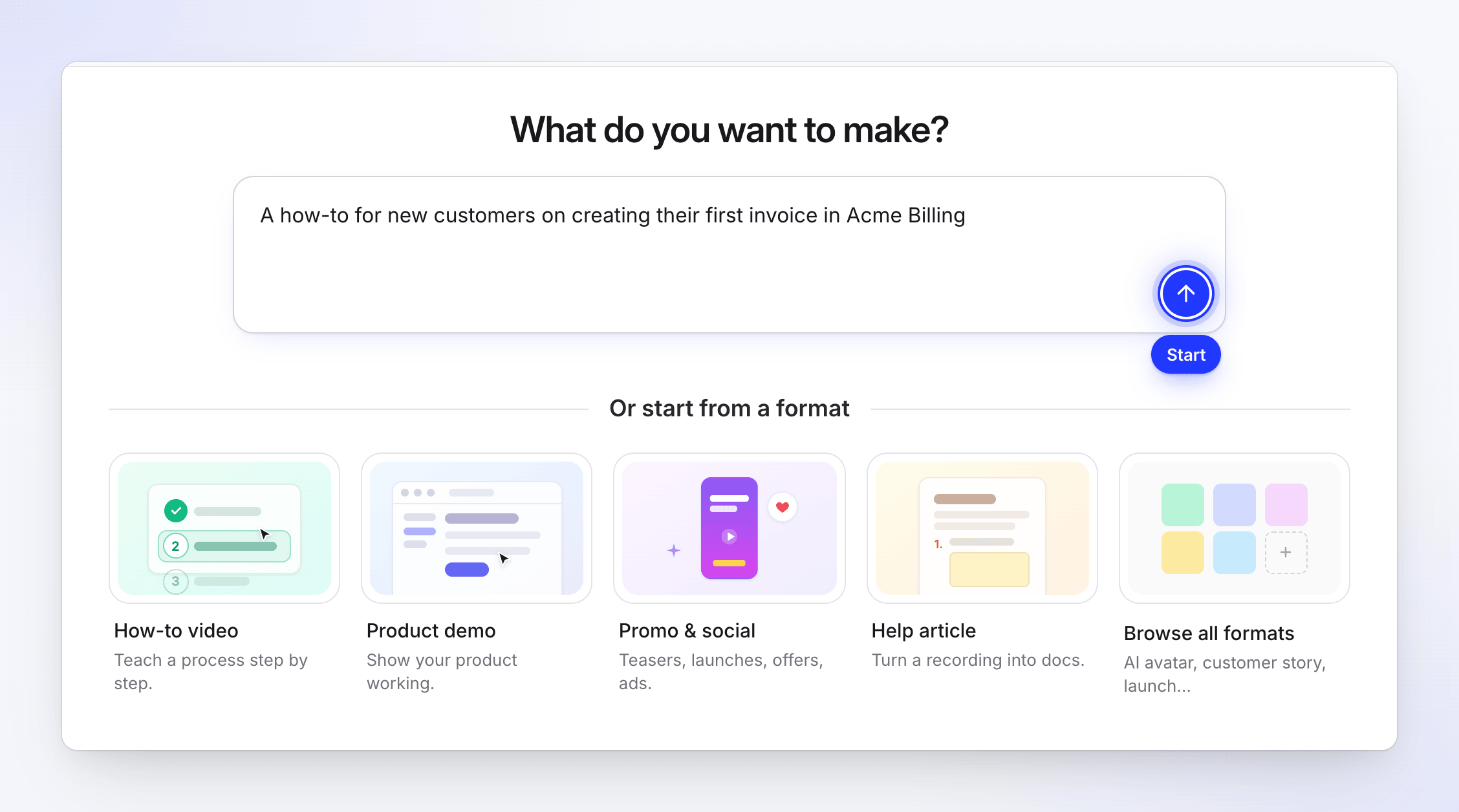
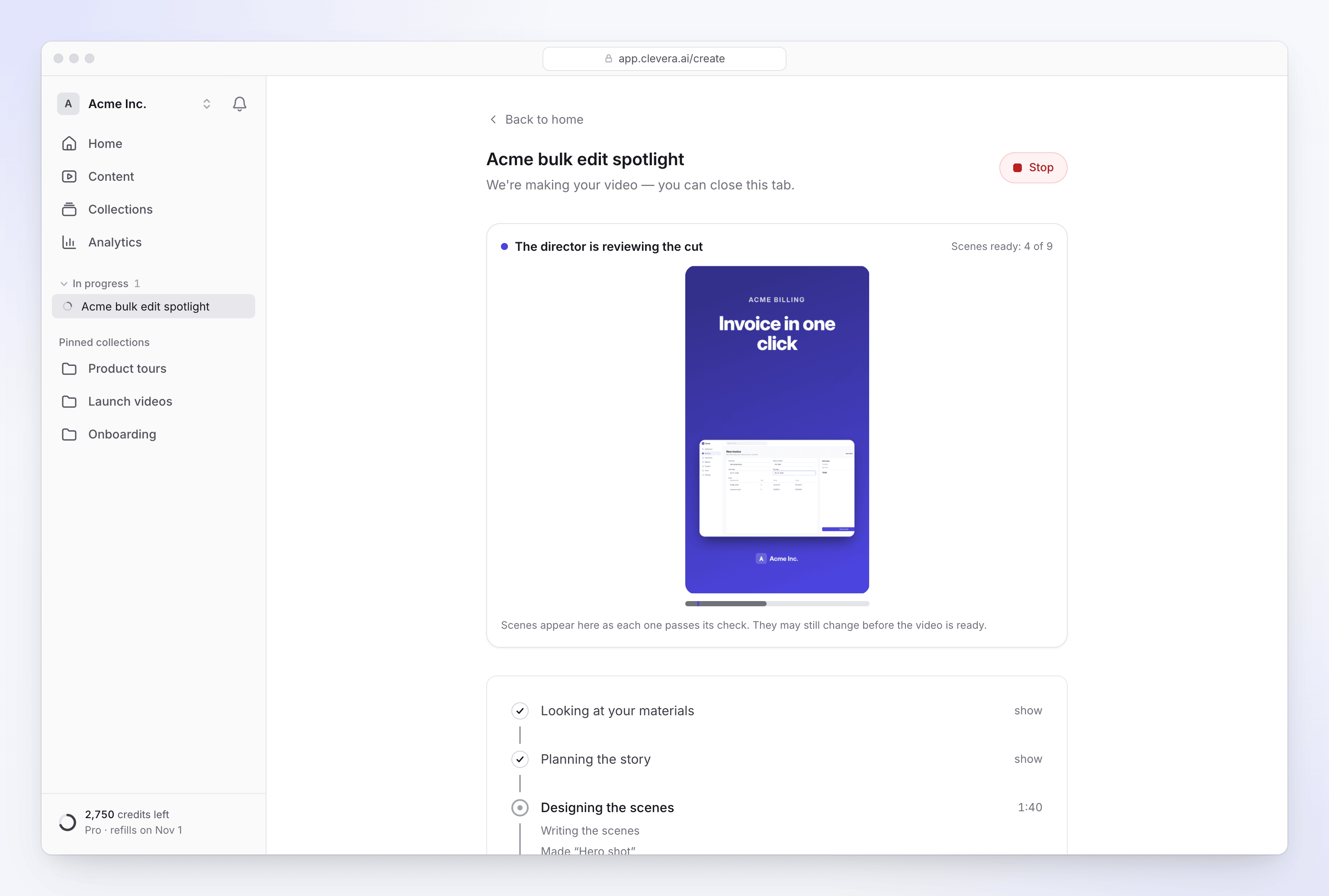
Describe the video in a sentence or two, then press Enter. New
Creating videos
- Start from one sentence on Home. Type what you want in the box under What do you want to make?. A short setup chat picks the right type, asks only what it needs and opens Compose with everything filled in. Planning in the chat is free. See Make your first video from the Home prompt and Plan a video with the setup chat.
- A new Home. It has the prompt box, four start cards, the videos that are still being made, and a summary of what your workspace made, how often it was viewed and how many credits it used. See Find your way around Clevera.
- The Create gallery. Video types are grouped into families: How-to, Product demo, Social & promo, Article and Polish. Cards play a short sample when you hover, and Describe your own starts a custom video. See Pick a video type in the Create gallery.
- Compose, one page for every video. Write the brief, attach material with the + button and set the options with the pills under the box: format, voice, look, AI avatar, language, music, tone, captions and AI rules. Each pill starts on a recommended choice. See Set the video's options with the pills.
- Several materials in one video. Attach recordings, video files, pictures, PDFs and links. The AI reads pictures and PDFs as soon as you add them, says what it sees, and asks once if it isn't sure how to use a file. See Add materials and Tell the AI how to use a picture or PDF.
- A recording library you can search. The picker shows your recordings and your teammates' (Everyone / Mine), AI recordings and uploads, with search and a full preview. See Find and reuse your recordings.
- A credit estimate before you generate. Every form shows Est. cost ~X–Y credits beside the Generate button. See Read the credit estimate before you generate.
- Follow your video while it's made. The page We're making your video shows five stages with a short feed of what the AI is doing. A chime plays and the tab title changes when it needs you or the video is ready. You can close the tab, and the video keeps going. See Follow your video while it generates.
- The AI asks when it needs to. If something is unclear, or a video type needs a fact your material doesn't give (an offer's terms, an event date), a question card appears on the generation page. See Answer the AI's questions during generation.
- Stop a generation at any point. A failed or stopped video shows a plain explanation, Try again where it can help, and Discard. See Stop, retry or clear a generation.
- Short tips point out the main controls the first time you meet them.
Social clips preview each scene as soon as it's ready. Social clips
Social clips are on the Starter and Pro plans.
- Motion-designed social clips. Make short videos for feeds, ads and launches from a link, pictures, a PDF, a video or just a description. The AI director writes and animates every scene, records the voice-over, adds music and sound effects, checks its own work and gives the clip a title. Types include feature spotlight, hook reel, launch teaser, product tour, offer, event and customer story. See Make your first social clip and Choose a social clip type.
- Effort levels. Choose Medium, High (the default) or Extra beside Generate to trade credits for polish. See Choose an effort level.
- Pick a look. Leave the look on Automatic, or pick a design style with a live preview and use its own colors, a named palette or up to five colors of your own. See Pick a look: styles, palettes and colors.
- An AI avatar. Add a presenter, pick a look and choose how much screen time they get: Opening, Hook & close, Most or Whole video. See Add an AI avatar and set its screen time.
- Your logo, found for you. The AI uses the logo you attach, the one on your website, your workspace logo, or a mark from your footage, and never recolors it. See Get your logo into a social clip.
- Music and sound effects. The AI picks a track that fits the mood and keeps it under the voice. Sound effects are subtle and spaced out. You can swap either in the editor. See Understand music and sound effects in clips.
- Your footage, used well. The AI watches a recording or video you attach, plays the moments that show each scene's point, and follows the pointer with the camera. A video's own speech can play as a sound bite. Emails, card numbers and similar text it reads on screen are masked.
- Translate a clip into up to five languages at once. The voice-over is re-recorded and fitted to each scene, and captions draw every script properly, including Chinese, Japanese, Korean, Arabic and Thai. See Translate a finished video.
- A clip editor with an assistant. Ask for a change in plain words, such as new music, a different picture or shorter text, and the assistant applies it. Each change can be undone in one step. You can also click any scene or text on the preview to edit it. See Edit a social clip.
Website research and Record with AI
- Research a website. Give the AI a link and a note on what to look for. It reads the site and brings back screenshots, pictures, videos and facts for your social clip. Earlier research can be reused from the Previous research tab at no new cost. See Research a website for a social clip and Understand how website research works.
- Record with AI. The AI drives a browser and records your product while you watch. It shows where it's pointing, clicks deliberately and produces a recording with a smooth cursor that you can turn into a how-to, demo, article or clip. See Let the AI record your product with Record with AI.
- Take over at any time. Press Take over to do a step yourself, such as a sign-in or a one-time code, then hand the browser back. You can also send the AI notes while it records. See Sign in or take over during Record with AI.
- Saved sign-ins and safe mode. Record with AI can remember a sign-in for a site; you can forget it at any time. Unless you turn on Allow changes, it is told not to create, change or delete anything in your app. See Keep your accounts safe during Record with AI.
- Both use credits, and Clevera tells you so before they start. See Understand what website research and Record with AI cost.
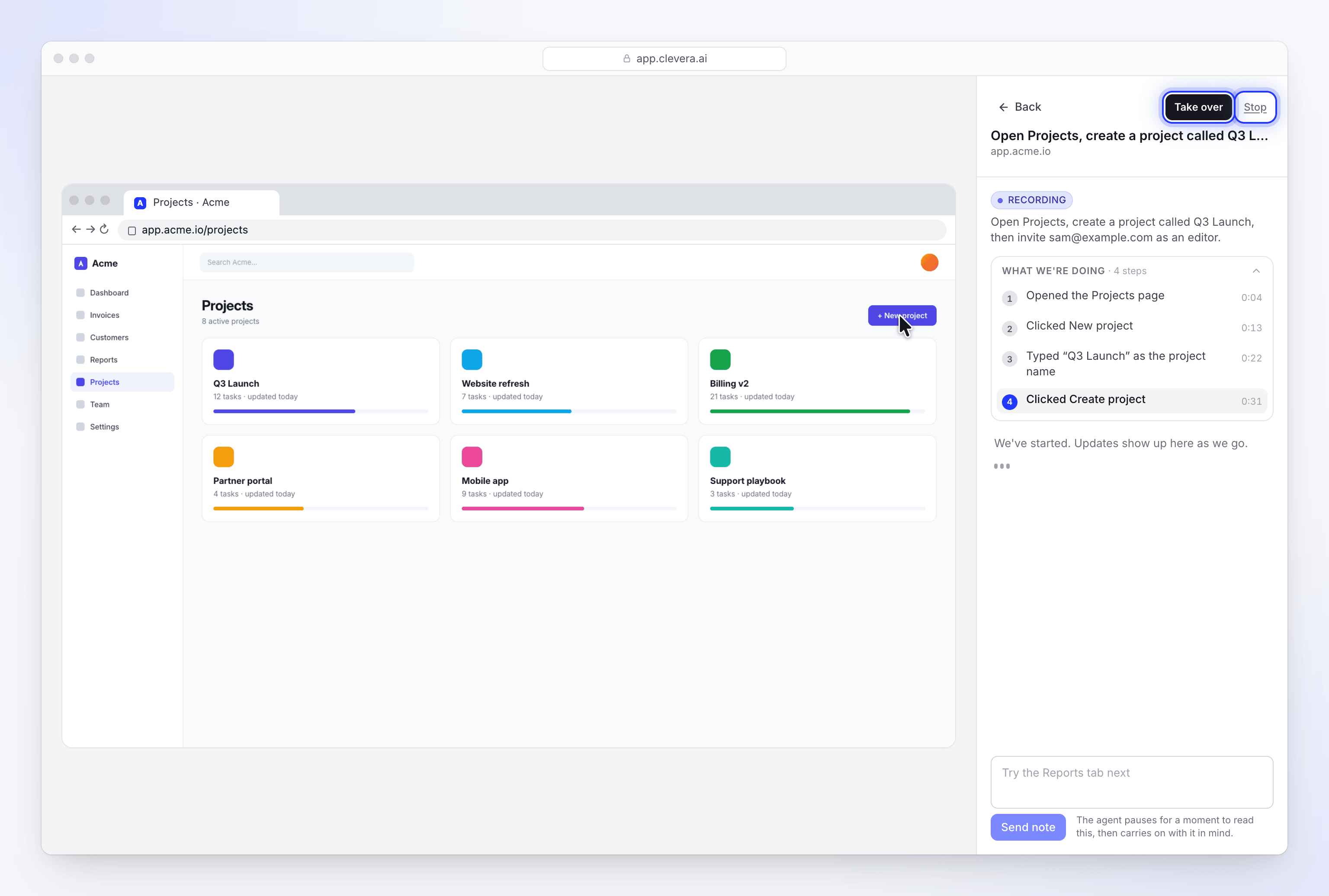
Watch the AI record, and take over whenever you need to. Videos from your recording
- Combine several sources in one how-to or demo. Use up to three videos plus pictures and PDFs, with a note on how to use each. See Use several recordings, pictures and PDFs in one video.
- Make a video from pictures or a PDF alone. No recording is needed: the pages become the video in order, and the narration talks about the page on screen. See Make a video from pictures or a PDF alone.
- Captions for how-to and demo videos can be switched on from the Captions pill on Compose.
Editor
- An assistant in the video and article editors. Ask for changes in plain words. It shows its reply as it writes, and you can stop it or undo its change. See Ask the assistant to change your video and Ask the assistant to change your article.
- Motion backgrounds for title cards and scenes, with light and dark themes and adjustable colors and speed. See Edit scenes and cards.
- Idle animations for elements. Alongside the entrance and exit animations, an element can drift, float, pulse or tilt while it's on screen. See Add and edit elements.
- A placement grid. Press G to show it and hold Alt while dragging to snap to it.
- An info button beside the title shows the video's type, who made and edited it, its source, length, languages, exports, views and the credits it used.
Credits and plans
- Credits. Each workspace has one balance made up of included, bonus and bought credits. Generations show an estimate first and are charged for what they actually use. Exporting is always free, and you can keep editing and exporting when you run low. See Understand credits and See what each kind of video costs.
- A Free plan replaces the 7-day trial. It includes 100 credits a month, videos up to 3 minutes, 1080p exports with a watermark, and one generation at a time. See Know what the Free plan includes.
- New plans. Starter and Pro, with Pro covering 2–10 creator seats, plus Custom. The plan picker compares what each plan's credits make. See Choose a plan.
- Buy extra credits when you need more, and opt in to a low-credit reminder by email. Nothing is charged automatically. See Buy extra credits.
- A Usage page with your balance, a forecast, usage by activity, member and video, a full credit history and CSV export. See Check where your credits went.
- Invite friends and earn credits. Your friend gets 250 credits and you get 500 once their workspace pays. See Earn credits by inviting friends.
- Add a seat while you invite. Inviting a creator when every seat is taken offers to add one there and then. See Understand workspaces, roles and creator seats.
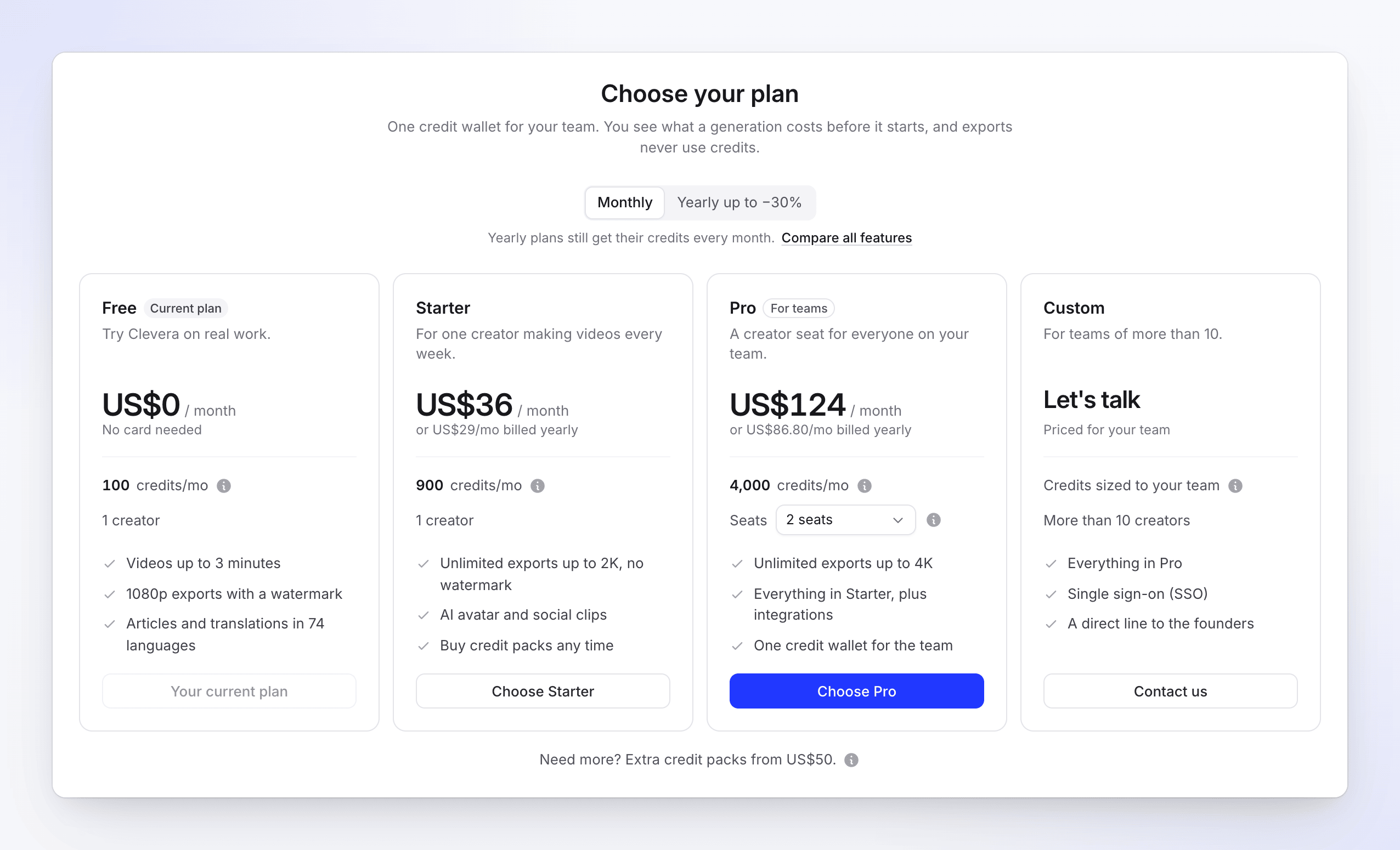
Pick a plan and see what its credits make. Sharing and analytics
- An Analytics page for the whole workspace. It has a period picker with comparison, views, completion and watch time, a 25/50/75/100% funnel, breakdowns by collection, creator, content type and country, and CSV export. See Read video analytics.
Notifications and email
- A notification inbox. The bell opens a panel of updates about your videos, exports, team and billing, and there is a full Notifications page. Choose On, Quiet or Off for each type, in the app or by email. Results are emailed only if you haven't already seen them. See Choose which notifications you get.
- Email reports. A workspace report, your own recap and a "needs your attention" email, each on a schedule you set. See Get workspace reports by email.
- Refresh after an update. When Clevera is updated, it asks you to refresh, and waits until unsaved edits, exports, uploads and recordings are finished. See Clevera asks me to refresh the page.
Improved
Videos from your recording
- Smarter automatic zooms. Zooms are anchored to real clicks, frame what the click affects, land just before it and stay at a readable depth. Typing gets its own short zoom. See Understand automatic zooms and cursor effects.
- Better pacing. Dead time is cut or sped up, long typing plays faster, and clicks and typing are never cut. The cursor glides across cuts instead of jumping.
- Clearer structure. Videos open with a short narrated preview, chapter cards appear only at major changes, and demos close with a call-to-action card. See Make a product demo from a recording.
- From the desktop app straight to Create. When a recording finishes, the browser opens Create with it attached, and it turns ready in place. See Find your recording after it uploads.
- PDFs as background. On how-to and demo videos, attached PDFs are read for facts the narration can use.
Creating and editing
- Voice picker. Every voice for each language, with a sample you can play before choosing, and All, Female and Male filters. See Choose a voice and preview it.
- AI rules and templates are chosen right in the create flow. See Create and apply AI rules.
- Revision history opens in a side drawer with a preview. You can restore everything or only parts (captions, music, look or layers), and name or pin versions. See Restore an earlier version of a video.
- Translation. One window for every entry point lets you pick several languages at once. Switching language keeps your place in the video. See Translate a finished video.
- Element animations have Entrance, Idle and Exit tabs with new moves. Element settings are grouped into clearer cards, and the alignment picker works.
- Articles. Choose the depth, tone and the color of screenshot markers on Compose. Articles in right-to-left languages read right to left everywhere. See Turn a recording into an article.
Exports and sharing
- One Render button. Pick 1080p, 2K or 4K (up to your plan's limit). Clevera renders on your device when it can and moves the job to our servers when needed, and All renders lists every export. See Export a video as MP4 and Understand on-device and cloud rendering.
- Exports match your settings. They come out at exactly the resolution you chose, captions keep their size at 2K and 4K, and an unchanged video isn't rendered again.
- A rebuilt Share window with Link, Embed, Download and Publish, the latest render first, and an export in progress that stays visible after you close the window. See Share a video with a link.
Workspace
- The content library has grid, table and list views, filters by video type, multi-select with bulk actions, keyboard shortcuts and Trash. See Find, filter and sort your content and Move, share or delete several items at once.
- Collections are redesigned, with a clearer Who can open it page. Private collections stay hidden from people outside them. See Organize videos in collections and folders.
- Settings for your account and workspace are split into tabs, and a pending invitation can be resent. See Invite teammates.
- The sidebar has one workspace menu at the top, your account at the foot and a credit meter. On phones and narrow windows it slides in from a top bar.
- Search (⌘K) also finds settings pages. See Search everything with ⌘K.
- The support chat is redesigned. See Contact support.
- Emails have one clean layout that works in light and dark mail apps.
- Sign-in is better protected. Sign-in is paused after repeated wrong passwords.
Fixed
- English (UK) voice-overs now speak with a British accent.
- The logo reveal uses your workspace's real brand, and template placeholder text never reaches a finished video.
- Article screenshots no longer load forever or repeat frames.
- An upload that's refused now says why, instead of "Please provide a valid file."
- Switching workspace now takes you to the new workspace.
- Clicking a small element on top of a full-screen one selects the small one.
- Picking a color format no longer closes the color picker, and clicking inside a dialog no longer closes the one behind it.
- NewImprovedFixed
Prices in US$, better Chinese, Japanese and Korean captions, and larger Windows recordings
New
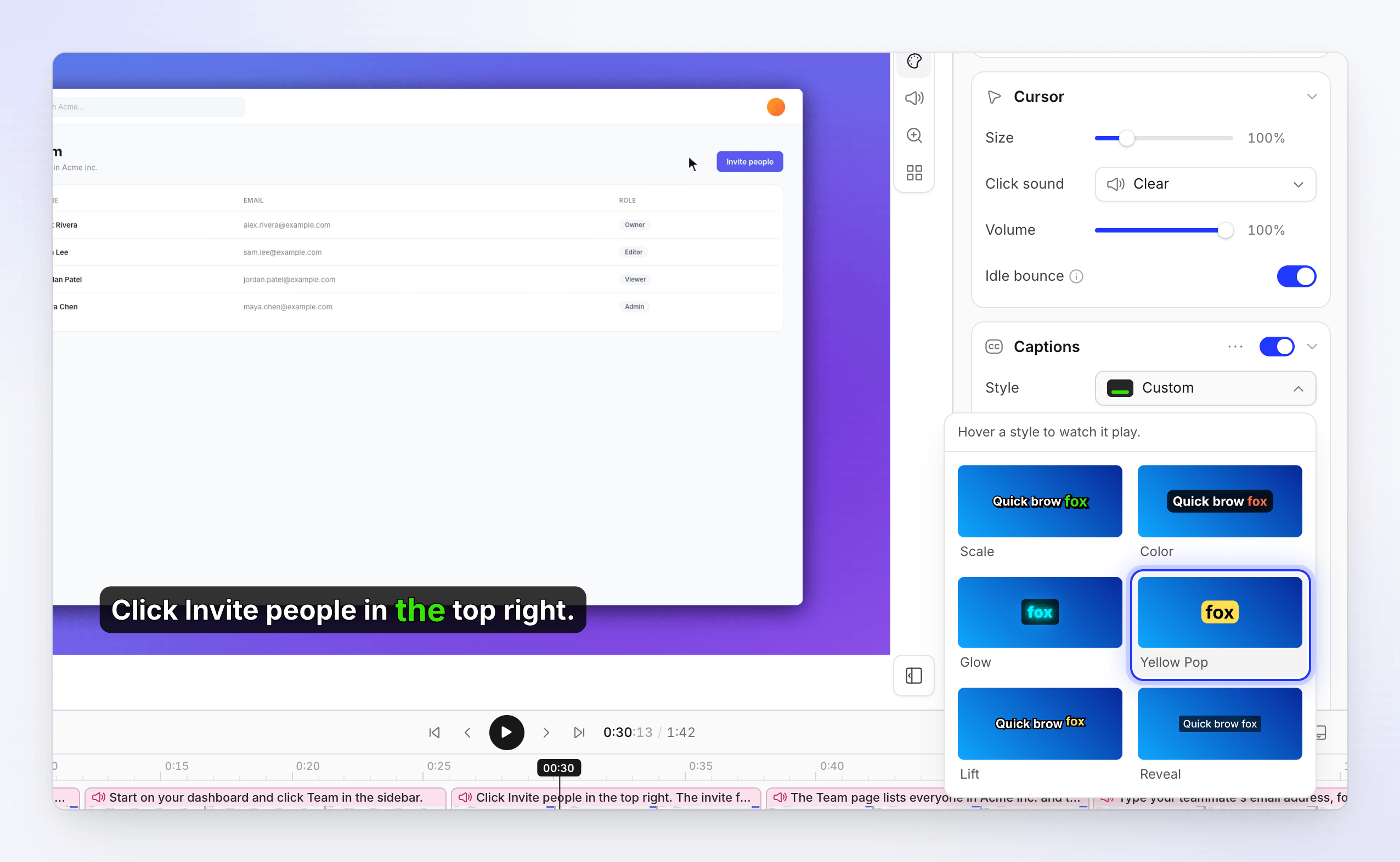
- Regenerate captions. The captions menu in the editor now has a regenerate option, so captions can be rebuilt after you change the narration. Captions follow your saved script instead of keeping words the speech recognition misheard. See Change the style, background and captions.
- Line spacing on title cards. Set the line height for each text box on a title card. See Edit scenes and cards.
- Wordmark images in logo reveals. Upload a wordmark next to the logo icon, so a logo set in a custom font shows exactly as designed.
Captions now follow your saved script. Improved
- Prices show as US$. All charges are in US dollars, so prices on the billing page, at checkout, on top-ups and in usage emails now read "US$" instead of a bare "$" that could be mistaken for your local currency.
- Captions in Chinese, Japanese and Korean break into pages by sentence and keep tight spacing between characters.
- Articles in languages other than English are written and titled reliably, including their FAQ section. See Turn a recording into an article.
- Large recordings from the Windows app (over 500 MB) are processed fully, and exports in your browser handle very large media files.
- Uploads open sooner. A long uploaded video is ready to use once its preview is ready, instead of waiting for its audio to be extracted.
Fixed
- Typing a Chinese title card with an input method could leave the old headline in the preview and the export.
- Teaser videos could repeat the same title card many times.
- A freeze frame added in the scene editor could land in the wrong place.
- Some 60 fps recordings could not be used as the export source.
- Publishing to Confluence failed for workspaces using the newer permission scopes. See Publish articles to Confluence.
- ImprovedFixed
Steadier on-device exports and fairer plan changes
Improved
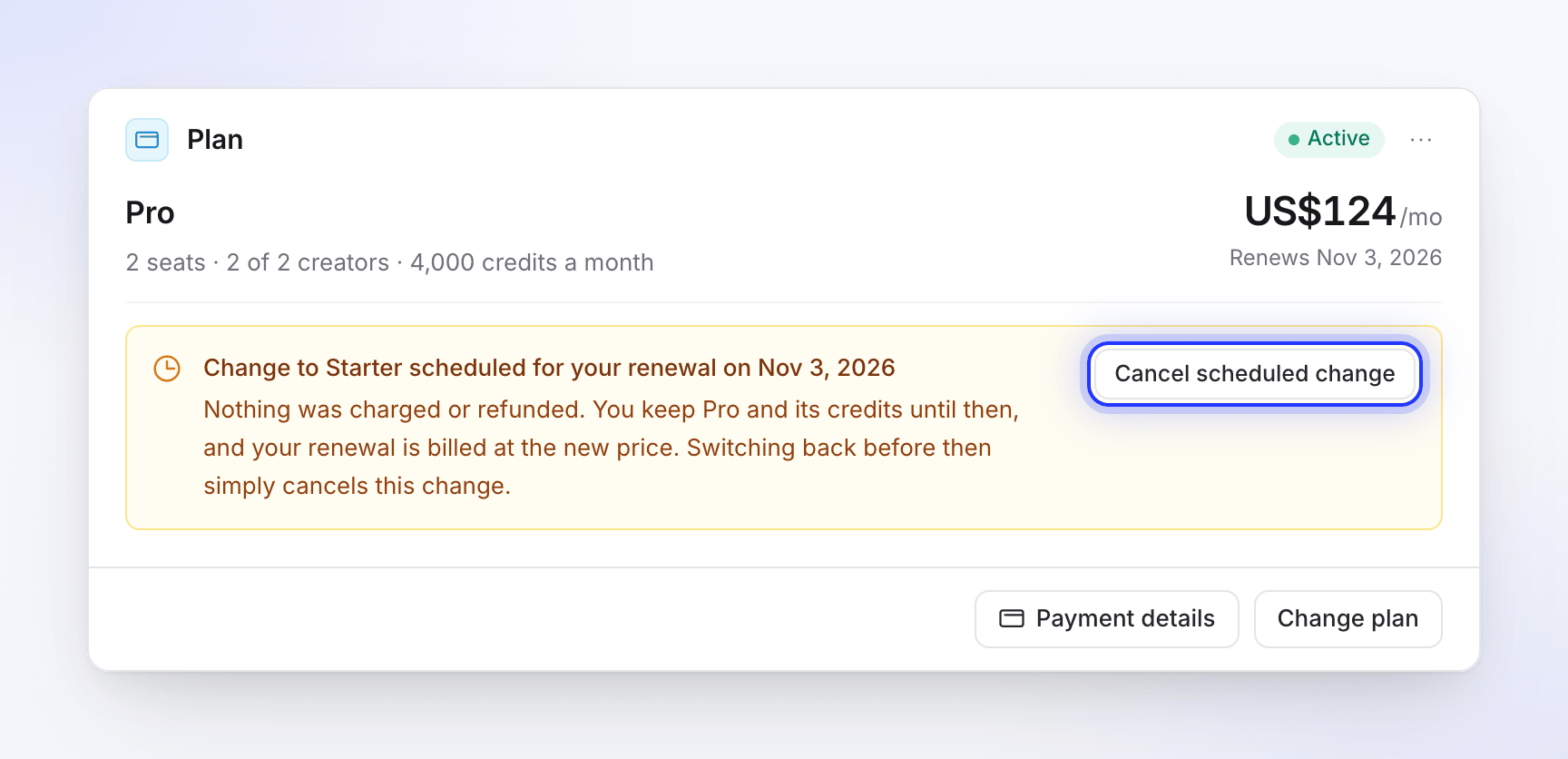
- Plan downgrades wait until your renewal date. When you move to a smaller plan, you keep your current plan until the end of the period you've paid for, and the change shows as scheduled on the Plan card. You can cancel a scheduled change before it happens. See Change your plan or seats.
- Upgrades are prorated correctly. Switching plans several times in a short period no longer charges the difference twice, and the allowance you get matches what you paid for.
- Yearly plans get twelve months of allowance, not one.
- Exports in your browser are steadier. On-device exports wait for fonts and media before they start, and recover when the browser reclaims video resources mid-export. See Understand on-device and cloud rendering.
A downgrade now waits for your renewal date. Fixed
- On-device exports on Windows could stop at the same point every time. They now finish.
- On-device exports could hang while reading your recording, and didn't work in Brave.
- Layers could appear in the wrong order in exported videos.
- Transfer ownership was hidden on workspaces with an owner and one member, such as a full two-seat plan. It now appears whenever there is someone to transfer to, and the previous owner stays an Administrator afterwards. See Transfer workspace ownership.
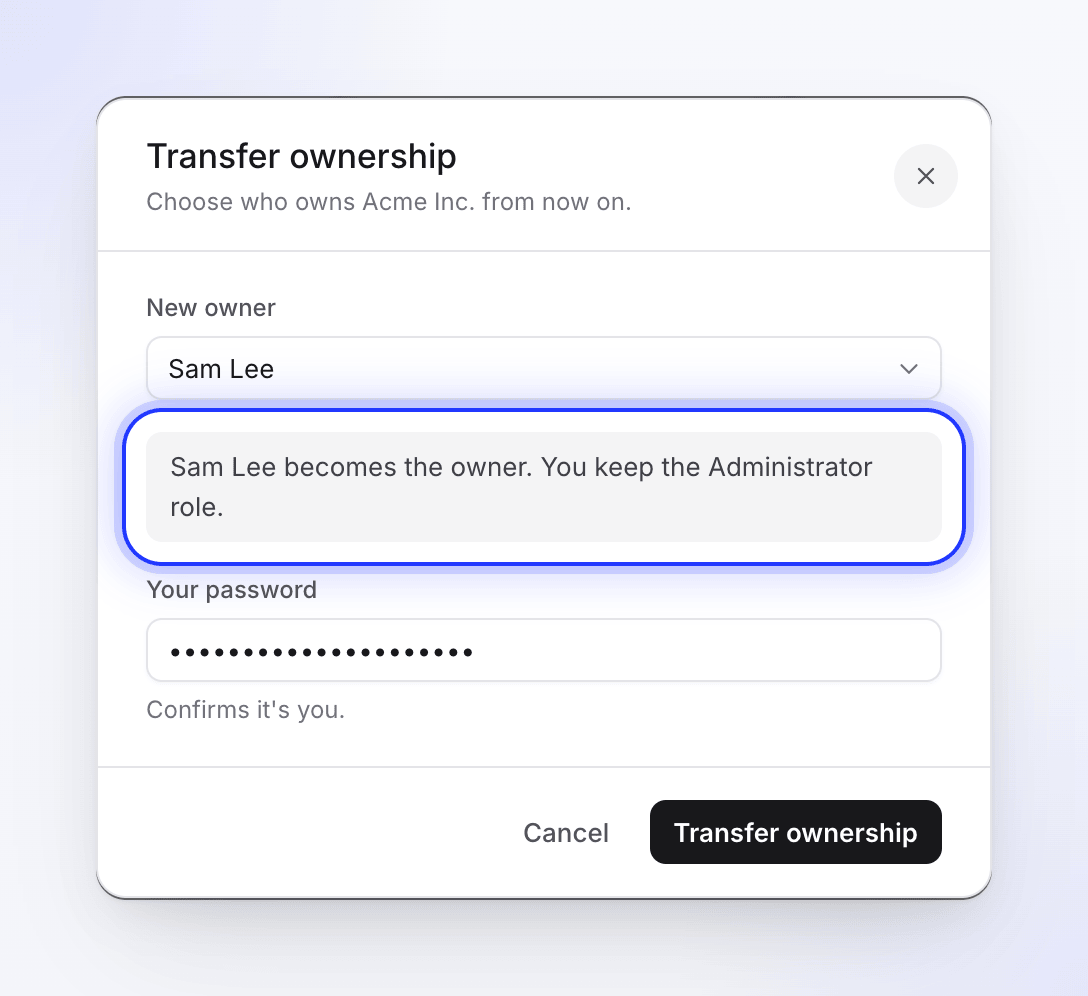
Pick the new owner. You stay an Administrator. - NewImprovedFixed
More reliable exports and safer account deletion
New
- Custom durations for highlight list items. Set how long each item stays on screen, so important moments can linger. See Add and edit elements.
Improved
- Exports match the editor. Scene background images and other scene media now appear in the finished file exactly as they do in the editor. See Export a video as MP4.
- Account deletion is safer and more reliable, including data owned by your teams. A pending deletion now completes instead of leaving the account half-deleted. See Delete your account.
- Canvas zoom stays centered on the area you're working on.
- Article exports are more consistent, including DOCX. See Export or publish an article.
Fixed
- Scene transitions could break while you edited.
- The timeline item dialog didn't open.
- Iframe previews showed the wrong video ratio.
- Generated articles sometimes picked the wrong images or published incorrectly.
- Improved
More accurate articles and steadier timeline zoom
Improved
- Generated articles match frames to steps more accurately, and drafts read more naturally and need less cleanup. See Turn a recording into an article.
- Timeline zoom keeps your focus anchored, and the playhead snaps more cleanly while you edit. See Understand the timeline.
- Intro card titles stay in sync with the video's title. See Edit scenes and cards.
- NewImproved
Auto-captions, animated emoji and background music controls
New
- Auto-captions. Generate captions for your videos and style them with caption presets. Captions have alignment controls and support right-to-left languages. See Change the style, background and captions.
- Shapes and animated emoji. Add them as layers to design your scenes. See Add and edit elements.
Improved
- Background music controls. Set where the music starts and ends, and lower it for parts of the timeline. See Change voice, music and sound.
- NewImproved
A simpler way to create, new video formats and templates
New
- Recordings and finished content are separate. Start from a screen recording, an upload or an existing file, then choose what to make: demo, how-to, teaser, article, cleanup or share-ready video. Content is where you edit, share and publish. See Pick a video type in the Create gallery.
- New video formats:
- Teaser clips: fast-cut, music-driven clips with no voice-over, for launches and announcements.
- Cleanup videos: trim fillers, pauses and silence while keeping your own voice. See Clean up or restyle a recording with Polish.
- Share-ready videos: a styled version of your recording, ready to publish, with an optional camera overlay.
- Mobile sign-in and recording. Sign in from your phone, and record with controllers for iOS and Android.
- Camera and system audio in captures, alongside the screen. See Add your microphone, camera or system audio.
- Home, Content and Create. A new Home dashboard, one Content hub and a guided Create flow. See Find your way around Clevera.
- Global search finds content and collections from anywhere in the app. See Search everything with ⌘K.
- Pinned collections keep your most-used projects at hand. See Organize videos in collections and folders.
- Video templates save your layout, music and branding for reuse. See Use a video template for your brand.
- AI rules store your team's instructions so every video follows your style. See Create and apply AI rules.
- Scene templates let you save a scene and drop it into other videos.
- Related content in share and embed views. Pair a how-to video with its help article so viewers find both. See Attach a companion article to a shared video.
Improved
- Generation is tuned to your goal with subtypes such as product launch, troubleshooting and SOP. A step-by-step wizard walks you through format, style and options.
- Faster generation that uses the instructions you speak during the recording and shows more accurate progress. See Follow your video while it generates.
- Independent clip edits. Changing one scene no longer shifts its neighbors. You can split and delete clips, insert items from gaps in the timeline, and change how the cursor looks. See Understand the timeline.
- Camera playback stays in sync with audio across scene changes.
- Structured article formats and subtypes such as how-to, troubleshooting and SOP. See Turn a recording into an article.
- Simpler translation for videos and articles. See Translate a finished video.