

Article version history, collection folders and a calmer editor
Articles get a full version history, collections get folders, the share page and player are rebuilt, and the editor, Compose and settings pages move to one compact design, with faster exports and many fixes.
NewImprovedFixed
New
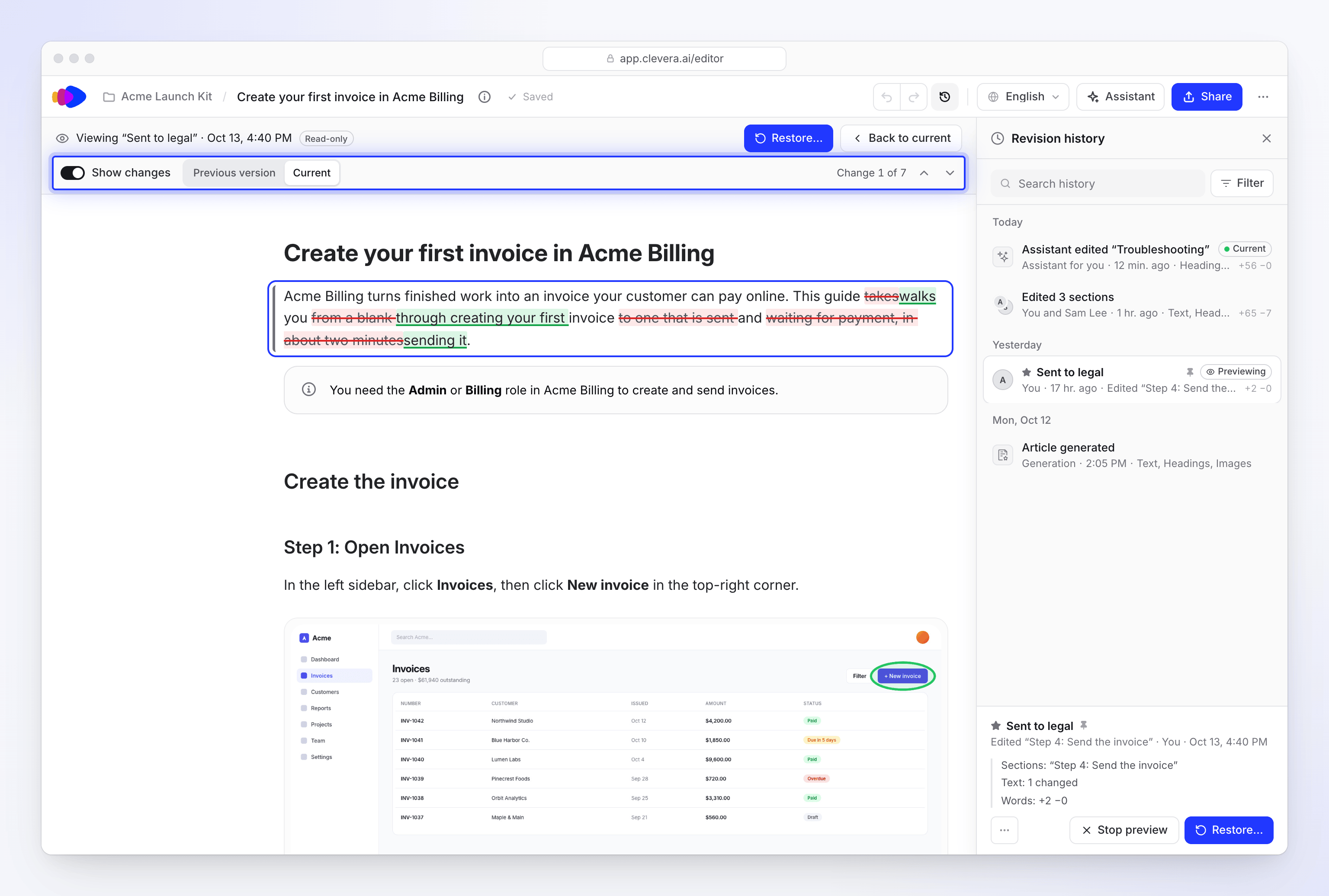
- Article version history. Open History in the article editor to see every version, preview one with its changes marked, name or pin the ones that matter, and restore with one click (and undo it). See Restore an earlier version of an article.
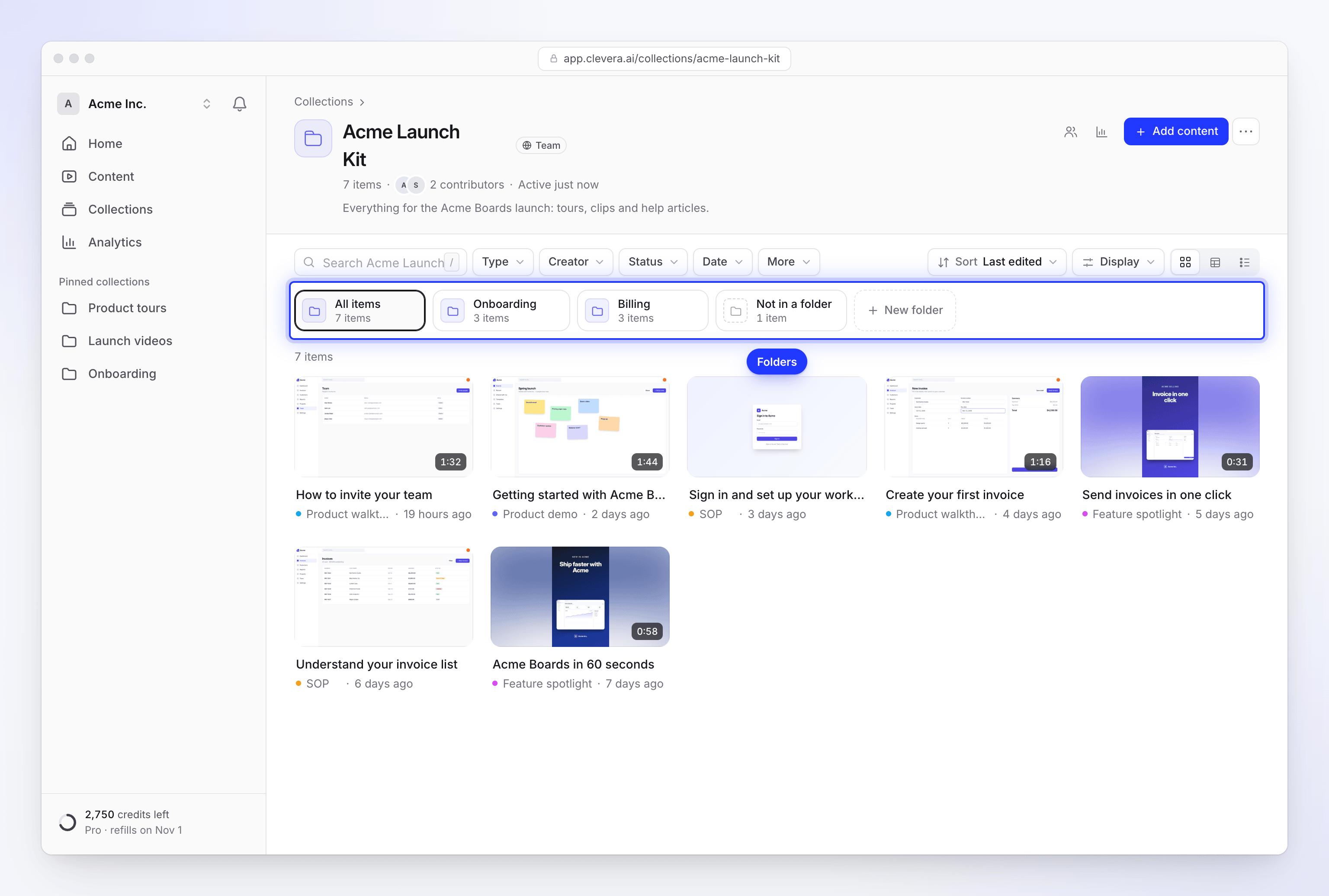
- Folders in collections. A folder row sits above a collection's items. Move items with Move to folder or by dragging them, and rename or reorder folders. Each item lives in one folder. See Organize videos in collections and folders.
- Render files are kept for 90 days. The render history shows who made each export and when its file will be removed. See Export a video as MP4.
Improved
Editor
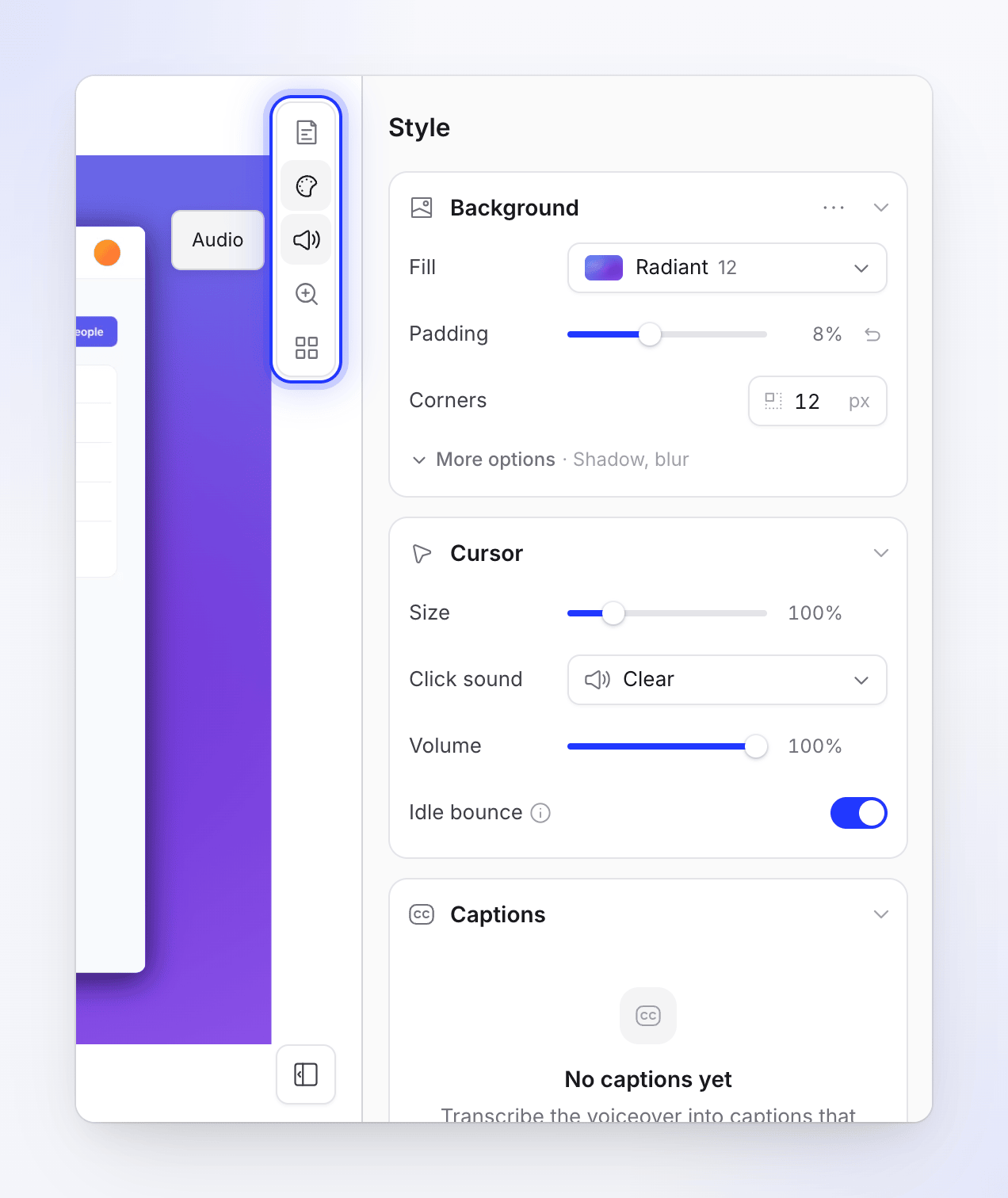
- A calmer video editor. The side panel has five tabs: Script, Style, Audio, Zoom and Elements. Style groups background, cursor, captions and camera. Voice and music have searchable pickers with previews, and Elements lists what's already in the video. See Find your way around the video editor.
- Script tab. Chapters show their step count and length, and AI suggestions appear as marked changes. See Edit the script and voice-over.
- Scene editors for title cards, logo reveals, lists, text beats, transitions and backgrounds share one compact layout with a fitted preview. See Edit scenes and cards.
- Moving previews in effect and animation pickers, and the click sound has a play button. See Add and edit elements.
- Sync & pacing is one linked timeline with a timing inspector. See Use sync and pacing to match footage to narration.
- The timeline is more compact, and you can drag layers to reorder them. See Understand the timeline.
- Languages. A searchable language menu in the top bar includes Translate…, and the Translate window shows each language's status. See Understand language versions of a video.
- The media library is one view with All, This video and My uploads filters and drag-and-drop upload.
- Revision history for videos and articles has compact rows, one filter and a clearer restore dialog. See Restore an earlier version of a video.
- The social clip editor has a tidier inspector, add menu and playback controls. See Edit a social clip.
- Assistants suggest follow-up requests, have a New chat button and format their replies. The article assistant is wider and can be resized. See Ask the assistant to change your video.
- Templates and AI rules. The template picker has All, Built-in, Your team and Mine tabs, and a viewer where every part plays. The template editor no longer loses unsaved changes when you click outside it. Built-in AI rule sets can be duplicated. See Use a video template for your brand and Create and apply AI rules.
Creating videos
- Compose. The brief box is taller, Effort and the cost sit beside Generate, and pills show what you set, with a reset. The Look window is larger, and Add a link is now Research a website. See Set the video's options with the pills.
- The Create gallery shows categories as tabs, or as a side rail on wide screens, with full descriptions. See Pick a video type in the Create gallery.
- Website research starts reading as soon as you add the link, takes sharp full-width screenshots and reads answers hidden in FAQs and tabs. If a link can't be read, generation stops and tells you. See Research a website for a social clip and Fix a website the AI couldn't read.
- How-to and demo videos no longer get a generated list scene. Every zoom eases in and out, and zooms are spaced further apart. See Understand automatic zooms and cursor effects.
Sharing and exports
- A rebuilt share page and player. The player shows a poster first, has new controls and fits the screen. Unavailable videos show a calm message. See Share a video with a link and Embed a video or article on your site.
- Faster exports in your browser. Time estimates use your real connection speed, and an export interrupted by sleep resumes instead of failing. See Understand on-device and cloud rendering.
- Sharper wallpaper backgrounds in high-resolution exports.
- The watermark is smaller and lighter, and stays in the corner through zooms. See Remove the Clevera watermark.
Workspace and account
- Settings, Billing, Usage, Analytics, Notifications, Integrations, Referrals, Collections and Content share one calm design with sortable tables. The Collections list has All, Team and Private tabs.
- Add to collection and Move to collection have search, filters and shift-click selection. See Move, share or delete several items at once.
- Search (⌘K) is a compact command palette. See Search everything with ⌘K.
- Sign-in and sign-up pages are redesigned, with show/hide password, a Caps Lock warning, live password rules and a code box you can paste into. Resetting your password signs you out everywhere, and viewing two-factor recovery codes asks for your password again. See See where you're signed in and sign out other sessions.
- The notification inbox has roomier rows, and grouped rows name the videos. See Choose which notifications you get.
Fixed
- Social clips didn't play on share pages and embeds.
- A companion article didn't show on the share page until someone opened it in the editor. See Attach a companion article to a shared video.
- Record with AI said "The selected purpose is invalid" from some Create cards, and a video could start before its AI recording was ready. See Let the AI record your product with Record with AI.
- How-to narration could read out markers like "[1]".
- Click sounds were missing from exports made on our servers, and a still image could show over earlier scenes.
- Exports of small portrait recordings framed as 16:9 could fail. See My export stopped or failed.
- The low-credit banner ignored bonus and bought credits. See I ran out of credits.
- The article editor could lose your last edit when you closed the tab. See Edit an article and its screenshots.
- A cancelled voice change could stay on "Applying voice".
- Voice tags couldn't be inserted. See Use voice tags in narration.
- Text beats could use dark text on a dark background.
- Switching folders in Content could mix in items from the previous folder, and filter checkboxes didn't toggle.
- A two-factor setup you never finished showed as on. It now says Finish setup.
- Editing a social clip with a logo clipped to a shape could fail.
- Support pages showed the wrong email address. See Contact support.