

在影片產生時追蹤進度
按下「產生」後,頁面會顯示影片的製作過程:五個階段、AI 的簡短說明、注意事項、社交短片的即時預覽,以及需要你協助時的提醒。你可以隨時關閉該分頁。
當你按下 Generate 時,Clevera 會開啟一個頁面,顯示影片的製作過程。這需要幾分鐘的時間,你不必一直盯著看:你可以隨時關閉該分頁,影片製作會持續進行。
頁面顯示的內容
頁面頂端會顯示影片名稱(AI 在撰寫完成後會將你的暫定標題替換為它自己的標題),以及一行說明目前進度的文字:
| 狀態列 | 含義 |
|---|---|
| "We're making your video — you can close this tab." | 正在執行中。 |
| "We need one quick answer from you." | AI 有問題要問你。請參閱 Answer the AI's questions during generation。 |
| "Your video is ready." | 已完成。點擊 Open your video。 |
| "We couldn't finish this one" | 失敗。請參閱 Stop, retry or clear a generation。 |
| "We stopped. Start again when you like." | 你已停止製作。 |
若是文章,頁面會顯示「article」而非「video」。點擊頂端的 Back to home 會帶你回到首頁,且不會影響目前的製作進度。
五個階段
每部影片都會依序經過相同的五個階段。文章則有其專屬的五個階段。
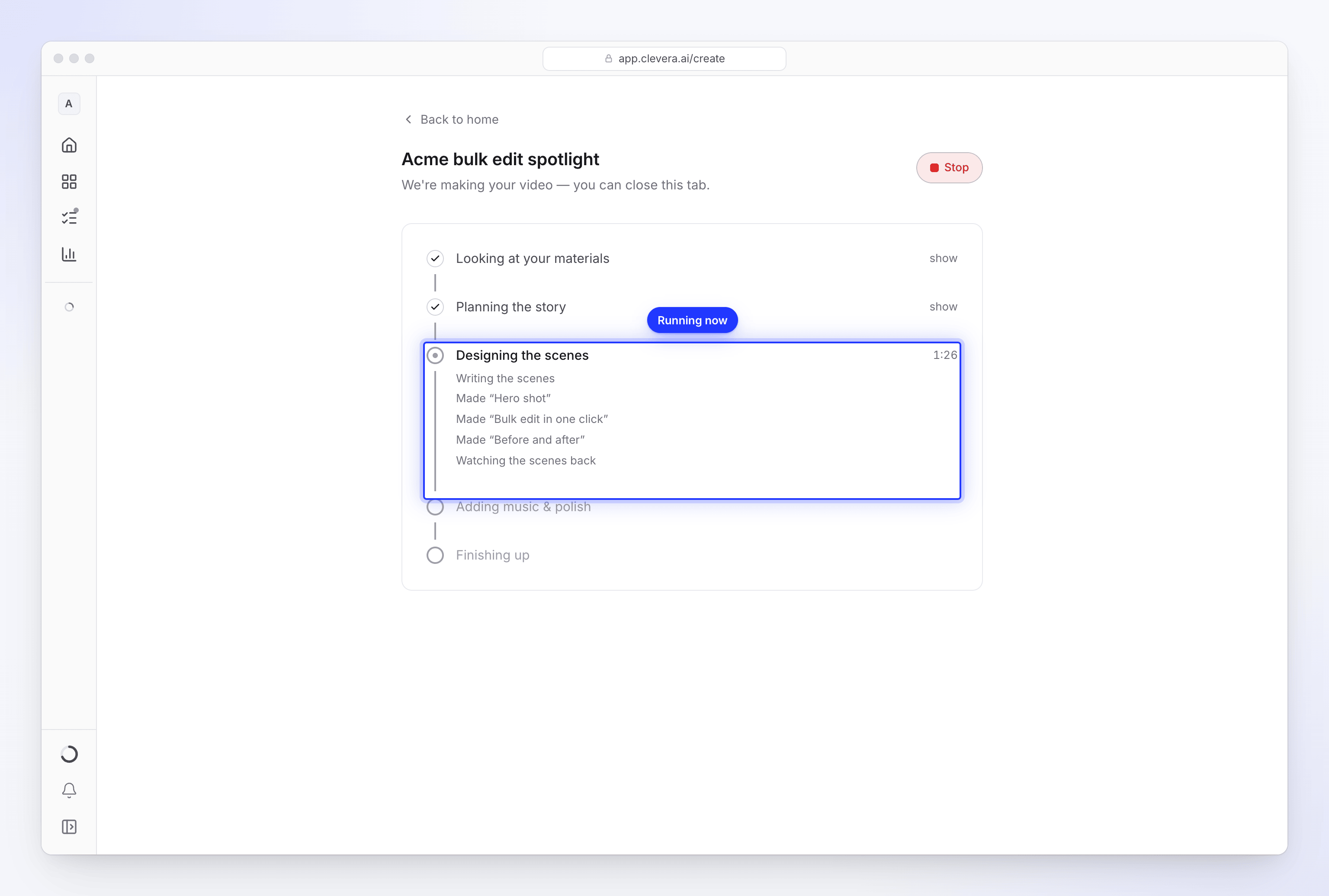
| 影片 | 文章 | |
|---|---|---|
| 1 | Looking at your materials | Looking at your materials |
| 2 | Planning the story | Writing the article |
| 3 | Designing the scenes | Laying out the article |
| 4 | Adding music & polish | Adding the screenshots |
| 5 | Finishing up | Finishing up |
- 正在執行的階段會顯示計時器,標示已進行的時間。由於每部影片所需的工作量不同,因此沒有倒數計時。
- 已完成的階段會收合並顯示勾號。點擊 show 可閱讀該階段的說明,點擊 hide 可再次收合。
- 若某個階段對你的影片而言非必要,該項目會顯示刪除線。
- 如果 90 秒內沒有新進度,執行中的階段會加上「Still working — this part can take a few minutes.」的提示。這對於長錄影和 Extra 努力程度的短片來說是正常的。
來自 AI 的說明
在執行中的階段下方,AI 會寫下關於目前工作的簡短說明,例如「Reading your materials」、「Writing the voice-over」、「Made “Hero shot”」或「Watching the scenes back」。若是來自錄影的影片,你會看到如「Watching your video」、「Writing the narration」和「Recording the voice-over」等說明。你對問題的回答會以深色文字顯示。
注意事項
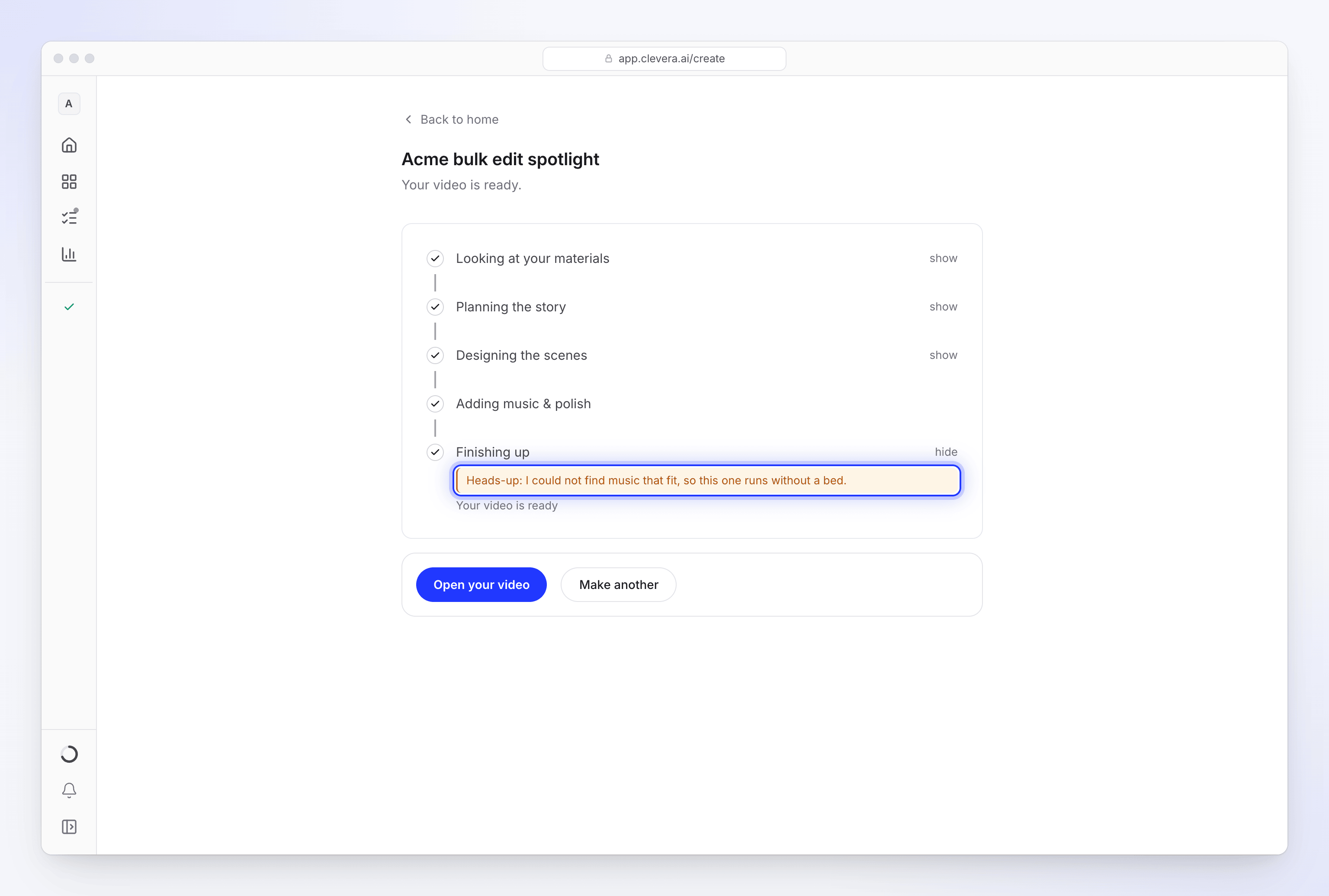
有些說明會出現在以 Heads-up 開頭的琥珀色方框中。影片仍會完成,但過程中有部分未按預期進行,建議你在分享前先檢查一下:
| 注意事項 | 檢查項目 |
|---|---|
| "…the voice did not come out at all, so this one is silent." | 在編輯器中更改語音。 |
| "…I left the avatar out of this one." | 無法加入虛擬人像,例如因為工作區點數不足。 |
| "…the avatar's voice did not work, so this one is narrated by a built-in voice, without the avatar." | 檢查旁白。 |
| "…there was not much on that page, so the video leans on what you wrote." | 檢查影片中的事實資訊。 |
| "…I could not watch your recording closely, so the video uses it as one long take." | 在編輯器中檢查縮放與剪輯。 |
| "…I could not watch the video you attached, so this one was made without seeing it or hearing what is said in it." | 檢查素材的使用方式。 |
| "…I could not find music that fit, so this one runs without a bed." | 在編輯器中加入音樂。 |
| "…I couldn't read example.com, so I worked from what you wrote." | 檢查事實資訊,或重新研究該網站。 |
請參閱 My video came out silent, without music or without the avatar。
即時預覽(社交短片)
對於社交短片,當 AI 導演完成每個場景時,階段上方的預覽卡片會隨之填入內容:「Scenes appear here as each one passes its check. They may still change before the video is ready.」它會顯示「Scenes ready: 3 of 9」,並在結束前標題為「The director is reviewing the cut」,完成後則變為「The finished cut」。
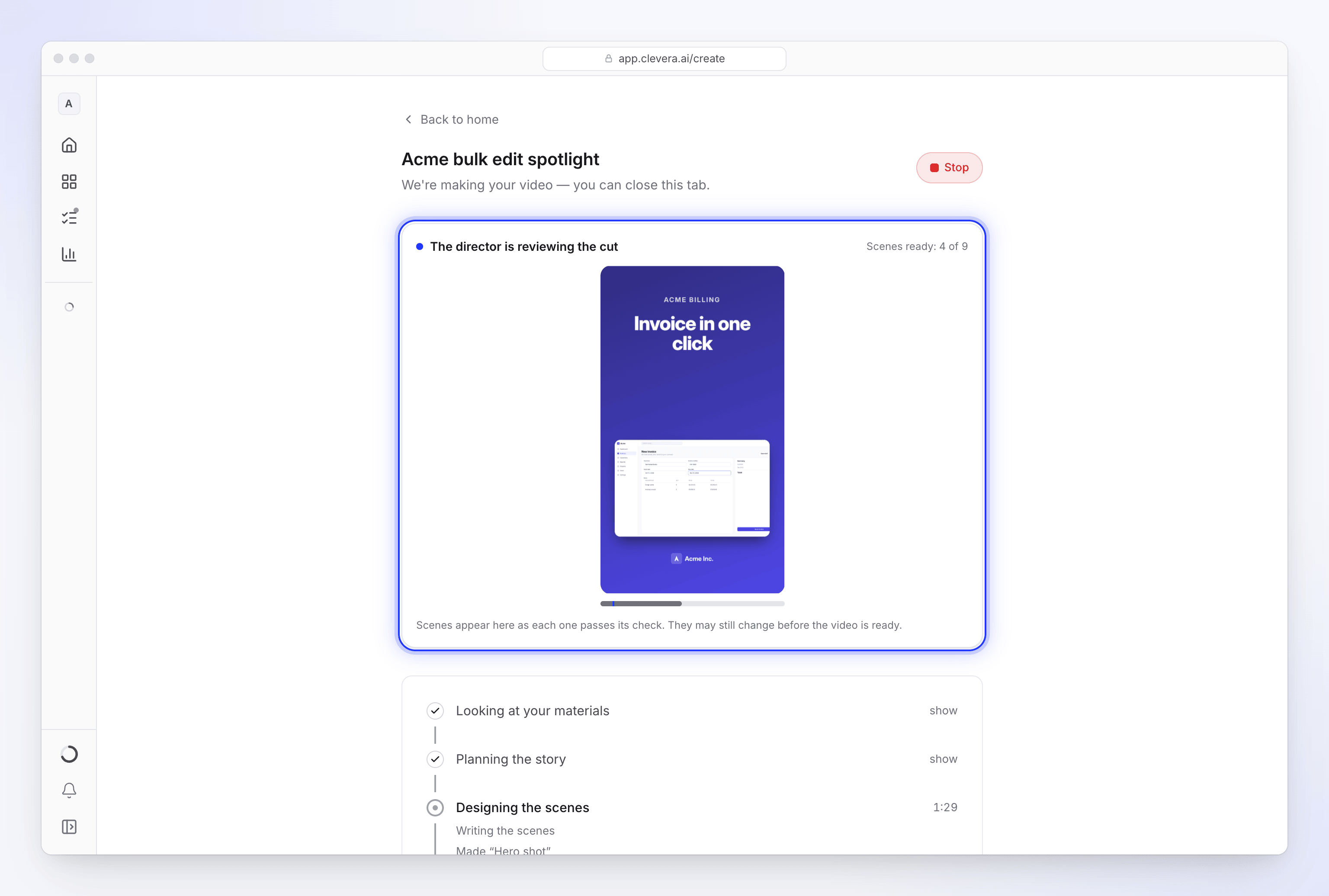
來自錄影的影片和文章沒有即時預覽功能。
離開後再回來
你不必保持頁面開啟。所有處理都在我們的伺服器端進行。
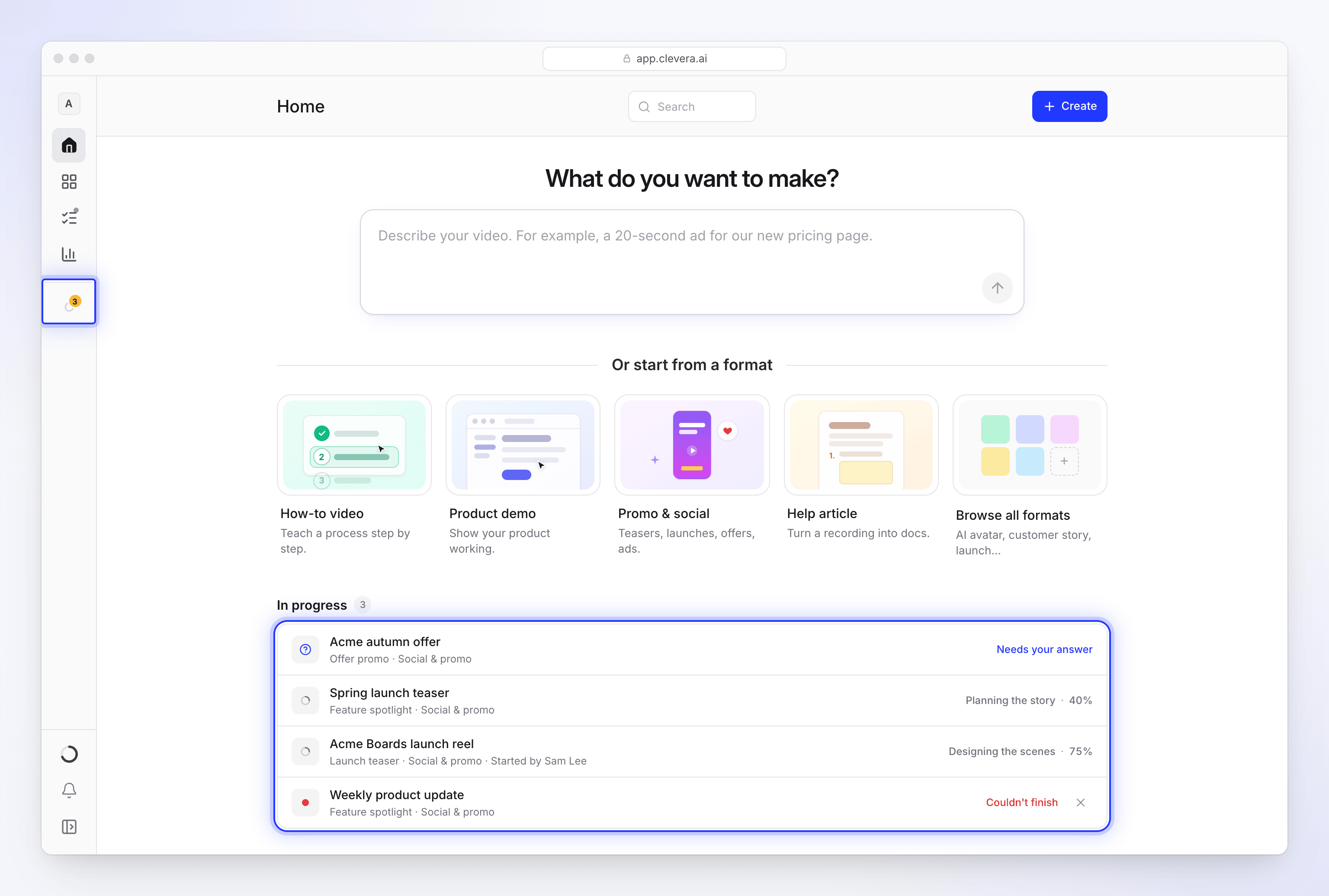
- 側邊欄的 In progress 會在展開時列出你正在製作的影片名稱。點擊其中一個即可重新開啟該頁面。在窄版側邊欄中,它會顯示為一個動畫圖示。
- Content → In progress 會列出所有你可以追蹤的執行項目(包括你和團隊成員的),包含 Whose runs(Everyone’s 或 Mine)、狀態、等待你回覆的問題 (Answer),以及 Cancel run、Try again、Dismiss 或 Discard for everyone。請參閱 Track runs in progress。
- 首頁的 In progress 會列出工作區中所有執行中的影片及其階段與百分比,例如「Planning the story · 40%」。團隊成員的影片會顯示「Started by Alex Rivera」。
- 首頁列表的其他狀態:Queued、Needs your answer、Couldn't finish 和 Ready。「Not responding since…」表示該執行項目已 30 分鐘沒有進度。
Clevera 如何引起你的注意
當問題開啟或影片就緒時:
| 訊號 | 時機 |
|---|---|
| 短促的提示音 | 問題開啟時響一次,就緒時響一次 |
| 分頁圖示上的圓點 | 需要你協助時為琥珀色,就緒時為綠色 |
| 分頁標題變更 | 當分頁在背景時顯示「● Needs you — Clevera」或「✓ Your video is ready」 |
| 瀏覽器通知 | 僅限你已在瀏覽器中允許 Clevera 發送通知時 |
| 收件匣通知 | 一律顯示:":title is ready"、":title couldn't be made" 或 ":title needs your answer" |
| 電子郵件 | 若就緒或失敗通知在 10 分鐘後仍未讀取 |
在手機上,當頁面開啟時螢幕會保持喚醒。此頁面沒有靜音提示音的設定。你可以在通知設定中選擇要接收的通知(Video ready、Video couldn't be made);Questions for you 則一律會顯示,至少會以靜音方式呈現。
所需時間
大多數影片需要幾分鐘。Extra 努力程度的社交短片、長影片和長錄影則需要更久。若執行項目 2 小時完全沒有進度,將會被停止並標記為失敗。
完成時
點擊 Open your video(或 Open your article)前往編輯器,或點擊 Make another 開始製作新內容。如果就緒通知列出了需要檢查的事項,請先查看這些內容。