

使用 Google Workspace 設定 SSO
為 Clevera 單一登入進行 Google Workspace 分步設定:包含用於 OpenID Connect 的內部 OAuth 用戶端,或在 Google 管理控制台中的自訂 SAML 應用程式,以及各項數值應填入的 Clevera 欄位。
設定 Google Workspace 與 Clevera 之間的單一登入,讓你的團隊能使用 Google 工作帳戶登入。你可以透過 Google Cloud OAuth 用戶端連接 OpenID Connect (OIDC),或透過 Google 管理控制台中的自訂 SAML 應用程式連接 SAML 2.0。
Google 的控制台會不定期更新。如果下方的標籤不符,請尋找意義相同的設定,並使用通用指南獲取完整數值列表:SAML、OIDC。
開始之前
- 你是 Custom plan 下 Clevera 工作區的 擁有者。
- 若使用 OIDC:你可以在屬於 Google Workspace 組織的 Google Cloud 專案中建立 OAuth 用戶端。
- 若使用 SAML:你是 Google Workspace 的超級管理員。
- 你了解你的 Google Workspace 網域(例如
acme.example),包含次要網域。
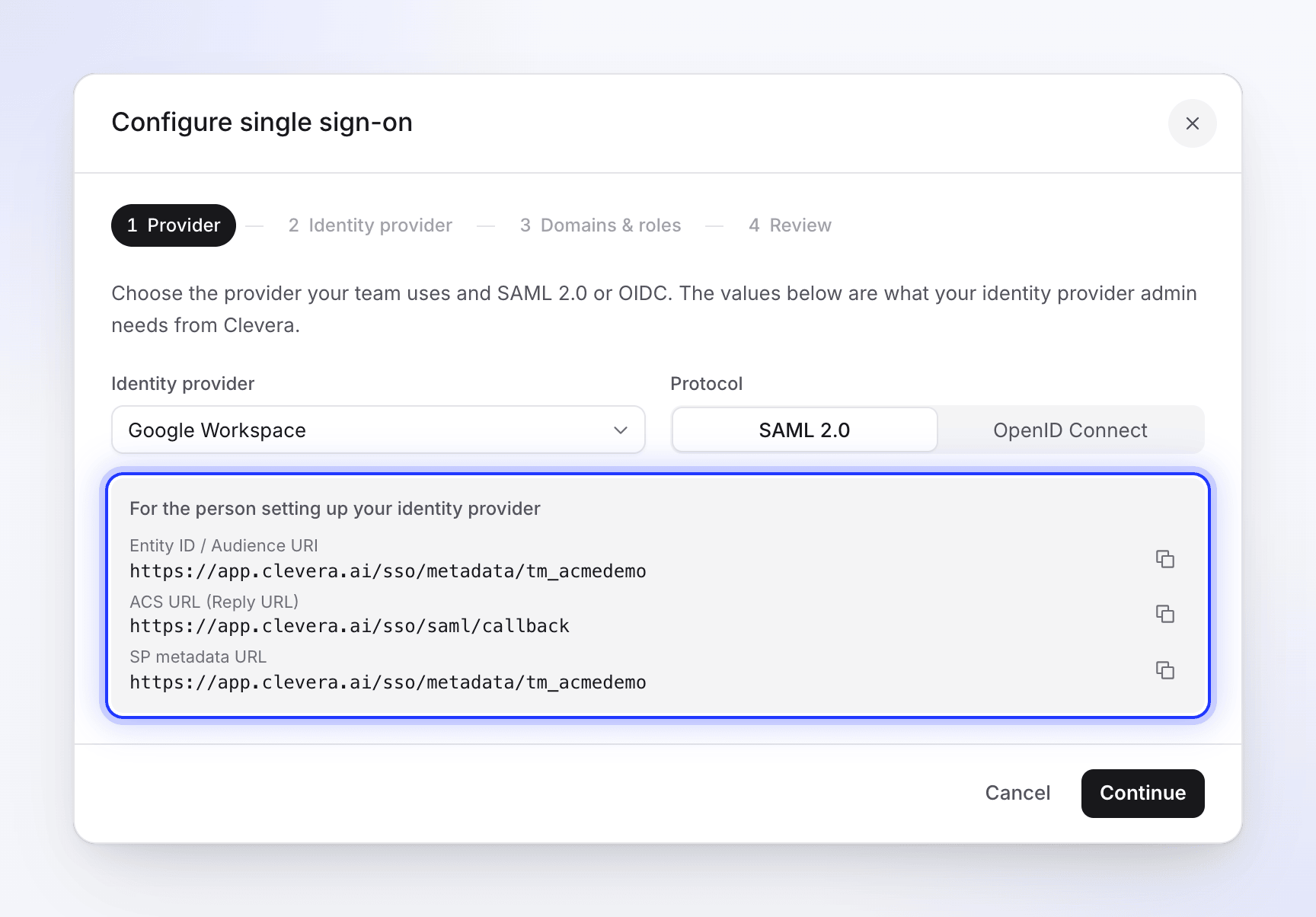
首先開啟 Clevera 設定對話框:開啟側邊欄頂端的工作區選單,選擇 Team settings,接著點選 Security,然後點擊 Set up SSO。選擇 Google Workspace 作為 Identity provider。
使用 OpenID Connect 連接
將應用程式設為內部使用
在 Google Cloud 控制台中,選擇你組織中的專案並開啟 Google Auth Platform(在舊版控制台中為 APIs & Services → OAuth consent screen)。將 Audience(使用者類型)設為 Internal,這樣只有你 Google Workspace 中的帳戶才能登入。填寫應用程式名稱 (
Clevera) 與支援電子郵件。建立 OAuth 用戶端
在 Clevera 的設定對話框中,將 Protocol 設為 OpenID Connect 並從灰色方塊中複製 Redirect URI (callback URL)。接著,在 Google 中開啟 Clients(或 APIs & Services → Credentials)並建立一個 OAuth client ID:
Google 欄位 數值 Application type Web application Name CleveraAuthorized redirect URIs Redirect URI (callback URL): https://app.clevera.ai/sso/oidc/callback點擊 Create 並複製 Client ID 與 Client secret。
填入 Clevera
在 Clevera 中,點擊 Continue 並輸入:
Clevera 欄位 數值 Client ID Google 的 Client ID Client secret Google 的 Client secret Discovery URL https://accounts.google.com/.well-known/openid-configuration
Google 會傳送 Clevera 所需 openid email profile 範圍的 email 與 name 宣告,因此無需進行其他對應。
使用 SAML 2.0 連接
新增自訂 SAML 應用程式
在 Google 管理控制台中,前往 Apps → Web and mobile apps,點擊 Add app 並選擇 Add custom SAML app。將其命名為
Clevera並點擊 Continue。將 Google 的數值複製到 Clevera
在 Google Identity Provider details 上,將數值複製到 Clevera(請先將 Protocol 設為 SAML 2.0 並點擊 Continue):
Google 數值 Clevera 欄位 Entity ID IdP Entity ID SSO URL SSO sign-in URL Certificate X.509 certificate 在 Google 中點擊 Continue。
輸入 Clevera 的數值
在 Service provider details 上:
Google 欄位 數值 ACS URL https://app.clevera.ai/sso/saml/callbackEntity ID Clevera 對話框中的 Entity ID / Audience URI Start URL 留空 Signed response 勾選 Name ID format EMAIL Name ID Basic Information → Primary email 點擊 Continue。
對應名稱
在 Attribute mapping 上,將 First name 對應至
firstName,並將 Last name 對應至lastName。點擊 Finish。開啟應用程式
開啟應用程式的 User access,選擇 ON for everyone(或選擇應使用 Clevera 的組織單位或群組),然後點擊 Save。Google 表示這可能需要一些時間才會生效。
在 Clevera 完成設定
- 在 Domains & roles 上,新增成員使用的所有 Google Workspace 網域。選擇 Create accounts on first sign-in 以及 Default role for new SSO members。
- 在 Review 上,點擊 Save configuration。
- 點擊 Run test,開啟 Enable SSO,並在私密視窗中從 Clevera 登入頁面開始,以測試使用者身分登入。
- 當一切運作正常後,若希望 SSO 成為唯一登入方式,請開啟 Require SSO。這也會為這些成員關閉 Continue with Google。
成員在 Clevera 登入頁面輸入工作電子郵件,並點擊 Continue with Google Workspace。
疑難排解
| 問題 | 檢查項目 |
|---|---|
| Google 顯示「Error 400: redirect_uri_mismatch」 | Authorized redirect URIs 必須與 Clevera 的 Redirect URI (callback URL) 完全一致,即 https://app.clevera.ai/sso/oidc/callback。 |
| Google 稱應用程式僅限組織內使用者 | 使用者登入的帳戶非來自你的 Workspace。 |
| Google 登入後出現「SSO authentication failed…」(使用 SAML) | Signed response 已勾選;Clevera 中的憑證與應用程式目前的憑證相符;Entity ID 與 Clevera 完全一致。若仍失敗,請改用 OIDC 連接。 |
| 從 Google 應用程式選單開啟 Clevera 後出現「SSO session expired. Please try again.」 | 預期行為:登入必須從 Clevera 登入頁面開始。 |
| Google 稱應用程式未針對該使用者設定 (SAML) | 在 User access 中為其組織單位或群組開啟應用程式。 |
| 「Your email domain is not authorized for this team's SSO.」 | 將其網域(包含次要網域)新增至 Allowed email domains。 |
更多訊息:修正 SSO 登入問題。