

このページはまだ翻訳されていないため、英語で表示されています。
Let the AI record your product with Record with AI
Record with AI opens your site or app in a cloud browser and records the steps you describe, while you watch live. Learn how to start a recording, what each option does, what the live page shows, how long it takes and what to do when it doesn't finish.
Record with AI films your product for you. You describe the steps, and the AI opens your site or app in a browser in Clevera's cloud, works through them in one recorded pass and hands you a screen recording for your video. You can watch it live, send it notes, and take the browser over whenever you need to.
Use it when you don't have time to record yourself, don't have the desktop app to hand, or want a clean, steady walkthrough of a web app.
Before you start
- You need a web address the AI can open: a public
https://page. Desktop apps and pages on your own computer or company network can't be recorded this way. Use the desktop app for those. - If the steps happen behind a sign-in, decide how the AI gets in. See Sign in or take over during Record with AI.
- Use a demo or test account where you can. Everything on screen ends up in the recording.
- A role that can create. Editors can't start Record with AI: the option is turned off with "Your role can edit existing content but cannot create new content."
- Only the person who started a recording, the workspace owner and admins can open its live page, send notes, take over or stop it.
- Record with AI uses credits for how long the AI works. See what it costs.
Start a recording
Open Record with AI
On the Compose page of any video type, click + Add in the brief box and choose Record with AI in the With AI group. Its tip reads "Let AI record your site or app in the cloud."
The Record automatically with AI dialog opens: "AI opens your site in a cloud browser and records the steps you describe."
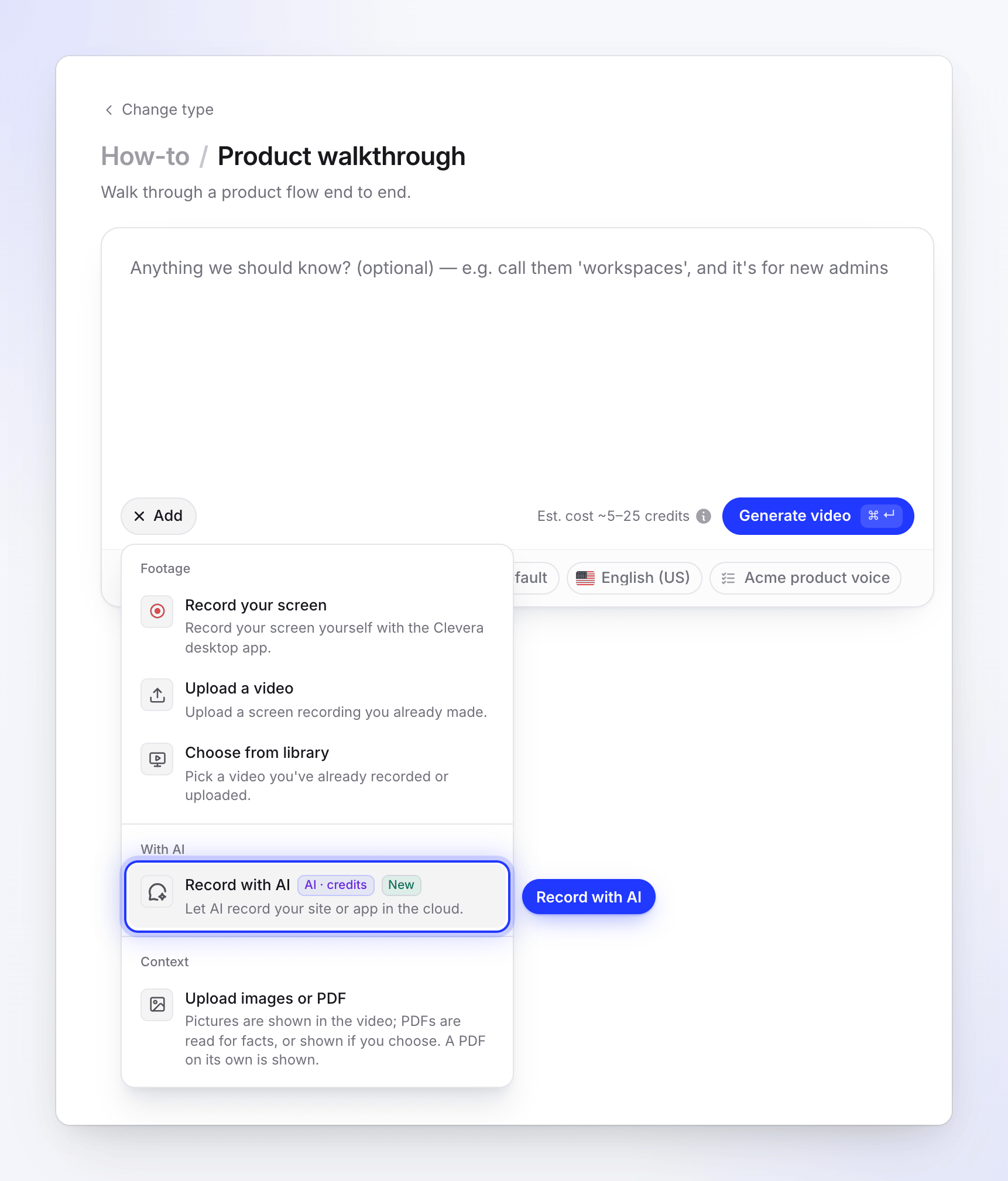
Record with AI is in the With AI group on every video type. Describe what to show
In What should AI show?, write the steps in order, as you would to a colleague. For example: "Open Projects, create a project called Q3 Launch, then invite [email protected] as an editor." You have up to 2,000 characters.
The AI does only these steps, in this order, and then stops. It doesn't explore other pages or menus on its own.
Add the start page
In Start page, enter the first page the AI should open, for example
https://app.acme.io/projects. "Public https:// pages only." Starting on the right page saves time and credits.Choose how the AI signs in
Under Sign-in, pick one:
Option What happens None "The page opens without signing in." For public pages. Use a login "AI signs in with an account you give it." Enter Email or username and Password, and tick "I'm allowed to give Clevera access to this account." I'll type it myself "AI stops at the sign-in; open Watch and sign in there." The browser is handed to you at the sign-in page. If your workspace has a saved sign-in for this site, the dialog says "Using your saved sign-in for app.acme.io." and the AI starts signed in. Details in Sign in or take over during Record with AI.
Whenever the recording signs in, Don't include signing in in the video appears, ticked: "The video starts once you're signed in." Untick it if you want the sign-in to be part of the video.
Decide whether the AI may change things
Allow changes ("Let AI create or edit things in your app") is off by default. Turn it on when your steps create or edit something, such as a project, a record or a setting.
While it's off, the AI only looks around: it may open, view, scroll, search, filter, sort, switch tabs and sign in, but it doesn't create, edit, delete, send, publish, invite, buy, pay or change a setting, and it doesn't confirm a dialog that would. If one of your steps needs a change, the AI shows where it's done, for example by opening the form or menu, then stops before saving or submitting and goes on with your next step.
When your steps change something and Allow changes is off, the live page says so as soon as the recording starts: "Some steps change things and Allow changes is off. AI will pause there and ask you." If the AI hands you the browser at that step, click Allow changes and continue to let it make the change.
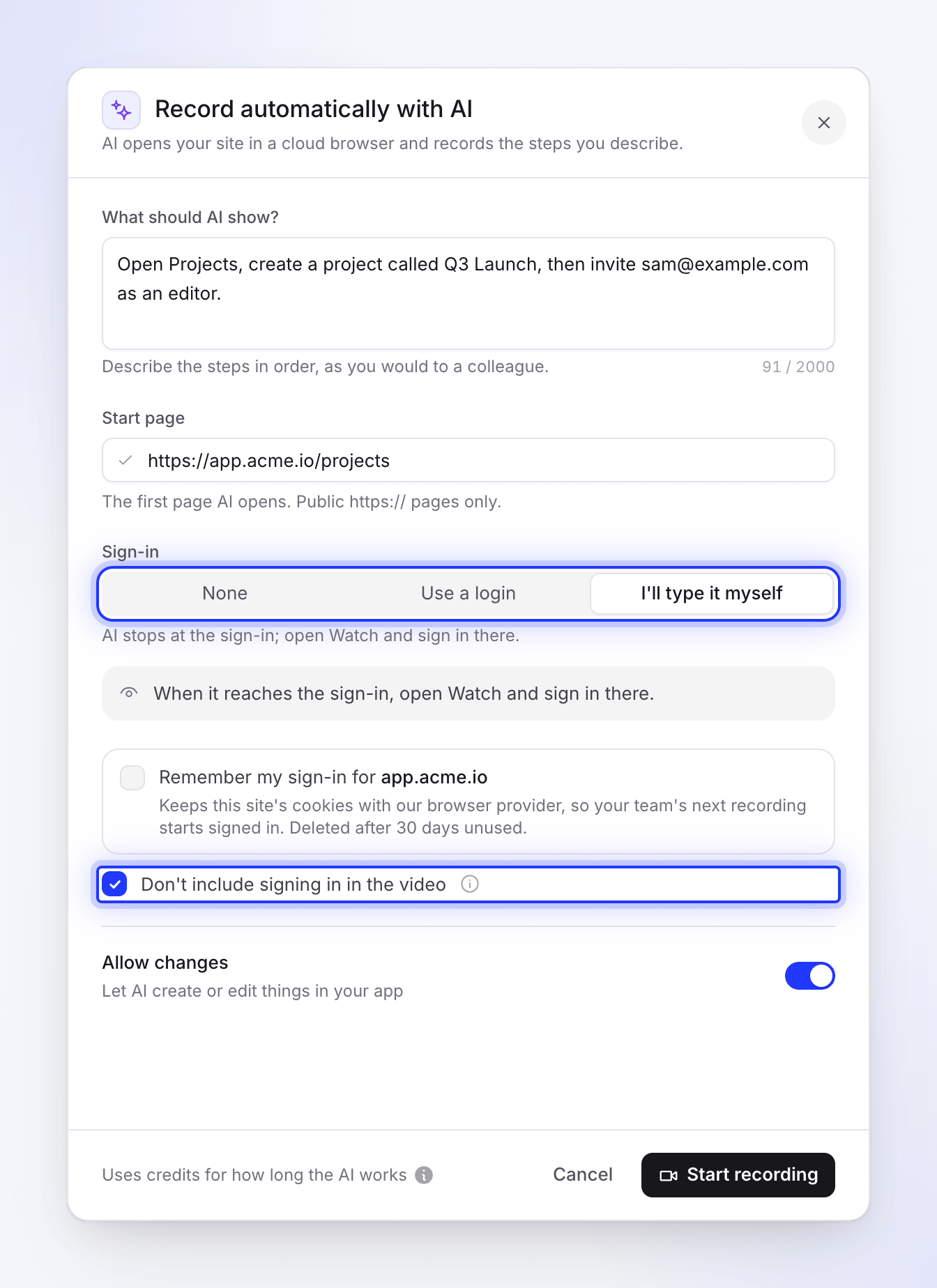
Describe the steps, set the start page, choose how the AI signs in and whether signing in is in the video. Start recording
Click Start recording. A tile appears under your brief with the status Recording… and a Watch button.
How the recording is made
The AI works through your steps once, in one browser, and that pass is your recording. Before it starts, it turns your steps into a short plan: a goal and numbered steps, which you can open on the live page. Clevera then shapes the film so it plays like a confident demo:
- It starts at your first step. Opening the browser and waiting for the site are left out, and so is signing in while Don't include signing in in the video is ticked.
- The AI's thinking time is cut out. While the AI reads a page or decides what to do next, the screen stands still. Clevera removes those still stretches and keeps a short moment before each action and a readable pause after it, so you see every click, scroll and result. The film opens on your first screen and ends shortly after the last result appears, without a long hold on it.
- The AI acts directly. It goes straight to a page whose address it knows, scrolls through a page when a step asks to show it, and waits a moment after each change so the result is on screen.
- Typing shows on screen. The AI types into fields letter by letter, so viewers can follow what goes into each one, and a filled form stays on screen for a moment before it's sent.
- Pop-ups and ads are cleared away. The AI closes cookie and consent banners, sign-up pop-ups, chat bubbles and covering ads as soon as they appear, always with the most private choice (such as rejecting tracking). It never clicks an ad. An ad or consent screen that covers the page and that the AI didn't open is cut out of the film.
- It fixes its own slips. If a click missed or a form wasn't sent, it tries again another way, and the activity says "That step did not go through. Trying it again."
- A stuck step is skipped. Each step gets twice its even share of the working time, between 1.5 and 4 minutes. If the AI is still on a step after that and hasn't made progress in the last 45 seconds, Clevera moves it on to your next step in the same browser. A step that's still moving gets until 45 seconds after its latest action, and never more than one and a half times its time. The activity then says, for example, "Step 3 of 5 took too long and was skipped." If that happens on the last step, the recording ends there: "Step 5 of 5 took too long, so the recording ends there." What was filmed up to then is kept.
Because the still stretches are cut, the recording jumps a little where the AI paused. Your video is shorter than the time the AI spent working.
Watch it live
Click Watch on the recording's tile to open the live page. The browser fills the left side. The panel on the right is headed with the AI's goal (or "Recording app.acme.io" before it has one); hover the ⓘ beside it to see "What you asked for".
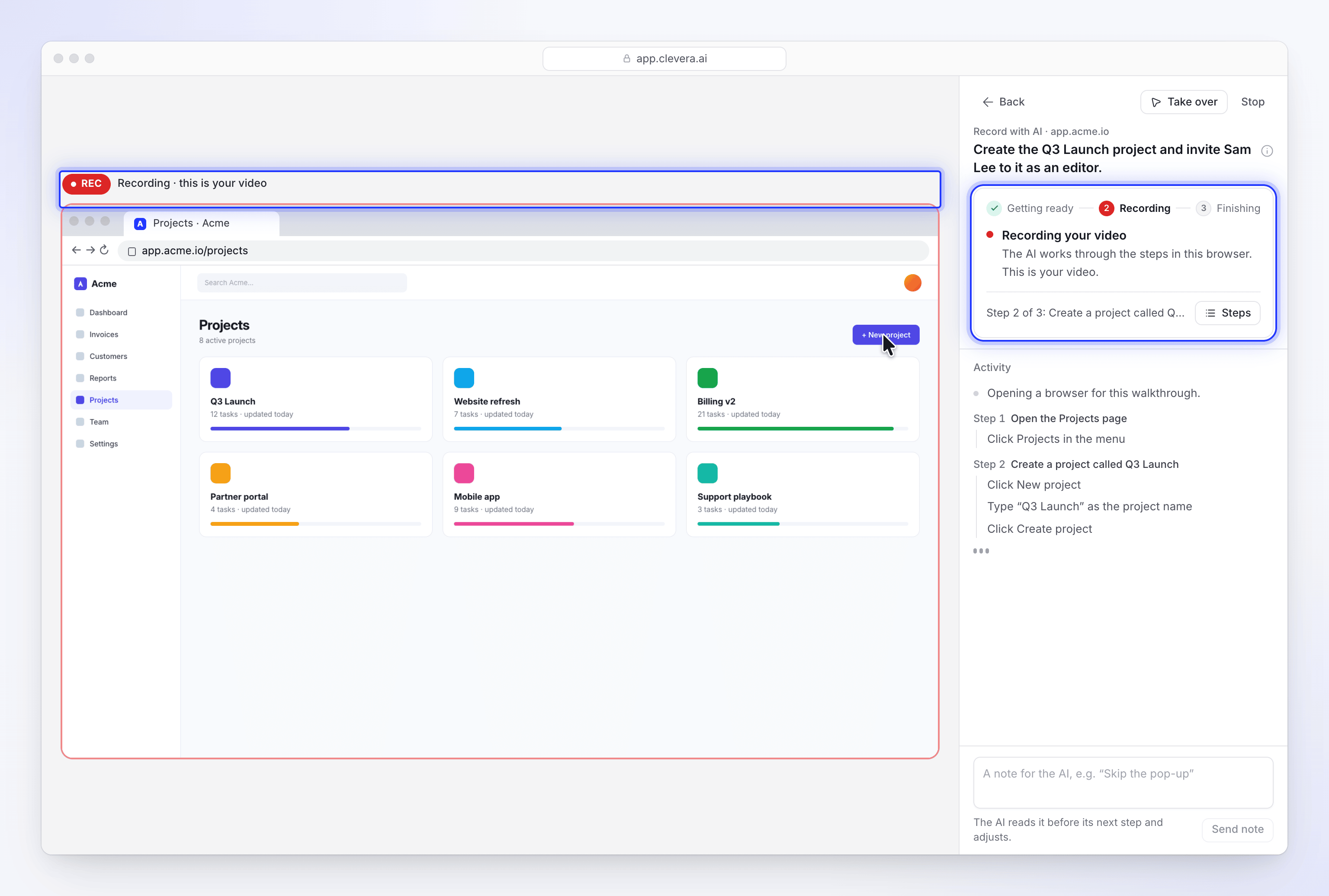
Above the browser, one line says whether what you see is being filmed:
| You see | What it means |
|---|---|
| Getting ready | The browser is opening. Nothing is in your video yet. |
| Signing in · Not in your video | The AI (or you) is signing in, and Don't include signing in in the video is ticked. Your video starts after this. |
| REC · Recording · this is your video | Everything in the browser now is filmed. |
| You have the browser · Still recording | You took over. What you do is part of your video. |
| You have the browser · Not in your video | You're signing in, and the sign-in is left out. |
On the right, a card shows the stage, Getting ready → Recording → Finishing, with one headline and one line of why:
| Headline | What it means |
|---|---|
| Getting the browser ready | "Recording starts as soon as the site is open." |
| Signing in | "You asked to leave signing in out, so your video starts after this." |
| Recording your video | The AI is working through your steps in this browser. |
| The AI needs you | It stopped at something only you can do, such as a code, and says what in its own words. See take over. |
| You have the browser | You took over. The AI waits until you hand it back. |
| Finishing your recording | "Putting it together. This takes a minute or two." |
| Your recording is ready | "Watch it on the left, then go back to make your video." The recording plays in place of the live browser. |
| Recovering your recording / Recording recovered | The session was interrupted, and Clevera is fetching what was filmed. See If the session is interrupted. |
| This session didn't finish | No recording was made. The reason is shown. |
| You stopped this session / This session expired | "Nothing more was recorded." |
Under the headline, a line shows the step the AI is on, such as "Step 2 of 3: Create a project called Q3 Launch". Click Steps to open The AI's plan: the goal, your steps numbered with a check for each one done and "Doing this now" on the current one, and what the AI Keeps in mind. The plan is made from your request.
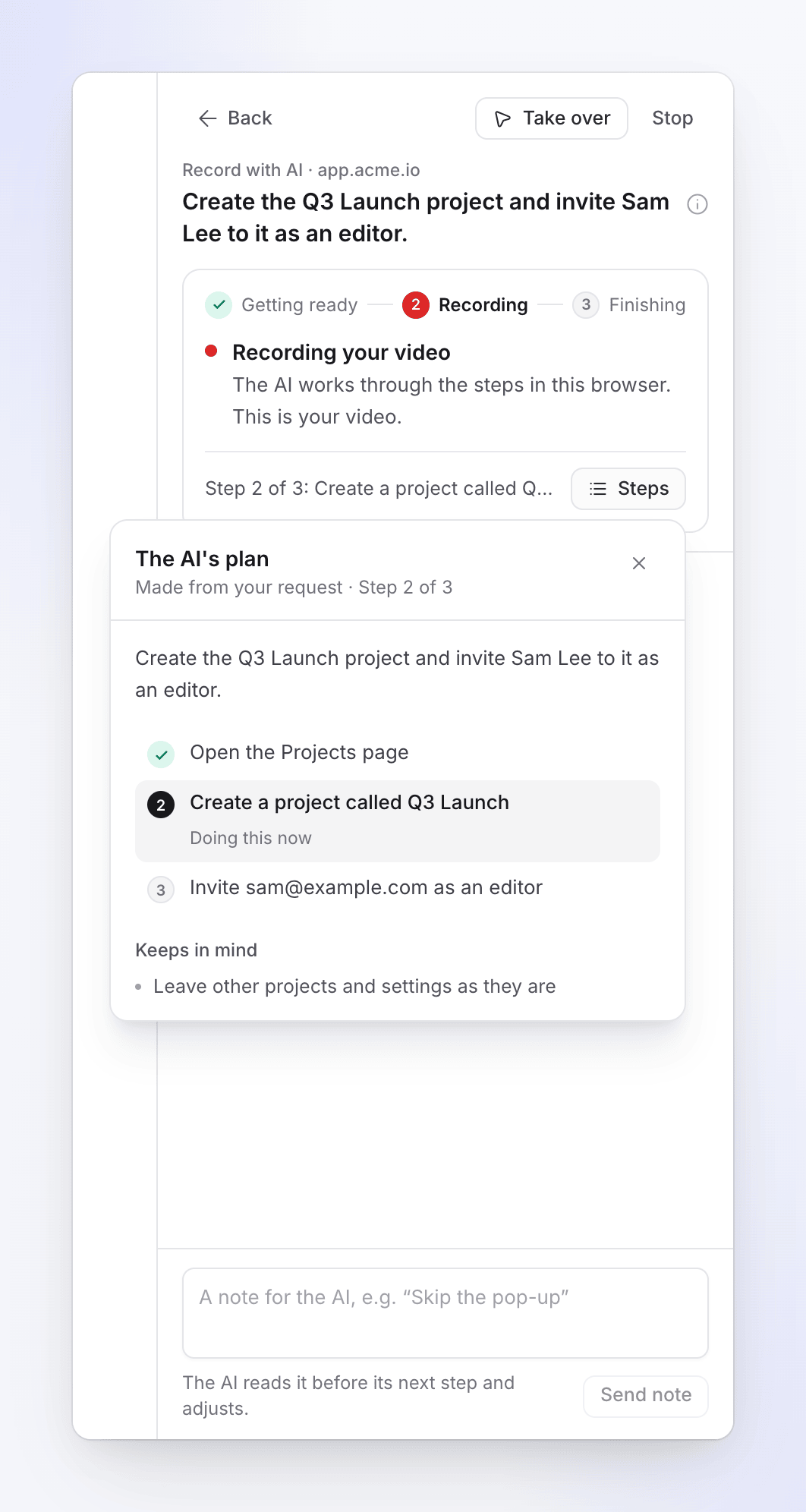
Below the card, Activity lists what the AI did, grouped under the step it served. Long steps fold their earlier lines behind Show n earlier. If you scroll up, a New activity button takes you back down when something new arrives.
You don't have to watch. Click Back, keep working on your brief, or go elsewhere in Clevera: "The AI keeps going. You can come back to this page." While the recording runs, a Your AI recording button stays in the corner of other pages. If the AI needs you, it chimes, a dot appears on the tab and the button says "We need one quick answer".
Send the AI a note
While the AI works, type a note in the box at the bottom right, for example "Try the Reports tab next", and click Send note (or press Enter). "The AI reads it before its next step and adjusts." Notes are up to 280 characters each, and they win over your original steps.
Take over or stop
- Take over gives you the browser, to type something private, fix a wrong turn or set up the page: "Use the browser yourself. The AI waits until you hand it back." Click Hand back to the AI when you're finished. See Sign in or take over during Record with AI.
- Stop ends the recording. Click Stop, then Stop session at "Stop this session?" ("The AI stops and the session ends. You can't pick it up again."), or Keep going to carry on. There's no pause button: to make the AI wait, take over. A recording you stop is charged for the time the AI worked before you stopped it.
When the recording is ready, click Back to Compose to return to your brief.
What you get
When the recording is ready, its tile in Compose says Ready, and your video uses it like any screen recording:
- How-to, product demo, polish and article videos use it as the recording the video is made from.
- Social clips use it as product footage, alongside your pictures and links. It counts as one of the 3 videos a clip takes.
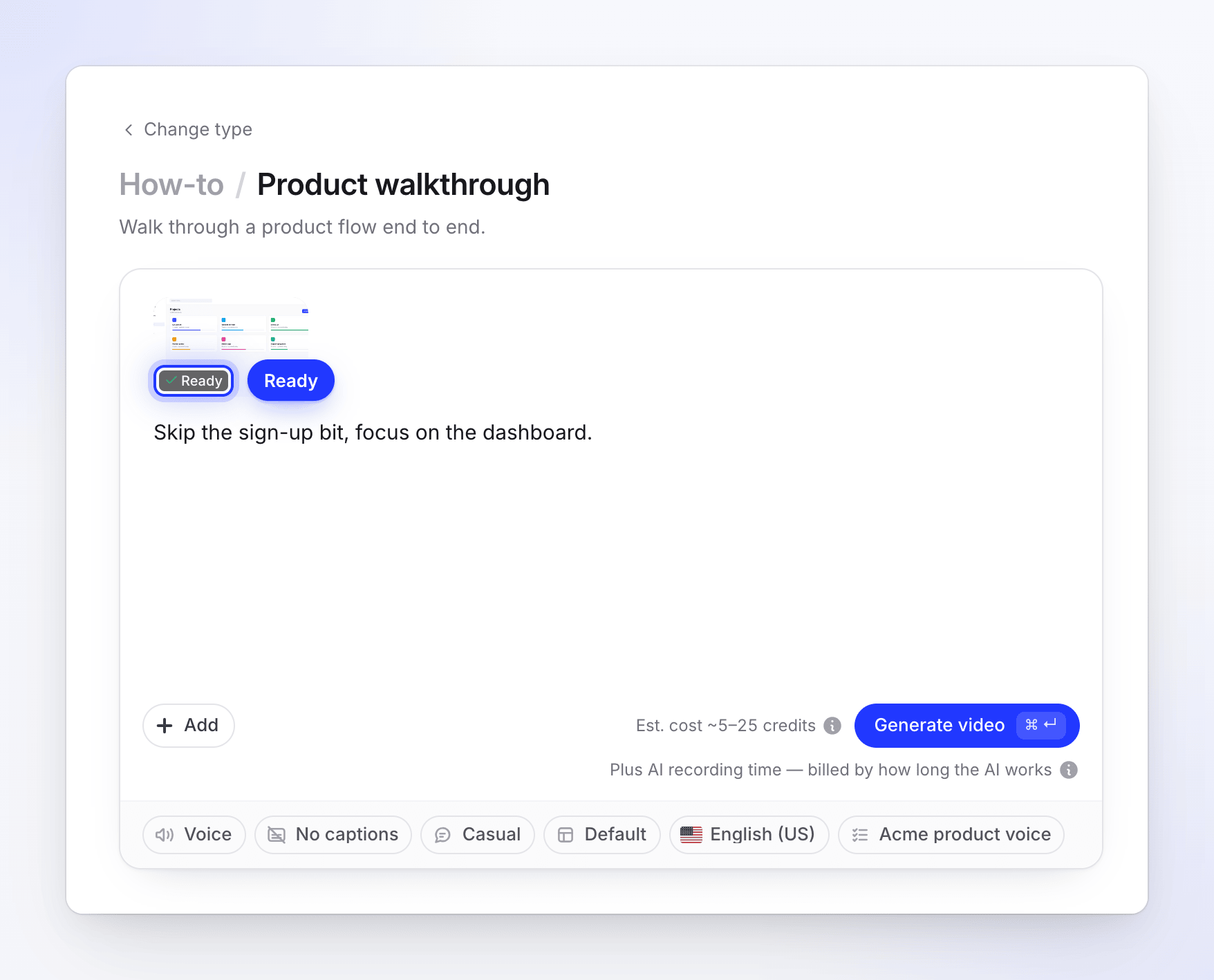
The recording is named with a short title the AI writes from your steps, 3–8 words in the language you wrote them in, rather than the steps themselves. You see it on the tile and in your recordings.
The cursor is redrawn smoothly from the AI's real clicks, so zooms and click effects work as they do on a recording you make yourself. What you do while you have the browser stays in the recording too, except signing in while Don't include signing in in the video is ticked.
The recording is also saved with your workspace's recordings, so you can use it again.
Using it from the setup chat
The setup chat can suggest recording your product. It shows a card with Start page, What it should show, Sign-in (No sign-in or I'll sign in myself) and an It may create or edit things box, then Start recording. The box works like Allow changes: it's unticked by default, and the AI then stays read-only. With I'll sign in myself, the card also has Don't include signing in in the video, ticked by default. The live browser opens above the chat, with Take over and Stop (confirm with Yes). "At the sign-in page the browser becomes yours. Sign in there, never in the chat." To give the AI a login instead, use Record with AI from Compose.
Limits
| Limit | Value |
|---|---|
| Recordings running at once | 1 per workspace |
| Steps description | 2,000 characters |
| AI working time | About 6 minutes per recording, more for a long list of steps (up to 15 minutes) |
| Time on one step | Twice its even share of the working time, between 1.5 and 4 minutes. After that, the AI moves on to your next step once it has made no progress for 45 seconds, and at the latest at one and a half times that time. |
| Time with you holding the browser | Up to 15 minutes in all, on top of the AI's time |
| Hand-overs per recording | Up to 6 |
| Notes | Up to 20 per recording, 280 characters each |
| Start page | Public https:// pages only |
Time you spend holding the browser doesn't use up the AI's working time. After you hand it back, the AI always gets at least two more minutes.
When it doesn't finish
On Compose, a recording that didn't finish shows Didn't finish with the reason, and Generate says "The recording of app.acme.io didn't finish." Click Try again to reopen the form with your steps filled in, Remove to take it off, or See what happened to open the live page.
If a recording fails on our side and can't be recovered, every credit it used goes back to the kind of credits it came from, and the Usage page shows a "Failed run refunded · AI screen recording" line. A recording you stopped stays charged for the time the AI worked.
| Message | What to do |
|---|---|
| "Could not sign in with the details you gave." | Check the email and password, or choose I'll type it myself. |
| "Still on the sign-in page. Open the live view, sign in, then try again." | Start again with I'll type it myself, and sign in when the browser is handed to you. |
| "This page needs a sign-in. Choose Use a login or I'll type it myself, then try again." | The start page needs a sign-in. Choose Use a login or I'll type it myself and start again. |
| "Sign-in details were not available. Try again and enter the login under Use a login." | The recording waited too long to start, and your login was cleared for safety. Enter it again with Use a login. |
| "Nobody took the browser over in time, so this recording stopped there." | The AI asked for help and nobody took over within 15 minutes. Start again and watch for the chime. |
| "Walkthrough did not produce a recording." or "The AI could not record anything this time." | Nothing was filmed. Check the start page and make the steps clearer, then try again. |
| "The recording was stopped before it finished." | Someone clicked Stop. |
| "The recording expired before it finished." | It waited too long to start. Try again. |
| "The recording worker is not available right now. Try again later." or "The recording service is not set up right now. Try again later." | A problem on our side. Try again in a few minutes. |
| "We could not prepare the recording." | The recording was filmed but couldn't be processed. Try again, or contact support. |
| "We could not find this recording any more. Record it again." | The recording is no longer available. Click Try again. |
A recording where a step was skipped still finishes and is Ready. Watch it before you generate: if a skipped step matters, record that step on its own with clearer instructions, or take over and do it yourself next time.
Messages when you start
| Message | What to do |
|---|---|
| "Tell AI what to show." | Fill in What should AI show?. |
| "Add the page we should open first." | Fill in Start page. |
| "Enter a full web address, like https://app.acme.io." or "Enter a public web address, like https://app.acme.io." | Type the full address of a public page. |
| "Use an https:// address." | Use the https:// version of the address. |
| "We can only open public internet pages over https." | The address is private (an intranet, a local address). Record it with the desktop app instead. |
| "Enter the sign-in for this account." | Fill in Email or username and Password, or pick another sign-in option. |
| "Confirm you're allowed to share this sign-in." | Tick the consent box. |
| "A recording is already running for your team. Wait for it to finish, or stop it, then try again." | One recording at a time per workspace. |
| "Another recording is being started for your team. Try again in a moment." | Someone on your team just started one. |
| "All our browsers are busy right now. Try again in a few minutes." | Try again shortly. |
| "Recording with AI is switched off right now. Try again later." | Paused for maintenance. Try again later. |
| "We couldn't start that. Give it another go." | Try again. |
| "We can't open this site." with "Clevera doesn't support sites with adult content.", "…gambling sites.", "…parked or for-sale domains.", "This address is on a public list of phishing sites." or "It doesn't meet our acceptable use rules." | Clevera checks every start address before a run and won't record these sites. If you think this is a mistake, contact support. |
| "This page needs a login (it returned "401 Unauthorized"), so we can't open it. Check the address, or use a page that's public." | Start from the sign-in page or another public page, and let the AI sign in. |
| "This page returned "404 Not Found", so the link may be wrong or the page may not be public…" | Check the address. Pages that answer "not found" or "gone" can't be used. |
| "We couldn't reach this address. Check that it's typed correctly and that the site is online, then try again." | Check the address and that the site is up. A slow site isn't refused, only one that doesn't answer. |
| "YouTube links can't be used. If the video is yours, upload the file instead." | YouTube pages can't be recorded. Upload your own video file instead. |
| "Only the person who started this session, or a workspace owner or admin, can open or control it." | Ask the person who started it, or a workspace owner or admin. |
If the session is interrupted
Sometimes a recording is cut short by a problem on our side, for example when the cloud browser or the server running the recording stops partway through. The cloud browser films everything it shows, so Clevera can usually still get that footage back.
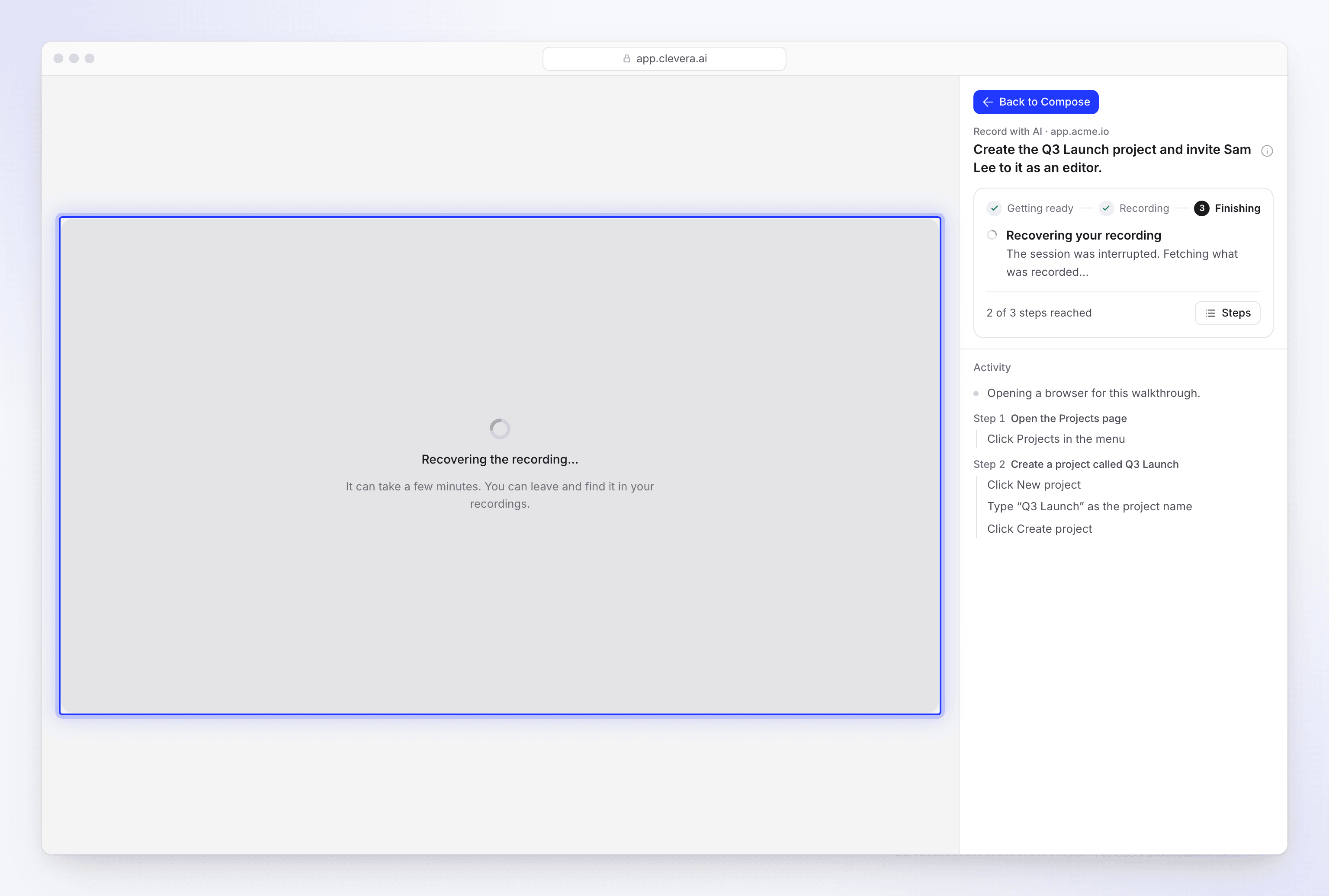
| Where | What you see |
|---|---|
| Live page | Recovering your recording ("The session was interrupted. Fetching what was recorded…") and, over the browser, "Recovering the recording…": "It can take a few minutes. You can leave and find it in your recordings." |
| Compose | The tile says Recovering…. Generate waits for it: "Still recovering the recording of app.acme.io… you can generate when it's done." |
| When it's back | The card says Recording recovered, the tile says Ready, and the recording plays on the live page. |
A recovered recording works like any other and is cut the same way: it starts at your first step, leaves out a sign-in you asked to leave out, and drops the AI's thinking time. It holds only what was filmed before the interruption. The AI doesn't go on with steps it hadn't reached, so watch it before you generate. If the last steps are missing, start a new recording with your steps, or with only the missing ones. Either way, the recovered recording stays in your library. If you had taken the browser and never handed it back, that stretch is cut out.
A recovered recording is billed like a finished one, because you get its footage. While Clevera is still trying to recover it, the credits stay charged; if it can't get the footage back, the run counts as failed on our side and its credits are returned.
Only interruptions on our side are recovered. A recording you stopped, one that never got past the sign-in, or one where the AI filmed nothing ends with Didn't finish as usual. If Clevera can't get the footage back, the live page says "No recording to watch" ("This session did not leave a video. You can still go back.") and the tile shows Didn't finish. Click Try again to record it again with your steps filled in.
Use a recording again
Every finished Record with AI recording, including a recovered one, is saved with your workspace's recordings. To make another video from it, you don't need the AI to film the same steps again:
- On the Compose page, click + Add and choose Choose from library ("Pick a video you've already recorded or uploaded.").
- Set the source filter to AI browser ("Recorded for you by AI"), or search for the recording by name.
- Click the recording to preview it, then click Use this file.
Picking an earlier recording starts no new session in the cloud browser, so it adds no AI recording time. Making the video costs the same as from any recording. Anyone in your workspace can pick it. In Content → Recordings, it's marked Recorded for you in an AI browser. See Find and reuse your recordings.