

Cette page n'est pas encore traduite, elle est donc affichée en anglais.
Set up the doc site assistant
Turn on the AI assistant on your doc site, set its name, tone and fallback, manage starter questions, and see how many answers your plan includes each month.
The AI assistant answers your readers' questions in plain words, using only the pages you published, and links each answer to the pages it came from. This article covers turning it on, the settings, the starter questions and the monthly answer limit.
Before you start
- The assistant is on every plan, including Free. Your plan sets how many answers your workspace gets each month (see Monthly answers).
- Answers cost no credits. They come out of the monthly answers only.
- To change the settings you need to be the workspace owner, an admin or an editor.
- Settings, like the rest of the site, reach readers when you publish.
Turn on the assistant
The assistant is off on a new site.
Open the assistant settings
Open your doc site and go to Settings → AI assistant. You can also open Insights → Assistant and click Turn on.
Switch it on
Turn on Show the assistant. Readers then see Ask AI in the header, on the home page and in search.
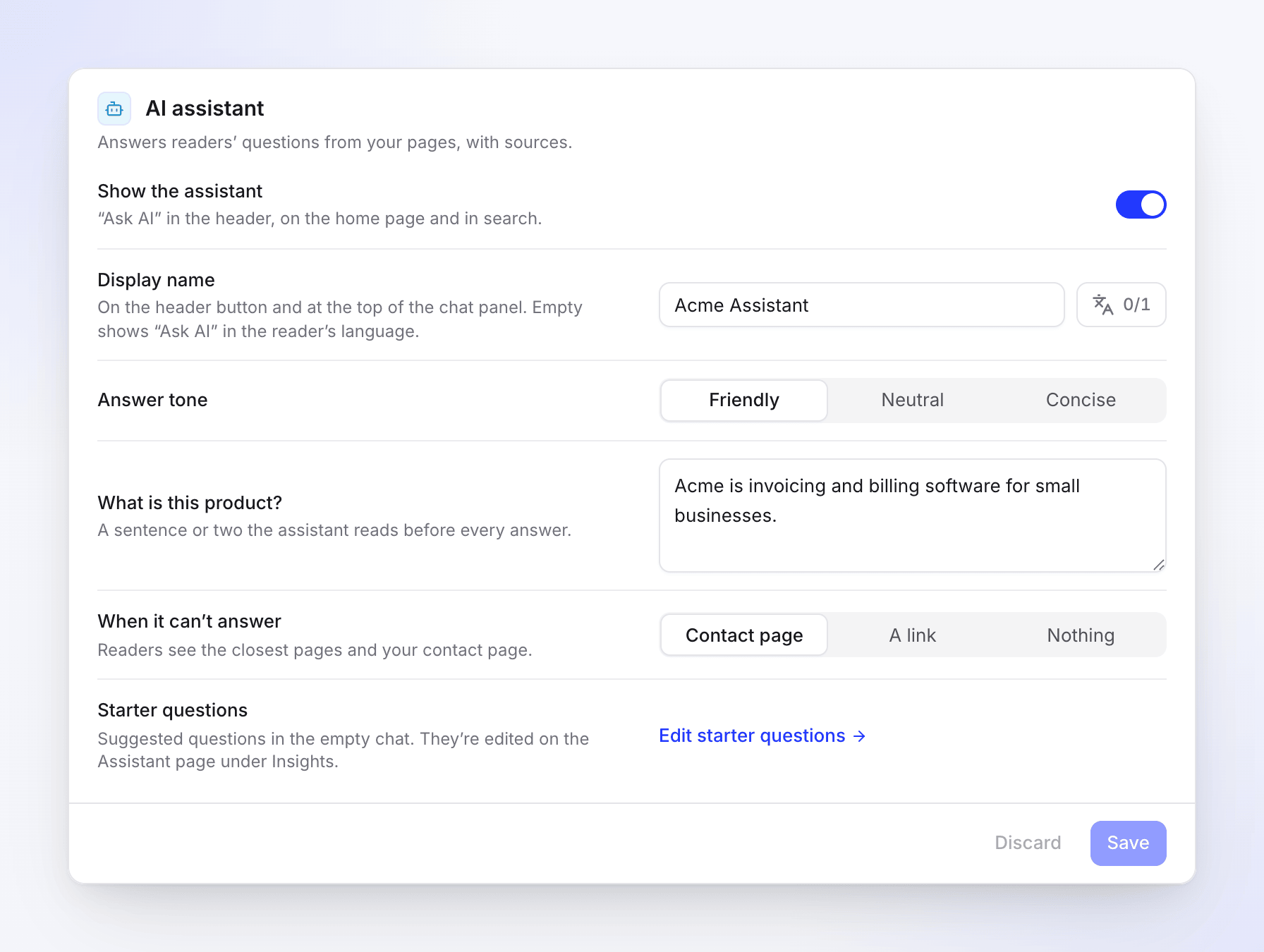
The AI assistant settings Choose what happens when it can't answer
Under When it can't answer, pick Contact page, A link or Nothing. See The settings.
Save and publish
Click Save, then publish the site. The Ask AI button appears on the live site with that publish.
The settings
All of these are on Settings → AI assistant. While Show the assistant is off, the other rows are greyed out.
| Setting | What it does | Default | Plan |
|---|---|---|---|
| Show the assistant | Shows Ask AI in the header, on the home page and in search. | Off | All plans |
| Display name | The name on the header button and at the top of the chat panel, per site language. Up to 40 characters. | Empty: readers see "Ask AI" in their language | Starter and up |
| Answer tone | Friendly, Neutral or Concise. | Friendly | Starter and up |
| What is this product? | A sentence or two the assistant reads before every answer, so it knows what your product is. Up to 2,000 characters. | Empty | Starter and up |
| When it can't answer | What readers see when the docs don't cover the question. | Contact page | All plans |
| Link | Shown when you pick A link: your support portal, community or booking page. Must start with https:// or http://. |
— | All plans |
| Starter questions | Edit starter questions opens Insights → Assistant. | — | All plans |
When it can't answer options:
| Option | Readers see |
|---|---|
| Contact page | The closest pages and your contact page. If your contact form is off, readers see related pages only. |
| A link | The closest pages and your link. |
| Nothing | The closest pages only. |
The contact form itself is set up under Settings → Feedback & contact. See Collect reader feedback and messages.
What readers see
- Ask AI in the header, on the home page and in search. When search finds nothing, readers are told they can ask the AI assistant instead.
- Ask AI about this page on an article, which opens the chat with a question about that page.
- A chat panel with a few starter questions (Try asking), a question box (up to 2,000 characters) and New chat.
- Answers with numbered Sources that link to your pages, and the line "AI can make mistakes. Check the sources."
- Copy answer, Good answer and Bad answer under each answer. Ratings show up in Insights → Assistant.
How the assistant answers:
- It uses your published pages only. Drafts, unpublished changes and pages you hid from the navigation are left out. Site pages such as About, FAQ or legal pages are used too.
- It replies in the language the reader writes in.
- It remembers the last few messages of the conversation, so readers can ask follow-up questions.
- When the docs don't cover a question, it says so instead of guessing, and shows what you chose under When it can't answer.
Starter questions
Starter questions are the suggestions in an empty chat, under Try asking. Their answers are prepared ahead of time, so a reader who clicks one gets the answer at once and it doesn't count toward your monthly answers.
You manage them on Insights → Assistant, in the Try asking card:
- Each site language has its own list of up to 6 questions. Readers see the first 4.
- Clevera rewrites the list once a day from what readers ask and search for. A new site starts with "No suggestions yet" until readers start asking; you can add your own right away.
- Add a question, Edit and Remove change the list. Pin keeps a question through the daily refresh; pinned questions come first.
- Regenerate writes a new set now.
- Changes reach readers at the next publish.
Monthly answers
Each workspace gets a number of assistant answers per month, shared by all its doc sites. The count resets on the 1st of each month (UTC).
| Plan | Answers per month |
|---|---|
| Free | 300 |
| Starter | 1,000 |
| Pro | 5,000 with 2 seats, plus 1,000 for each extra seat |
| Business | 20,000 |
| Custom | 20,000, or as agreed in your contract |
Some answers don't count:
- Clicking a starter question.
- Answers served from the answer cache: when a reader opens a new chat with a question that was already answered recently, they get the same answer and it isn't counted.
- Questions the assistant couldn't answer because of an error.
Limits that protect your answers from one busy site or one reader:
| Limit | Value |
|---|---|
| One site per day | Up to 20% of the workspace's monthly answers |
| One reader per day | 30 questions per site |
| Questions sent too fast | Readers see "You're sending questions quickly. Wait a moment, then try again." |
You can follow the count in two places:
- Settings → AI assistant → Monthly questions: "Included in" your plan, the reset date, and how many questions are used.
- Insights → Assistant: the Answers this month meter, with "Almost used up" from 90%, "Used up" at 100%, and how many answers came from the cache. Raise cap shows the plans with more answers.
When the limit is reached
- Readers who ask a question see "The assistant isn't available right now. Search the docs instead." Search keeps working.
- Insights → Assistant shows "AI answers are paused until" the reset date, with Upgrade.
- The assistant comes back on the 1st of the next month, or as soon as you move to a plan with more answers. When one site reaches its daily share, the assistant on that site comes back the next day (UTC).
Usage notifications
The workspace owner and admins get the usage notifications; owners, admins and editors get the one about unanswered questions. You can change the channels in your notification settings.
| When | Notification | |
|---|---|---|
| 80% of the month's answers used | "The assistant on site has used 80% of this month's answers" | No, in the app only |
| 100% used | "The assistant on site reached this month's limit", with See plans | Yes |
| Many questions it couldn't answer in one day (at least 10, and at least 30% of the day's questions) | "The assistant on site couldn't answer n questions" | No, in the app only |
You get each usage notification once a month.
Review conversations
Insights → Assistant shows what readers asked, for the date range you pick:
- Conversations, Answered (the share answered from the docs, compared with the previous period) and Rated helpful.
- The Conversations list, newest first. Filter it by All, Not covered (the assistant couldn't answer from the docs), Rated down or Rated up, or search the messages. Open one for the full transcript with every answer and its sources.
- Unanswered questions: "What the docs couldn't answer — write these next". Write article starts a new article from the question.
See Read doc site insights for date ranges and how long history is kept on each plan.
Troubleshooting
| You see | Why | What to do |
|---|---|---|
| No Ask AI button on the live site | The assistant is off, or the change isn't published yet. | Turn on Show the assistant, save, then publish. |
| Readers see "The assistant isn't available right now. Search the docs instead." | The workspace used its monthly answers, the site used its daily share, the reader asked 30 questions today, or the service is briefly unavailable. | Check Insights → Assistant. Upgrade for more answers, or wait for the reset. |
| The assistant says it can't answer a question your docs cover | The page is hidden, not published yet, or the answer is only in an image or a video. | Publish the page, and write the steps as text. |
| Display name, Answer tone and What is this product? are locked | They're on Starter and up. | Upgrade the workspace. |
| "Enter a full link, starting with https://" | A link is chosen and the link is missing or incomplete. | Paste the full address. |
| The rows are greyed out with "Paused sites are read-only." | The site is paused after a plan change. | See Doc site plans and limits. |