

Cette page n'est pas encore traduite, elle est donc affichée en anglais.
Create site pages for a doc site
Add About, landing, FAQ and legal pages to a doc site: pick a template and layout, choose where it shows in your menus, let the AI draft it from your site, translate it, and mark it ready to publish.
Site pages are the pages of a doc site that aren't help articles: an About page, a product landing page, a FAQ, a privacy policy or terms of service. You make them from a template, write them yourself or let the AI draft them from your site, and readers reach them from your header and footer menus.
Before you start
- You need a doc site. See Create a doc site.
- Owners, admins and Content Creators can create site pages. Editors can edit existing ones but not create new ones.
- Each plan includes a number of site pages per site (see Limits per plan). The contact page doesn't count.
Site pages and articles
| Articles | Site pages | |
|---|---|---|
| What they are | Help content from your Clevera library, shared with other doc sites | Pages that belong to one site only |
| Where readers find them | In the sidebar, search and the assistant | In your header and footer menus, search and the assistant. They stay out of the sidebar unless you turn on Show in sidebar. |
| Where you edit them | The article editor | The site page editor in Pages |
| Layout | Docs layout with sidebar and contents | Page, Wide, Landing or Docs |
Create a site page
Open the new page dialog
Go to Pages and click New site page under Site pages in the page tree. You can also click Add pages and choose Site page ("About, landing, legal or FAQ — a page of this site, from a template. Reached from your menus.").
Choose a template
Under Start from, pick a template (see Templates). The title fills in from the template, and the layout follows it unless you already picked one.
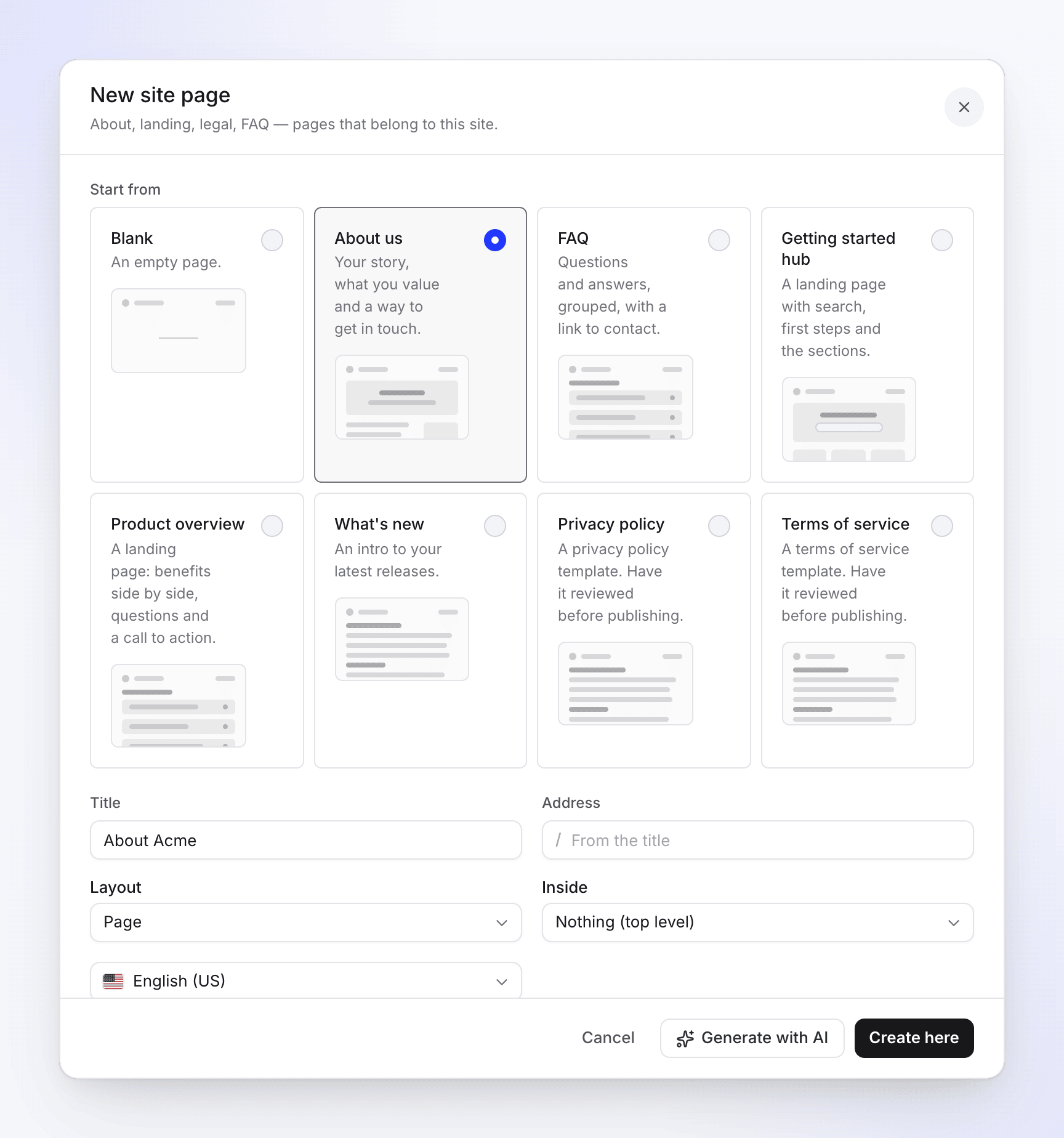
Picking a template in New site page Name the page
Field What to enter Title The page's name, up to 200 characters. Required. Address The path after your site's address, such as /about. Leave it empty to make it from the title. Use lowercase letters, numbers and single hyphens, up to 120 characters.Layout How the page is laid out. See Layouts. Inside Another top-level site page to nest this one under, or Nothing (top level). Shows only when the site has other site pages. Language The language you're writing in. Shows only when the site has more than one language. Choose where it shows
Under Show in, tick Header to add a link to the header, and choose a Footer column (or None). "Site pages stay out of the sidebar; readers reach them from your menus. You can change both later."
Create it
Click Create here to open the page in the editor with the template's starting text, or click Generate with AI to have the AI write a draft (see Generate a page with AI).
If the menu you picked is full on your plan, the page is still created and a note says "The menu is full on your plan. The page was created; add it in Navigation."
Templates
| Template | What it gives you | Layout |
|---|---|---|
| Blank | An empty page | Page |
| About us | Your story, what you value and a way to get in touch | Page |
| FAQ | Questions and answers, grouped, with a link to contact | Page |
| Getting started hub | A landing page with search, first steps and the sections | Landing |
| Product overview | A landing page: benefits side by side, questions and a call to action | Landing |
| What's new | An intro to your latest releases | Page |
| Privacy policy | A privacy policy template to fill in | Page |
| Terms of service | A terms of service template to fill in | Page |
The contact page isn't in this list: it's its own item, tied to the contact form. See Collect reader feedback and messages.
Layouts
| Layout | Looks like |
|---|---|
| Page | Centred, no sidebar |
| Wide | Wider, no sidebar |
| Landing | Full-width sections |
| Docs | Sidebar and contents, like an article |
Change it later from ⋯ → Layout in the page's top bar.
Generate a page with AI
The AI writes a draft from your site's own pages. It never publishes on its own: the draft waits for your review.
Fill in the first step
In New site page, choose a template (or Blank) and give the page a Title, then click Generate with AI. The dialog becomes Generate a site page.
Describe the page
Under What should the page say?, describe who it's for, what to cover and which pages to link to, in any language (up to 8,000 characters). The draft is written in the language you picked. With a template other than Blank, the description is optional: the AI follows the template.
Pick sources, tone and length
Option Choices Default Use these pages as sources Up to 20 pages of your site None: "Without any, the AI finds the relevant pages itself." Tone Friendly, Neutral, Concise Unset: your assistant's tone Length Short, Standard, Detailed Standard 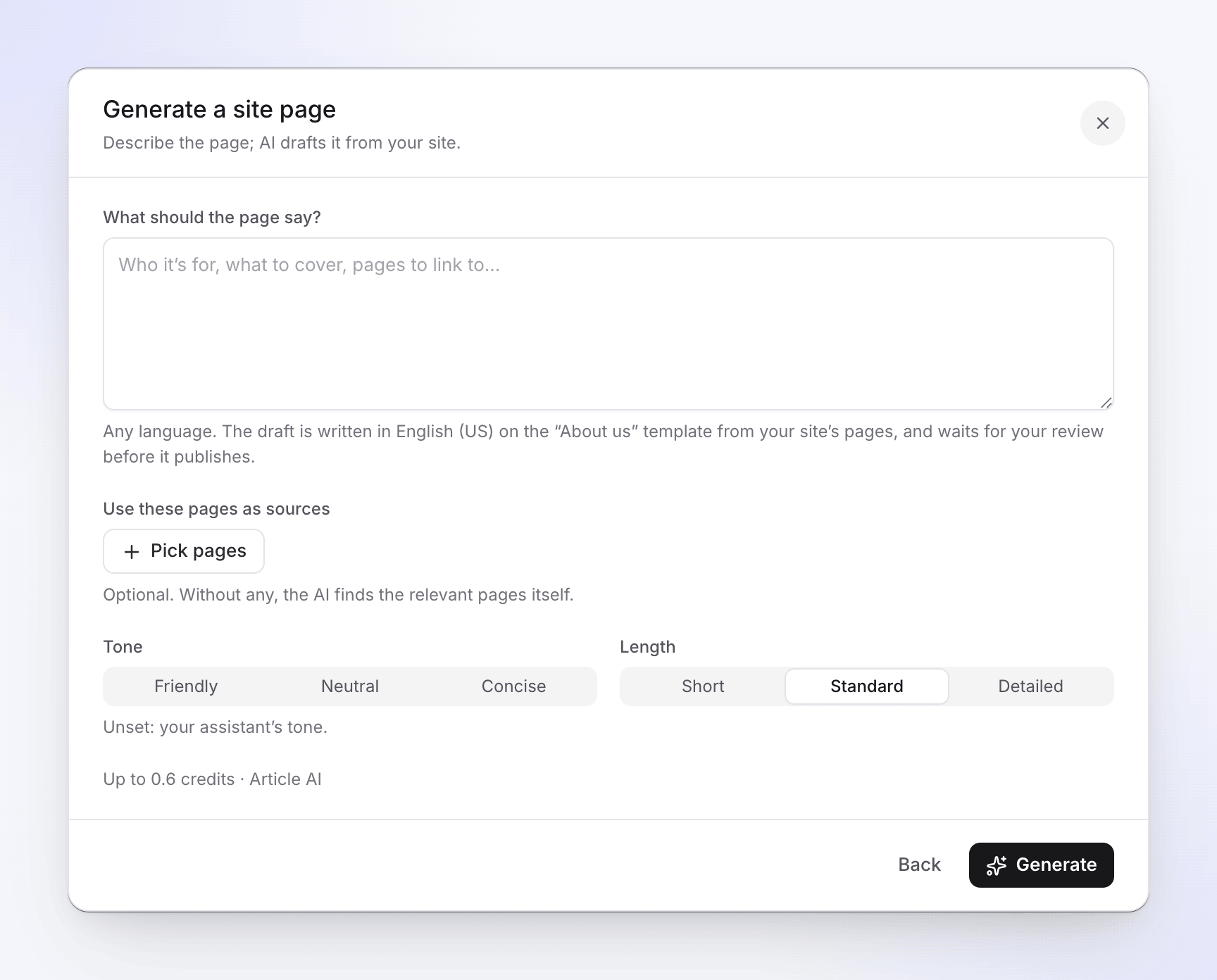
Sources, tone and length in Generate a site page Check the estimate and generate
Below the options you see the cost, for example "Up to 3 credits · Article AI". Click Generate. The page is created and opens in the editor, where the draft writes itself in.
What it costs
Site-page AI uses your workspace's credits and shows as Article AI in your credit activity. The estimate updates as you type and is an upper limit; you're charged for what the AI actually uses. Translating a page uses credits the same way (see Translate a site page).
Placeholders
Where the AI doesn't have a fact (an address, a founding year, a policy detail), it leaves a placeholder callout instead of guessing. The top bar counts them, for example "2 placeholders to fill". Replace each one with the real text before you publish; the publish review warns about any that are left.
Edit a site page
Site pages open in the site page editor in Pages. Type to write, or press Space on an empty line to ask the AI to write or edit that spot. Changes save on their own; the top bar shows Saving…, Saved or Not saved.
The top bar also holds:
| Control | What it does |
|---|---|
| Language | Switches which language you're editing |
| Ready to publish | Marks this language ready. Off: "A draft never publishes. Turn on when it's ready." On: "This language publishes with your next publish." |
| Edit / Preview | Switches between editing and a preview as the site shows it (P) |
| Details | Opens the page's settings, insights and feedback. See Add and organize pages. |
| ⋯ | Add to a menu, Show in sidebar, Layout, Translate to all languages…, History, Page settings, Open live page |
Add to a menu lists Header, each footer column (Footer · Company, for example) and Footer · Legal links. A menu that's full on your plan shows Full; one the page is already in shows Added. After you add it: "Added to the header. Publish to put it live."
Ready to publish
A new site page starts as a draft in each language. Nothing you write reaches readers until you turn on Ready to publish and then publish the site. An AI draft or AI translation shows "AI draft — review it, then turn on Ready to publish." until you do.
If a page isn't written in a language yet, the editor says "Not written in this language yet — readers see the default language's page."
Translate a site page
When the site has more than one language, choose ⋯ → Translate to all languages…. The dialog lists every other site language with the total estimate, for example "Up to 6 credits · Article AI", and a Translate 3 languages button.
- Each language is translated from the default language and saved as a draft to review: "Each language is saved as a draft to review, unless Settings › Publishing lets AI translations publish."
- Each language shows Waiting, Translating…, Draft ready to review or Failed. "You can close this; translation carries on."
- When it's done, the top bar shows "3 translations to review". Open each from that menu, check it and turn on Ready to publish.
- If you edit the original later, a translation shows "The source page changed since this translation." Translate it again or update it by hand.
To let AI translations of site pages go live without review, turn on Publish AI translations without review in Settings → Publishing. It's off by default. See Add languages to a doc site.
Restore an earlier version
Choose ⋯ → History to see "Saved versions of this page in this language." Each version is marked Created, Edited, AI draft, AI translation, Restored or From a template. Select one to read it, then click Restore this version. Restoring saves a new version, so you can go back again.
Limits per plan
| Plan | Site pages per site |
|---|---|
| Free | 5 |
| Starter | 25 |
| Pro | 100 |
| Business | 200 |
| Custom | 200, or as agreed in your plan |
The contact page doesn't count. Every doc site has a hard limit of 5,000 pages of all kinds. At your plan's limit, Site page in Add pages is greyed out with "Your plan includes 25 site pages, and they're all in use." See Doc site plans and limits.
Addresses you can't use
Site pages share the top level of your site with sections, so the address must be free. These are reserved by the site itself: search, changelog, contact, media, assets, llms.txt, llms-full.txt, sitemap.xml, robots.txt and feed.xml, as well as your site's language prefixes.
Troubleshooting
| You see | What to do |
|---|---|
| "Give the page a title." | Fill in Title before you create or generate. |
| "Use lowercase letters, numbers and single hyphens." | Fix the Address: no spaces, capitals or double hyphens. |
| "The address /search is used by the site itself. Choose another." | Pick an address that isn't reserved (see above). |
| "Another page or section already uses this address." | Pick another address, or rename the other page. |
| "Your plan includes up to 25 site pages per site. The contact page doesn't count." | Remove a site page you don't need, or upgrade. |
| "Tell the AI what the page is for, or pick a template." | Write a description, or choose a template other than Blank. |
| "Your workspace can't use AI right now. Add credits or change your plan in Billing." | Your workspace is out of credits. Click Open Billing to add credits. |
| "Your workspace reached today's AI limit. Try again tomorrow, or raise it in Billing." | Wait until tomorrow, or raise the limit in Billing. |
| "Paused sites are read-only." | The site is paused because your plan has fewer sites than you have. See Doc site plans and limits. |
| "The AI returned nothing. Try again or change the instructions." | Rephrase What should the page say? and generate again. |
| "Someone else changed this page while you were editing." | Choose Reload their version or Keep mine. |