

Cette page n'est pas encore traduite, elle est donc affichée en anglais.
Publish articles to your other tools
Connect Notion, Confluence, Google Docs, ClickUp, GitBook, ReadMe, Help Scout and Git hosts to your workspace, then publish any Clevera article to them. Who can connect and publish, how publishing again works, and how images, videos and formatting are carried.
Integrations send a finished Clevera article into the tools your team already reads: a wiki, a docs site, a help center or a code repository. Connect a tool once for the workspace, then publish any article to it from the editor's Share button.
Before you start
- Plan: integrations are part of the Pro and Custom plans. On Free and Starter the Integrations page shows "Integrations are included in Pro" with Upgrade to Pro, and the editor's Publish tab shows "Publishing to your tools is included in Pro" with Upgrade.
- Who connects: only workspace owners and admins can connect or disconnect a tool. Everyone else sees "Only team owners and admins can connect or disconnect integrations. You can still publish to connected ones from the editor."
- Who publishes: anyone who can edit the article. Someone who can only view it sees "You can view this item but not publish it. Ask someone who can edit it."
- Content: what you publish is the article. The video it came from isn't added to the page. Videos reach the other tool only when you place them inside the article as a video block (see How images and videos are carried).
What you can connect
| Tool | What Clevera creates there | You choose | How you connect |
|---|---|---|---|
| Notion | A page | The workspace top level, a page or a database | Sign in with Notion |
| Confluence | A page at the top of a space | A space | Sign in with Confluence |
| Google Docs | A new Google Doc in My Drive | Nothing (always My Drive) | Sign in with Google Docs |
| ClickUp | A Doc | A Workspace | Sign in with ClickUp |
| GitBook | A page at the top of a space | A space | Access key |
| ReadMe | A guide | A guide category | API key |
| Help Scout | A Docs article | A Docs site, then a collection | Docs API key |
| GitHub, GitLab, Bitbucket | A Markdown file and its screenshots, in one commit | An account, a repository and a folder | Sign in |
| WordPress | Nothing is pushed: you place Clevera videos and articles in posts with blocks or widgets | Set up from the WordPress plugin | WordPress plugin |
Every connection belongs to the workspace, not to the person who made it. Each tool can have one connection per workspace (WordPress can have one per site). Connecting again with a different account replaces the old connection.
Connect a tool
Open Integrations
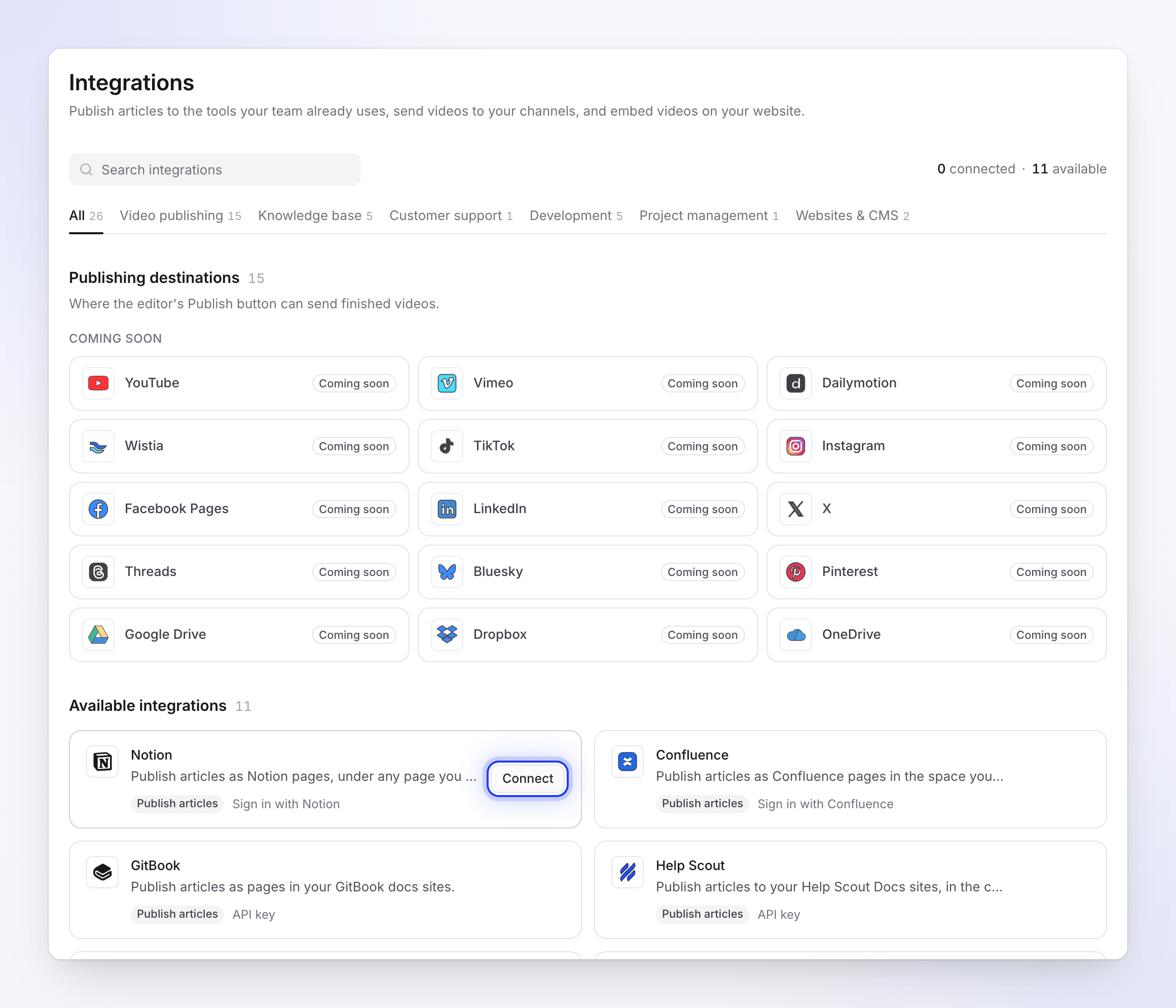
Click your workspace name at the top of the sidebar and choose Integrations. The page lists Connected tools first, then Available integrations. Search or filter by category (Knowledge base, Customer support, Development, Project management, Websites & CMS).
Click Connect
Each card shows what the tool does (Publish articles, Embed videos, Embed articles) and how it connects: Sign in with …, API key or … plugin. The Connect button appears when you point at a card.
- Sign in tools send you to the tool's own permission screen, where the app is named Clevera. Approve it and you come back to Integrations with "Notion connected successfully to Acme Inc.!" (with your tool and account).
- API key tools open Connect …: paste the key, click Check key, pick the sites to publish to, then click Connect. You see, for example, "Help Scout connected."
- WordPress shows Set up with the steps to follow inside WordPress.
Check the connection
The tool moves to Connected with its account name, a status badge and a line such as "Nothing published yet" or "Published 2 hours ago · 4 articles".
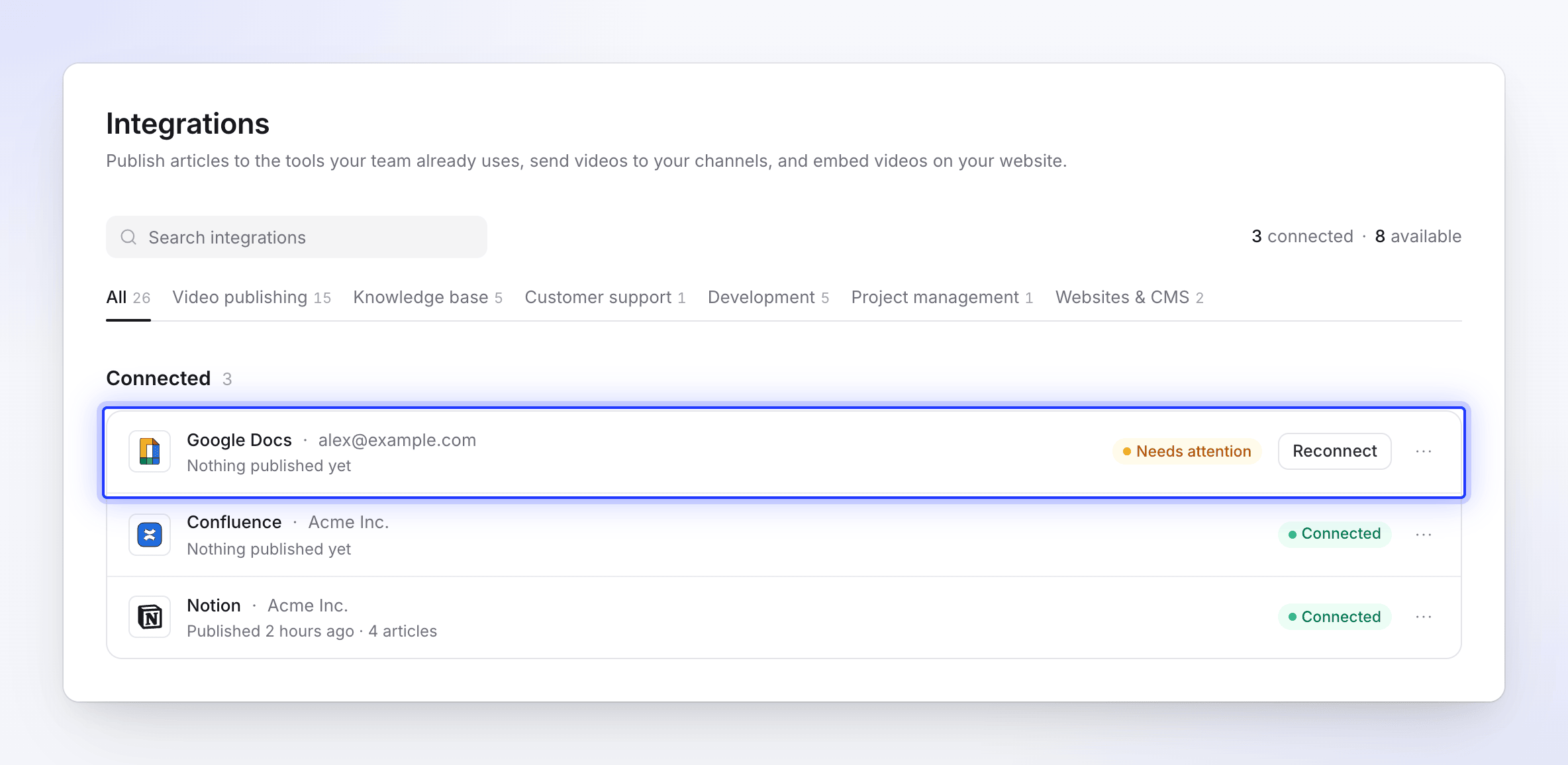
A connection that needs attention shows Reconnect on its row.
Publish an article
Open the Publish tab
Open the article (or a video that has an article) and click Share → Publish. Under Publish the article, the tools come as tiles in two groups:
- Ready to publish: connected tools. A tile reads "Connected · Acme Inc." (the connected account), or "Published 2 hours ago" once this article went there.
- Connect to publish: tools marked Not connected or Needs reconnecting. Clicking one opens the Integrations page.
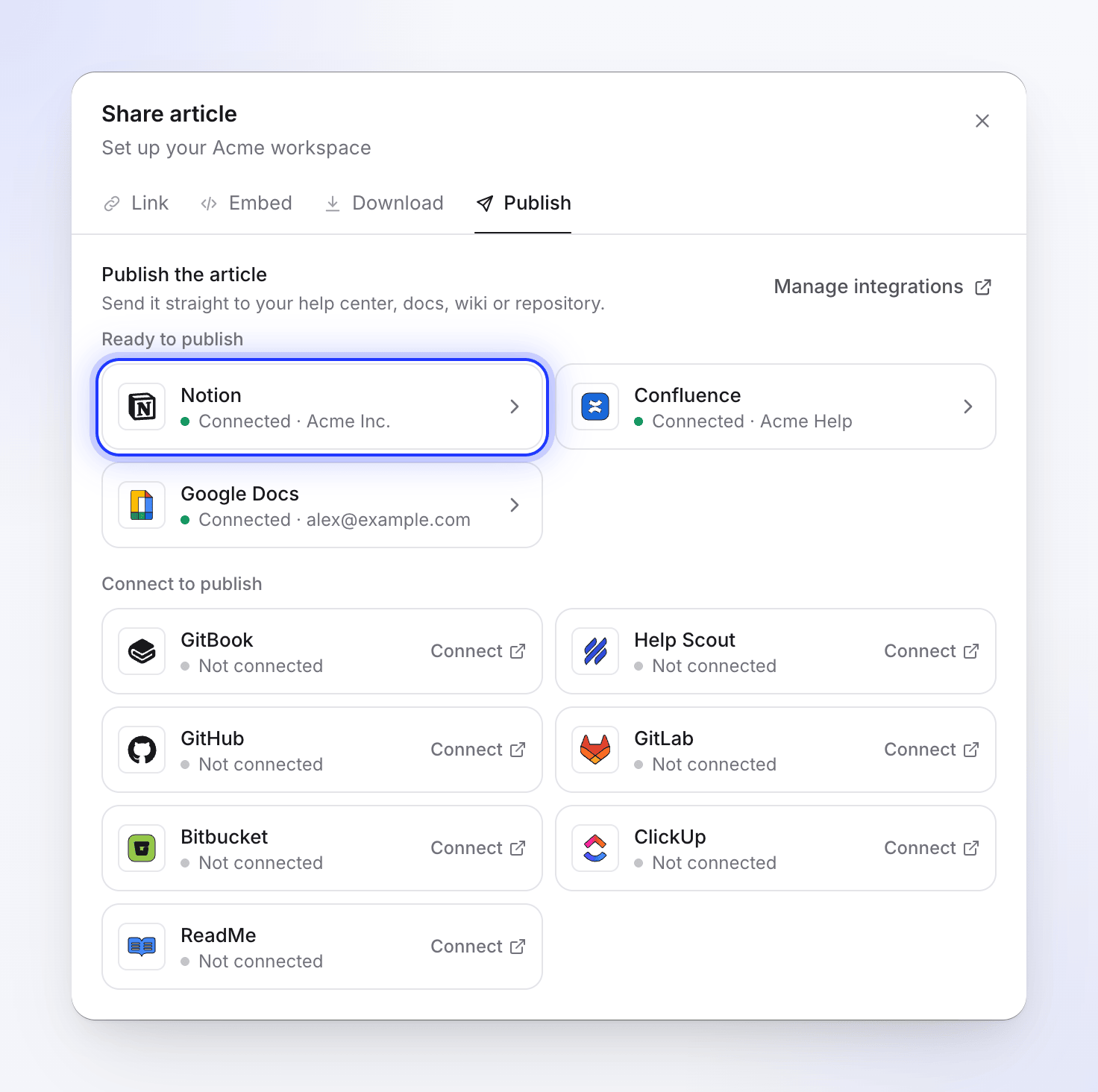
Connected tools come first. Choose where it goes
Click a connected tool. Under Where it goes, pick the place in that tool (a page, a space, a repository and folder…). Clevera remembers the last place you picked for each tool. Published as shows the title the article gets there.
Click the ⓘ next to the title, What converts in Notion (with your tool's name), to see how the formatting carries over.
Publish
Click Publish to Notion (with your tool's name). The steps show as they run: "Looking for an existing copy in Notion", then Starting, Uploading files 2 of 5 (Notion and Confluence upload screenshots first) and Writing the page.
If the tool already has an article with the same title there, Clevera asks what to do first (see Publish again after you edit).
Open it
When it's done you see "Published to Notion." with the article's title, its location and a Link you can copy. Click Open in Notion to see it, or Publish somewhere else to go back to the list.
Publishing runs on our servers, so you can close the Share window while it works. When it finishes, a notification tells you "Published to Notion." If it fails while the window is open, the reason appears in the flow with Try again, or Reconnect when the connection needs it.
The article is published in the language you have open in the editor. Switch language in the top bar first to publish a translation. Publishing never uses credits.
You can publish up to 20 times a minute. After that you see "Too many publish attempts. Please wait a moment before trying again."
Publish again after you edit
Publishing makes a copy, and it only goes one way. When you change the article in Clevera, the copy in the other tool stays as it was until you publish again. Edits people make to the copy in the other tool never come back to Clevera.
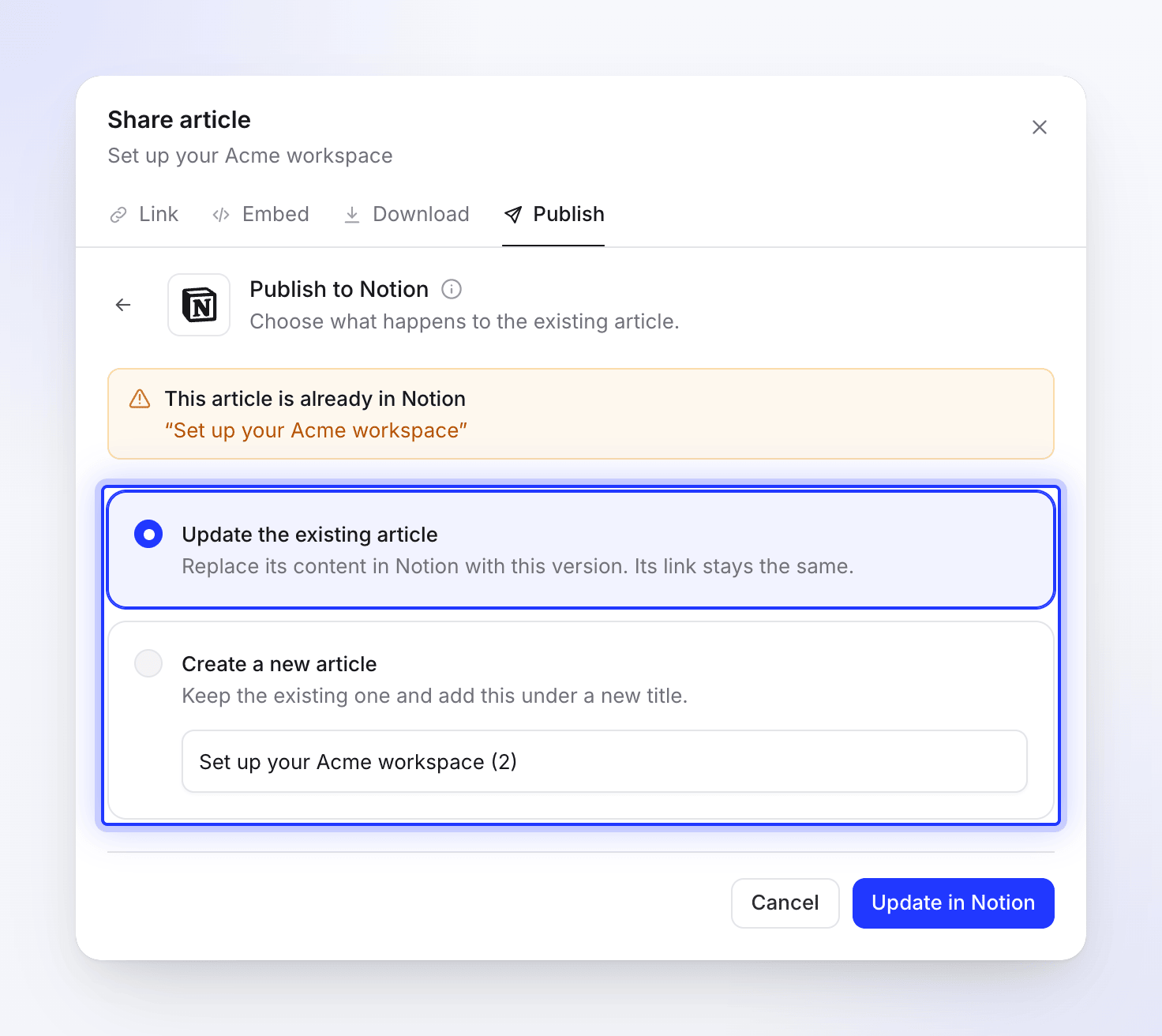
When you publish an article whose title already exists in the place you chose, Clevera shows "This article is already in Notion" and asks you to "Choose what happens to the existing article." Click View it to open the existing one, then pick:
| Option | What happens | Button |
|---|---|---|
| Update the existing article | The existing article gets this version (see the table below). | Update in Notion |
| Create a new article | "Keep the existing one and add this under a new title." Clevera suggests a New title such as "Set up billing (2)". | Create new article |
What Update the existing article does depends on the tool:
| Tool | Update |
|---|---|
| Confluence, GitBook, ReadMe, ClickUp, Help Scout | Updates the same page. Its address stays the same. |
| GitHub, GitLab, Bitbucket | Overwrites the same file in a new commit. |
| Notion | Creates a new page in the same place, then moves the old page to Notion's trash. The address changes, and comments on the old page stay with the old page. |
| Google Docs | Never asks: every publish creates a new document. |
Edits people made in the other tool are overwritten by an update.
How images and videos are carried
A published page never starts with the video the article came from. Only the video blocks you put inside the article (a Clevera video, a video file or an embed such as YouTube) are published, each where it sits in the article. See Show a video in an article.
A Clevera video block is published only when that video's share link is on. With the link off, the block is left out of the published page.
| Tool | Screenshots | Videos inside the article |
|---|---|---|
| Notion | Uploaded into Notion | Video files up to 20 MB are uploaded; YouTube plays in a video block; a Clevera video becomes a link preview |
| Confluence | Uploaded as page attachments | YouTube and Clevera videos play in the page; video files become links |
| Google Docs | Copied into the document | Links with ▶️ |
| Help Scout | Uploaded to Help Scout | YouTube and Clevera videos play in the article; video files become links |
| GitHub, GitLab, Bitbucket | Committed to the repository next to the Markdown file | A thumbnail or poster that links to the video, plus a ▶ link |
| GitBook | Uploaded to the space | Embed blocks |
| ReadMe | Uploaded to ReadMe | Embeds |
| ClickUp | A 🖼️ link per screenshot | ▶ links |
What changes in the formatting
Clevera converts the article into each tool's own format. Headings, paragraphs, bold, italic, links, lists, quotes and dividers come through everywhere. Card icons are never carried over, and links to other Clevera pages keep their text but lose the link, because those addresses don't exist outside Clevera.
| Tool | What converts |
|---|---|
| Notion | Tabs, callouts, toggles, tables, code, equations and checklists publish natively; steps become a numbered list. |
| Confluence | Callouts, tables, code, checklists, expands and images publish natively; steps become a numbered list; tabs become headed sections. |
| Google Docs | Headings, lists, tables, images and checklists publish natively; callouts, code and quotes become shaded paragraphs; steps become a numbered list; tabs become labelled sections; videos become links. |
| Help Scout | Tables, code and videos publish natively; callouts become tinted boxes; tabs become headed sections. |
| GitHub, GitLab | Callouts become alerts; tables, checklists, math and collapsible sections publish natively; steps become a numbered list; tabs become labelled sections; videos become links. |
| Bitbucket | Tables and code publish natively; callouts become quotes; tabs become labelled sections; videos become links. |
| GitBook | Hints, tabs, steps, code titles and embeds publish natively. |
| ReadMe | Callouts, code titles and code tabs publish natively; tabs become labelled sections. |
| ClickUp | Headings, lists, tables and code publish; callouts become quotes, checklists become ☐/☑ lines, videos and images become links. |
The same summary appears under What converts in … in the Publish tab. Each tool's article lists the details.
Manage or disconnect a connection
On Integrations, click a connected tool (or its ⋯ menu) for:
- Configure: the status, account, who connected it and when, and when it last published.
- Reconnect: runs the sign-in (or key check) again. Use it when the status shows Error or Needs attention, or to switch accounts.
- Disconnect: asks "Disconnect Notion?" with "You can no longer publish to it from the editor. Content you already published stays in Notion."
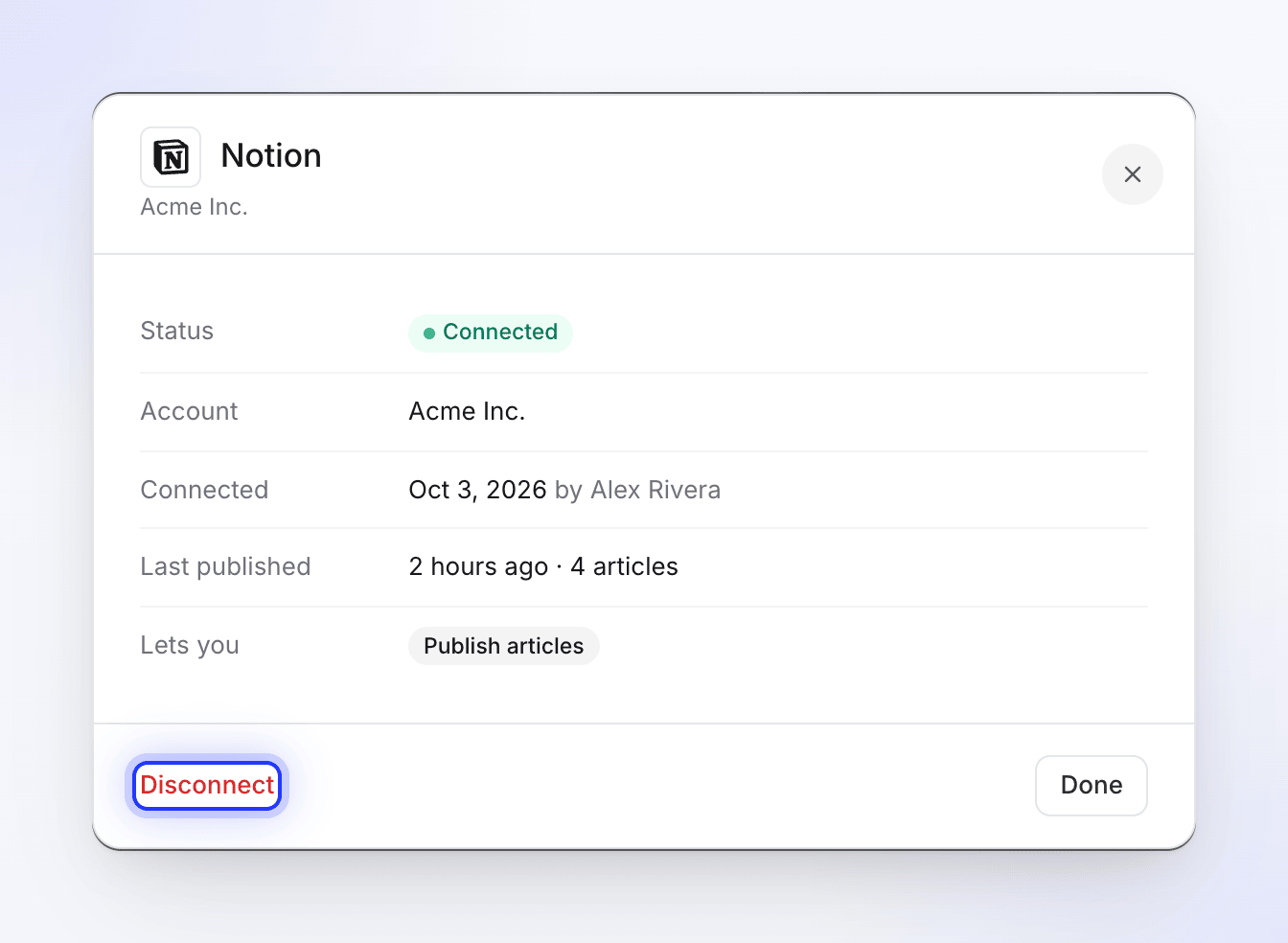
Disconnecting deletes Clevera's stored access, but the tool may still list Clevera as an authorized app. To revoke it there too, follow the steps in each tool's article. A workspace that moves off Pro can still disconnect its tools.
When a connection stops working
Some tools (Confluence and Google Docs among them) use sign-ins that Clevera renews in the background. If a renewal fails, the connection shows Error or Needs attention, and the person who connected it gets a notification: "Your Confluence connection expired" / "Reconnect it to keep publishing."
If someone removes Clevera's access inside the tool, publishing shows "Reconnect Notion to publish" (with your tool's name) and a Reconnect button in the flow. In the Publish tab, the tool's tile reads Needs reconnecting. In both cases, click Reconnect.
Troubleshooting
| You see | What to do |
|---|---|
| "Integrations are included in Pro and Custom plans." | Upgrade the workspace. See Choose a plan. |
| "You do not have permission to manage integrations. Only team owners and administrators can perform this action." | Ask an owner or admin to connect the tool. |
| "You can view this item but not publish it. Ask someone who can edit it." | You can only view this article. Ask someone with edit access to publish it, or to give you edit access. |
| "Too many connection attempts. Please try again later." | Wait a minute and connect again. |
| "Invalid authorization state. Please try again." or "Authorization expired. Please try again." | The sign-in took more than 10 minutes or ran in another tab. Click Connect again. |
| "Connect Notion on the Integrations page first." | The tool isn't connected. Ask an owner or admin to connect it. |
| "Couldn’t load your Notion locations" | Click Try again. If it repeats, reconnect the tool. |
| "Couldn’t publish to Notion" with the tool's reason | Click Try again. If it says the connection needs it, click Reconnect. |
| "Generate the article first, then publish it here." | The article isn't ready yet. Wait for it to finish. |
| "No article found. Please generate an article first." | This language has no article. Switch language or generate one. |
| "Integrations didn't load" | Click Try again or reload the page. |