

Diese Seite ist noch nicht übersetzt und wird daher auf Englisch angezeigt.
Edit an article and its screenshots
Write and format an article in the block editor: add blocks with "/", move them with the handle, build tables, open the AI menu, and replace, caption or capture screenshots from the recording.
The article editor is a block editor: type to write, press / to add a block, select text to format it, and use the handle beside each block to move, duplicate or change it. Every change saves on its own. This article covers each part of the editor and everything you can do with screenshots.
Before you start
- You need edit access to the article. Without it, editing buttons are greyed out and show "You don't have permission to edit". See roles and creator seats and collections for who can edit what.
- The article must have finished generating. While it is being written you can read along, but not edit.
The editor at a glance
| Area | What's there |
|---|---|
| Top bar, left | Home, the collection it's in, the article's title (click to rename), an info button and the save status |
| Top bar, center | Video / Article switch, only on older items that hold both in one place |
| Top bar, right | Who else is in the article, Undo, Redo, revision history, the Language menu, Help & support, Assistant, Share and ⋯ |
| ⋯ menu | Revision history, Analytics, Add to collection (or Change collection), View source recording, Related content, Move to trash. On a narrow window it also holds Undo, Redo, Language and Help & support. |
| Page | The article itself, with the title at the top |
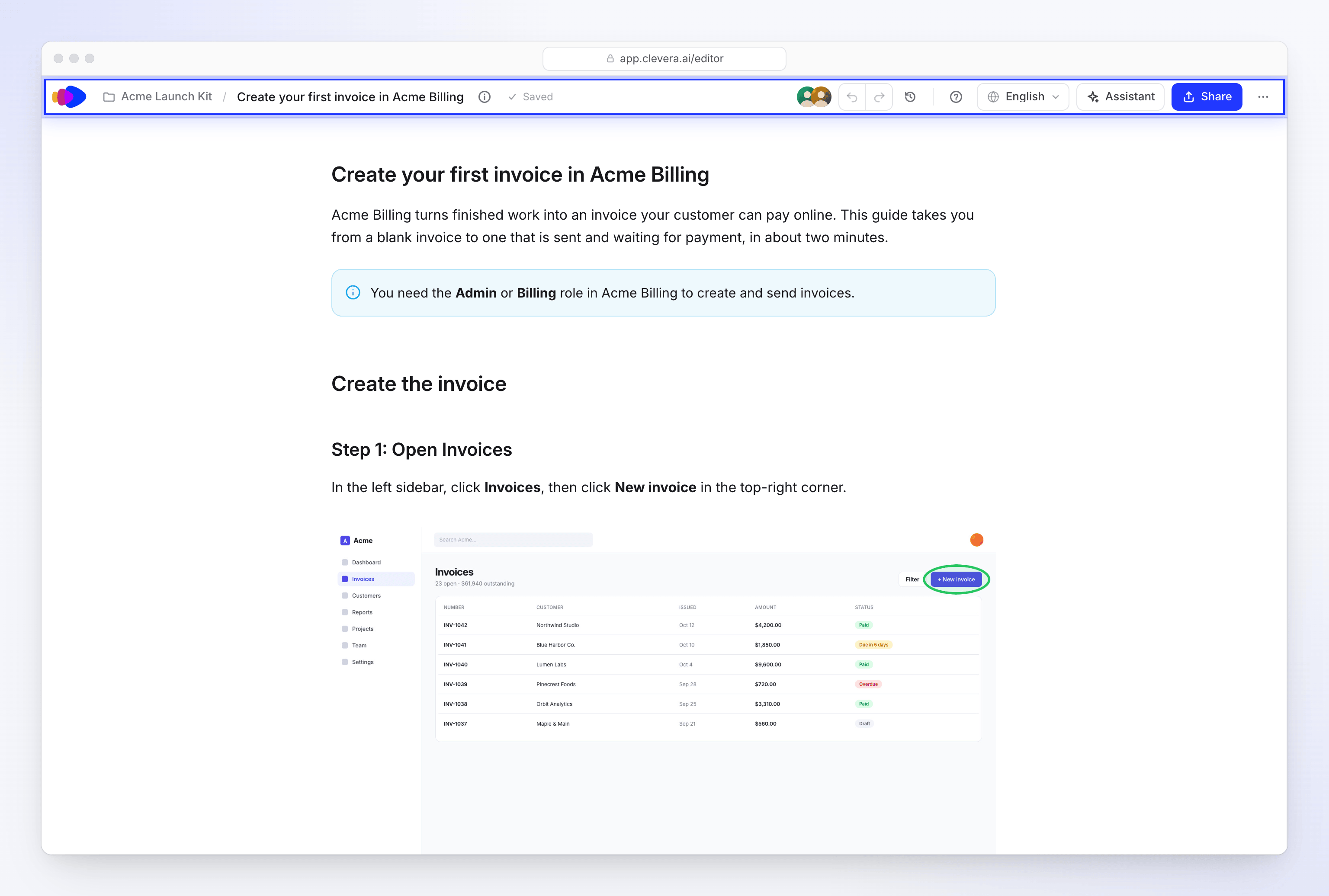
The save status reads Saving… ("Saving your changes"), Unsaved ("Your changes will save in a moment"), Saved ("All changes saved") or Not saved when a save failed. There is no Save button.
When teammates have the article open, their pictures show in the top bar under "People in this article", each marked Editing or Viewing. See Write an article together with your team.
When the article opens
The article shows right away, read-only, while the editor connects to live editing. A second or two later it becomes editable in place. If you already clicked into the text, what you type in that moment carries over once the article is editable. If connecting takes longer, a note says "Connecting to the live article… You can read it meanwhile."
Write and format text
Add a block
On an empty line, type
/to open the block menu, then keep typing to filter it. Use ↑ and ↓ to choose, Enter to insert and Esc to close. See Blocks you can add.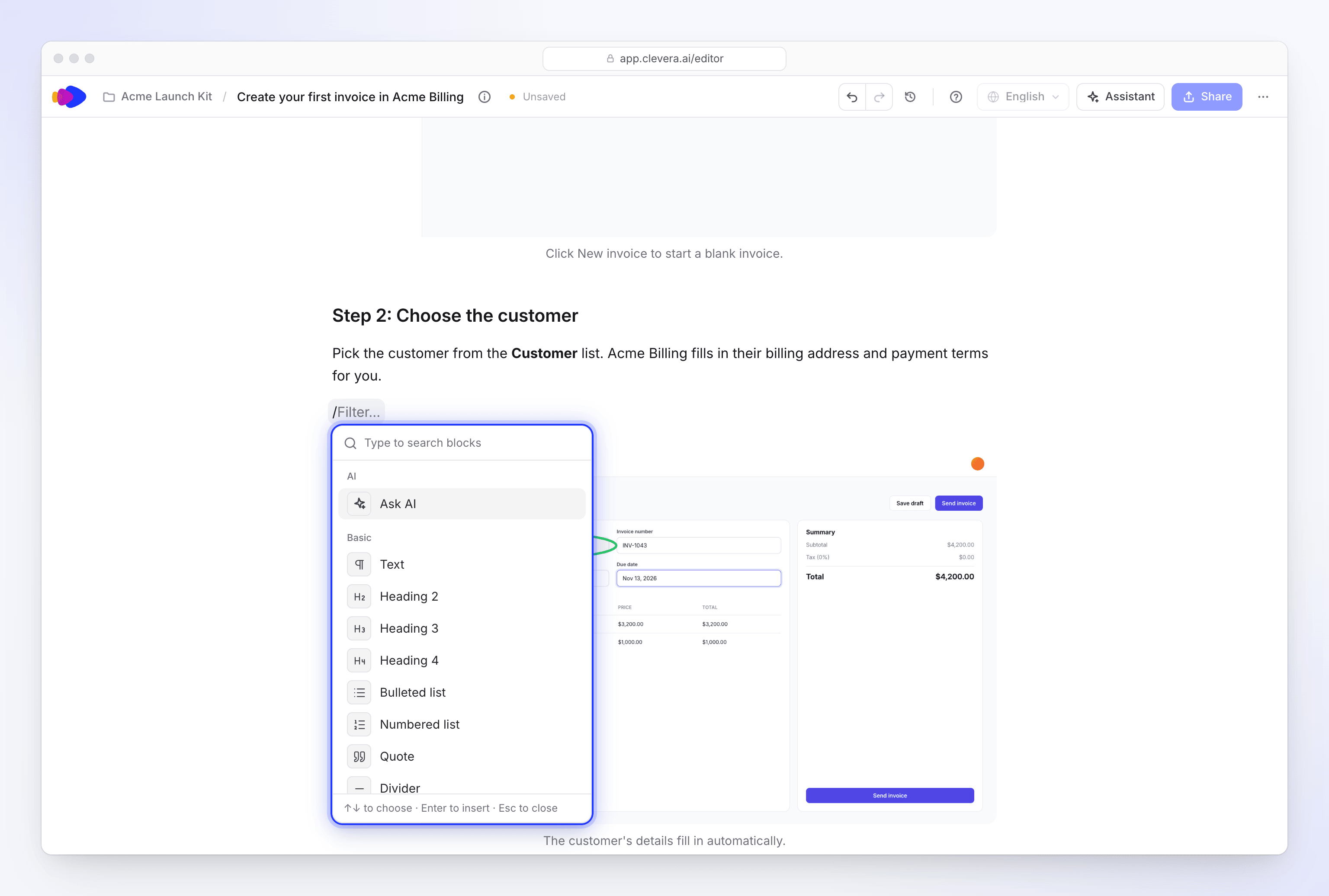
Type / and keep typing to filter. Format a selection
Select text to open the formatting bar: Ask AI (⌘J or Ctrl+J), Turn into (shows the current block type, such as Text), Bold, Italic, Strikethrough (⌘⇧S), Code (⌘E) and Link (⌘K). On Windows use Ctrl instead of ⌘.
Rearrange blocks
Hover a block to show its handle on the left: "Drag to move · Click for options". While you drag, a line shows where the block lands, including inside callouts, steps, tabs and lists. The + next to it adds a block: "Click to add below · ⌥-click to add above" (Alt-click on Windows).
Use the block menu
Click the handle for the block's menu:
Item Shortcut (Mac / Windows) Ask AI Turn into (Text, Heading 2–4, Bulleted list, Numbered list, Quote, Code, Callout) Duplicate ⌘D / Ctrl+D Move up / Move down ⌘⇧↑ / ⌘⇧↓, Ctrl+Shift+↑ / Ctrl+Shift+↓ Copy as Markdown Copy link to heading (headings only) Delete ⌫ / Del Undo a change
Press ⌘Z (Mac) or Ctrl+Z (Windows) to undo, ⇧⌘Z or Ctrl+Shift+Z to redo, or use the arrows in the top bar. For older versions, open revision history.
Blocks you can add
| Group | Blocks |
|---|---|
| AI | Ask AI ("Write or edit with AI (Space on an empty line)") |
| Basic | Text, Heading 2, Heading 3, Heading 4, Bulleted list, Numbered list, Quote, Divider, Code block, Table |
| Structure | Steps ("Numbered steps with titles"), Tabs ("Alternatives side by side"), Cards ("A grid of link cards") |
| Callouts | Note callout, Tip callout, Info callout, Warning callout, Danger callout, Success callout |
| Media | Image ("Upload, library or a frame of the video"), Clevera video, Embed ("YouTube, Vimeo or Loom"), Video file ("A video from a link"), Emoji |
There is no Heading 1: the article's title is its only top-level heading.
- Clevera video asks you to "Paste a Clevera share link". See Show a video in an article.
- Embed asks you to "Paste a YouTube, Vimeo or Loom link".
- Video file needs an
httpslink to a video file. Its toolbar has Autoplay, Loop, Mute, a caption and Download video.
Tables
Table opens a size picker; choose the rows and columns. Every table has a Header row: "Markdown tables always start with a header row, so it stays first and can't be deleted."
Hover a row or a column to get its handle ("Row options (drag to move)" or "Column options (drag to move)"). Drag it to move the row or column, or click it for Insert row above / Insert row below, Insert column left / Insert column right, moving, Sort ascending / Sort descending, alignment, Duplicate, Delete row / Delete column, Clear contents and Delete table. Add a row and Add a column sit at the table's edges.
Write with AI
The editor has its own AI menu for the spot you're working on: rewrite a paragraph, fix a step against the recording, add a screenshot from the recording, or write what comes next. Open it with ⌘J (Ctrl+J), with Space on an empty line, with Ask AI in the formatting bar or from a block's menu.
Each request uses credits, listed as Article AI in your credit activity. See Use AI in the article editor for every action and how to review the result.
Work with screenshots
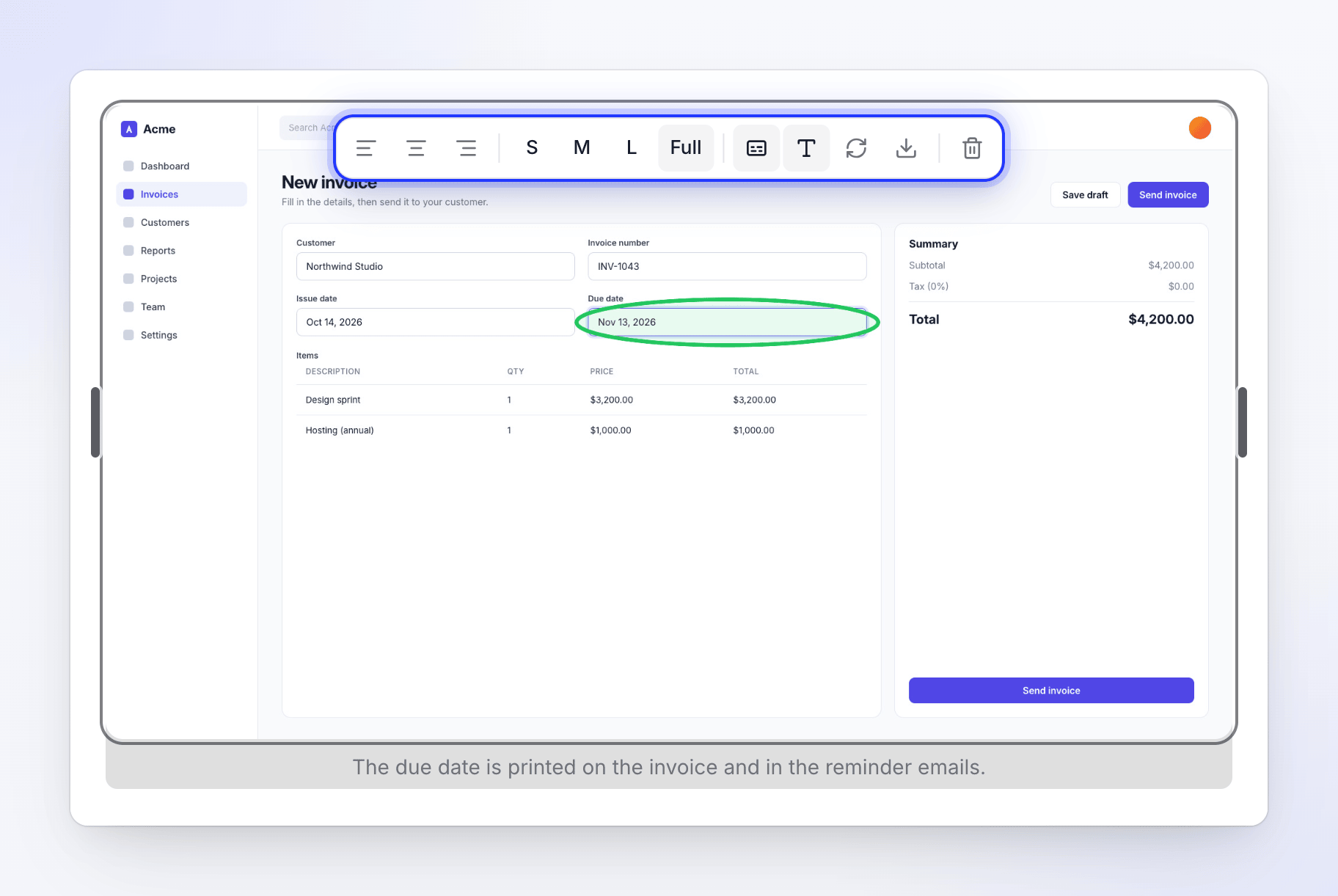
Click a screenshot to select it. Its toolbar has:
| Button | What it does |
|---|---|
| Align left / Align center / Align right | Positions the image |
| S, M, L, Full | Sets the width to 33%, 50%, 75% or Full width |
| Add caption / Remove caption | Adds or removes the line under the image |
| Alt text | "Describe the image" for screen readers and exports |
| Replace image | Opens Select Image to swap the picture |
| Download image | Saves the picture to your computer |
| Delete image | Removes the image block |
Replace or add a screenshot
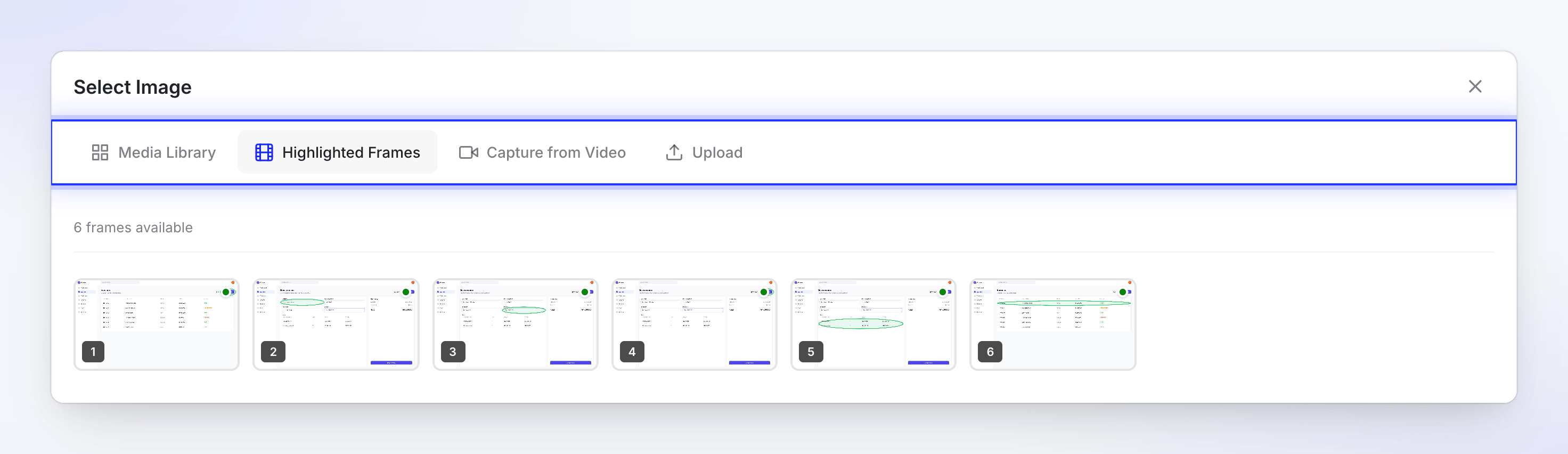
Replace image, or the Image block, opens Select Image with four tabs:
| Tab | What you get |
|---|---|
| Media Library | Pictures already in Clevera: All, My Uploads and This Screencast |
| Highlighted Frames | The frames Clevera took from your recording at each click, with the click marker drawn on them |
| Capture from Video | Any moment of the recording, with your own markers (see below) |
| Upload | A picture from your computer: "Click to upload or drag and drop", "PNG, JPG, GIF, WebP up to 5MB" |
Capture a frame with your own markers
Capture from Video lets you take a screenshot from any moment of the source recording and highlight what matters.
Find the moment
Play the video or drag along the timeline. Use Previous frame and Next frame to step one frame at a time.
Draw on it
Under Marker, pick Rectangle, Circle or Arrow and drag on the video. Pick a Color, a Fill for rectangles and circles (None, Light, Medium or Strong) and a Thickness. Select a shape and press Delete to remove it, or use Clear all.
Crop it if you like
Pick Crop: "Drag on the video to choose the area to keep — everything outside the box is removed."
Capture
Click Capture this frame. With markers or a crop the button reads, for example, Capture with 2 markers + crop. The new screenshot goes into the article.
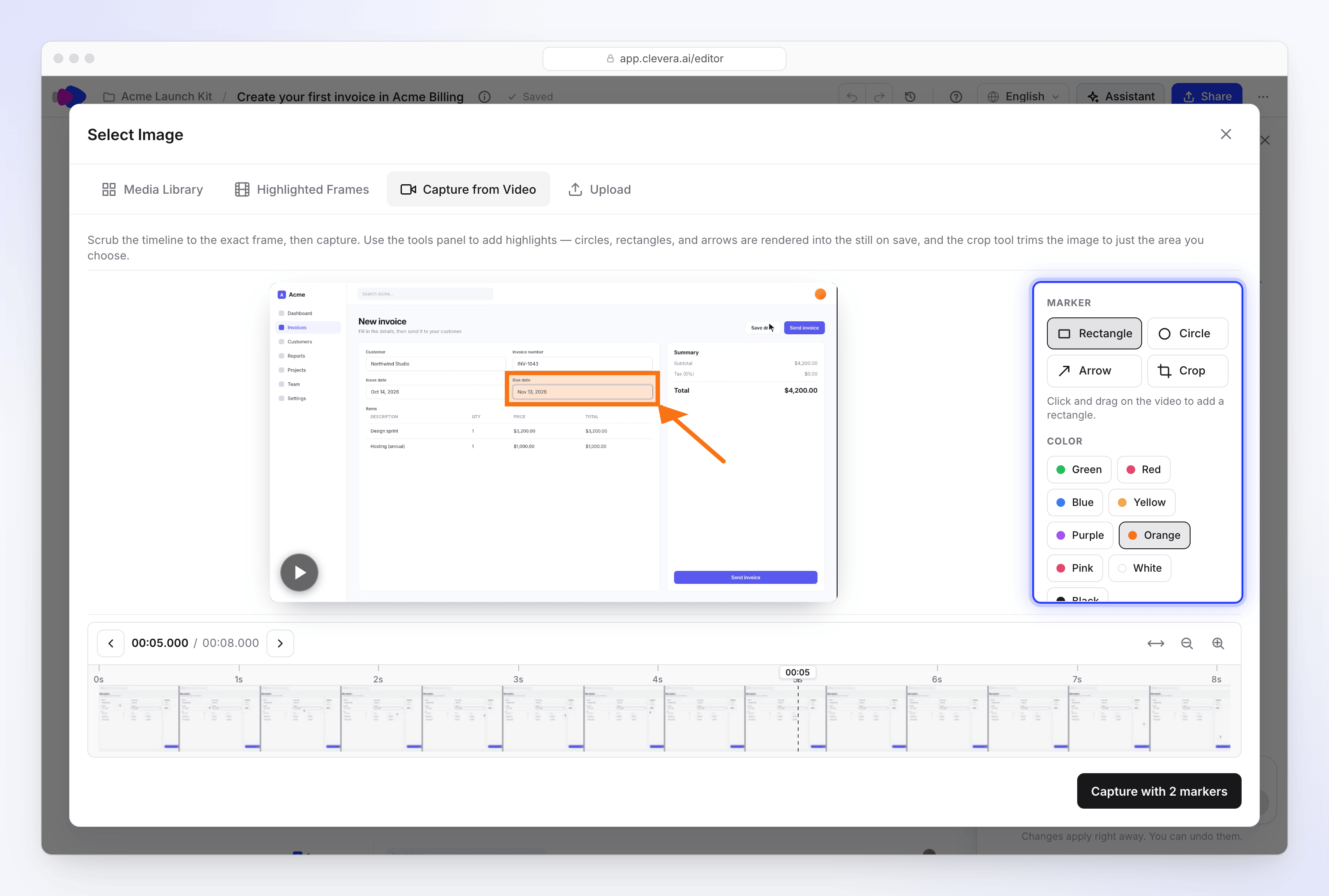
Draw, crop, then capture the frame into the article.
Capture from Video appears only when the article has a source video.
Languages
Each language of an article is a separate copy with its own text, screenshot captions and history. Switch with the Language menu in the top bar; Original marks the language it was written in. To add a language, choose Translate…. Edits you make in one language don't change the others.
Right-to-left languages
Articles in Arabic, Hebrew, Persian, Urdu, Pashto and Sindhi read right to left. Clevera sets the direction from the language of each copy, so there's nothing to switch: an English original and its Arabic translation each read the right way.
| Where | What happens |
|---|---|
| The editor | The article's text runs right to left. The top bar, menus and the assistant panel keep the app's usual layout. |
| The share page and embeds | The page follows the article's language: text, headings and the player's controls run right to left. The video picture is never mirrored, and times still read left to right. |
| PDF, HTML and EPUB downloads | The file is marked right to left, so readers and browsers show it correctly. |
| Word, OpenDocument and Markdown | The text is exported as is, without a direction setting. In Word or another editor, set the paragraphs to right to left if they show the wrong way round. |
See Export or publish an article for every download format.
Troubleshooting
| You see | What it means |
|---|---|
| "You don't have permission to edit" | Your role or the collection's access only lets you view. Ask an owner or the collection's Manager. |
| "Not saved yet. Retrying when you edit again." | A save failed, usually a dropped connection. Keep typing; the next edit saves everything. |
| "Not saved: the article changed." | Someone replaced the article while you edited. Choose Reload latest or Keep mine in the banner. See Write an article together with your team. |
| "Connecting to the live article… You can read it meanwhile." | The editor is joining live editing. It usually takes a second or two. |
| "Live editing is unavailable right now. Retrying…" | The live connection failed. Wait, or choose Edit anyway to save straight to the article. |
| "That isn't a Clevera video link." | The Clevera video block needs a Clevera share link. Copy it from Share on the video. |
| "This video isn't published in this workspace" | The video's share link is off, or the video belongs to another workspace. Turn its link on in Share. |
| "File size must be less than 5MB" | Upload takes images up to 5 MB. |
| "Could not extract the frame at this position." | Try a slightly different moment in Capture from Video. |
| "Capture from Video is only available for uploaded videos." | This article has no single source video to capture from. Use Upload or Media Library. |