

Deze pagina is nog niet vertaald, dus wordt deze in het Engels weergegeven.
Sign in or take over during Record with AI
Take the browser from the AI during Record with AI to sign in, enter a code or fix a wrong turn, then hand it back with a note. Covers the three sign-in options, saved sign-ins, what the AI asks you for and the time limits.
During Record with AI you can take the browser from the AI at any time, and the AI hands it to you when it reaches something only you can do, such as a sign-in or a one-time code. When you're done, you hand it back and the AI carries on from where you left the page. This article covers signing in, taking over, handing back and what of it ends up in your video.
To start a recording, see Let the AI record your product with Record with AI.
Choose how the AI signs in
When you start a recording, the Sign-in setting decides how the AI gets past a sign-in page.
| Option | Best for | What happens |
|---|---|---|
| None | Public pages | The AI doesn't sign in. If it meets a sign-in page anyway, it hands the browser to you. |
| Use a login | A demo or test account you can share | You enter Email or username and Password and tick "I'm allowed to give Clevera access to this account." The AI signs in itself. "Encrypted, used for this recording only." |
| I'll type it myself | Your own account, or sign-ins with a code or single sign-on | "AI stops at the sign-in; open Watch and sign in there." The AI never types into the sign-in form: it stops and hands you the browser at the sign-in page. |
Leave the sign-in out of the video
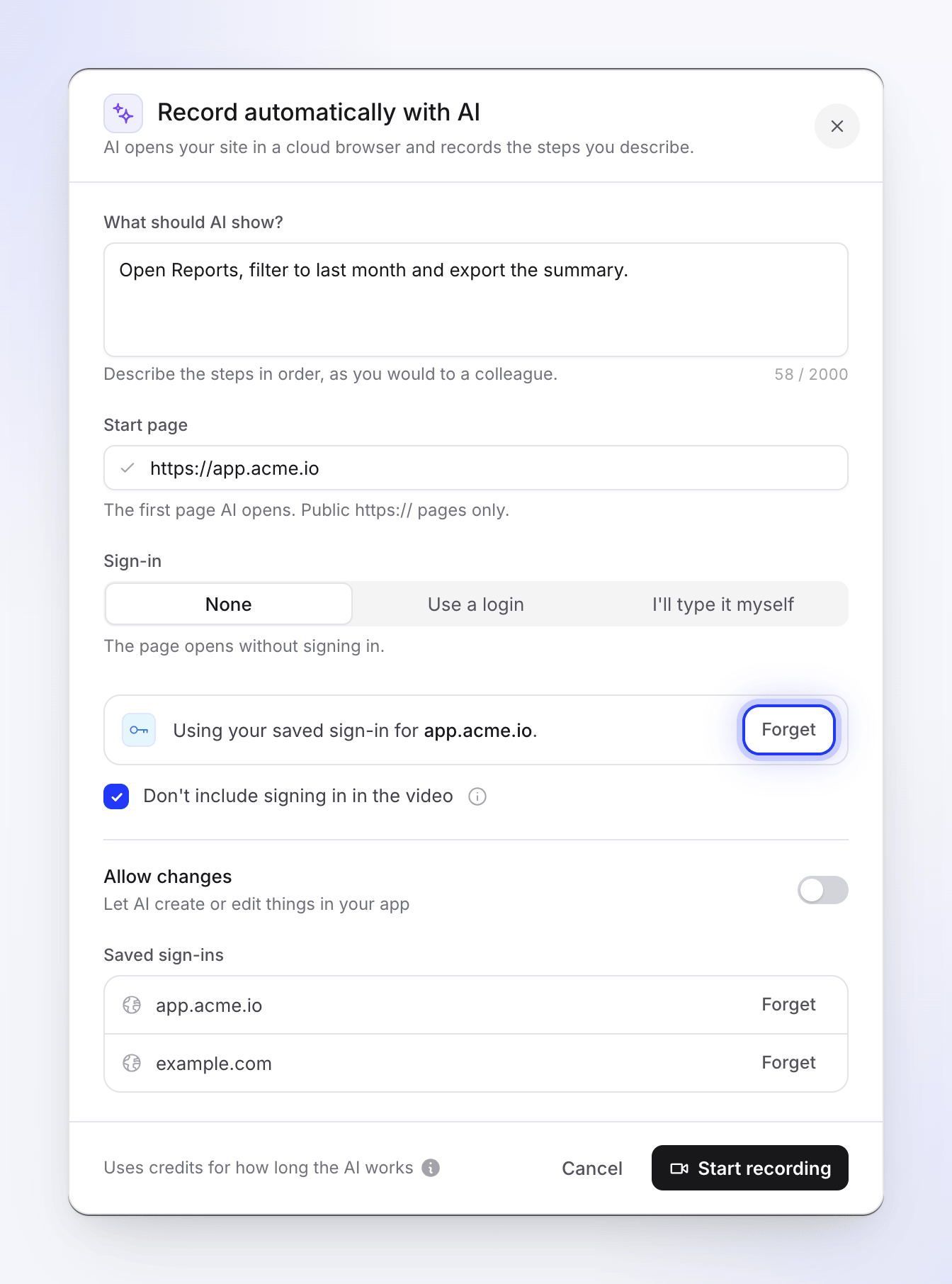
Whenever the recording signs in, with Use a login, I'll type it myself or a saved sign-in, the dialog shows Don't include signing in in the video. It's ticked by default: "The video starts once you're signed in."
While the sign-in happens, the live page shows Signing in · Not in your video above the browser, with no REC, and the card says "You asked to leave signing in out, so your video starts after this." Once the sign-in has gone through, the activity says "Signed in. The video starts here." and REC appears.
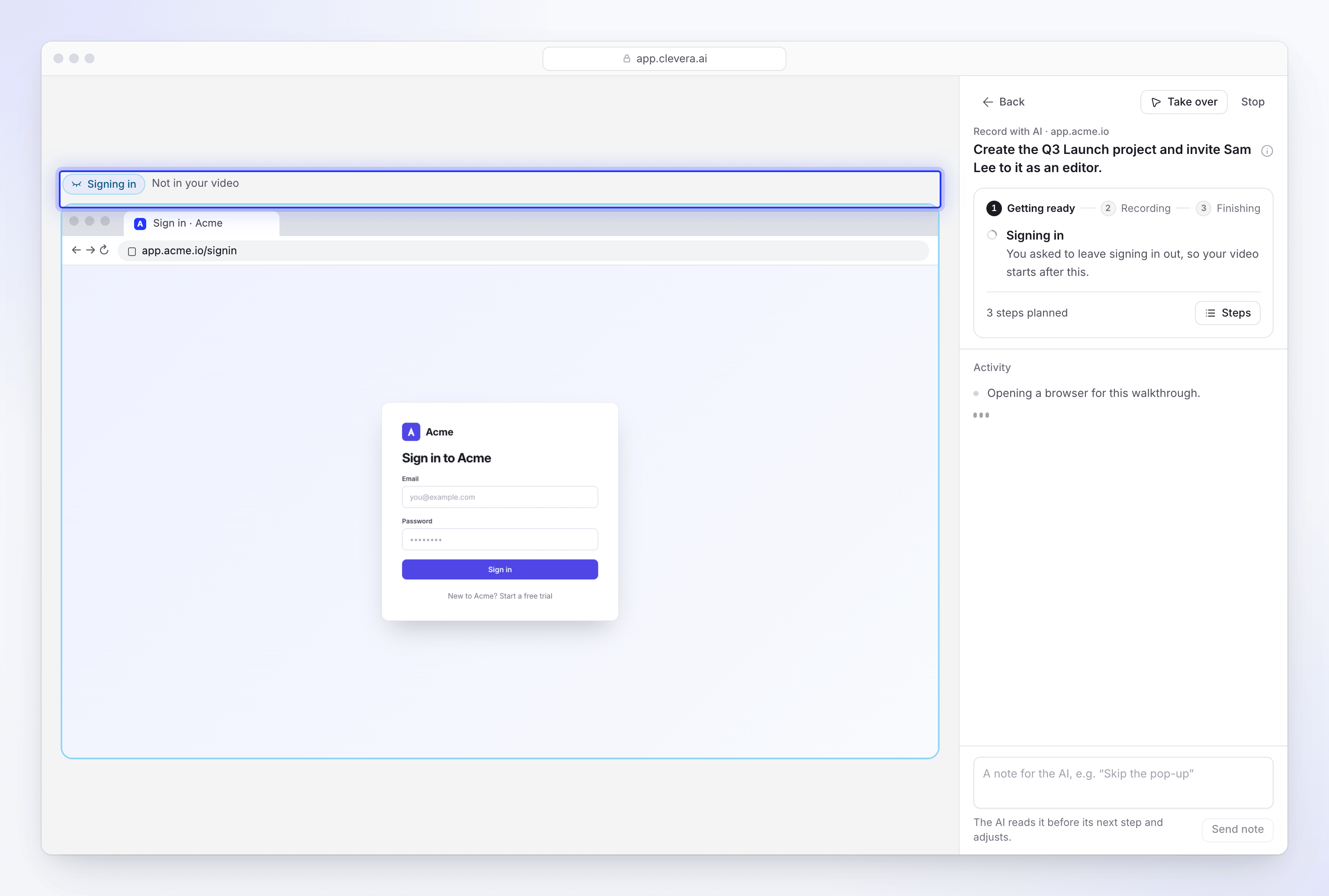
Untick the box if the sign-in should be part of the video, for example in a tutorial about signing in. The setup chat's card has the same box when you choose I'll sign in myself.
Keep a sign-in for next time
Once you've entered a start page, the dialog can offer Remember my sign-in for app.acme.io: "Keeps this site's cookies with our browser provider, so your team's next recording starts signed in. Deleted after 30 days unused." Whoever signs in during that recording, you or the AI, leaves the site signed in for next time.
- A saved sign-in belongs to your workspace and that exact site. One saved for
app.acme.ioisn't used foradmin.acme.io. - Next time anyone in your workspace records that site, the dialog says "Using your saved sign-in for app.acme.io." and the AI starts signed in.
- Clevera keeps your consent and a reference to the saved browser session, never the cookies themselves.
- To remove one, click Forget next to it under Saved sign-ins in the dialog. It's deleted at once.
When the AI asks for you
The AI stops and hands you the browser when it reaches something only you can do:
- a sign-in it has no details for, or one the site turned down
- a one-time or verification code, such as a code sent by email or an authenticator app
- a CAPTCHA or "are you human" check
- a consent only the account owner can give, or a file only you have
Before asking, the AI fixes its own slips. If a click missed or a form wasn't sent, it tries again a different way, and the activity says "That step did not go through. Trying it again."
When it does need you:
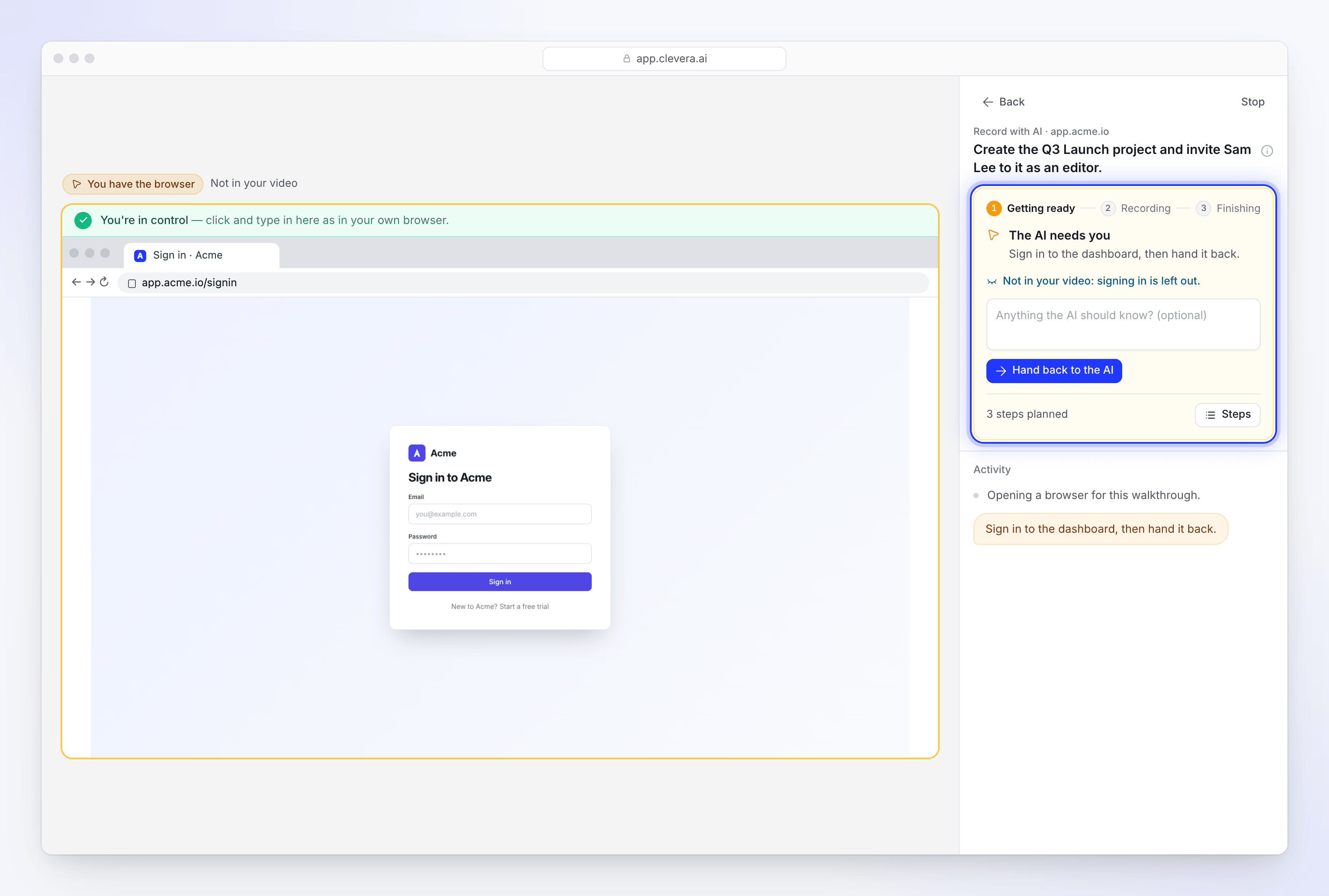
- The card on the right turns amber and says The AI needs you, followed by what the AI needs in its own words, for example "Sign in to the dashboard, then hand it back." The Compose tile says Waiting for you.
- Above the browser, You have the browser appears, with Not in your video while you sign in and the sign-in is left out, or Still recording otherwise. The card says the same: "Not in your video: signing in is left out." or "Still recording: what you do is part of your video."
- The page chimes, the browser tab shows a dot and its title flashes. On other Clevera pages, the Your AI recording button says "We need one quick answer".
Open the live page
Click Watch on the recording's tile in Compose, or the Your AI recording button.
Do the step in the browser
Click and type in the browser on the left, as you would in your own. A green "You're in control" bar sits over it while it's yours, the browser's address bar is shown, and pasting works.
Hand it back
Optionally add a note in "Anything the AI should know? (optional)", then click Hand back to the AI. The activity says "Thanks — carrying on from here." and the AI continues from the page you left.
When a step needs Allow changes
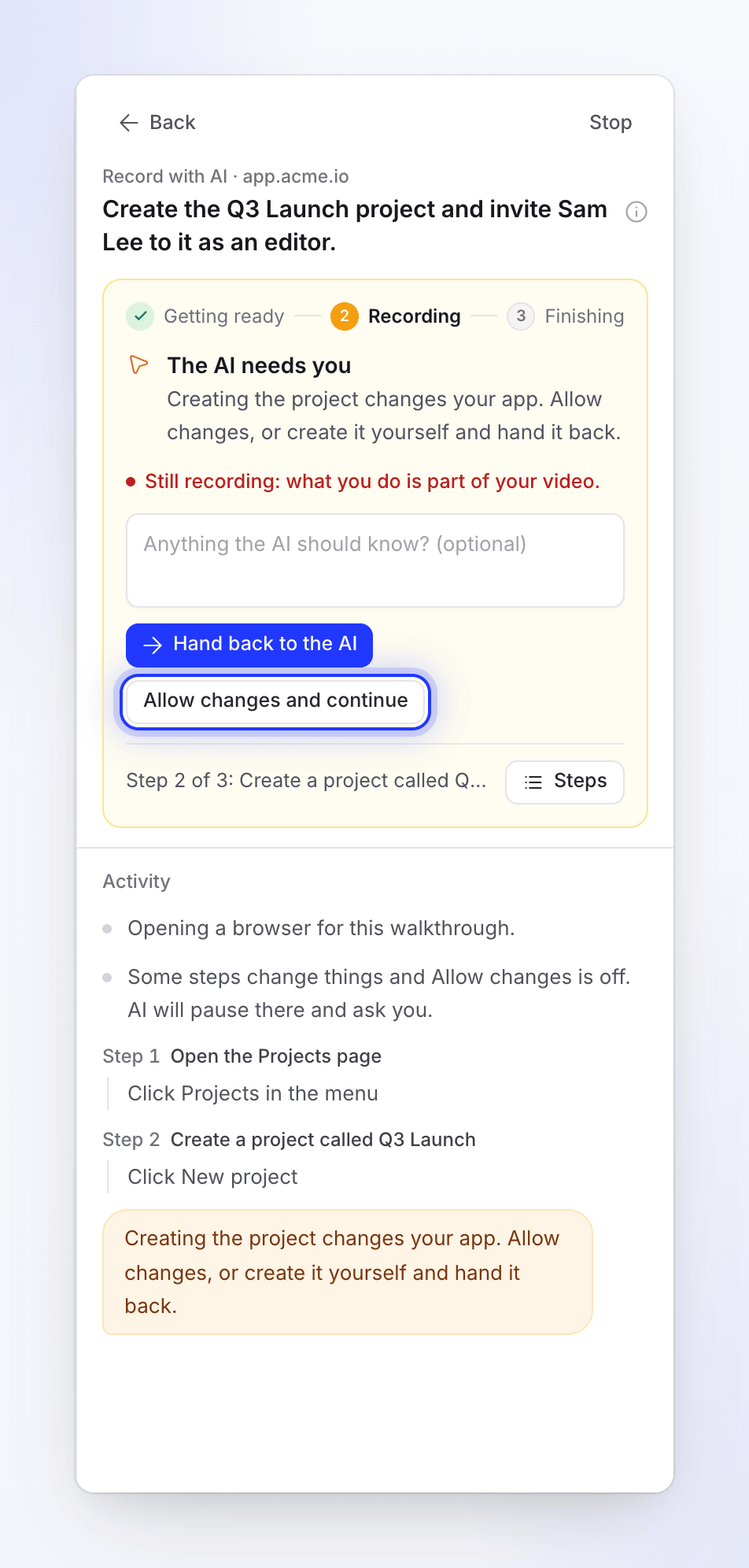
If your steps change something, such as creating a project or placing an order, and you started with Allow changes off, the activity says so at the start: "Some steps change things and Allow changes is off. AI will pause there and ask you."
When the AI then hands you the browser, the card has a second button, Allow changes and continue ("Lets the AI save, submit or create what the steps need."). Click it to let the AI make the change and carry on; the activity says "Changes allowed. Carrying on." Or click Hand back to the AI to keep it read-only. The button also appears whenever the AI asks you for help with Allow changes off.
Take over yourself
You can take the browser at any time, for any reason: the AI is heading the wrong way, it's about to click something it shouldn't, it can't work a control such as a drag or a date picker, or you want the page set up your way first.
- On the live page, click Take over ("Use the browser yourself. The AI waits until you hand it back."). The AI stops within a couple of seconds.
- The card says You have the browser: "Click and type in the browser. Hand it back when you are done." The activity adds "The browser is yours. Hand it back when you are done."
- Do what you need to, then add an optional note and click Hand back to the AI.
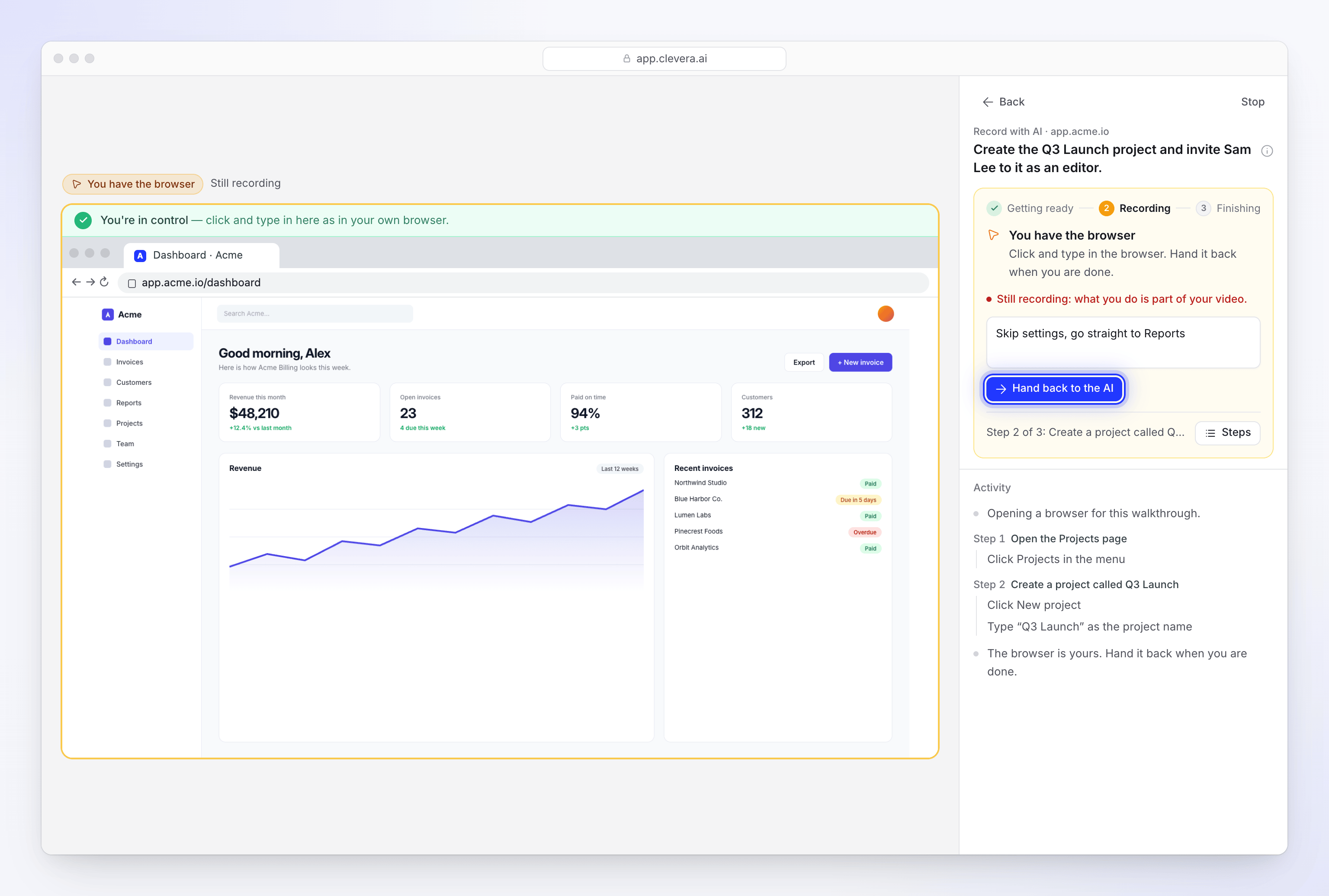
Leave the browser on the page where the AI should carry on. If you go somewhere else, the AI looks at the page you left and continues from there.
Notes when you hand back
The note box takes up to 280 characters: "The AI reads it when you hand the browser back." Use it to redirect the AI: "Skip the settings page, go straight to Reports", or "I created the project already, now invite Sam".
Notes add up. Every note you send, while the AI works or when you hand back, is given to the AI for the rest of the recording, and they win over your original steps. You can send up to 20 notes per recording.
What ends up in the recording
Record with AI films in one pass, so the browser is recorded the whole time except for what Clevera cuts out:
| When you have the browser | Is it in the video? |
|---|---|
| To sign in, with Don't include signing in in the video ticked (the default) | No. The video starts once you're signed in. |
| Any other time | Yes, as part of the walkthrough. The card says "Still recording: what you do is part of your video." |
| You took it and never handed it back | That stretch is cut from the recording. |
When the sign-in is kept in the video:
- Password fields show dots, as they do in any browser.
- An email address, username or code you type is visible as you type it.
See Keep your accounts safe during Record with AI for everything the AI can and can't see.
Time limits
| Limit | Value |
|---|---|
| Time the browser can stay with you | 15 minutes in all, across every hand-over in one recording |
| Hand-overs per recording | Up to 6 |
| AI time after you hand back | At least 2 minutes, however long you had the browser |
Time you spend with the browser doesn't use up the AI's own working time, and it doesn't count toward the time limit on the step the AI was on.
If the 15 minutes run out:
- The AI had asked for you: the recording stops with "Nobody took the browser over in time, so this recording stopped there." Start again.
- You had taken over: the recording finishes with what was filmed up to then. The activity says "Nobody came back to the browser, so this is where it stops."
Messages you might see
| Message | What it means |
|---|---|
| "Pausing the agent for a moment to give it your note." | Your note is on its way to the AI. |
| "The agent has your note and is carrying on with it." | The AI received your note. |
| "The AI reads it when you hand the browser back." | You have the browser. Your note goes with the hand-back. |
| "The agent had already finished, so your last note did not reach it." | The AI finished before the note arrived. |
| "Your note could not be given to the agent." | Try sending it again, or take over. |
| "Notes only reach a recording while its agent is still working." | The recording is over. |
| "The browser cannot be handed over right now." | The recording is starting or wrapping up. Wait a moment and try again. |
| "There is no live view for this session." | The recording has ended. |
| "Only the person who started this session, or a workspace owner or admin, can open or control it." | Someone else started it. Ask them, or a workspace owner or admin. |
| "Could not sign in with the details you gave." | The login didn't work. Check it, or use I'll type it myself. |
| "Still on the sign-in page. Open the live view, sign in, then try again." | Nobody signed in. Start again and sign in when the browser is handed to you. |
In the setup chat, the live browser above the chat works the same way with its own wording: Over to you when the AI needs you, The browser is yours after Take over, and I'm done — hand it back to return it.