

このページはまだ翻訳されていないため、英語で表示されています。
Set up a doc site's header and footer
Build a doc site's menus in Navigation: header links, dropdown menus, buttons and the search pill, footer columns, legal links, social links and footer text. Includes link targets, limits per plan and translating labels.
Navigation is where you build the menus readers see on every page of your doc site: the header with its links, dropdown menus, buttons and search pill, and the footer with link columns, legal links, social links and a line of text. Articles appear in the sidebar on their own; menus are how readers reach everything else, such as your site pages, your changelog or your own website.
Before you start
- Owners, admins and editors can change the menus. Others see "Only admins and editors can change the menus."
- A paused site is read-only: "This site is paused. Resume it to change its menus."
- How many links, menus and buttons you can add depends on your plan. See Limits per plan.
Edit the menus
Open Navigation
Open your doc site and go to Navigation under Site. The page has a Header card, a Footer card and a Live preview. "Changes show in the preview as you edit."
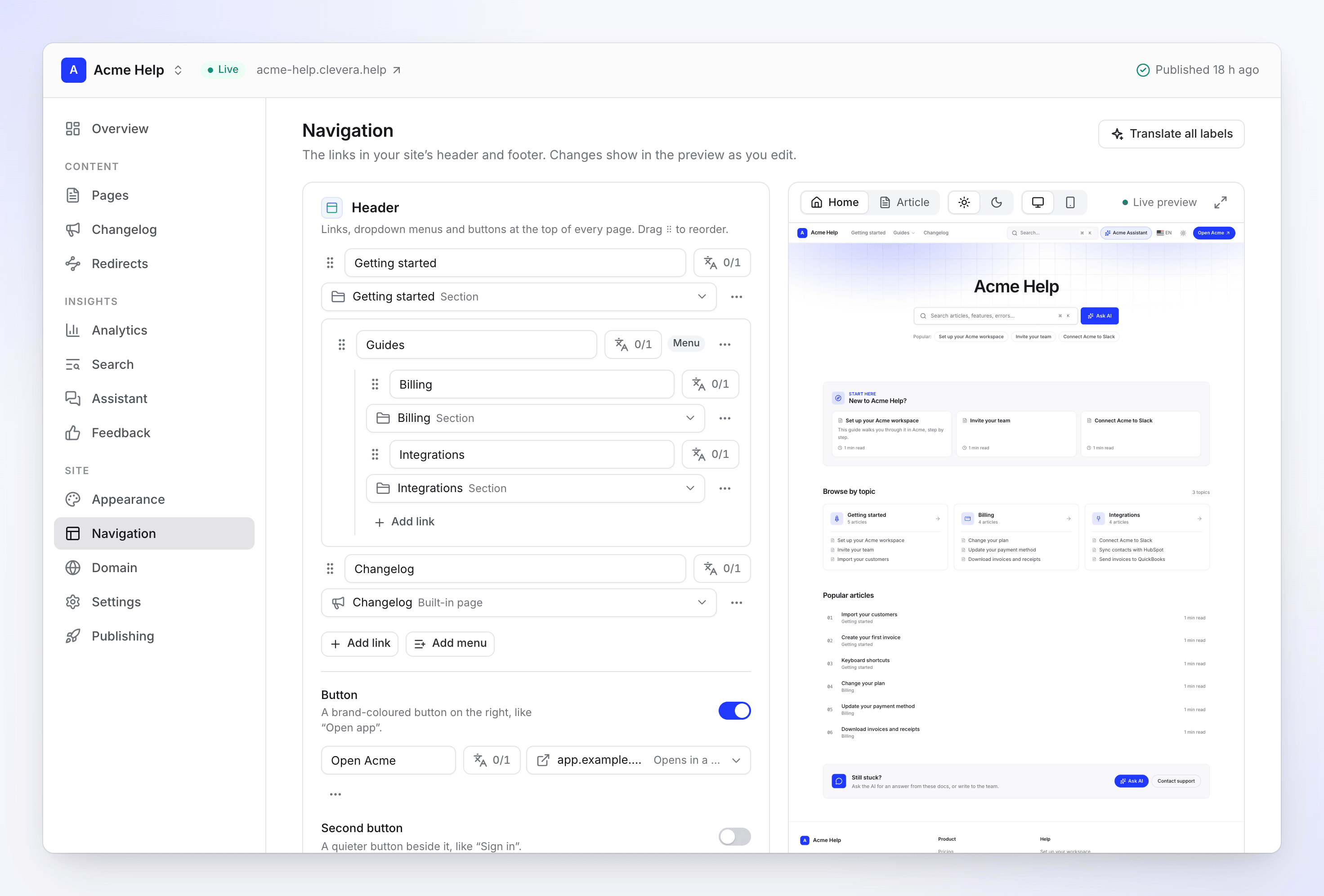
The Navigation screen with its live preview Add and arrange links
Add links, menus and columns as described below. Drag the handle ⠿ to reorder anything.
Point each link somewhere
Give each link a label, then click its target to choose where it goes. See Link targets.
Save and publish
Click Save in the Unsaved changes bar (or Discard to undo). Then publish the site to put the menus live.
If a link has no target or a bad address, the bar says, for example, "Fix 2 links to save."
Header
"Links, dropdown menus and buttons at the top of every page."
| Part | What it is |
|---|---|
| Add link | A text link in the header |
| Add menu | A dropdown with a Menu label (like "Product") and links inside it. "An empty menu isn't shown to readers." |
| Button | "A brand-coloured button on the right, like "Open app"." |
| Second button | "A quieter button beside it, like "Sign in"." Available once the first button is on. |
| Search in the header | "The search pill next to the links (⌘K works either way)." On by default. |
With no header links, "Readers still get your logo, search and the language switch."
To move a link into a menu, open its Link actions and choose Move into "Product"; choose Move out of the menu to bring it back. Remove menu and its links deletes a menu with everything in it.
Footer
"Link columns, legal links and social links at the bottom of every page."
| Part | What it is |
|---|---|
| Columns | Groups of links, each with a Column title (like "Company"). Add column adds one. "An empty column isn't shown to readers." |
| Legal links | "The bottom row: privacy, terms, cookies, imprint." Add legal link adds one. |
| Social links | Icons for your profiles. See Social links. |
| Text under the logo | Up to 200 characters. "Empty uses your home page subtitle." |
| Bottom line | The small line at the very bottom, up to 160 characters. Empty shows "© 2026 Acme Help" with the year and your site's name. |
Link targets
Click a link's target ("Links to: nothing yet" on a new link) to open Choose where it goes:
| Group | Targets |
|---|---|
| Pages | Any article or page of the site. Search them by name. |
| Sections | A section of the sidebar. Hidden sections are marked Hidden. |
| Site pages | Your About, landing, legal and other site pages |
| Built-in pages | Home (/), Contact (/contact), Changelog (/changelog), Search (/search) |
| External link… | Any other address: "Use a full address (https://…), mailto: or tel:." Turn on Open in a new tab if you want it to open separately. |
Links to pages follow them: if you rename a page or change its address, the link keeps working.
| The link shows | What it means |
|---|---|
| "Readers don't see this link yet: what it points to isn't published." | The page exists but isn't live. It appears once that page is published. |
| "Broken link: what it pointed to is gone, so readers won't see it. Pick another target." | The page or section was removed. Pick a new target or remove the link. |
Social links
Click Add social link and paste a profile address. "Paste a link and we'll pick the platform." Clevera recognizes about 90 platforms, from LinkedIn, X (Twitter), YouTube, GitHub and Discord to WhatsApp, WeChat and Trustpilot. If it picked the wrong one, choose another under Platform. Use Website for your own site or Email address for an email link.
| You see | What to do |
|---|---|
| "This looks like a LinkedIn link." | The address matches another platform than the one chosen. Click to use it. |
| "Use a full link, like https://example.com/you." | Social links need a full https:// address. |
| "Use an email address, like [email protected]." | The Email address platform needs an email address. |
You can add up to 12 social links on every plan. Reorder them with Move up and Move down.
Translate menu labels
When your site has more than one language, each label can differ per language. Click Translate all labels at the top: it "Fills the languages each label is missing. Review, then save." When everything is translated it says "Every label is in every language."
After it runs: "Labels translated. Review, then save." Translating labels is free and costs no credits. A workspace can run it 60 times an hour; after that you see "You've translated a lot in the last hour. Try again in a little while." Labels you leave empty in a language show the default language's text.
Limits per plan
| Free | Starter | Pro, Business, Custom | |
|---|---|---|---|
| Header items (links and menus) | 3 | 6 | 6 |
| Dropdown menus | None | 3 | 3 |
| Links in each menu | 8 | 8 | 8 |
| Buttons | 1 | 2 | 2 |
| Footer columns | 4 | 5 | 5 |
| Links in each column | 8 | 10 | 10 |
| Legal links | 6 | 6 | 6 |
| Social links | 12 | 12 | 12 |
At a limit, the add button turns off and a note such as "Up to 3 items." shows with a lock badge when a higher plan allows more. See Doc site plans and limits.
Troubleshooting
| You see | What to do |
|---|---|
| "Fix 2 links to save." | Two links have no target or an address that isn't allowed. Fix the links marked in red. |
| "Fix a social link to save" | A social link isn't a full https:// address or a valid email. |
| "Couldn't save the menus. Try again." | Nothing was saved. Try again in a moment. |
| "No translations came back. Try again." | The label translation didn't return anything. Run Translate all labels again. |
| A menu or column is missing on the live site | It's empty, or the changes aren't published yet. Add a link and publish. |
| "No preview yet" | "The preview shows once the site has a page to show. Your menus still save." |