

此頁面尚未翻譯,因此以英文顯示。
Ask the assistant to change your video
Ask the editor's assistant a question or describe a change in your own words. What it can and can't change in videos from a recording and in social clips, plans for big changes, how to undo its edits, and how its work is charged.
The assistant is a chat panel in the editor. Ask it a question about your video, or describe a change in your own words, and it edits the video for you. Small changes apply right away and you can undo each one; big changes show a plan with a credit estimate first.
There are two assistants, one for each kind of video. They work the same way but can change different things.
| Videos from your recording (how-to, product demo) | Social clips | |
|---|---|---|
| Where to open it | Assistant button in the top bar | Assistant on the icon rail at the edge of the video. It opens by default when you open a clip. |
| What it changes | The voice-over and title, footage, zooms, cards and scenes, overlays, music, captions, aspect ratio, background and voice | Almost anything in a scene: words on screen, timing, voice-over lines, sounds, music, pictures, the background |
| Placeholder | "Ask or describe a change…" | "Ask for a change to this video…" |
Videos made with Polish have no assistant.
Before you start
- You need edit rights on the video. Viewers see the button greyed out with "You don't have permission to edit".
- Small requests are free up to a daily allowance; past it, and for big changes, the assistant uses credits. See How assistant edits are charged.
- Write in any language. The assistant replies in the language you write in. Your video's language doesn't change unless you ask for a translation.
Ask for a change
Open the assistant
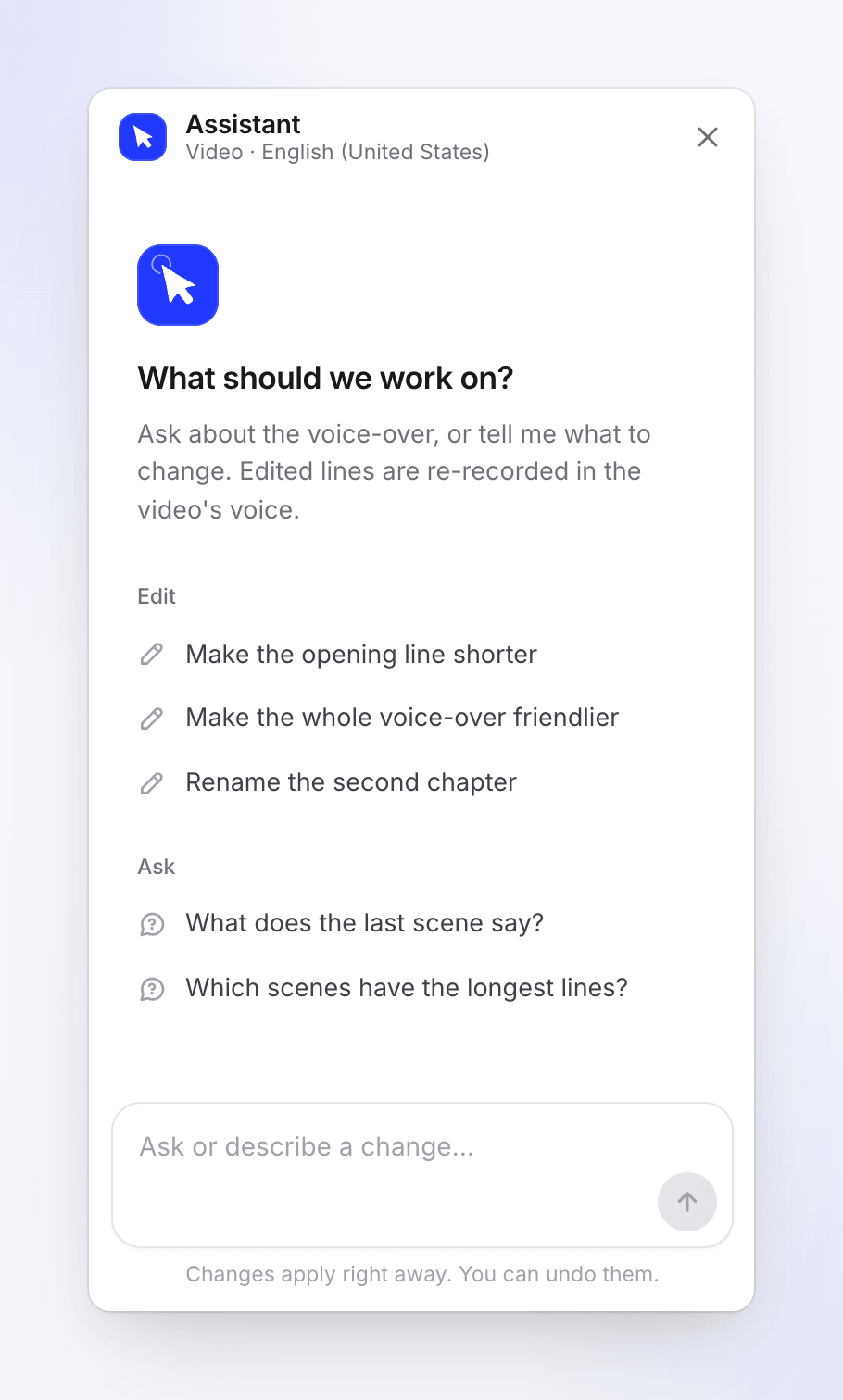
Click Assistant. An empty chat shows a few examples you can tap to put in the message box, for example "Make the opening line shorter" or "Change the headline in scene 2".
Point at what you mean (social clips)
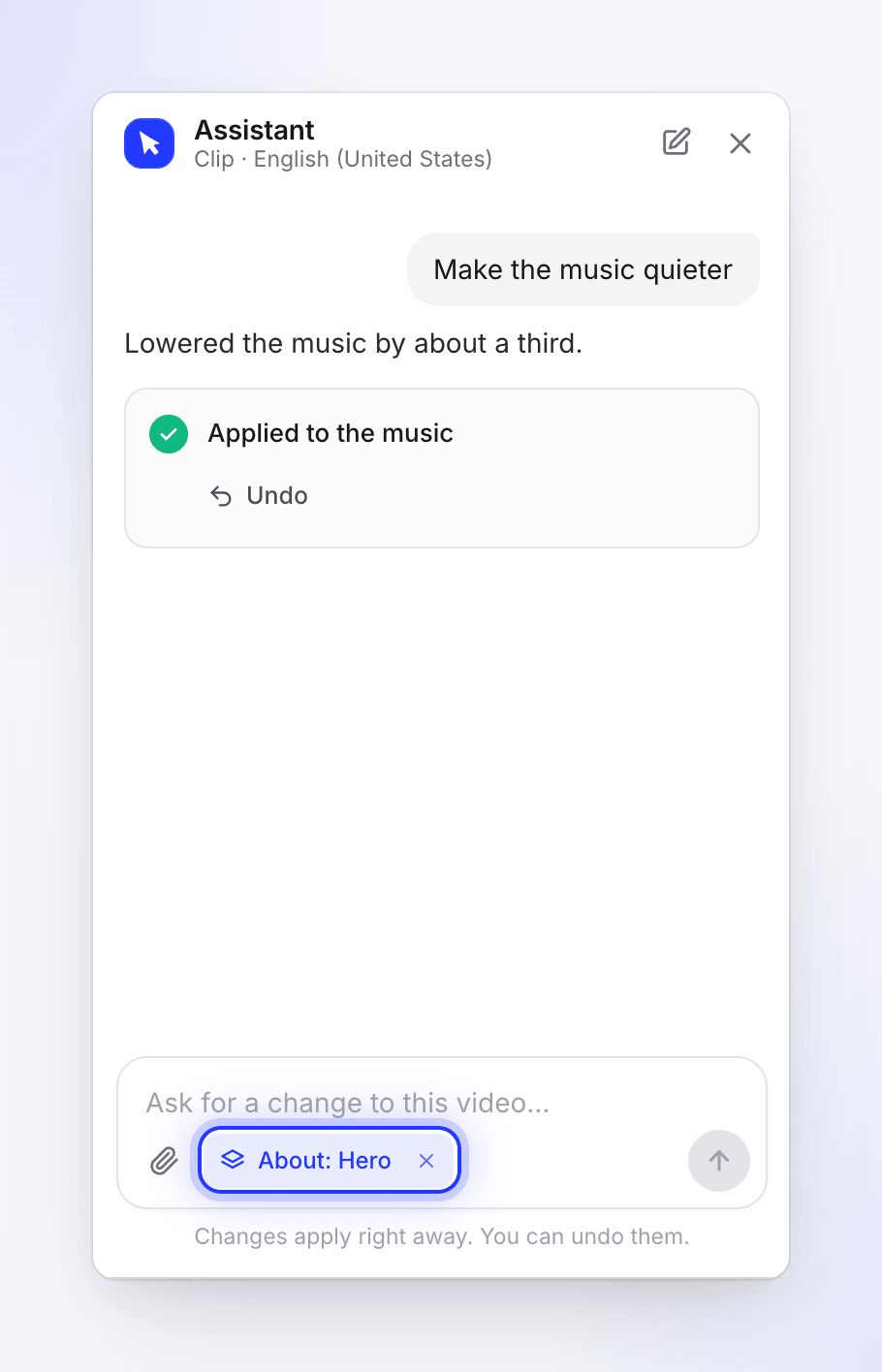
To ask about one scene or item, select it on the timeline or the video and click Ask the assistant about this layer (or Ask about the selected item). It appears above the message box as About: and its name. Click the × to remove it.
Describe the change
Type what you want, up to 4,000 characters, and press Send. Be specific: "Make the headline in scene 3 bigger and yellow" works better than "make it pop".
Confirm the plan for a big change
A big change, such as a new voice for the whole video, a new aspect ratio, a change to more than 5 things or "make it better" across the video, starts with "This changes a large part of the video, so here is the plan first:" and a Plan card with the estimate. Click Confirm or Cancel, or answer yes or no in the chat. See Review and confirm an assistant plan.
Watch it work
While it works, the panel says what it's doing ("Thinking", "Reading the video", "Editing the video", "Recording the new lines"), and Send becomes Stop. If it takes long it says "This is taking longer than usual…" or "Still working…". If you close the panel while it works, a message tells you when the change lands, with Undo.
Check the result
The change lands on your video at once and the player jumps to it. The reply describes what changed, with a card naming what it changed (for example "Applied to the music"), Undo, and Show.
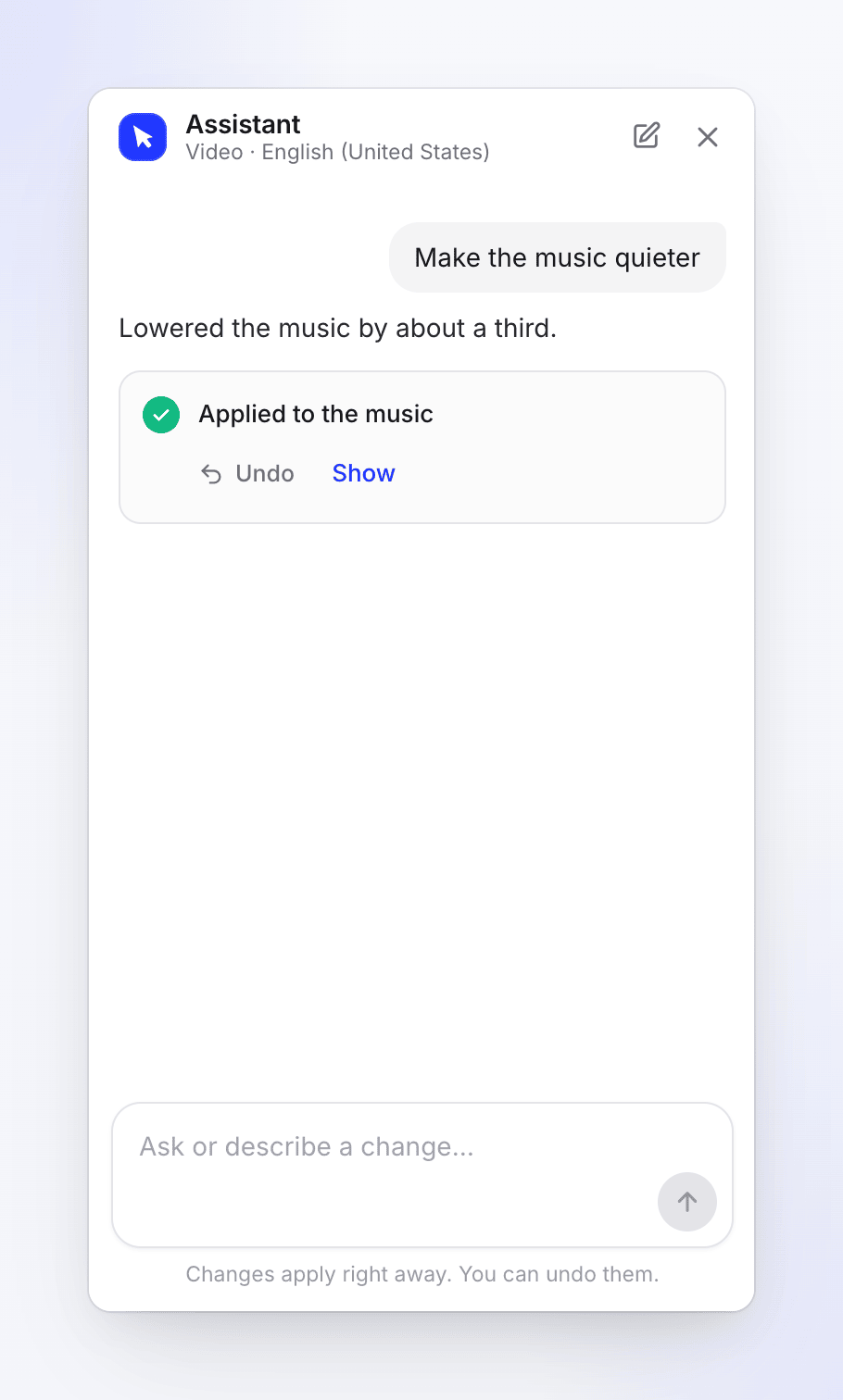
Undo stays on the card until you send your next message.
See what changed
In videos from a recording, click Show on a change to open the side-panel tab where it changed (Script, Zoom, Elements, Music, Captions, Background or Voice).
- Changed Script rows are tinted and carry an AI edit tag. Hover it to see "Changed by the assistant. Show what it said before", and open it to read the old line under Before.
- A strip titled Changes by the assistant steps through them with Previous change and Next change.
- Clear removes the marks: "Remove the marks. The changes stay."
What the assistant can and can't do
Videos from your recording
| It can | It can't |
|---|---|
| Rewrite, shorten or fix one or several voice-over lines, or the whole voice-over at once (tone, length, grammar) | Add a voice-over to a silent scene |
| Rename the video or a chapter | Change the cursor |
| Change a scene's footage: trim it, cut dead time, change its speed | Add or change sound effects |
| Add, change or remove zooms | Make a whole new design for the video |
| Add, move or remove cards (intro, chapter title, logo, steps) and silent scenes | Export or share (use Share and Export in the top bar) |
| Add or change overlays: text, callouts, highlights, arrows, circles | Billing and plans (use the Billing page) |
| Find, set, turn down or remove the music | |
| Turn captions on or off, change their look, or make them again | |
| Change the aspect ratio and crop, the background, and the voice | |
| Answer questions about the video ("Which scenes have the longest lines?") and about what you said while recording | |
| Translate the video, or update its translations after a change |
Every voice-over line it changes is recorded again in the video's own voice, and that step's footage is fitted to the new line. The assistant looks at frames of the video to check visual changes. For anything it can't do, it tells you which panel of the editor to use instead.
Social clips
| It can | It can't |
|---|---|
| Change the words on screen, sizes, colors and positions | Change the video's shape (aspect ratio). It says: "I can't change the video's shape: it is chosen when a clip is created, so create a new clip in the shape you want." |
| Make a scene longer or shorter, faster or slower (by taking time from a neighbouring scene) | Change the clip's total length |
| Rewrite voice-over lines (re-recorded in the clip's voice) | Make a new screen recording |
| Make music or a sound louder or quieter, or remove it | Change what an AI avatar says once its video is made |
| Swap the music for another track from the library | Translate the clip (use Translate in the top bar) |
| Add or swap sound effects | Write fake quotes, testimonials, prices or guarantees your video doesn't already state |
| Use other pictures from your materials, or icons | |
| Change the camera on a screen recording: closer, wider, focus on the click or on the result | |
| Change the background | |
| Redesign the clip, scene by scene, after you confirm a plan |
A redesign ("make it look more premium") is offered as a plan with Effort 1x, 2x or 3x: "More effort designs each scene with more care, and costs more." See Review and confirm an assistant plan.
When a request is vague, the assistant may ask which change you want and offer two or three options. Your next message answers it ("Your next message answers this."). A card titled A question about your video can also appear with its own Your answer box.
Undo a change
- Each change's card has Undo until you send your next message. After that, use Undo in the top bar (the chat says "This change can no longer be undone from the chat."), or restore an earlier version from the revision history, where assistant changes show as "The assistant changed the video".
- If you edited the same thing by hand after the assistant's change, Undo asks first: "Undo anyway?" with Undo anyway and Keep it.
- You can also type "undo that" right after a change.
- A voice change for the whole video is the exception: ask for the old voice in a new request instead.
A Partly done badge means the assistant reached its limit for one request before finishing everything. Check what changed and ask again for the rest.
Translate with the assistant
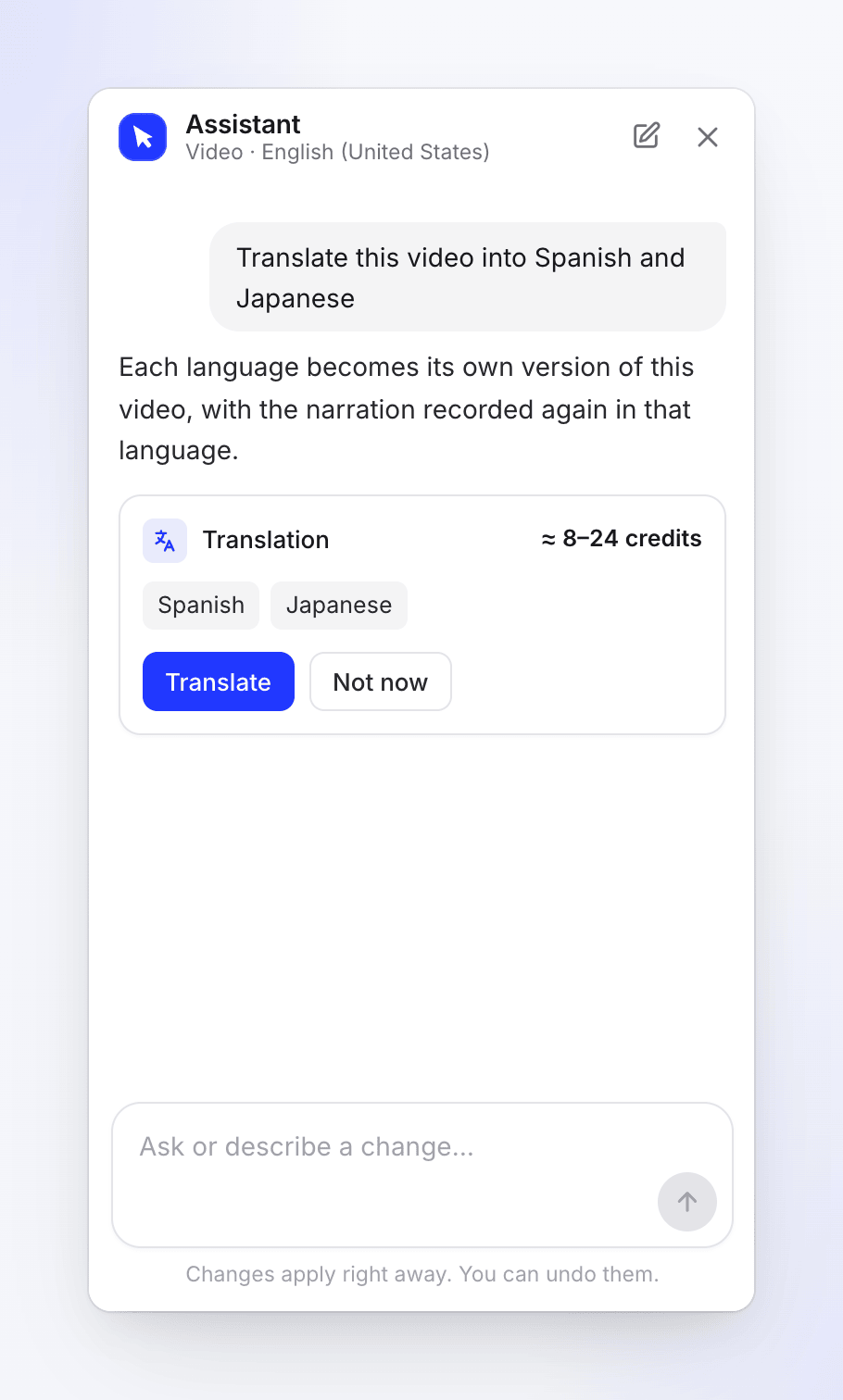
In videos made from a recording, ask "Translate this into Spanish and Japanese" or "Update the translations". The assistant first shows a Translation card with the languages (update marks a language the video already has) and the credit cost. Nothing starts until you click Translate; Not now cancels. For social clips, use Translate in the top bar.
Start a new chat
Click New chat in the panel's header. "The assistant forgets this conversation. Changes already made stay." Your chat is otherwise kept per video and language, so it's there when you come back.
How assistant edits are charged
- Small work is free each day up to an allowance per workspace: questions, simple edits, a change to one scene, and the planning before a plan card. Once it's used, replies carry the line "Free assistant edits used for today; further edits use credits (~1 each)." The allowance resets at midnight UTC.
- Big changes show a plan with an estimate ("About X–Y credits" and your balance before and after) and run only after you confirm. They always use credits, and stop to ask if they reach 20% over the high end.
- Voice-over lines it re-records are part of that cost.
- A translation shows its credit cost first and runs only when you click Translate.
- On the Usage page, assistant work shows as AI assistant edit.
- Undoing a change, cancelling a plan and starting a new chat are free.
See Review and confirm an assistant plan, Understand credits and Check where your credits went.
Limits
| Limit | What you see |
|---|---|
| One request at a time per video | "The assistant is still working on your last request." |
| Requests running across your workspace | "The Assistant is already working on other requests of yours. Send this again once one has finished." or "Your workspace's Assistant is already working on other requests…" |
| About 20 messages a minute | Wait a moment and send again. |
| Out of credits or a payment problem | A credits or payment message, such as "Your workspace cannot use the assistant right now." It takes new requests again once your workspace has credits or the payment is fixed. |
| A plan is open for 24 hours | "This plan expired. Ask again for a new one." |
| A request runs very long | It's stopped after its time limit: "The request ran past its time limit." |
Troubleshooting
| Message | What to do |
|---|---|
| "Couldn't reach the assistant" | Check your connection and click Try again. |
| "The assistant is off" | It isn't available for this video right now. Everything else in the editor works. |
| "No scenes yet" | The assistant works on the voice-over scenes. Wait for the video (or the translation) to finish. |
| "That didn't work, and nothing in your video changed." or "That did not work, and nothing on your video changed." | Click Retry, or rephrase the request. |
| "Stopped. Nothing on your video changed." | You clicked Stop before the change landed. Send the request again when you're ready. |
| "It changed since this was planned. Plan it again." | The video changed after the plan was made. Ask again. |
| "The picture could not be uploaded. Try again." | Check the file type and try again. |