

Esta página aún no está traducida, por lo que se muestra en inglés.
Publish a doc site changelog and redirects
Write, schedule and translate changelog entries with an RSS feed, and keep old addresses working with automatic and manual redirects on your doc site.
Every doc site has a changelog for telling readers what shipped, with its own page and an RSS feed. This article covers writing, scheduling and translating entries, and the Redirects screen that keeps old addresses working when pages move.
Before you start
- The changelog and redirects are on every plan. Scheduling an entry for a future date is on Starter and up, and your plan caps how many redirects you add by hand (see Plans).
- New entries can be written by the workspace owner, admins and Content Creators; editors can change existing ones. Redirects can be changed by the owner, admins and editors.
- Entries and redirects reach readers with the site's next publish. With auto-publish on, that happens on its own a couple of minutes after you stop editing.
Write a changelog entry
Open the changelog
Open your doc site and click Changelog in the Content group. Then click New entry.
Write it
Fill in Title ("What shipped?"), an optional Summary for the list and the RSS feed, and the Body. Type
/in the body for headings, lists and images, or paste Markdown or images straight in. Readers see the entry as it looks here.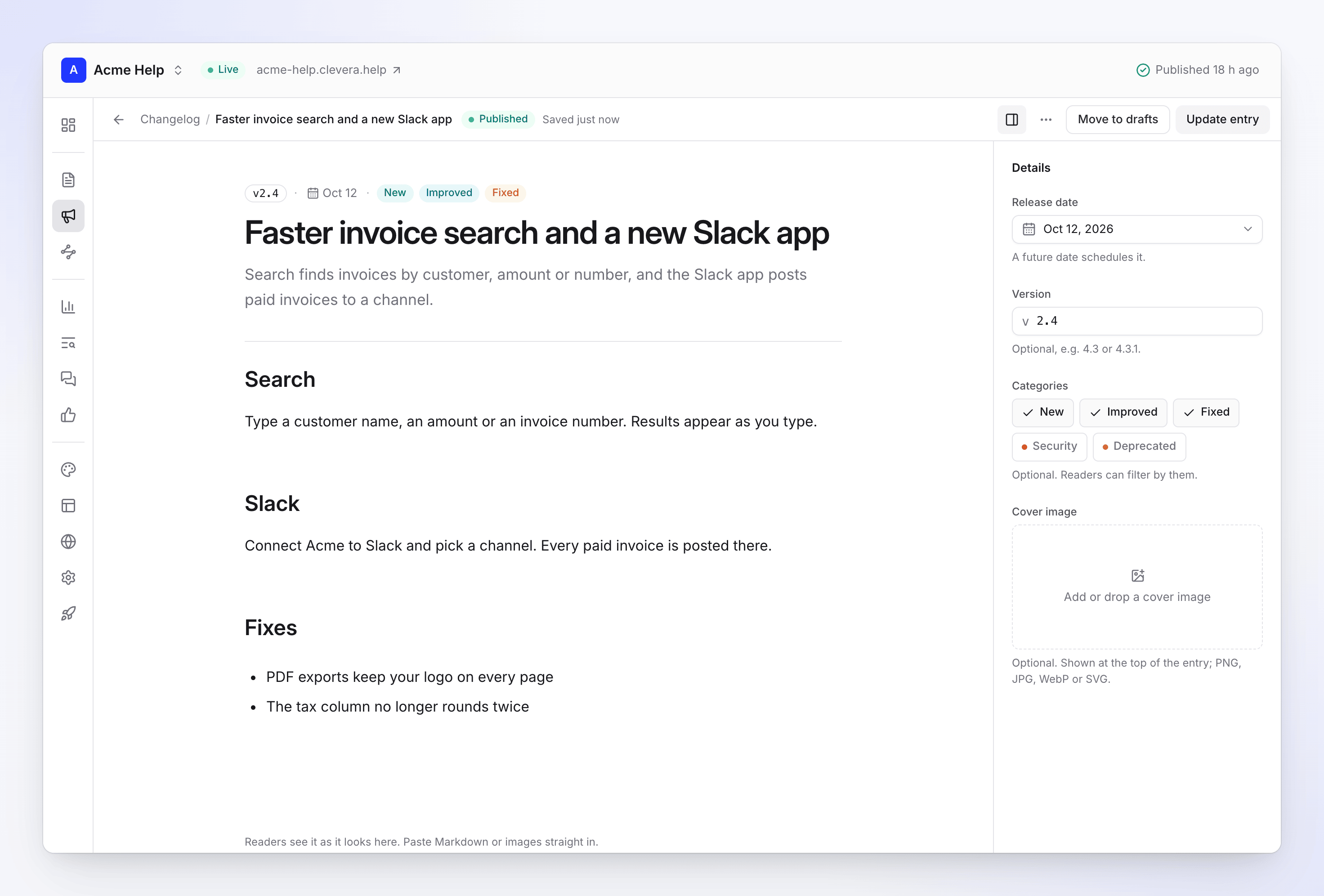
The changelog entry editor Add the details
Click Details to set the Release date, an optional Version (for example 4.3 or 4.3.1), up to five Categories and a Cover image.
Save or publish
Click Save draft to keep working on it, or Publish entry to put it on the changelog. It appears on the live site with the site's next publish.
Entry fields
| Field | What it does | Limits |
|---|---|---|
| Title | The entry's heading. Required. | Up to 200 characters |
| Summary | A short line for the changelog list and the RSS feed. Optional. | Up to 500 characters |
| Body | What changed, with headings, lists, images and links. | — |
| Release date | The date the entry shows. A future date schedules it. | Starter and up for future dates |
| Version | A version number shown with the entry. Optional. | Up to 50 characters |
| Categories | New, Improved, Fixed, Security, Deprecated. Readers can filter by them. Optional. | Up to 5 |
| Cover image | Shown at the top of the entry. Optional. | PNG, JPG, WebP or SVG |
Your edits are saved in the browser as you type. If you leave without saving, the editor offers them back next time: "Unsaved changes restored". Press ⌘S (Ctrl S on Windows) to save without changing the entry's status.
Entry statuses
| Status | Meaning |
|---|---|
| Draft | Not on the live site. |
| Scheduled | Published with a future release date. It appears on its date, with the next publish after it. Clevera checks every few minutes and publishes the site when a scheduled entry is due. |
| Published | On the changelog after the site's next publish. |
On the Changelog screen, filter by status (All, Drafts, Published, Scheduled) or search by title or version.
Edit, unpublish or delete an entry
- Open an entry to edit it, then click Update entry.
- More → Move to drafts takes it off the changelog at the next publish.
- More → History lists every save of the entry, newest first: created, published, moved to drafts, edited, with who did it.
- More → Delete entry removes it. It disappears from the changelog and the RSS feed with your next publish.
- Open on site opens the entry on your live site.
Translate entries
Write entries in the site's default language. On a site with more languages, publishing an entry asks you to confirm: "This entry will be translated into these languages:", with the list. The button then reads Publish and translate (or Update and translate, Schedule and translate).
- Clevera translates the entry into each published site language in the background. You see "Translating into 2 languages." when it starts.
- When you update an entry, only the changed parts are translated again.
- Translating uses credits, shown as Article AI in your credit activity. If your workspace is out of credits, the entry is published in the default language only and the translation is tried again at a later publish.
- Until a translation is ready, readers in that language see "Not yet available in" their language.
See Add languages to a doc site for site languages.
What readers see
- The changelog lives at
/changelogon your site (other languages under their language prefix). Entries are newest first, with their date, version and categories, and readers can filter by category. - Each entry has its own page.
- The RSS feed is at
/changelog/rss.xml(each language has its own). Copy its address with RSS feed on the Changelog screen and share it, or add it to your footer as a social link.
Redirects
A redirect sends readers and search engines from an old address to a new one. Open Redirects in the Content group.
Automatic redirects
When you move or rename a page that was already published, Clevera adds a permanent (301) redirect from the old address, in every site language. These show as Auto ("Added when a page's address changed.").
- Chains are collapsed: if a page moves twice, the first address points straight to the newest one.
- A removed page's address redirects to its section (or the home page) from the next publish.
- Pages that were never published don't get one; nobody has the old link.
- Automatic redirects can't be edited and don't count toward your plan's limit.
Add a redirect by hand
Use a manual redirect for old links from elsewhere, like a previous help center or a page that never existed here.
- Click New redirect.
- In From, enter the old path on this site, like
/old-page. - In To, enter a path on this site (
/new-page) or a fullhttps://address. - Pick the Type: 301 Permanent ("The page moved for good. Search engines move its ranking over.") or 302 Temporary ("The old address comes back later. Search engines keep it indexed.").
- Click Create redirect. It works from the next publish.
How paths are matched
- Paths are matched without capitals, query strings (
?…), anchors (#…) and trailing slashes./Old-Page/?ref=mailand/old-pageare the same path. - From can't be the home page, a path that already redirects, or a path where a page lives now ("path is a page on this site. Move or remove the page first.").
- A redirect can't point to itself or create a loop.
- There are no wildcards; each redirect is one path.
Manage redirects
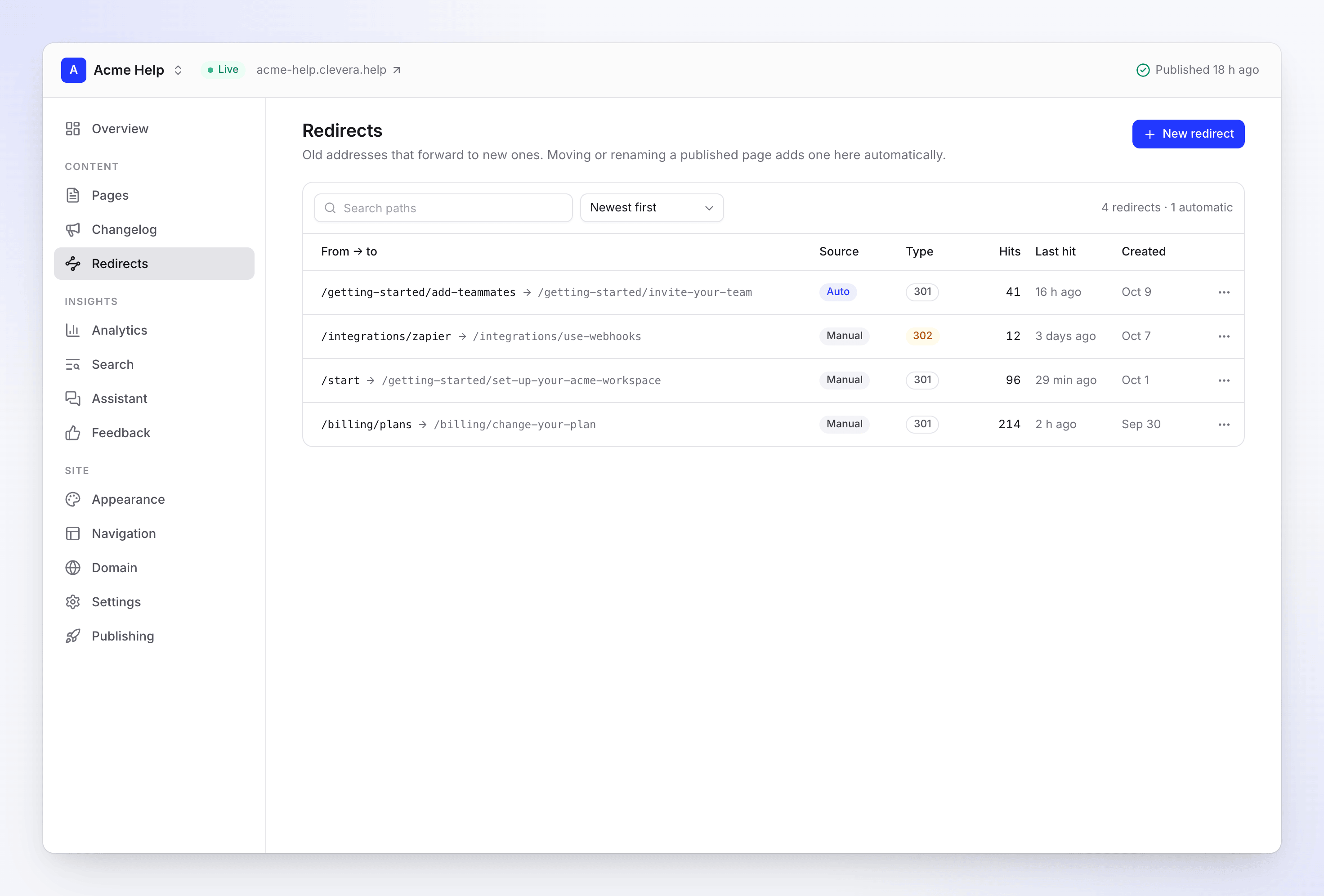
- Sort by Newest first, Most hits or Path A–Z, and search paths.
- Hits shows how many readers each redirect forwarded, updated hourly, and Last hit when it was last used.
- Test redirect opens the old path on your live site.
- Edit and Delete are in each row's menu.
Plans
| Free | Starter | Pro, Business, Custom | |
|---|---|---|---|
| Changelog | Yes | Yes | Yes |
| Schedule entries for a future date | No | Yes | Yes |
| Manual redirects per site | 20 | 500 | Unlimited (up to 2,000) |
| Automatic redirects | Unlimited | Unlimited | Unlimited |
The Redirects screen shows how many manual redirects you use, like "12 of 20 manual". At the limit, "Your plan includes up to 20 redirects per site." tells you which plan includes more.
If your workspace moves to a plan with a lower limit, your oldest manual redirects up to the new limit keep working. The rest are kept but marked Inactive ("Over your plan's redirect limit: kept, not published.") until you upgrade or delete some. An entry scheduled before a downgrade keeps its date.
Troubleshooting
| You see | What to do |
|---|---|
| "Scheduled publishing is on Starter and up." | Set today's date or an earlier one, or upgrade. |
| "Give the entry a title." | Add a title before saving. |
| An entry or redirect isn't on the live site | Publish the site. Check Publishing for a failed publish. |
| "path already redirects somewhere." | Edit the existing redirect instead. |
| "This would create a loop: …" | Point To at the final address. |
| "The home page can't be redirected." | Pick another path. |
| "You have 2,000 manual redirects, the most a site can have. Delete one to add another." | Remove redirects that get no hits. |