

Den här sidan är inte översatt än, så den visas på engelska.
Read doc site insights
See how readers use your doc site: traffic, searches that found nothing, page feedback and assistant questions, plus history per plan, your own analytics tools and doc site notifications.
Insights show how readers use your doc site: how many visit, what they search for, what they can't find, how they rate your pages and what they ask the AI assistant. This article explains each screen, how the numbers are counted and how far back you can look on your plan.
Before you start
- Insights start after the site's first publish. Until then, Overview shows a setup checklist instead.
- Every workspace member can read insights. Marking a search as covered needs the owner, an admin or an editor. Write article needs a role that can create content (owner, admin or Content Creator).
- Insights are free on every plan. Your plan sets how far back you can look (see Date ranges and history).
Where to find insights
Open a doc site. The site menu has an Overview screen and an Insights group:
| Screen | What it answers |
|---|---|
| Overview | How is the site doing at a glance, and what should I do next? |
| Analytics | How many people read the site, from where, on which devices? |
| Search | What do readers search for, and what finds nothing? |
| Assistant | What do readers ask the AI assistant, and what couldn't it answer? |
| Feedback | Which pages do readers find helpful, and why not? |
Each screen compares the selected period with the previous period of the same length.
Overview
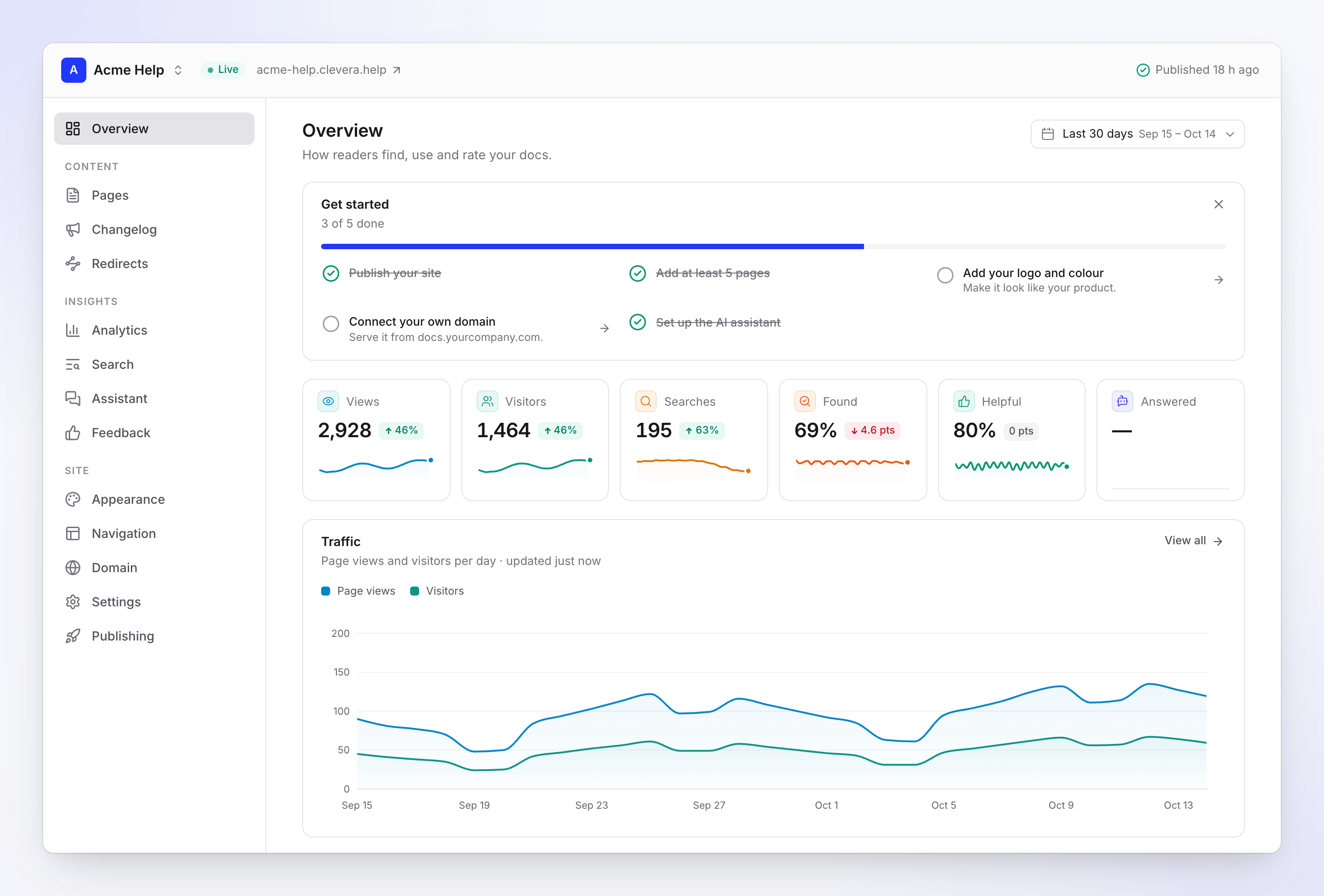
The Overview screen sums up the site.
Get started is a checklist for a new site. It hides itself once all five items are done, or when you hide it.
| Item | Done when |
|---|---|
| Publish your site | The site has been published once. |
| Add at least 5 pages | The site has 5 or more pages. |
| Add your logo and colour | A logo is uploaded. |
| Connect your own domain | A custom domain is live. On Free it shows a lock, because custom domains are on Starter and up. |
| Set up the AI assistant | The assistant is turned on. |
The tiles: Page views, Visitors, Searches, Search success, Helpful and Assistant answered.
The cards, five rows each:
- Traffic: page views and visitors per day.
- Site status: whether everything you changed is live, with Publish when changes are waiting.
- Top pages: the most viewed pages, with the change and the helpful rate.
- Top searches: what readers look for.
- Content gaps: searches that found nothing, with Write article.
- Needs attention: the pages readers rate lowest (pages with 3 or more votes).
Analytics
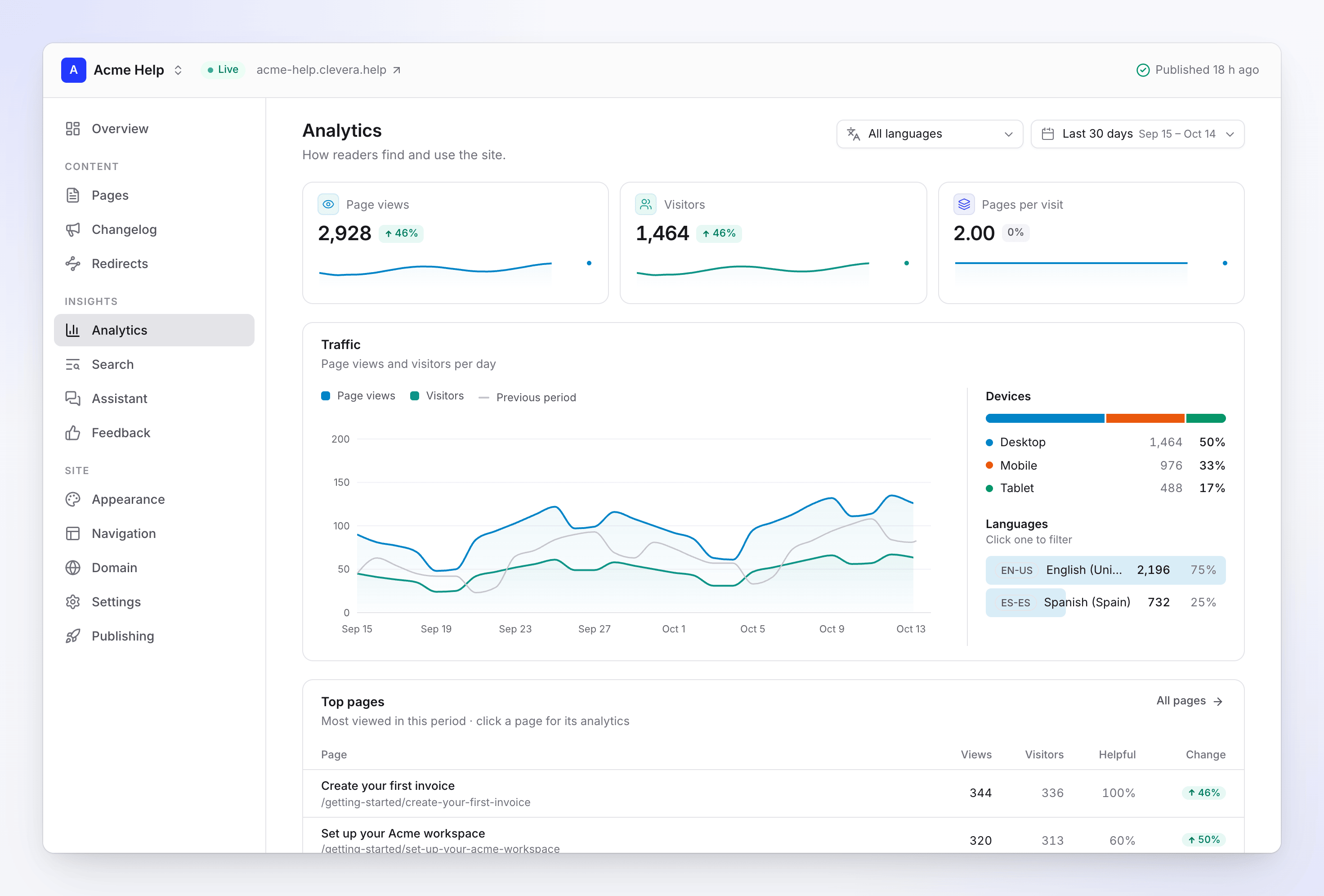
Analytics shows traffic for the period. On a site with more than one language, filter by Language.
| Number or card | What it shows |
|---|---|
| Page views | Pages opened by readers. |
| Visitors | People who read the site. Counted per day without cookies. |
| Pages per visit | Page views divided by visitors. |
| Traffic | Page views and visitors per day, with the previous period for comparison. |
| Devices | Desktop, mobile and tablet. |
| Languages | Which site language readers used. |
| Referrers | Where visits start. "Direct / unknown" covers typed addresses, bookmarks and apps that send no referrer. |
| Countries | Where readers are. |
| Top pages | Most viewed pages. Click a page for its own analytics. |
Click any page in Top pages, Search or Feedback to open its own panel: page views, visitors, the helpful rate, views per day, its feedback, the searches that led to it and its referrers. Pages you removed from the site keep their analytics.
How readers are counted
- No cookies. Clevera doesn't set cookies or store readers' IP addresses to count them.
- Visitors are counted per day. A reader is recognized within one day only, so someone who reads on three different days counts as three visitors over a week.
- Bots are left out. Known crawlers and bots don't count as readers.
- Data arrives within an hour. New views usually show up within 15 minutes to an hour.
Search
Search shows what readers typed in the site's search. Filter by Source: All, the search box (opened with ⌘K or Ctrl K), Search page or Assistant (questions asked to the AI assistant).
| Number | How it's calculated |
|---|---|
| Searches | All searches, with the number of distinct queries. |
| Search success | The share of searches that found at least one result. |
| Zero-result rate | The share of searches that found nothing. Down is good. |
| Click-through | How often readers opened a result, out of searches that had results. |
Below the numbers: Searches per day, Where people search and Top queries with the result readers opened most.
Content gaps
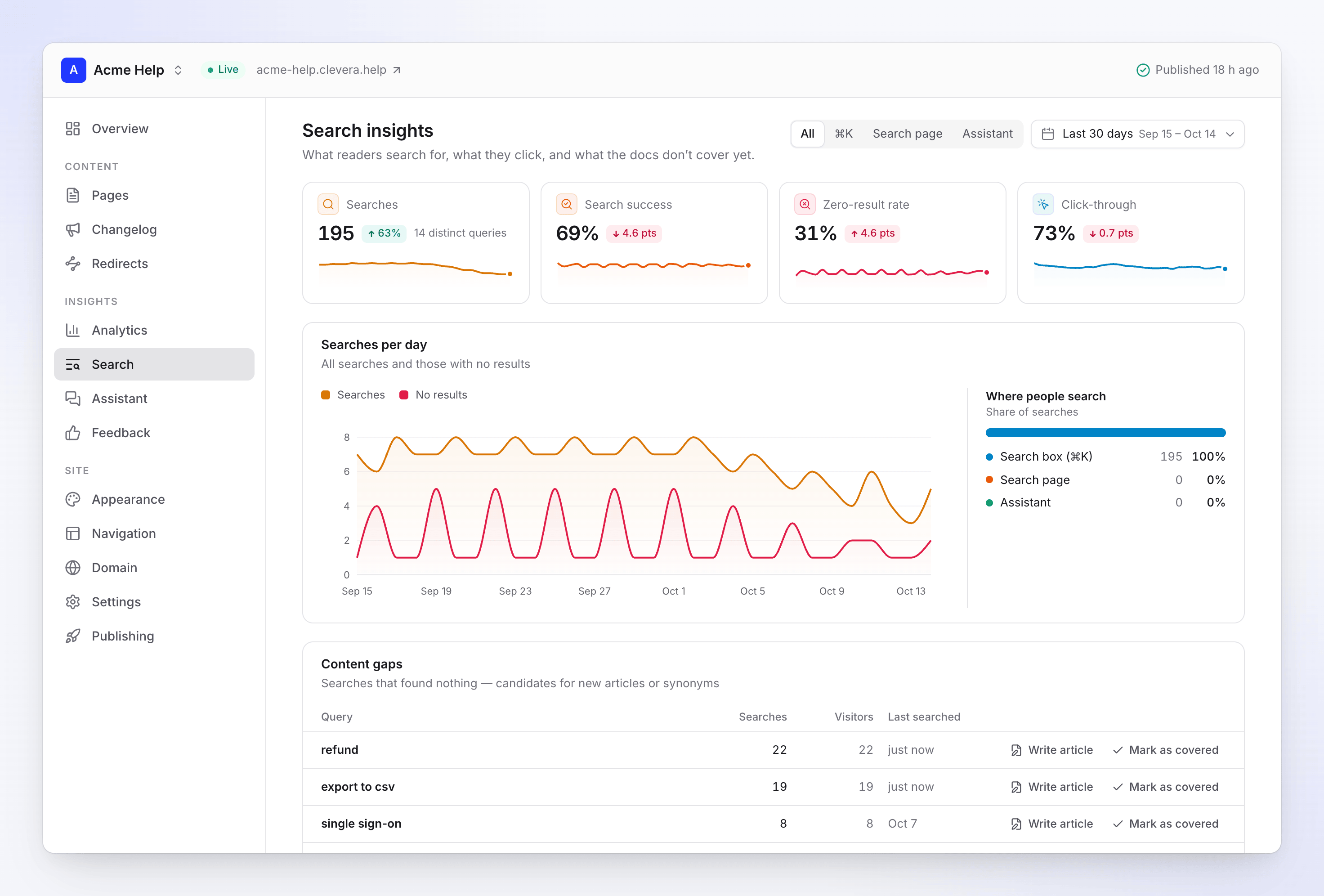
Content gaps lists searches that found nothing: candidates for new articles, or for words to add to existing pages. Each row shows Searches, Visitors and Last searched.
- Write article opens a dialog with the query as the Topic and a note for the writer such as "Readers searched for “sso” 12 times and found nothing." Pick where it goes under Add to, then click Open Compose. The new article joins this doc site as a page, ready for your next publish. Writing it costs credits like any article.
- Mark as covered takes the query off the list when you've answered it elsewhere. New searches for it still count. Use Covered to see covered queries and Not covered to put one back.
Assistant
Assistant shows what readers asked the AI assistant: Conversations, Answered (the share answered from your pages), Rated helpful, the Answers this month meter, the conversation list with transcripts and Unanswered questions. Its Try asking card holds the starter questions.
See Set up the doc site assistant for the details.
Feedback
Feedback collects every "Was this page helpful?" vote.
| Number or card | What it shows |
|---|---|
| Votes | All votes in the period. |
| Helpful rate | The share of "Yes" votes. |
| Not helpful | "No" votes. Down is good. |
| Comments | Votes with a written comment. |
| Needs attention | The pages with the lowest helpful rate (3 or more votes). |
| Why it wasn't helpful | The reasons readers picked. |
The vote list below can be filtered by vote (Helpful or Not helpful), by reason, to With comments, or searched by comment text. A reader can vote once per page per day; voting again changes their vote.
To change the question or the reasons, see Collect reader feedback and messages.
Date ranges and history
Every Insights screen has a date picker: the last 7, 30 or 90 days, This month, or a custom range. The default is the last 30 days.
| Plan | How far back you can look |
|---|---|
| Free | 30 days |
| Starter | 90 days |
| Pro, Business, Custom | 12 months |
Ranges your plan doesn't cover are greyed out with a lock. Choosing one shows what the next plan includes, for example "Your plan includes 30 days of Insights. Starter includes 90 days of Insights." Upgrading shows older data right away, as far back as Clevera kept it.
Clevera keeps reader data (page views, searches, feedback and assistant conversations) for 13 months, then deletes it.
Send page views to your own analytics
On Starter and up you can add your own analytics tool next to Clevera's. Go to Settings → Integrations.
| Tool | What you enter | What it adds |
|---|---|---|
| Google Analytics 4 | Measurement ID, like G-XXXXXXXXXX |
Google's tag on every page; page views go to your GA4 property. |
| Plausible | Domain | Plausible's cookie-free script for that domain. |
| PostHog | Project key (phc_…) and an optional PostHog host |
PostHog's snippet; page views and clicks go to your project. Leave the host empty for PostHog Cloud US. |
| Segment | Write key | analytics.js; page calls go to your Segment source. |
- A connected tool shows Connected.
- The scripts are added when you publish, so changes take effect with the next publish.
- Clevera's own Analytics keeps working either way.
- Some of these tools set cookies. If they do, you may need a cookie notice on your site; Clevera doesn't add one.
- If your workspace moves to Free, the scripts are removed at the next publish. Your settings are kept.
Notifications and email reports
Clevera tells you when something on a doc site needs you. Most notifications appear in the app's inbox; some are also emailed if you haven't seen them after about 10 minutes.
| Notification | When | Who | |
|---|---|---|---|
| Publishing failed | A publish didn't go live. | Owner, admins, editors | Yes |
| Changes waiting to be published | Changes have waited more than a day and auto-publish is off. | Owner, admins, editors | No |
| Readers can't find something | A search found nothing 5 or more times, from 3 or more readers, in 7 days. | Owner, admins, editors | No |
| The assistant couldn't answer n questions | 10 or more unanswered questions in a day, and at least 30% of the day's questions. | Owner, admins, editors | No |
| A page isn't helping | A page has 5 or more votes in 30 days and under 50% found it helpful. At most once a week per page. | Owner, admins, editors, and the page's author | No |
| New message from the contact form | A reader sent a message. The message itself is emailed to your contact address. | Owner, admins | No |
| Assistant at 80% / limit reached | The workspace used 80% or 100% of its monthly assistant answers. | Owner, admins | At 100% |
| Domain live / couldn't be connected / record missing | Custom domain changes. | Owner, admins, editors | Yes, except "live" |
| Site paused / going offline | Your plan includes fewer sites. | Owner, admins | Yes, right away |
You can change which of these reach you, and by which channel, in your notification settings under Doc sites.
Doc site stats is a summary email: page views, visitors, the helpful rate, questions answered, the most read pages, top searches, searches that found nothing and questions the assistant couldn't answer, for up to 5 sites. It's sent weekly to owners and admins by default; you can switch it to monthly or off. Members don't get it unless they turn it on.
Doc sites on your home page and in Analytics
- The app's home page shows a Doc sites tile: page views of all your doc sites over the last 30 days, the change, and how many questions the assistant couldn't answer this week.
- The workspace Analytics page has a Doc sites source. Pick it to see which of your articles get read on your doc sites, for all sites or one.