

此页面尚未翻译,因此显示为英文。
Understand music and sound effects in clips
The AI picks a music track for every social clip from Clevera's library of 190 tracks and places sound effects from more than 300. Learn what you control before you generate, why the music fits the cut, and how to change both in the editor.
Every social clip comes with music and sound effects chosen by the AI. Before you generate, you decide only one thing: music or no music. Afterwards, in the clip editor, you can swap the track, change its volume, or add and remove sound effects.
What you control before you generate
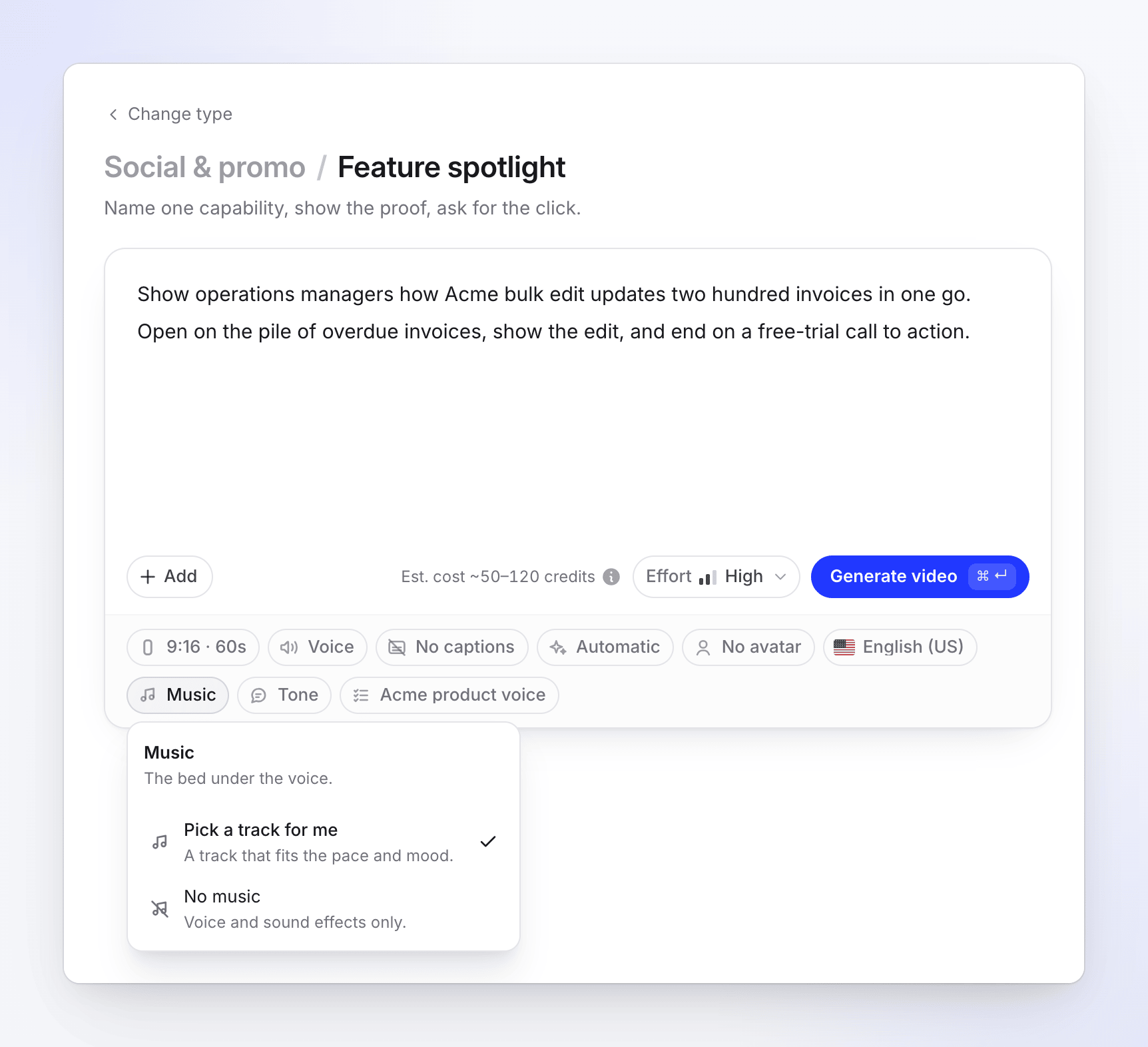
The Music pill ("The bed under the voice.") has two options:
| Option | What it does |
|---|---|
| Pick a track for me (default) | "A track that fits the pace and mood." The AI picks one track for the clip. |
| No music | "Voice and sound effects only." |
There's no track picker on the Compose page, on purpose: the track is chosen together with the cut, so it can be fitted to the clip's scenes. You choose a specific track afterwards in the editor.
Sound effects have no setting before you generate. The AI director places them as it builds each scene.
How the AI picks the music
Before the AI director starts on the scenes, a separate AI step picks one track from Clevera's music library of 190 tracks in five moods:
| Mood | Feel |
|---|---|
| Calm & Focused | Low-energy, focused underscore |
| Cinematic & Inspiring | Sweeping, cinematic lift |
| Upbeat & Motivational | High-energy, driving motivation |
| Warm & Human | Warm, acoustic, human-feeling beds |
| Modern & Techy | Modern electronic, tech-forward grooves |
The pick follows the clip's type, tone, pace and length. Then the track is fitted to the cut:
- It's cut into pieces that land on the clip's beats, so scene changes hit with the music instead of drifting.
- On short clips and fast openings it can start at the track's groove rather than its quiet intro.
- It dips under the voice wherever someone speaks, and comes back up between lines.
- It's levelled so it sits at a steady volume under the voice, rather than at the loudness the track was mastered at.
If you added a sample video, the pick also follows the feel of the sample's music (its tempo and energy). See Use a sample video to set a clip's style.
If no track fits, the clip finishes without music and the generation page says "Heads-up: I could not find music that fit, so this one runs without a bed." You can add a track in the editor.
How sound effects are chosen
The AI director places sound effects scene by scene from Clevera's library of more than 300 effects in 18 categories, among them Transitions, Impacts, Risers, UI, Notifications, Stingers, Emphasis, Achievement, Foley, Ambience and Timer. A whoosh on a transition, a click when a button is pressed, a riser before a reveal: each one is placed on the frame it belongs to. Effects are levelled by what they do, so a soft UI click never drowns the voice, and a riser lands on the music's bar.
Before you're told the clip is ready, its whole soundtrack (voice, music and effects) is balanced and brought to a standard loudness for social platforms, so it plays at a consistent level next to other videos in a feed.
Change the music in the editor
Open the clip settings
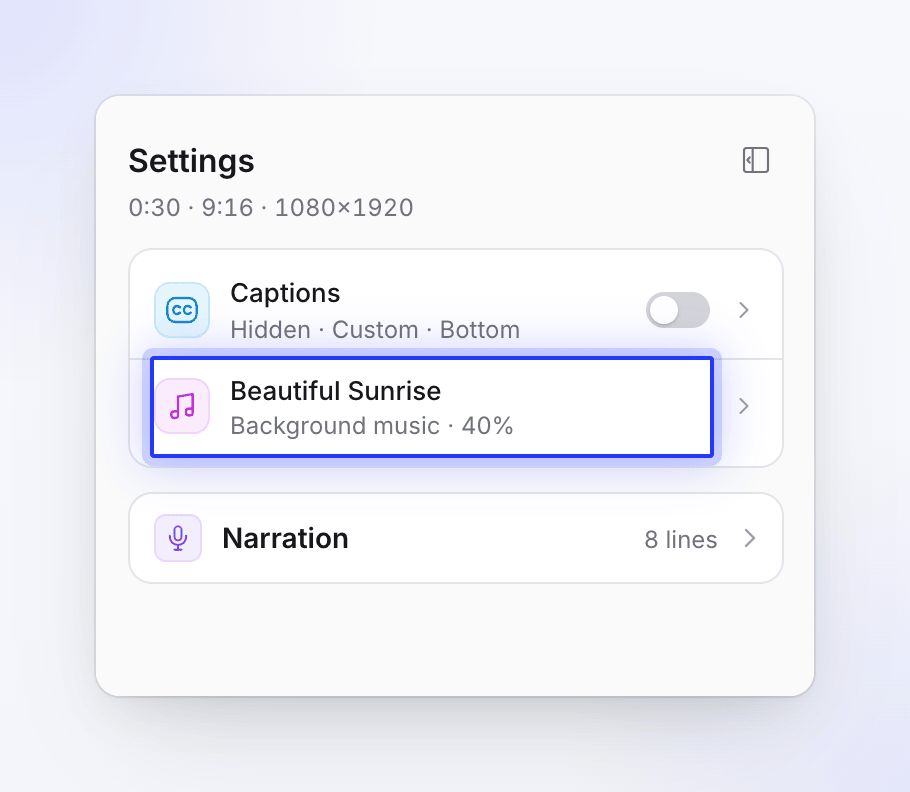
Open your finished clip and click Clip settings on the icon rail beside the video. The Settings page lists Captions, Background music and, when the clip has a voice-over, a Narration card with every line. Click a row to open its settings.
Select the music
Click the music row; it shows the track's name and "Background music · 40%" (the volume). If the clip has no music, the row reads Background music — "Nothing plays under the clip" — with an Add music button.
Pick another track
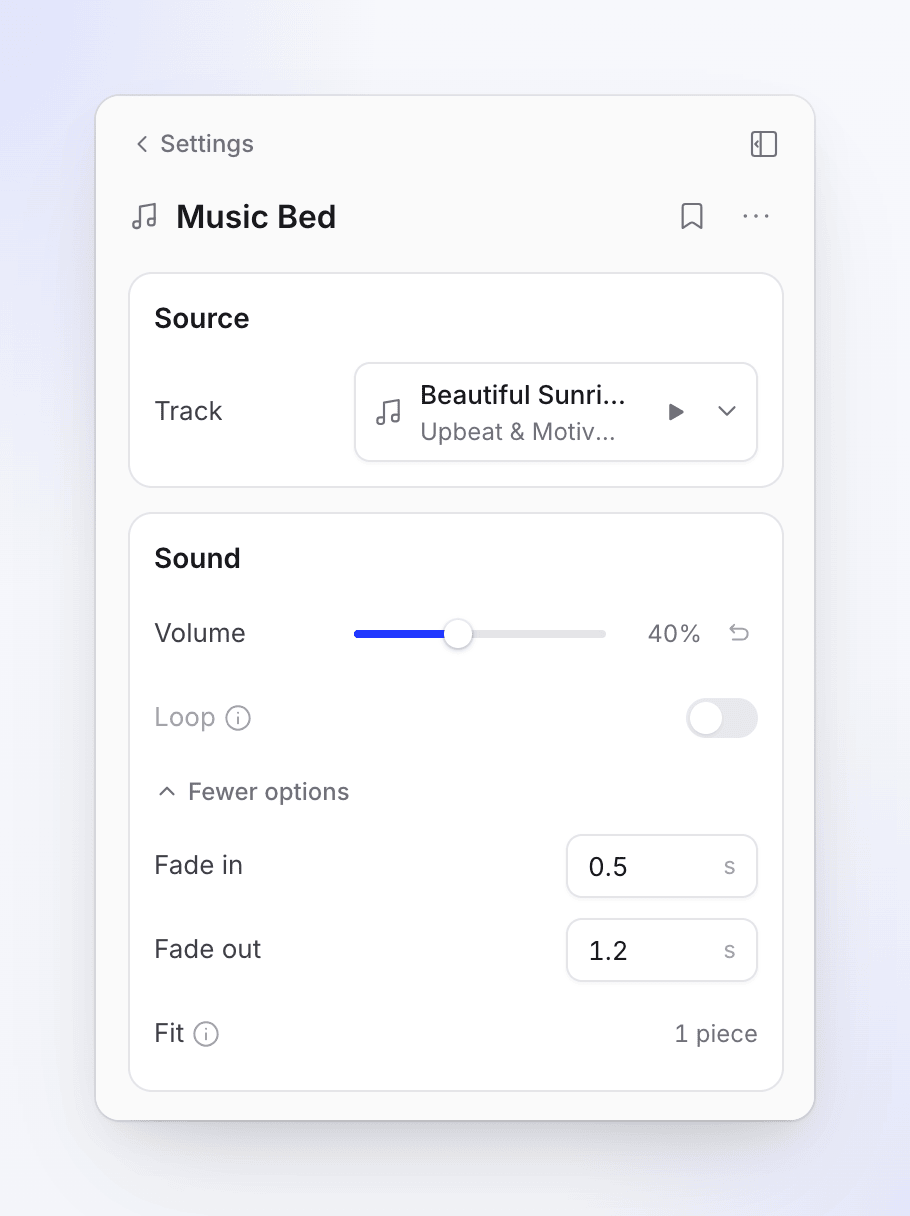
Under Track, open Choose music. Search the library (Search tracks), filter by mood, and press play to preview before you pick. You can also upload your own track, or click Remove track.
Fine-tune
Set Volume, and under More options set Fade in, Fade out and Start at. A track the AI fitted to the beats shows Fit ("Cut into pieces that land on the video's beats. Picking another track cuts it the same way.") instead of Start at. When the track dips under the voice, Ducking ("The track dips under the voice along these points. Volume scales them all.") shows how many dip points it has.
A track you upload yourself is your responsibility: make sure you have the rights to use it.
Change a narration line
The Narration card on the Settings page lists every line of the voice-over. For each line you can play it, Jump to this line in the timeline, or Edit line: change the words and click Save and speak to record the new line in the same voice.
Change sound effects in the editor
- Add one: open the editor's add menu, go to Sound and add a sound effect, then Choose a sound effect from the same library, or upload your own file.
- Change or remove one: select it on the timeline and pick another effect, change its volume or delete it.
- Ask the assistant: for example "Remove the sound effects in the first three scenes" or "Use calmer music". See Ask the assistant to change your video.
Changing music or sound effects by hand doesn't use credits.
Videos from your recording
How-to videos, product demos and Polish take their music from the video template you choose, and you change it in the editor's Audio tab. Articles have no music. See Change voice, music and sound.
Troubleshooting
| What you see | What to do |
|---|---|
| "Heads-up: I could not find music that fit, so this one runs without a bed." | Add a track in the editor: Clip settings → Background music → Add music. |
| The music is too loud under the voice | Lower Volume; the ducking points scale with it. |
| I want one specific track in every clip | Pick it in the editor after each clip is made. There's no track choice before generating. |
| The clip is silent | If the voice failed, the page says "Heads-up: the voice did not come out at all, so this one is silent." See My video came out silent, without music or without the avatar. |