

هذه الصفحة لم تُترجم بعد، لذا يتم عرضها باللغة الإنجليزية.
Fix doc site problems
What each doc site message means and how to fix it: refused or failed publishes, page statuses, custom domains, private sites, the assistant, paused or offline sites, imports, the contact form and site addresses.
This page lists the messages a doc site can show you or your readers, what each one means and what to do. Find the message you see, or the area it's in: publishing, pages, domains, private sites, the assistant, offline sites, imports, the contact form or creating a site.
Publishing
A publish was refused
These appear when you click Publish, before anything is built. Your live site doesn't change.
| Message | Why | What to do |
|---|---|---|
| "Nothing to publish." | Everything is already live. | Nothing; your changes are out. |
| "Add pages before publishing." | The site has no ready pages and nothing live yet. | Add a page and finish it so it's ready. |
| "Verify your email to publish." | On Free, the person publishing hasn't confirmed their email address. | Confirm your email address with the link Clevera emailed you. |
| "A publish is already running for this doc site." | Another publish is in progress. | Wait for it to finish. |
| "This doc site was published many times in the last hour. Try again in a few minutes." | A site can publish up to 60 times an hour. | Wait a few minutes. With auto-publish on, changes are grouped for you. |
| "Your plan doesn't include private doc sites. Make the site public or upgrade to publish it." | The site is private and the workspace moved to a plan without private sites. | Set Access to Public, or upgrade to Pro. |
| "Paused sites are read-only." | The site is over your plan's site limit. | See A site is paused. |
| "This doc site is suspended. Contact support to restore it." | Clevera took the site offline. | Contact support. |
| "Publishing is temporarily unavailable. Your live site hasn't changed." | Publishing is paused on our side for a short time. | Try again later. |
| "Only admins and editors can publish." | Your role can edit pages but not publish. | Ask the workspace owner, an admin or an editor. |
A publish failed
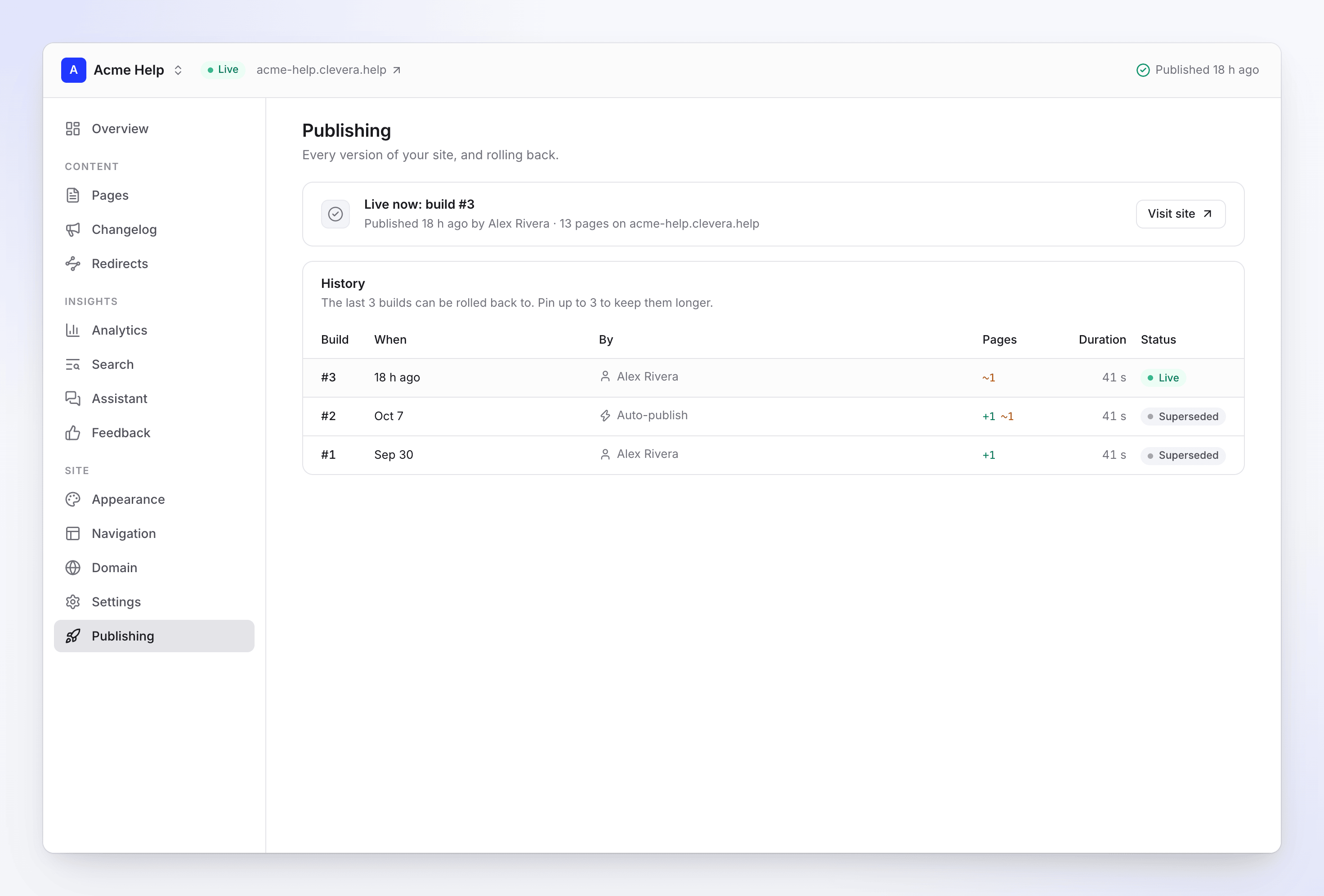
When a publish fails, the site keeps the version before it: "Readers still see the last version." You see a banner, "Version n didn't publish", with See details. On Publishing, the failed version says "Couldn't publish this build." with the reason and Retry. The owner, admins and editors also get a "Publishing site failed" notification, emailed if unread after about 10 minutes.
| Reason | What to do |
|---|---|
| "We couldn't collect the site's content." | Retry. |
| "The site couldn't be built." | Retry. Contact support if it keeps failing. |
| "The site's files couldn't be saved." | Retry in a few minutes. |
| "Publishing took too long." | Retry. Contact support if it keeps happening. |
| "This publish is held for review." | This version is checked before it goes live. Contact support if it stays held. |
| "Publishing failed." | Retry. Contact support if it keeps failing. |
A failed publish isn't retried on its own. Click Retry, or publish again.
Warnings before you publish
These don't stop a publish. They show in the review sheet so you can fix them first.
| Warning | What to do |
|---|---|
| "name is an AI draft nobody has reviewed. It won't publish until it's marked ready." | Open the site page, review it and turn on Ready to publish. |
| "name still has n placeholders to fill." | Fill in the bracketed placeholders. |
| "name is a legal page. Have it reviewed before you publish." | Have someone check the legal text. |
| "n changes left out — they stay unpublished." | You left changes out of this publish. Click Put back to include them. |
After a publish, the build's details can list content issues on your pages:
| Issue | What to do |
|---|---|
| "the link to page doesn't lead to a page on this site." | Fix or remove the link. |
| "the link to page points to a heading that doesn't exist." | Update the link to an existing heading. |
| "an image has no alt text." | Add a description to the image. |
| "a heading is empty." | Write the heading or remove it. |
| "an image is larger than 5 MB; readers on slow connections wait for it." | Use a smaller image. |
| "title has no current export, so it plays through the Clevera player…" | Export the video, then publish again so it plays from the site itself. |
| "This video has no share link yet, so the page can't show the player." | Open the video and create its share link. |
| "An image (…) isn't from this workspace and was left out." | Upload the image to this workspace. |
See Publish a doc site.
Page statuses
On Pages, each page shows where it stands:
| Status | Meaning | What to do |
|---|---|---|
| Not ready | The article isn't finished in the editor. | Finish it in the editor to publish it. |
| Changed | Edited since the last publish. | Publish. |
| Not published yet | Added since the last publish. | Publish. |
| Hidden | Published, but not in the navigation. | Turn on Show in navigation if readers should find it in the menu. |
| Scheduled | Goes live on its date. | Nothing. |
Custom domains
Every domain message, with causes and step-by-step fixes, is in Connect a custom domain. The short version:
| You see | Usual cause | Fix |
|---|---|---|
| Stuck on Waiting for DNS | The record is at the wrong DNS host, the name is doubled (help.example.com.example.com), or it hasn't shown up yet. |
Waiting for DNS |
| "Your CNAME points somewhere else" | Wrong value, or an old A, AAAA or CNAME record on the same name. | Fix the target |
| "Your record goes through Cloudflare's proxy" | The record is Proxied (orange cloud). | Set it to DNS only. Details |
| "Your DNS provider flattens the CNAME" | Cloudflare "Flatten all CNAMEs" or the record's Flatten switch, an ALIAS/ANAME record, or a Route 53 Alias. | Use a plain CNAME. Details |
| "Our hosting provider couldn't confirm the domain" | The record changed in the last few minutes, or it's flattened or proxied. | Details |
| Stuck on Issuing certificate, or "The certificate wasn't issued" | A CAA record, a proxy or flattening blocks the certificate. | Details |
| "Your CAA records block the certificate" | Your CAA records don't allow Amazon. | Add 0 issue "amazon.com". Details |
| "This domain is already used by another service" | The domain is still attached to another hosting setup, often your previous docs host. | Details |
| "This domain is connected to another Clevera site" | Another doc site has or holds the domain. | Add the TXT record. Details |
| Readers see "403 ERROR" or "Not secure" | Normal until the domain is Live, or after it was disconnected. | Details |
| "Not found" right after Live | The site is still republishing under the new address. | Wait a few minutes, hard refresh. Details |
| "We can't find your CNAME record any more" | The record was removed, edited, proxied or flattened after going live. | Put it back within 14 days. Details |
| Domain "is paused" | The plan no longer includes custom domains, or the site is paused. | Details |
| A message when you click Connect | Extra parts in the address, a root domain, Free plan, or the site already has a domain. | Connect messages |
Waiting is normal: DNS changes usually show up within minutes and can take up to a day, and the certificate usually takes 5–30 minutes after that.
Private sites
What readers see on a site with a password or workspace sign-in:
| Message | Why | What to do |
|---|---|---|
| "That password didn't work." | Wrong password. | Share the current password again. |
| "Too many attempts. Wait a minute and try again." | Too many wrong passwords in a short time. | Wait, then try again. |
| "You don't have access to this doc site" | The reader signed in with an account that isn't a member of your workspace. | Invite them to the workspace, or ask them to sign in with the account they use there. |
| "We can't sign you in right now. Try again in a few minutes." | A temporary problem. | Try again later. |
| Readers are asked for the password again | You changed the password, changed the access type, or clicked Sign everyone out. | Share the new password. |
In settings: a password needs at least 10 characters ("Use at least 10 characters."), and private sites are on Pro and up. See Control who can read a doc site.
The AI assistant
| Message | Why | What to do |
|---|---|---|
| Readers see "The assistant isn't available right now. Search the docs instead." | The workspace used its monthly answers, the site used its daily share, the reader asked 30 questions today, or a temporary problem. | Check Insights → Assistant. Upgrade, or wait for the reset on the 1st. |
| Readers see "You're sending questions quickly. Wait a moment, then try again." | Questions sent too fast. | Wait a moment. |
| "AI answers are paused until date" | The workspace used its answers for the month. Readers still get search. | Upgrade for more answers. |
| "Try the assistant on your published site." | You're in the app's preview. | Open the live site. |
| No Ask AI on the site | The assistant is off, or not published yet. | Turn on Show the assistant and publish. |
See Set up the doc site assistant.
Paused, offline and suspended sites
A site is paused
"This site is paused because your plan includes fewer doc sites. It is read-only and goes offline on date."
Your workspace has more doc sites than its plan includes, usually after a downgrade. Paused sites stay online but read-only, and go offline 30 days later. Nothing is deleted. Click Choose sites to keep, or upgrade. You get emails when a site is paused and before it goes offline. See Doc site plans and limits.
What readers see
| Readers see | Why | What to do |
|---|---|---|
| "This site is offline" / "The owner has taken this docs site offline." | The site is unpublished, was paused past its offline date, is private on a plan without private sites, or was never published. | Publish it, keep it, or upgrade. |
| "This site is unavailable" / "This docs site has been suspended." | Clevera suspended the site. | Contact support. |
| "This site was removed" / "There is no longer a docs site at this address." | The site was deleted, the domain was disconnected, or an old address stopped redirecting. | Share the current address. |
| "Page not found" | Nothing is published at this address. | Check the address, or publish the site. |
| "This page doesn't exist" / "It may have moved, or the link has a typo." | The page isn't on the live site. | Add a redirect from the old address. |
Suspended sites
"This site was taken offline by Clevera and is read-only. Contact support if you think this is a mistake."
A suspended site is offline and read-only, and its settings can't be changed. The workspace owner gets an email with the reason. Contact support to restore it.
Imports and exports
| Message | What to do |
|---|---|
| "Only the workspace owner can import or export content." | Ask the owner. |
| "That token didn't work. Check it was copied in full and has read access, then try again." | Create a new token with read access. |
| "We couldn't reach the source." / "We couldn't find the source." | Check the address opens in a browser. |
| "The site blocked our reader. We can only import public pages." | Use the API or zip method if there is one. |
| "This site's robots.txt asks crawlers not to read these pages." | Allow reading, or use another method. |
| "We found no pages to import." | Check the address points at the docs, not a marketing page. |
| "The source is limiting how fast we can read. Try again in a few minutes." | Wait and start again. |
| "The import stopped unexpectedly. What was imported is in the report; you can undo it." | Open the report, undo if you like, and start again. |
| "Some of these pages are live on your site, so the import can't be undone." | Remove the pages you don't want instead. |
| "You can request up to 3 exports a day." | Wait until the time shown. |
See Import and export a doc site.
Contact form
| Message | What to do |
|---|---|
| Not verified yet on the contact card | Click the link in the confirmation email. Messages aren't delivered until you do. |
| "This link has expired" | Links work for 7 days. Click Resend. |
| "This link is no longer valid" | Use the newest link, or click Resend. |
| "We sent a link less than a minute ago. Check the inbox, then try again." | Wait a minute. |
| "We've sent the most confirmation links allowed today. Try again tomorrow." | You can send 10 links a day. |
| "The contact form is on Starter and up." | Upgrade to turn it on. |
| Readers see "The message could not be sent. Please try again later." | A temporary problem; readers can try again. |
| Readers see "You've sent several messages. Please try again later." | One address sent several messages in a short time. |
See Collect reader feedback and messages.
Creating a site and its address
| Message | What to do |
|---|---|
| "Use at least 6 characters" / "Use 40 characters or fewer" | Addresses are 6–40 characters. |
| "Use lowercase letters, numbers and single hyphens" | No spaces, capitals or double hyphens, and no hyphen at the start or end. |
| "This address is reserved" / "This address is not available" | Pick another address. |
| "This address contains a protected name. Contact support if it's your brand." | Contact support with proof it's your brand. |
| "Another site already uses this address" | Pick another address. |
| "Your plan includes 1 doc site." | Upgrade, or delete a site you don't need. |
| "You can create up to 5 doc sites a day. Try again tomorrow." | Wait until tomorrow. |
See Create a doc site.
Still stuck?
Contact Clevera support. Include the site's name and the exact message you see.