

Autopilot, the Clevera agent, Brands and video templates
Hand Clevera whole jobs with Autopilot, ask the new Clevera agent for anything from any page, add your brand once and use it everywhere, and give how-to videos and demos animated scenes from a template.
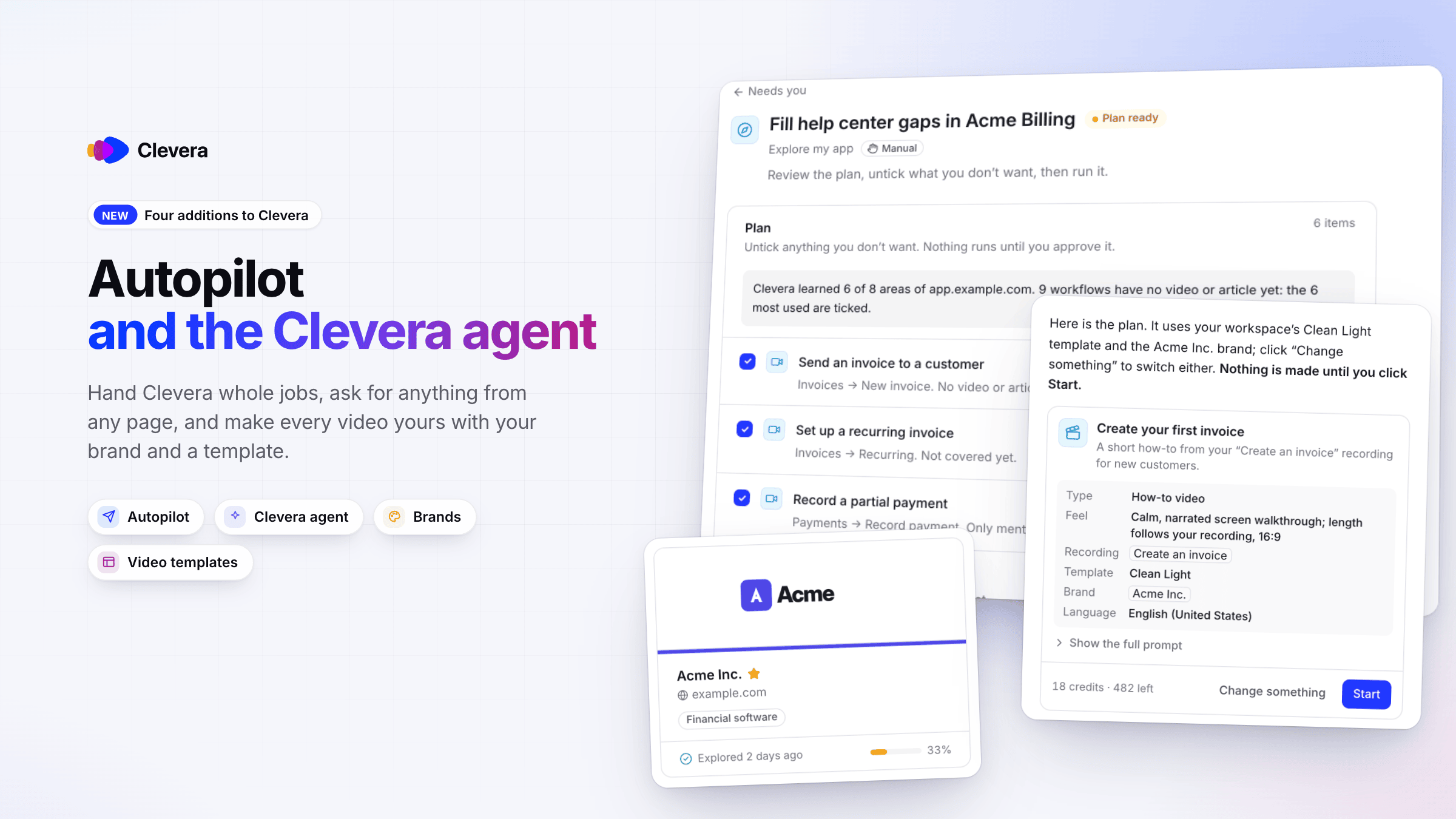
Four new parts of Clevera ship today. Autopilot takes on whole jobs for you, on Pro and up. The Clevera agent answers questions and makes things from any page, free to chat on every plan. Brands keep your logo, colors and fonts in one place, and templates give how-to videos and demos animated scenes of their own.
New
Autopilot
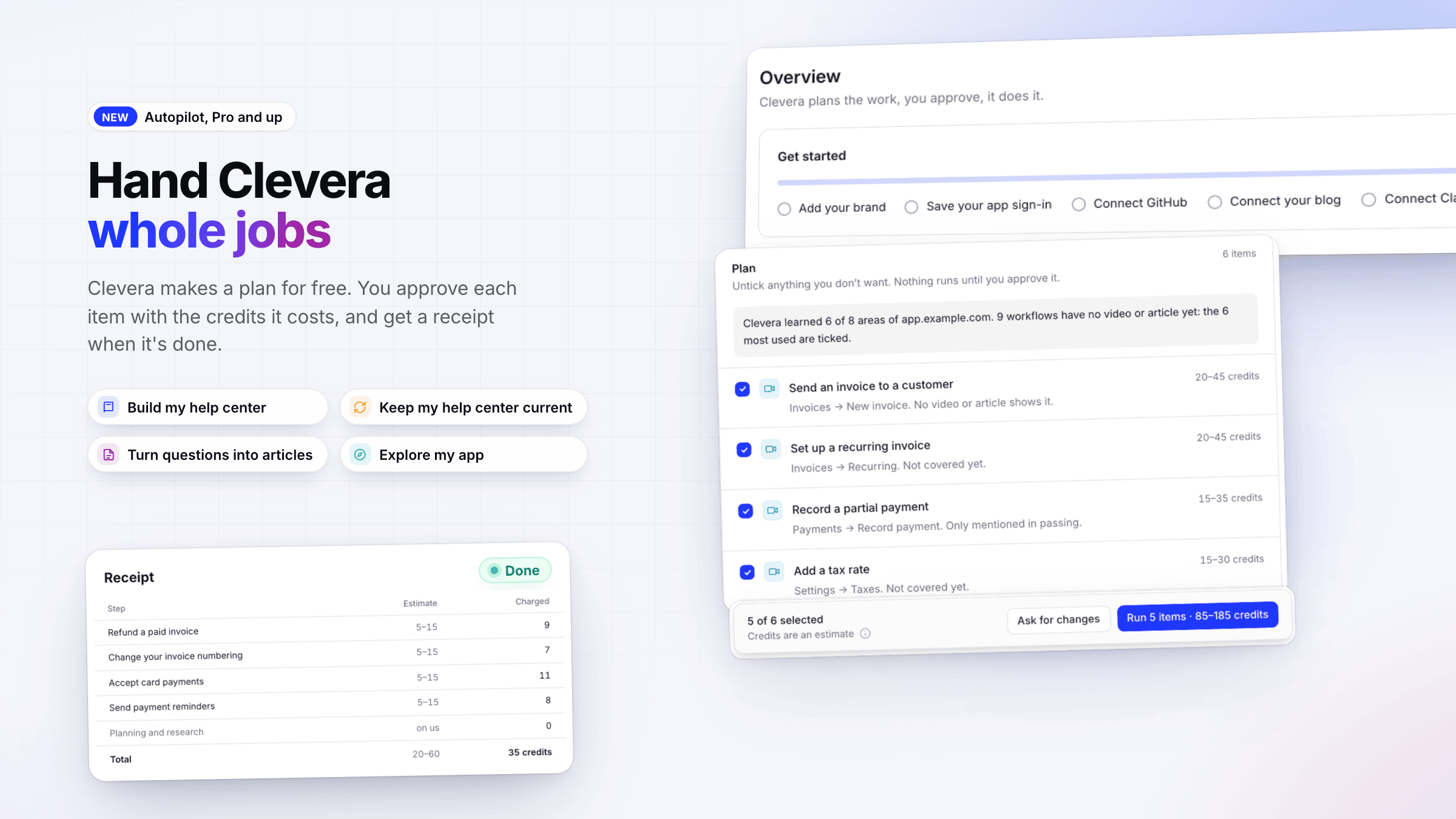
- Hand Clevera a whole job. Pick Build my help center, Keep my help center current, Turn questions into articles or Explore my app. See Understand Autopilot and Start an Autopilot task.
- A free plan, then your approval. Clevera makes a plan for free, you approve each item with the credits it costs, and you get a receipt when it's done.
- Know where to start. Overview has a Get started checklist, and Suggestions lists tasks Clevera thinks you should run.
Autopilot is part of the Pro, Business and Custom plans and opens by invitation: ask for access with Get an invitation on the Autopilot page. See Get access to Autopilot.
The Clevera agent
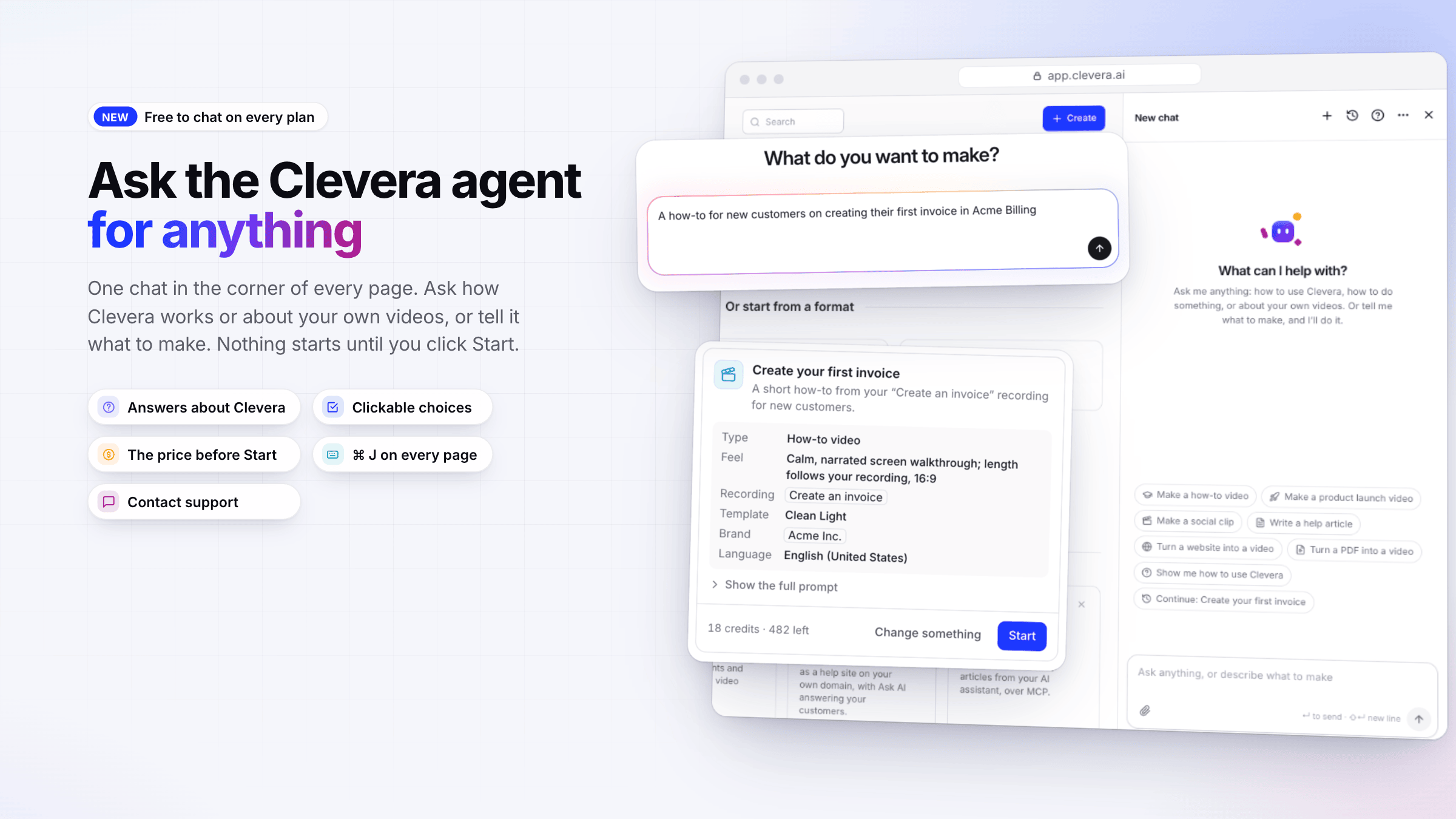
- One chat for everything. It sits in the corner of every page, or press ⌘ J / Ctrl J. Ask how Clevera works or about your own videos and articles, or tell it what to make. See Get help and make things with the Clevera agent.
- You see the price before anything starts. The agent asks what it needs with clickable cards and shows a card with the price. Nothing is made and no credits are used until you click Start.
- It replaces the support bubble and the editors' Assistant. Contact support in its header reaches our team.
Chatting with the agent is free on every plan.
Brands
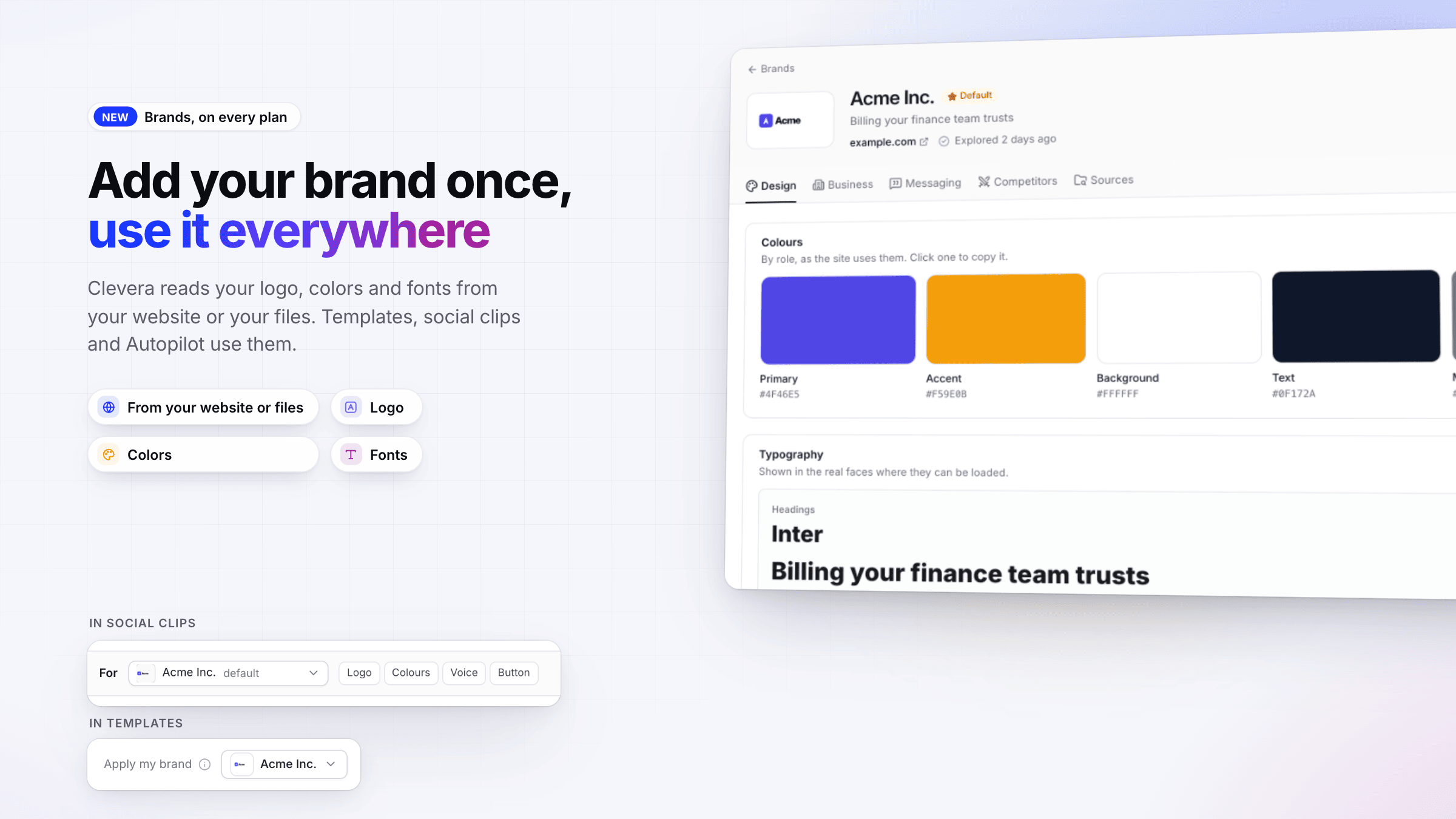
- Add your brand from your website or your files. Clevera keeps your logo, colors and fonts. See Add your brand from a website or files and Review and edit a brand.
- Use it everywhere. Templates, social clips and Autopilot use your brand. See Use your brand in videos, clips and Autopilot.
Free workspaces have 1 brand, Starter 3, Pro and Business 10, Custom 20.
Templates for how-to videos and demos
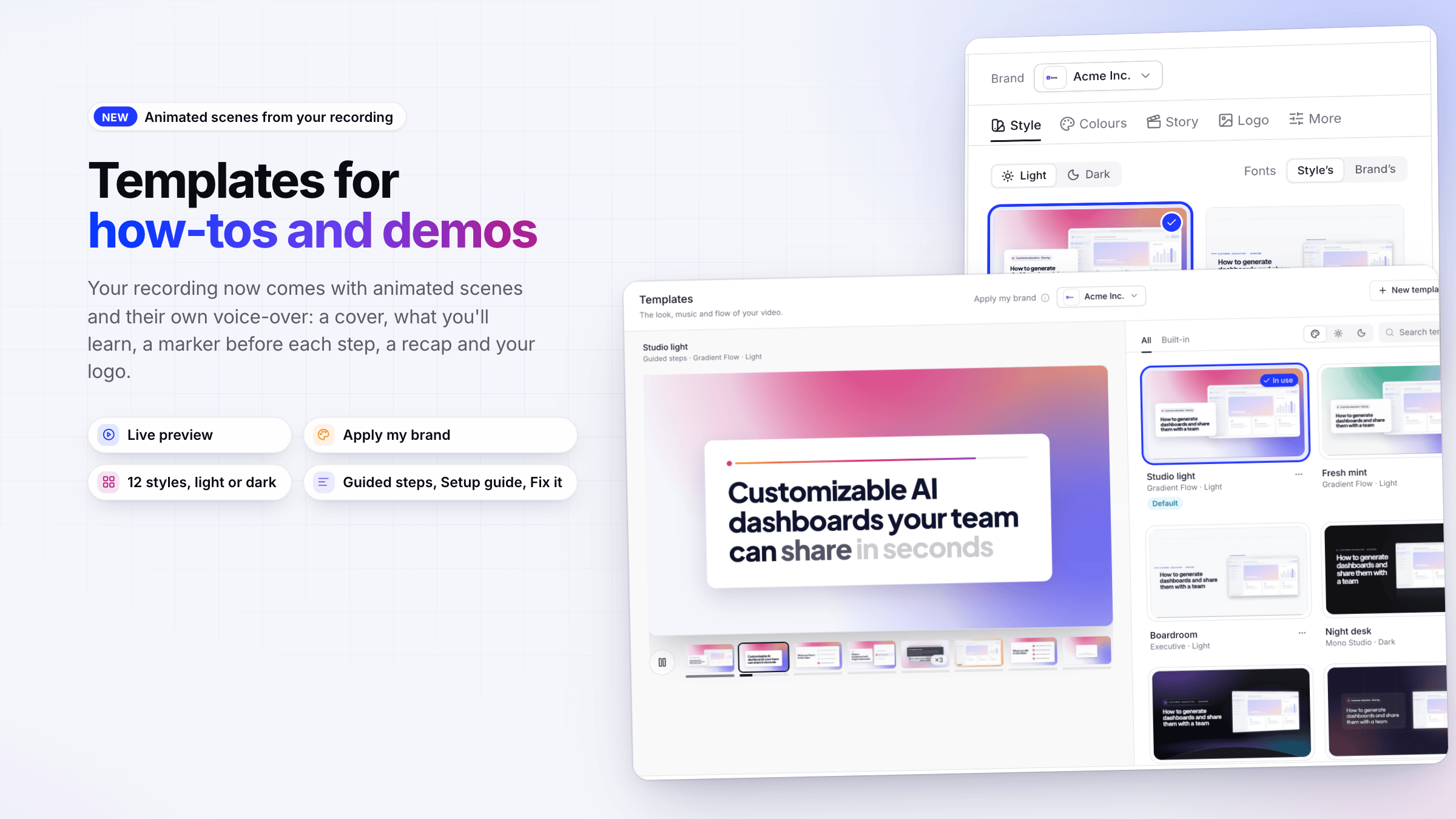
- Animated scenes with their own voice-over. Your recording now comes with a cover, what you'll learn, a marker before each step, a recap and your logo. See Use a template for how-to and demo videos.
- Pick a template in the new Templates window. It has a live preview and Apply my brand.
- Or make your own. Choose from 12 styles, light or dark, your colors, your logo and a story such as Guided steps, Setup guide or Fix it. See Edit the animated scenes in a how-to or demo.
Also new
- Investor pitch demos. A new product demo type built from your deck: the problem, the company, traction, market, team and the ask. See Make a product demo from a recording.
- Use Autopilot, brands, templates and analytics from your own AI apps. Connected AI apps and API tokens can now work with Autopilot tasks, brands, templates, collections and analytics, with new permissions to choose from. See Use Autopilot, templates, brands and analytics from AI apps.
Improved
- Start from Home in one line. Type what you want in the Home box and the agent opens with it and gets to work. Do more with Clevera now includes Set up your brand, and a card hides once you've used its feature. See Get help and make things with the Clevera agent.
- Ask the agent in the editors. Ask AI in the video, clip and article editors opens the agent beside your work. Small changes land at once with Undo this change; bigger ones show a plan first. See Ask the agent to change your video or clip.
- A new Analytics page. Overview, Content, Reach (videos, articles and your help center), Autopilot and Credits tabs, with Find (⌘ K) and Export CSV. Credit usage now lives under Analytics → Credits. See Read your workspace analytics.
- Clearer credit history. A Record with AI run is now one entry, and the AI menu in the editors shows the estimated credits next to each action.
- Record with AI. A calmer setup window, a clearer live page with Take control, and Run in background so you can keep working while a pill on every page follows the run. See Let the AI record your product with Record with AI.
- Steadier zooms in how-tos and demos. Zooms follow the footage instead of fixed seconds and zoom out when a dialog, menu or new page appears. See Understand automatic zooms and cursor effects.
- Doc site styles. Pick Classic, Studio, Editorial or Portal in Appearance, and set the sidebar width. See Customize how a doc site looks.
- Editors on doc sites. Editors can now edit and publish pages and refine them with AI; creating, removing, translating and configuring sites stay with owners and admins. On Brands and Autopilot, Editors can view everything. See Understand workspaces, roles and creator seats.
- Unchanged videos don't export twice. Exporting a video from a recording that you haven't changed since its last export gives you that file again. Videos made from a recording export in Chrome, Edge, Brave or Opera on a computer; other browsers ask you to switch. Social clips export from any browser. See Export a video as MP4.
Fixed
- Subscriptions paid with PayPal now change plan and seats on our payment provider's page.
- Moving from the Free plan to a paid plan always takes effect right away.
- In Record with AI films, moving focus or pressing a key no longer moves the cursor.
- A Record with AI walkthrough that never acts on the page is tried once more, then stops with a clear reason instead of delivering an empty film.
- Canceling a Google sign-in now takes you back to the sign-in page instead of an error.