

Clevera is here on Linux
The Clevera recorder now runs on Linux, for Intel/AMD and ARM64 computers: record a display or a window with your voice and camera, and it uploads to your workspace by itself.
New
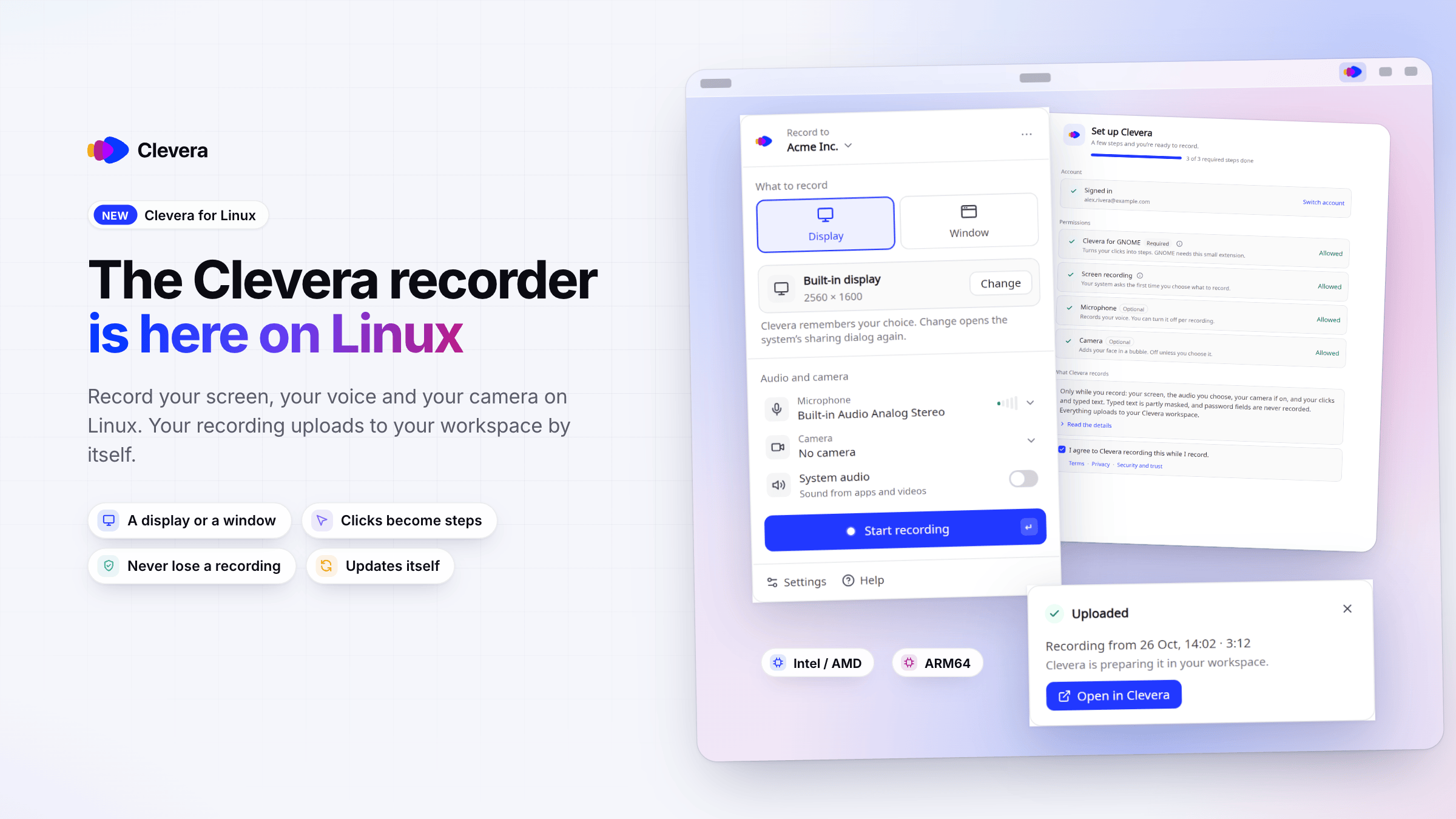
Clevera now has a desktop app for Linux. Record your screen, your clicks, your voice and your camera on a Linux computer, and the recording uploads to your Clevera workspace by itself, ready to become a how-to video, a product demo or an article. It runs on Intel/AMD (x86_64) and ARM64 computers and keeps itself up to date.
New
Record on Linux
- Download and open. Download the AppImage for your computer, Intel/AMD or ARM64, make it executable and double-click it. Clevera adds itself to your apps list. See Install and use Clevera on Linux.
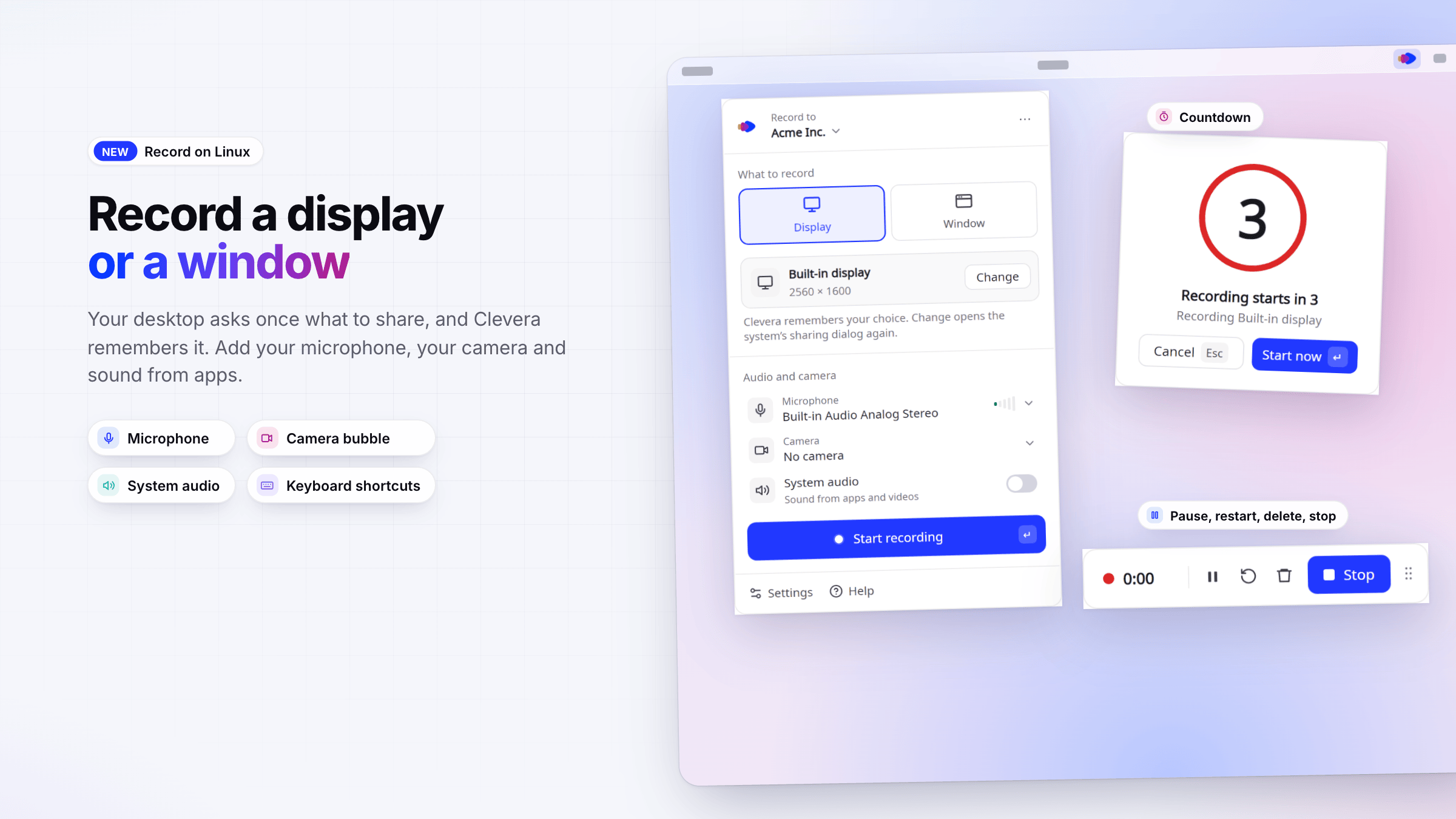
- A display or a window. Your desktop's own sharing dialog asks once what to share, and Clevera remembers your choice. Add your microphone, your camera in a bubble, and sound from apps and videos.
- The same recorder as on Mac and Windows. A countdown, a recording bar with pause, restart, delete and stop, keyboard shortcuts through your desktop's settings, and 19 languages.
Clicks become steps, recordings stay safe
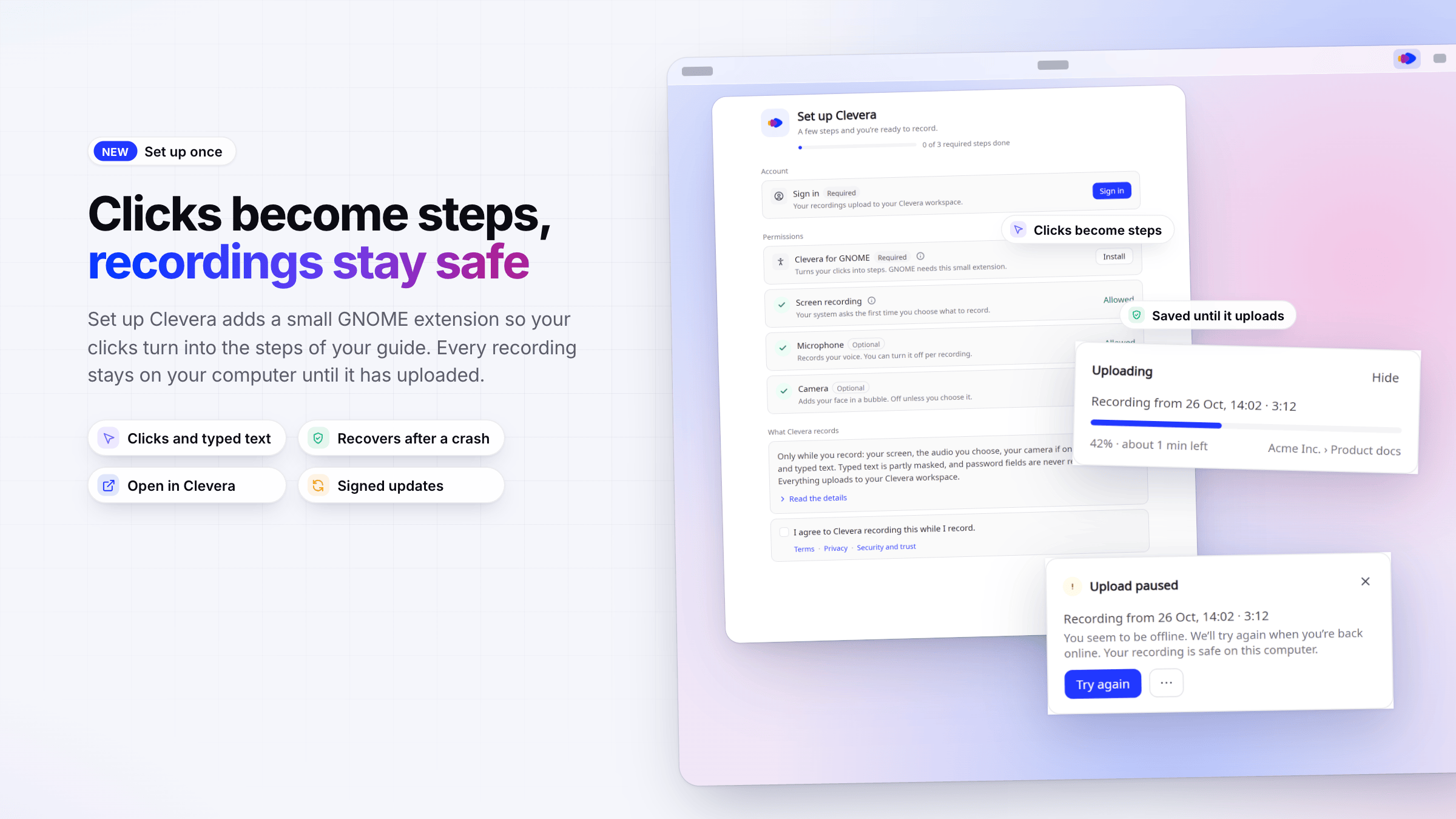
- Set up Clevera. One window on first launch takes you through signing in, permissions and the recording agreement. On GNOME it installs a small extension so your clicks turn into the steps of your guide and the recording bar stays out of your video. You can also turn on Typed text; password fields are never recorded.
- Never lose a recording. Every recording is saved on your computer first and removed only once it has uploaded. If the connection drops or Clevera closes, it uploads the next time Clevera starts. When it's done, click Open in Clevera.
- Updates itself. Clevera installs signed updates when it's idle and goes back to the previous version if a new one doesn't start.
Clevera for Linux is tested on Ubuntu with GNOME. Recording part of the screen and iPhone or iPad recording stay on the Mac app.