

A new desktop app for Mac and Windows
A faster, simpler recorder on Mac and Windows, iPhone and iPad recording on a Mac, and recordings that are never lost when an upload fails.
NewImprovedFixed
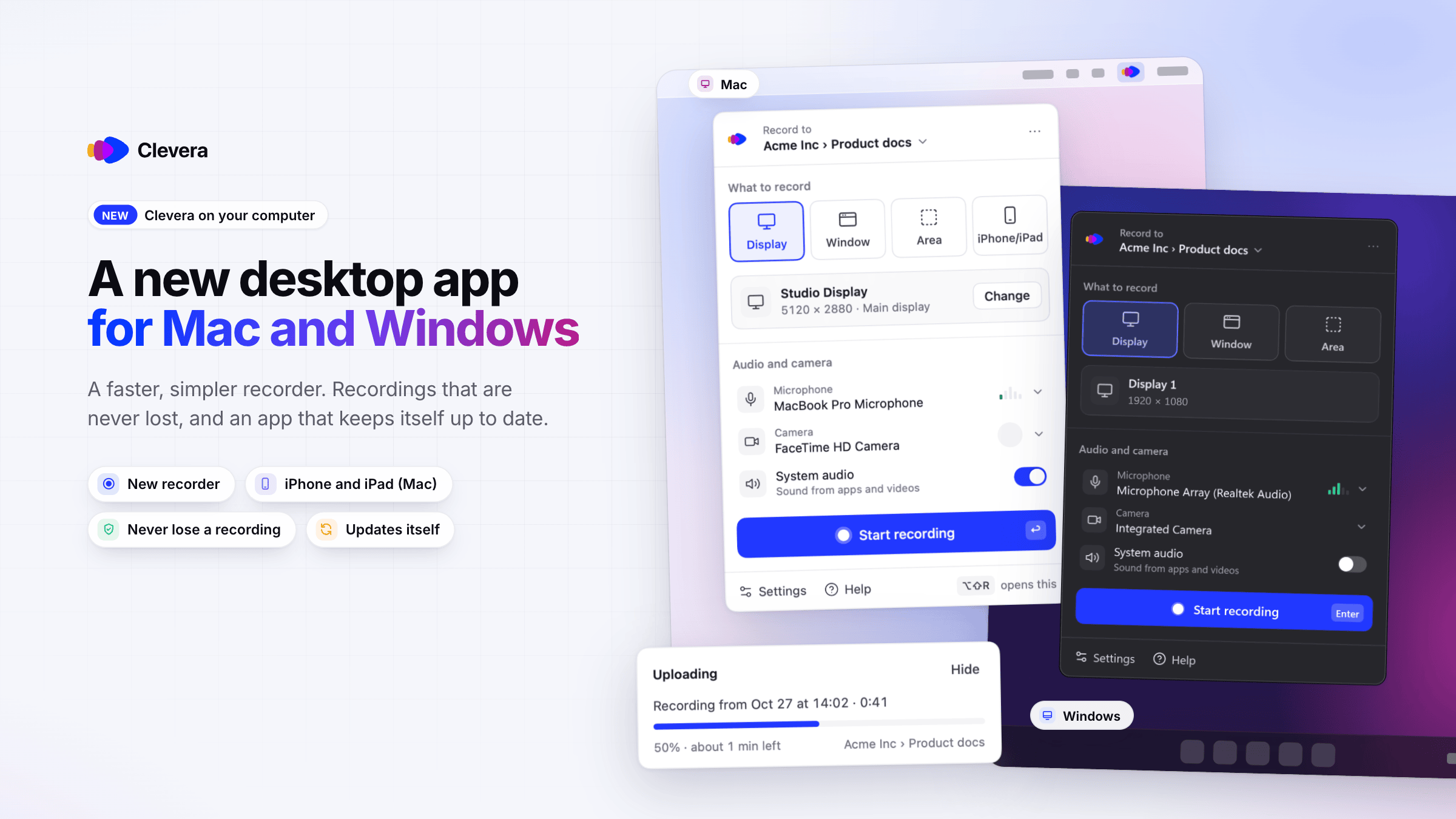
The Clevera desktop app is new on both Mac and Windows. You get a new recorder that's faster and simpler to use, iPhone and iPad recording on a Mac, and recordings that are never lost when an upload fails. Both apps update themselves.
New
A new recorder
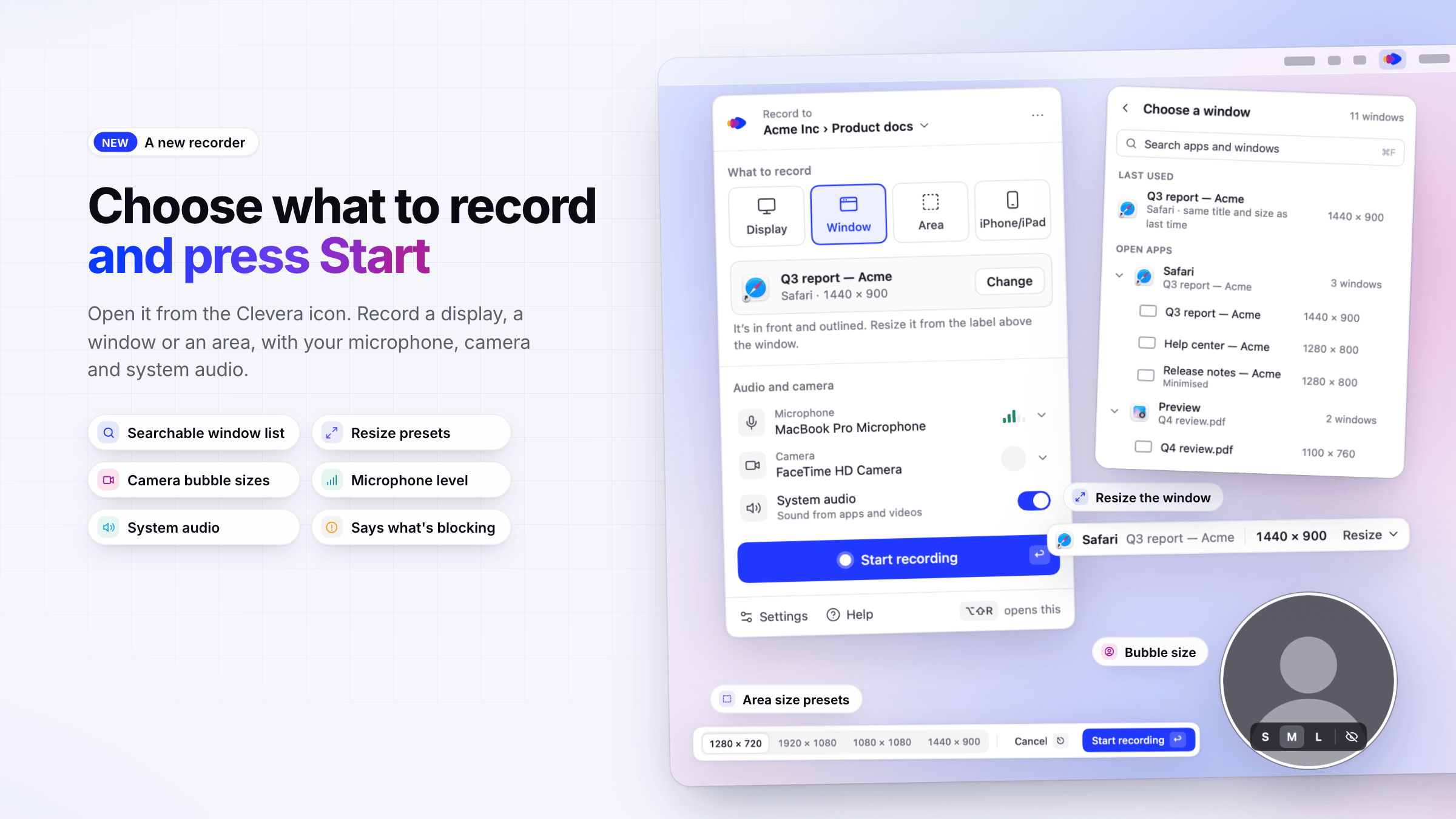
- Open it from the Clevera icon. Click the Clevera icon in the menu bar or notification area. Choose Record to, then Display, Window or Area, set your microphone, camera and system audio in Audio and camera, and click Start recording. If something blocks a recording, the recorder says why and what to do. See Record your screen or a display.
- Choose a window or an area. A searchable window list, a blue outline around the chosen window with Resize presets (720p, 1080p, 16:10, Fit 16:9, Fit 4:3), and an area selector with size presets and keyboard nudging. See Record a window or an area.
- Camera bubble. Pick a small, medium or large bubble, or hide it while the camera keeps recording. System audio is only recorded on its own track when it won't double up with your microphone, and the recorder tells you when that's the case. See Add your microphone, camera or system audio.
- Set up Clevera. One short window on first launch takes you through signing in, permissions and the recording agreement, followed by a short tour you can watch again from Settings → Advanced. See Install the Clevera desktop app.
Record an iPhone or iPad (Mac)
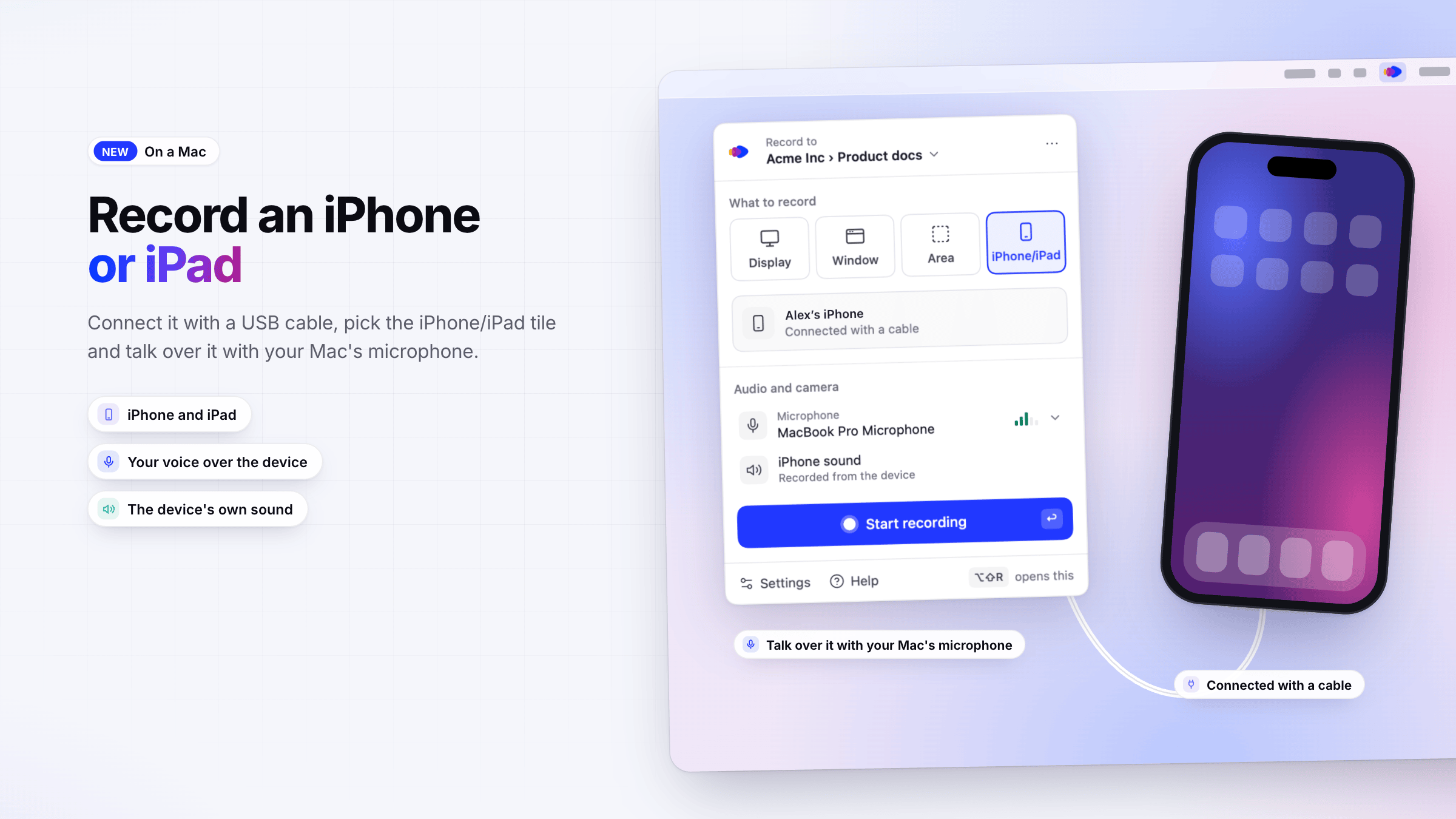
- Record what's on your iPhone or iPad. Connect it with a USB cable, pick the iPhone/iPad tile and talk over it with your Mac's microphone. See Record an iPhone or iPad.
Your recordings are safe
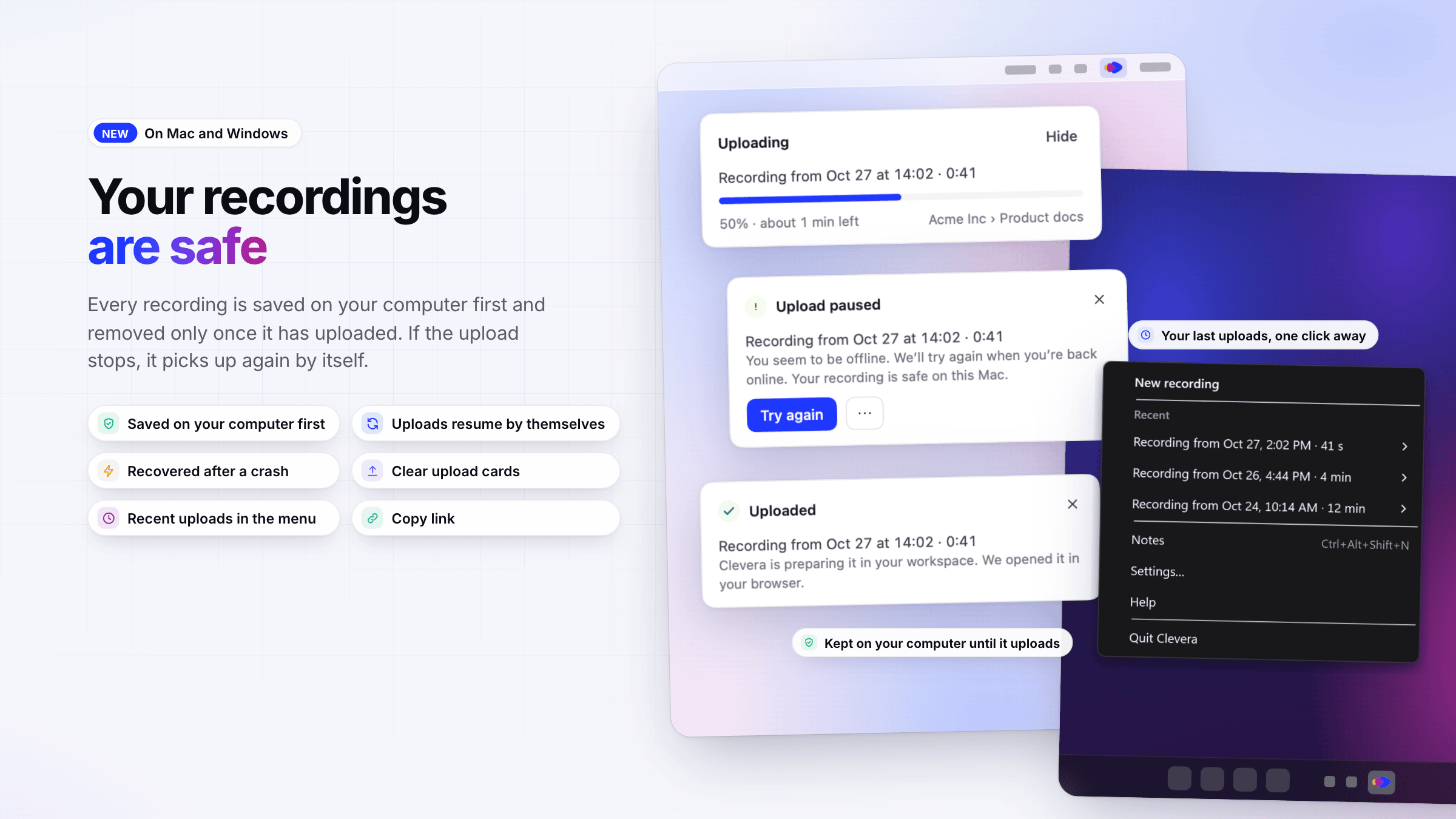
- Saved on your computer first. Every recording is saved on your Mac or PC first and removed only once it has uploaded. If the connection drops, Clevera crashes or you quit, the upload picks up again by itself. See Recover a recording that didn't finish uploading.
- Upload cards. After you click Stop, a card in the corner of your screen shows the progress and time left, and tells you clearly when an upload is paused, needs you to sign in, or can be tried again. See Find your recording after it uploads.
- The Clevera menu. The menu bar (Mac) or notification area (Windows) icon shows what Clevera is doing and holds your last five uploads under Recent, with Open in Clevera and Copy link. See Use Clevera from the menu bar or notification area.
Improved
- Recording bar and notes. A new recording bar with pause, restart, delete and stop, a microphone level, warnings when time or disk space runs low, and a Notes panel that viewers never see. See Pause, restart or cancel a recording and Use speaker notes viewers never see.
- Settings. One Settings window with General, Recording, Shortcuts, Account, Updates and Advanced, including changeable shortcuts and a default workspace. See Change desktop app settings and Use keyboard shortcuts.
- Report a problem from Settings. Settings → Advanced → Report a problem sends your description and, if you choose, the app's log to our support team, and gives you a reference code to quote. See Report a problem from the desktop app.
- Updates in the background. Clevera updates itself when it's idle, never during a recording or an upload. See Update the desktop app.
- Your language. Both apps follow your computer's language, in 19 languages.
- More private typing. Typed text is partly masked on your computer before anything is uploaded, and typing in password fields is never recorded. See Understand what the desktop app captures.
Fixed
- A failed upload no longer loses the recording: it stays on your computer until it uploads or you delete it.
- A recording interrupted by a crash, a power cut or a forced quit is kept and offered for upload the next time Clevera opens.
- A recording only uploads to the account that made it, even if you switch accounts before it finishes.