

Clevera for Chrome is here
Clevera is now a Chrome extension too: record a tab, a window or your screen with your microphone and camera from Chrome's toolbar, and it uploads to your workspace by itself.
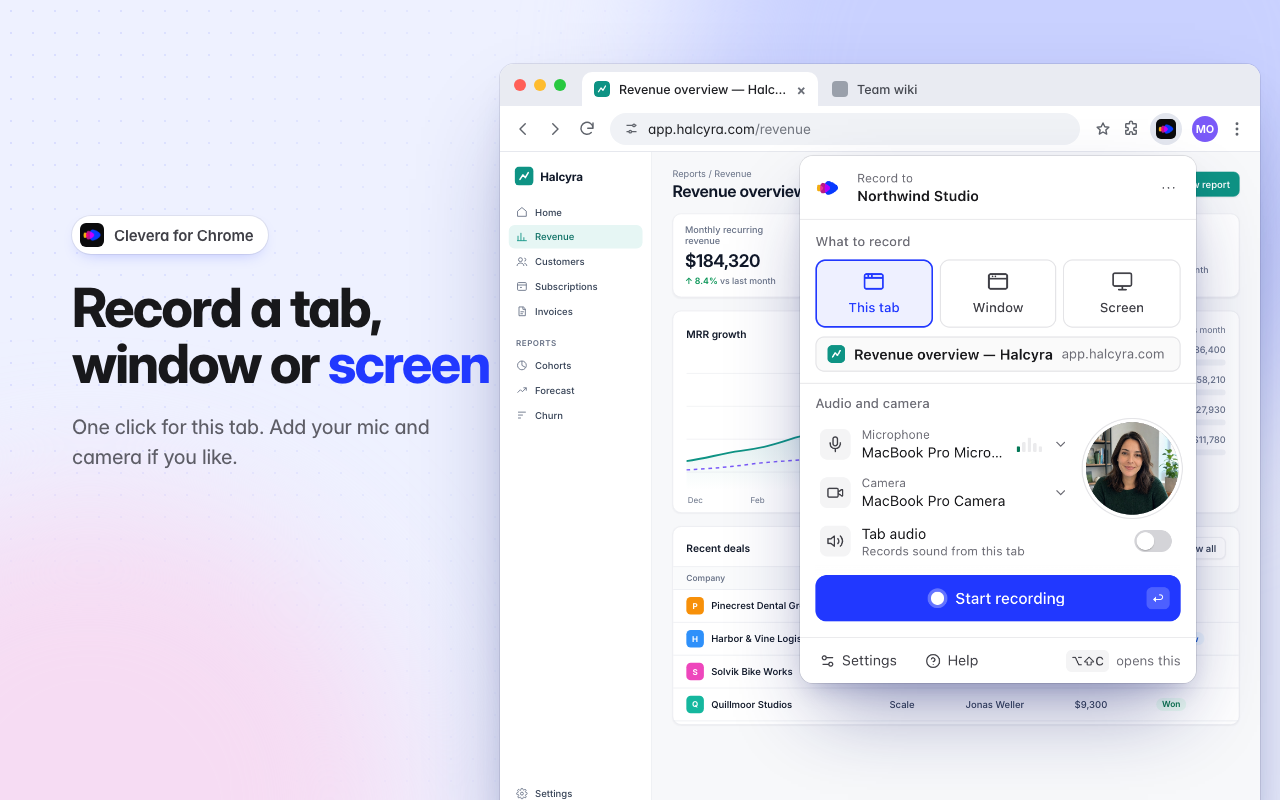
Clevera now has an extension for Google Chrome. Record a tab, a window or your whole screen with your microphone and camera, right from Chrome's toolbar, and the recording uploads to your Clevera workspace by itself, ready to become a how-to video, a product demo or an article. Add it to Chrome from the Chrome Web Store.
New
Record from Chrome's toolbar
- This tab, Window or Screen. This tab records the page you're on in one click, with nothing else on your screen in the video. For Window or Screen, Chrome asks what to share. See Record a tab, a window or your screen in Chrome.
- Your voice and your face. Add your microphone and your camera; the camera shows as a round preview in the popup and is recorded as its own video. Turn on Tab audio to record the sound a tab plays.
- Nothing to install beyond Chrome. Chrome 116 or later on Mac, Windows, Linux and ChromeOS. A welcome guide shows you how to pin Clevera, sign in and allow your microphone and camera, and the extension speaks 19 languages. See Install the Clevera Chrome extension.
Controls that stay out of your video
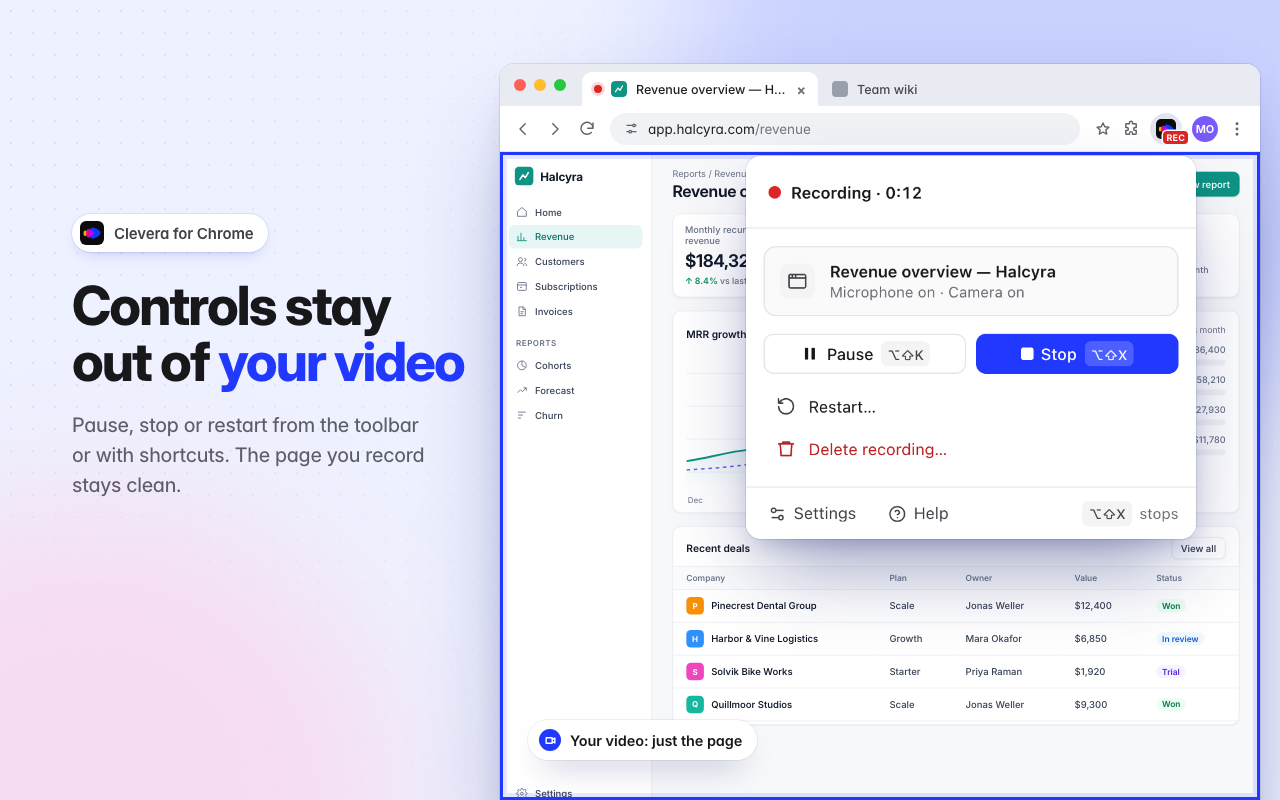
- The Clevera icon is the control. It shows REC while you record. Click it to pause, stop, restart or delete, or use ⌥⇧X to stop and ⌥⇧K to pause (Alt+Shift+X and Alt+Shift+K on Windows, Linux and ChromeOS). Nothing appears inside the tab you record. See Stop, pause, restart or delete a Chrome recording.
- A countdown, then go. Off, 3, 5 or 10 seconds, with Start now and Cancel. Recordings can be up to 60 minutes long.
Your recording is never lost
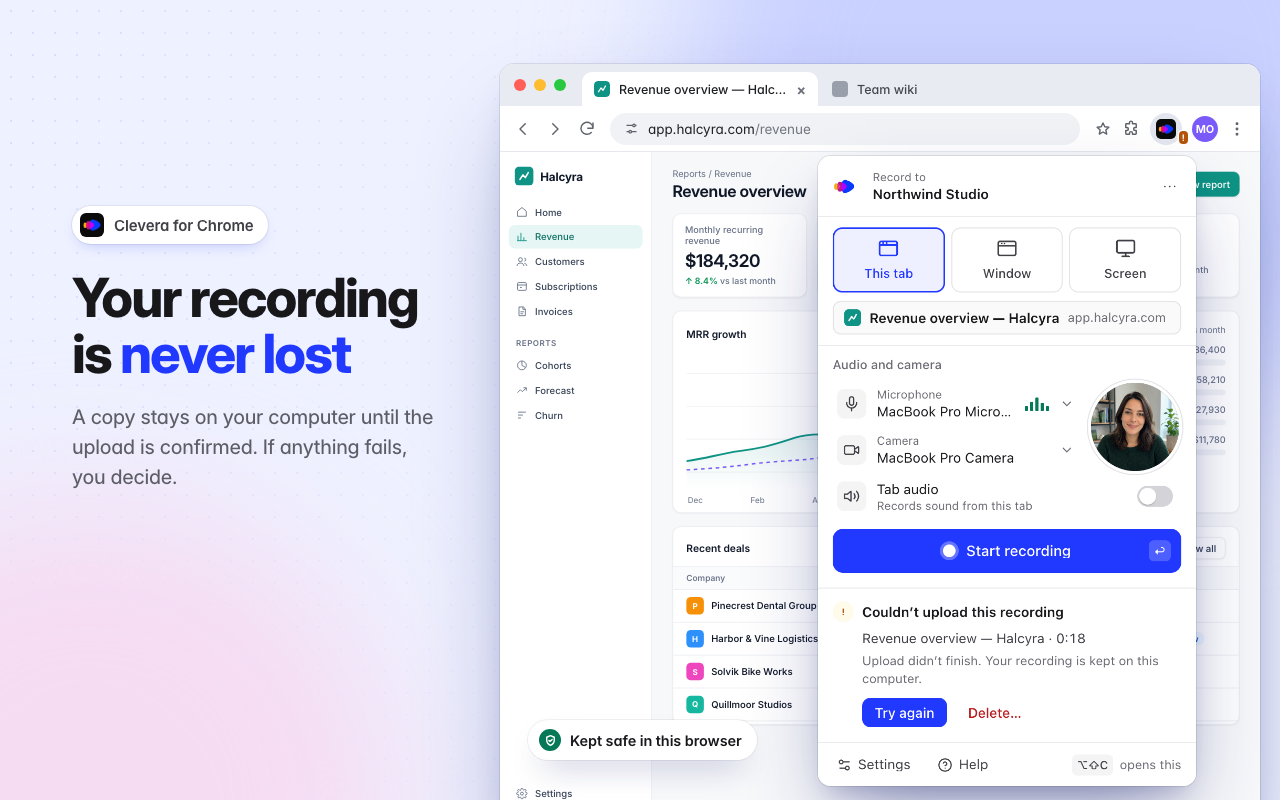
- A copy stays in Chrome until the upload is confirmed. Long recordings upload while you record. If the connection drops, the upload waits and carries on by itself. If Chrome closes while you record, Clevera keeps what was recorded and asks you to Upload or Delete it. See Recover a Chrome recording that didn't upload.
Extension or desktop app?
The extension records the picture and sound, so Clevera treats its recordings like an uploaded video, plus your microphone and camera. It never reads the pages you visit, and it doesn't capture clicks, the cursor or typing. For zooms and steps that follow your clicks, record with the desktop app. See Choose between the desktop app and the Chrome extension.