

Build doc site pages in your own HTML and CSS
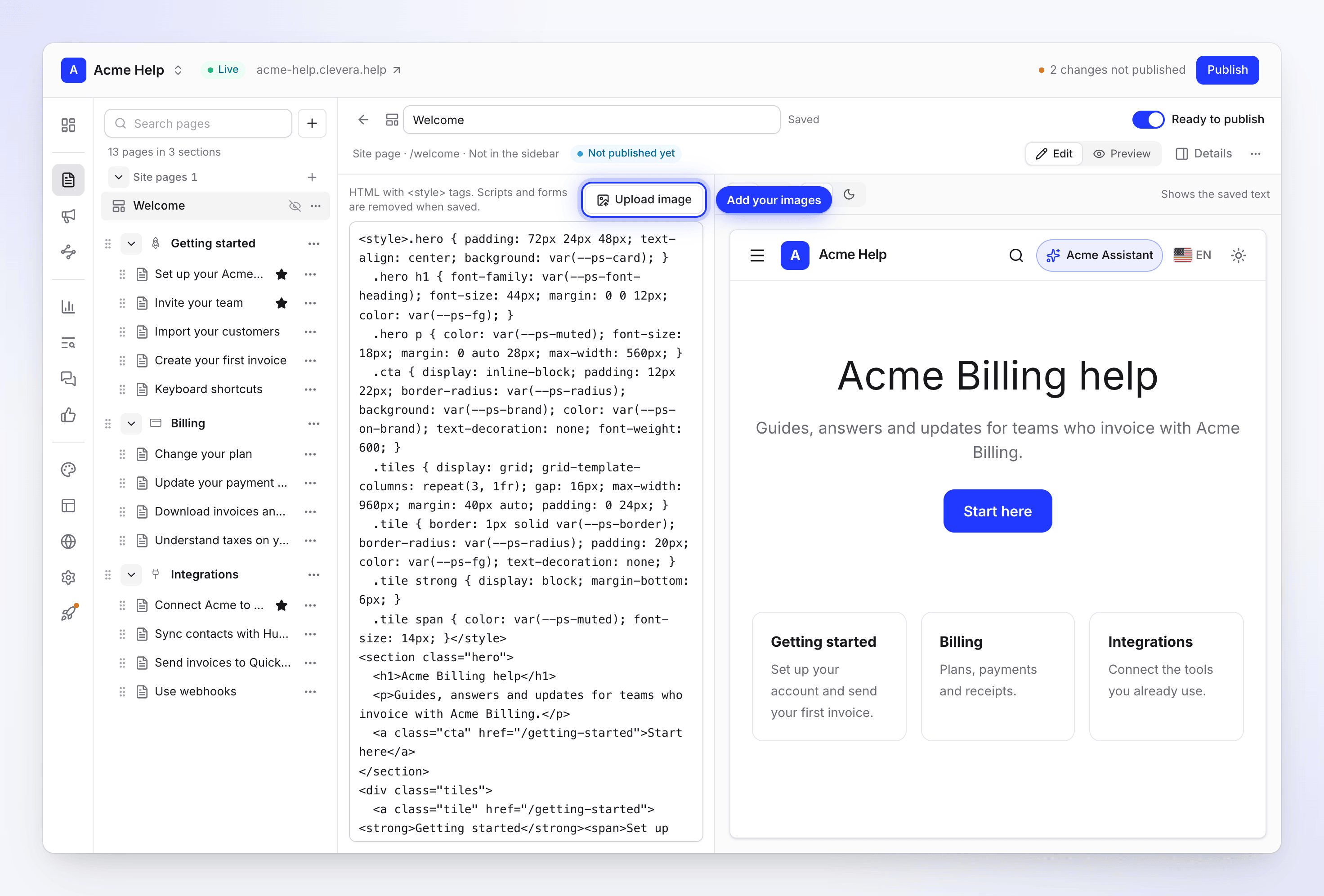
A new Custom HTML site page lets you design a page of your doc site in your own HTML and CSS, under your site header, with a live preview beside the code.
New
New
- Custom HTML site pages. When no template fits your design, pick Custom HTML in New site page and write the page yourself in HTML and CSS. Readers see your site header and your page below it, with nothing else around it. Use it for a landing page your designer made or a home page that looks exactly like your brand. See Build a page in your own HTML.
- A live preview beside the code. Your site, with its header, logo and theme, shows next to the code box and updates after each save, on desktop or phone width and in light or dark.
- Your images. Upload image adds a PNG, JPEG, GIF or WebP file to your HTML, and you can use it in your CSS too. It's copied to your site when you publish.
- Your theme in your CSS. Use your site's colors, fonts and corner radius as CSS variables (
var(--ps-brand),var(--ps-font)…), so the page follows dark mode and your Appearance settings. - Safe by design. Scripts, forms and
on…attributes are taken out on save, and the editor lists what was removed. Your CSS only styles your page, never the site header. Videos from YouTube, Vimeo, Loom, Wistia and Clevera share links can be embedded. See What you can use. - Use it as your home page. A Custom HTML page can replace the built-in home page at your site's address.