

Refresh your help articles with new screenshots
Two new Autopilot recipes bring the help articles you already have up to date: Refresh articles puts in new screenshots from your app today, and Edit many articles at once makes one text change across many articles.
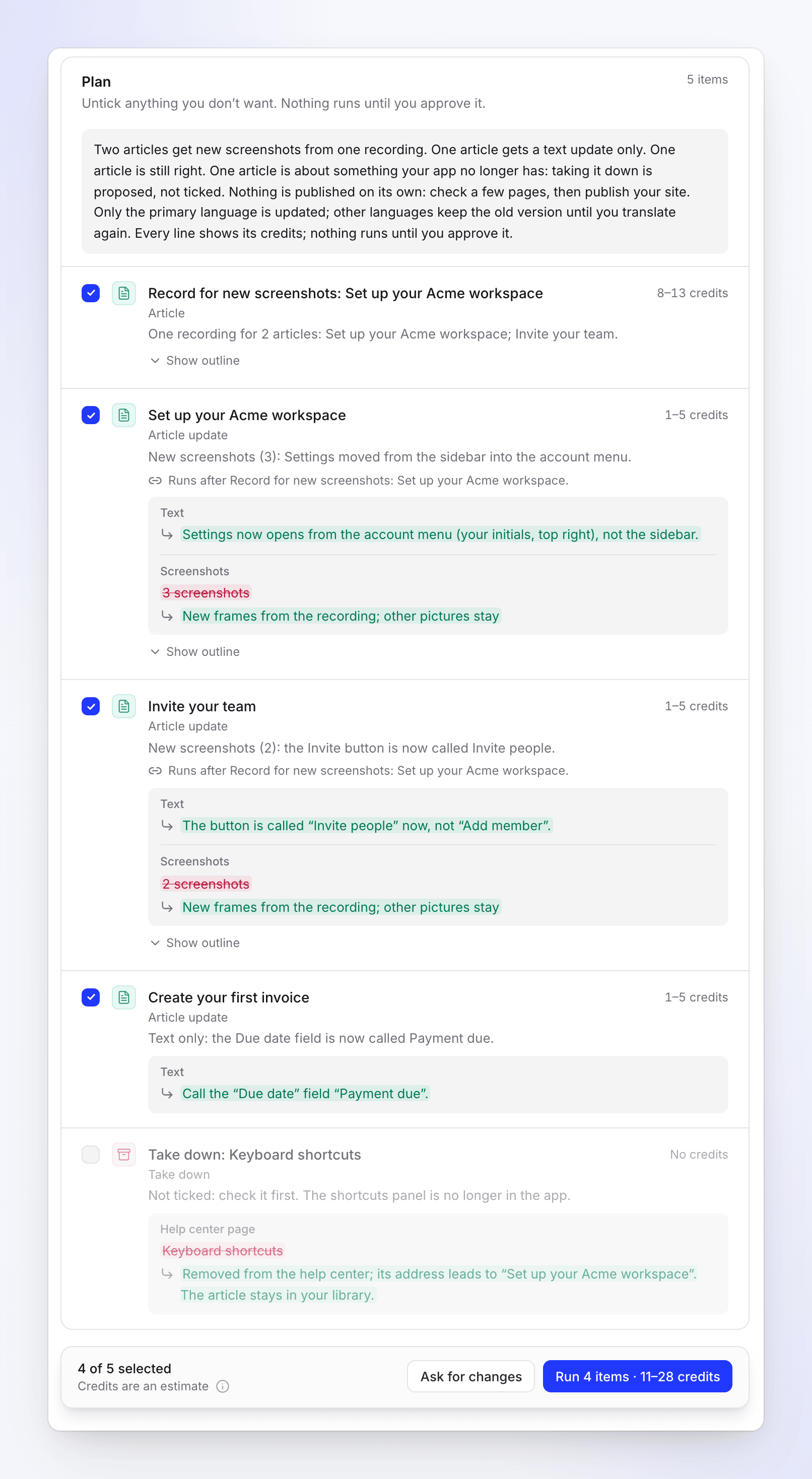
Imported a help center from another tool, or shipped a redesign? Two new Autopilot recipes bring the articles you already have up to date, in place: same titles, same addresses, same links. Each shows its plan, article by article, with its credits, and nothing changes until you click Run.
New
Refresh your articles with new screenshots
Clevera records your app again, swaps new screenshots into your articles and corrects the words that no longer match your app.
- Start from where you are. Tick articles in a help center's Pages or in Content and click Refresh with a task, pick the Refresh articles recipe, or ask the Clevera agent.
- See every change first. Each article gets its own line: New screenshots, Text only, or a proposed take-down for a feature your app no longer has (never ticked for you). Articles that teach the same steps share one recording.
- Keep what's yours. Plain and annotated screenshots of your app are replaced; diagrams, logos and photos stay. Auto-publish pauses while it runs, so you check a few pages and publish when you're happy. Undo puts any article back.
- Know the cost up front. The setup card shows "About X credits, at most Y" for the articles you picked, and planning is free. See Refresh your articles with new screenshots.
Change many articles at once
Write one change, such as a new product name, a term or a friendlier tone, and Clevera makes it in every article you pick.
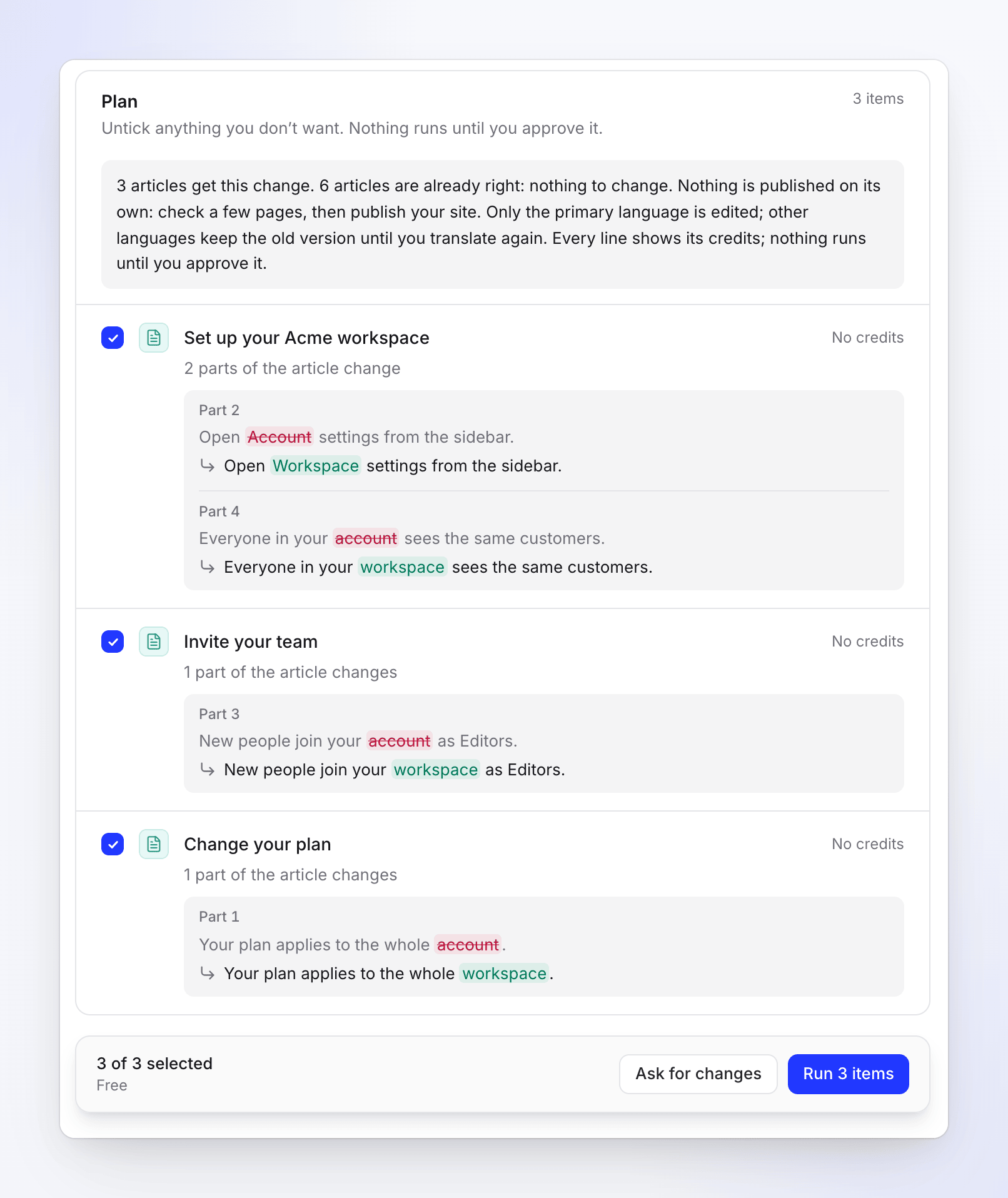
- Check each article's words before and after. Articles that are already right are skipped.
- Pick articles, sections or the whole help center, and leave alone the sections or titles you don't want touched.
- Usually free. The change is worked out while planning, which is free, and the run replays it. See Edit many articles at once.
Fixed
- Cookie and consent banners no longer show up in AI recordings or the screenshots taken from them.