

Ta strona nie została jeszcze przetłumaczona, więc jest wyświetlana w języku angielskim.
Narrate over your own video clips, plus a frame picker and a smarter cancel flow
Add a voiceover to a video you upload, pick the exact frame for a freeze-frame voiceover, and get a clearer cancel flow. Fast typing in scene editors no longer drops characters.
noweUlepszonoNaprawiono
New
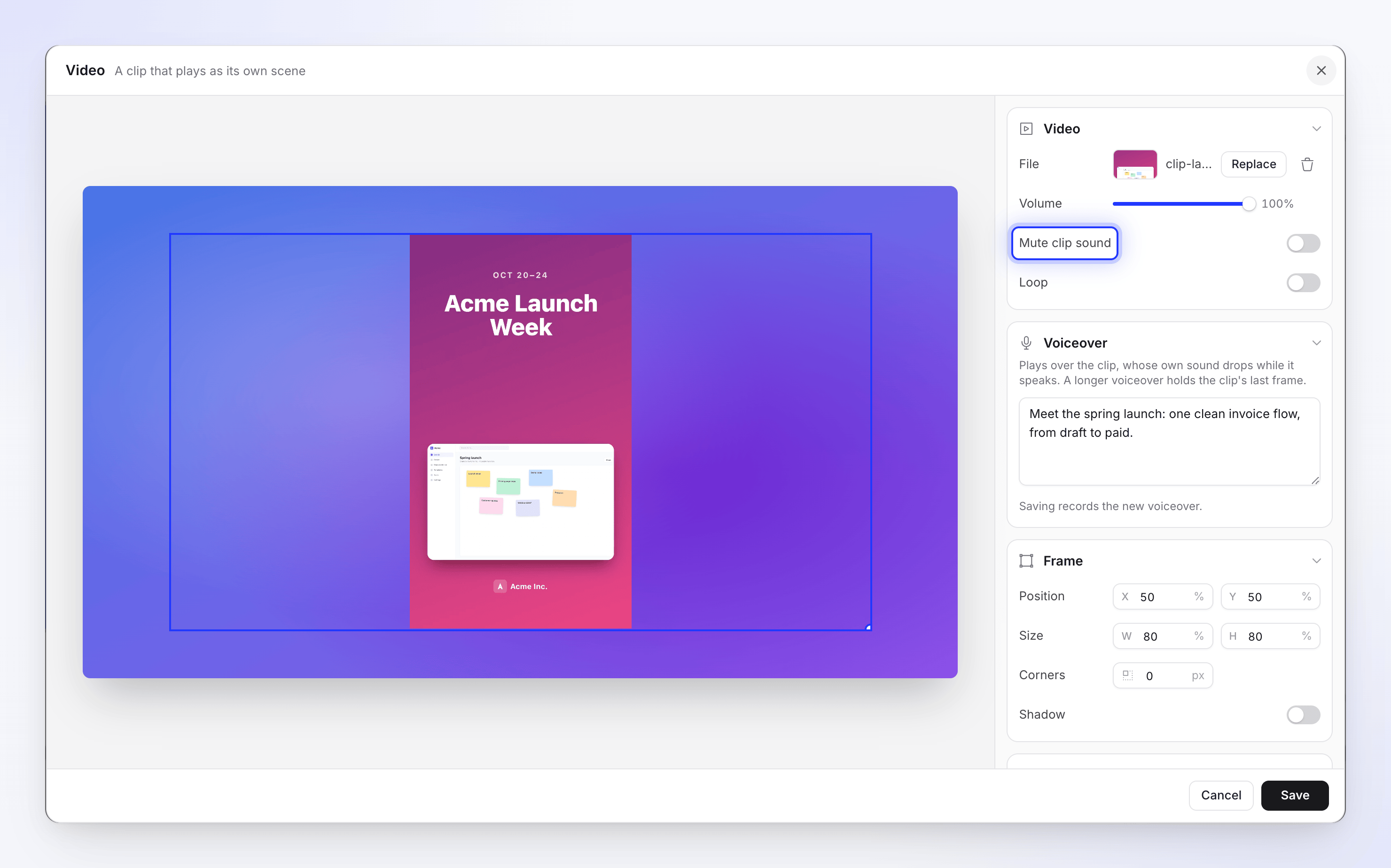
- Narrate over your own video clips. The Video step now has a Voiceover section: write a line, click Save, and Clevera records it in the video's voice before the dialog closes. If the voice runs longer than the clip, the clip holds its last frame, or keeps looping if Loop is on. The clip's own sound turns down while the voice speaks, and a new Mute clip sound switch silences it completely. It uses credits like any other voiceover. See Edit scenes and cards.
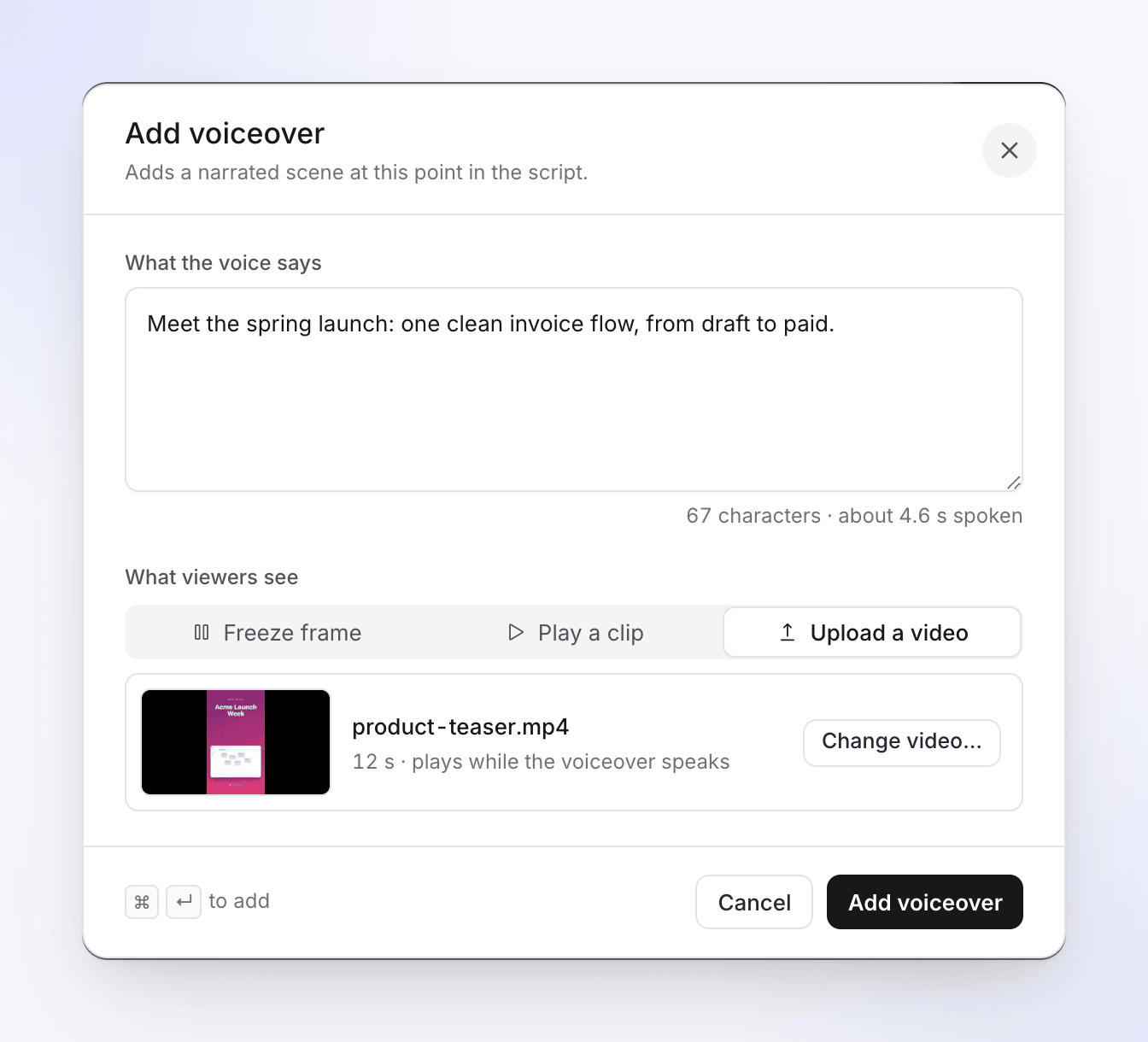
- Upload a video in Add voiceover. What viewers see has a third choice, Upload a video. Pick or upload an MP4 with Choose video…, click Add voiceover, and Clevera adds a Video step with your narration in one go. See Edit the script and voice-over.
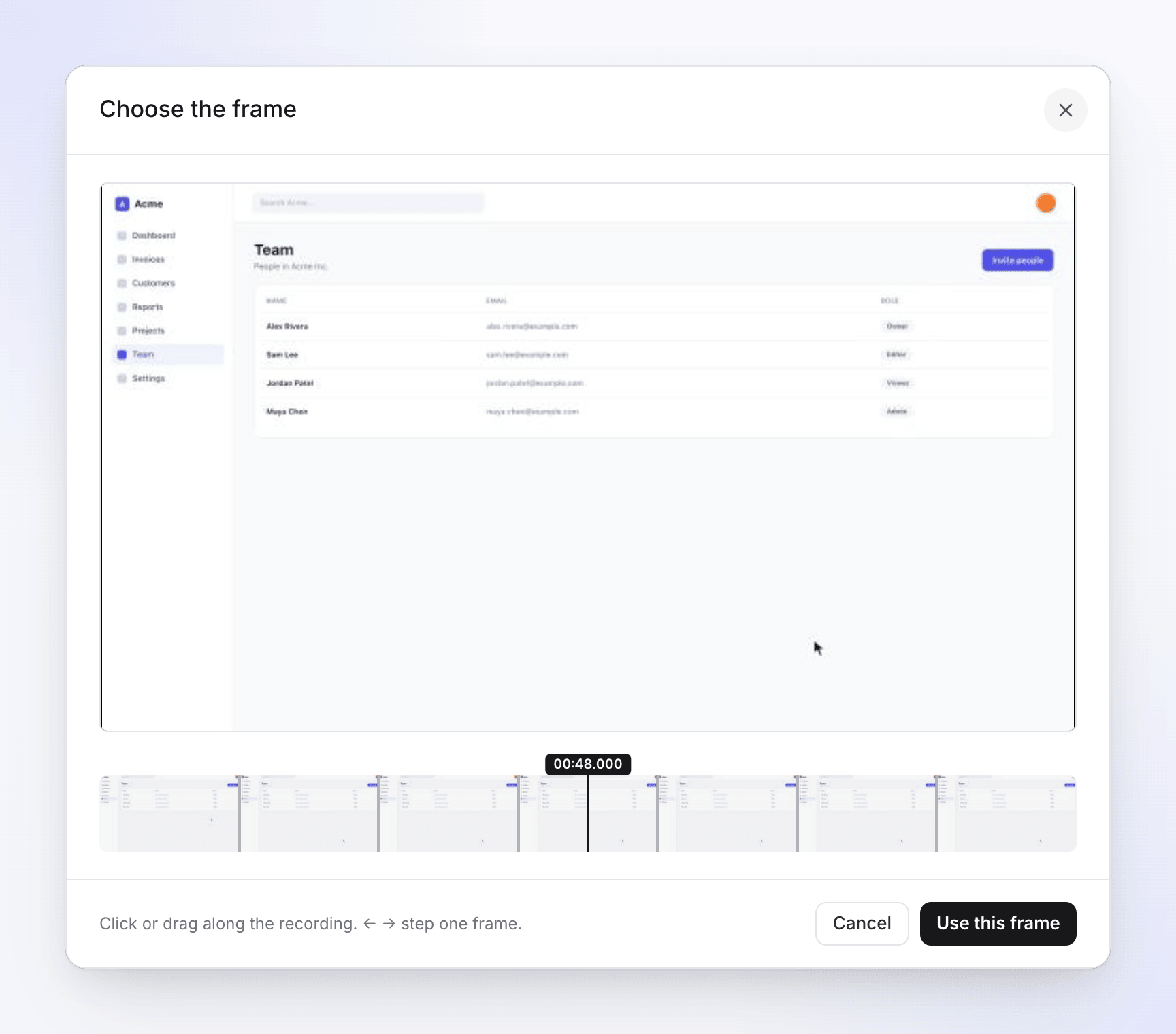
- Pick the exact freeze frame. A Freeze frame voiceover now has Change frame…: drag along the filmstrip, step with ← / → (one frame) or Shift with the arrows (one second), jump with Home / End, then click Use this frame. See Choose the freeze frame.
- A clearer cancel flow. Cancelling now starts by asking why, shows one offer that fits your answer (talk to support, switch to Starter at renewal, or pause a monthly plan), and ends with a confirmation of what stays and what ends. See Cancel, pause or restart your subscription.
Improved
- A paused plan keeps its Restart subscription button, its credits and its invoices on the Billing page.
- In the Share window, the note about whether a render is up to date now sits under the render's details instead of beside its buttons.
Fixed
- Typing quickly in a scene editor, such as a title card or a list, no longer drops characters.
- A voiceover on a Video step is saved only if it was recorded: if recording fails, you see an error and nothing is changed.
Overlay videos placed from the Elements tab still can't carry a voiceover. To narrate over a clip, use a Video step or Upload a video.